> ## Documentation Index
> Fetch the complete documentation index at: https://help.scribe-mail.com/llms.txt
> Use this file to discover all available pages before exploring further.

# Handtekening kan niet worden geïnstalleerd

> Los problemen met de installatie van Apple Mail-handtekeningen in Scribe op, inclusief de iCloud Drive-instellingen voor Mail en het handmatig vernieuwen van handtekeningen.

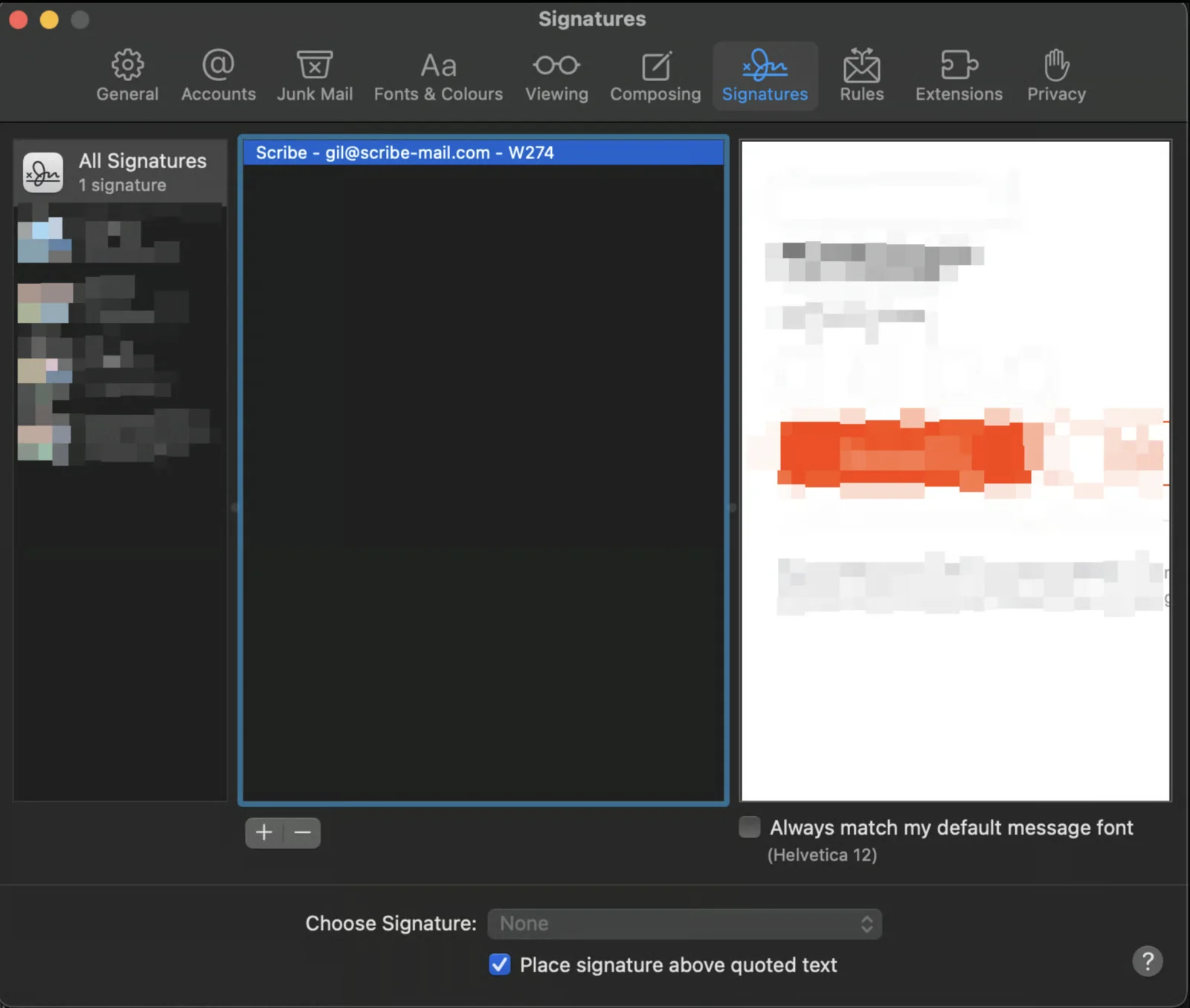
## Als je de Scribe-handtekening in de lijst ziet

De Scribe-handtekening begint met "Scribe" gevolgd door je e-mailadres. Als je de handtekening in de lijst ziet, [volg dan dit artikel](/nl/integrations/signatures/apple-mail) om de installatie te voltooien.
<Frame>
  <img src="https://mintcdn.com/scribe/KUDX8_mR6_d8dnD-/images/unable-install-apple-mail-scribe-signature-in-list.png?fit=max&auto=format&n=KUDX8_mR6_d8dnD-&q=85&s=531016e2c0110feee7de67cac2836f5d" alt="Apple Mail-handtekeningenlijst met Scribe-handtekening" title="Apple Mail-handtekeningenlijst met Scribe-handtekening" width="1600" height="1355" data-path="images/unable-install-apple-mail-scribe-signature-in-list.png" />
</Frame>

## Als je de Scribe-handtekening niet in de lijst ziet

Volg deze stappen om te controleren of je iCloud Drive voor Mail gebruikt.

<Steps>
  <Step title="iCloud-instellingen openen">
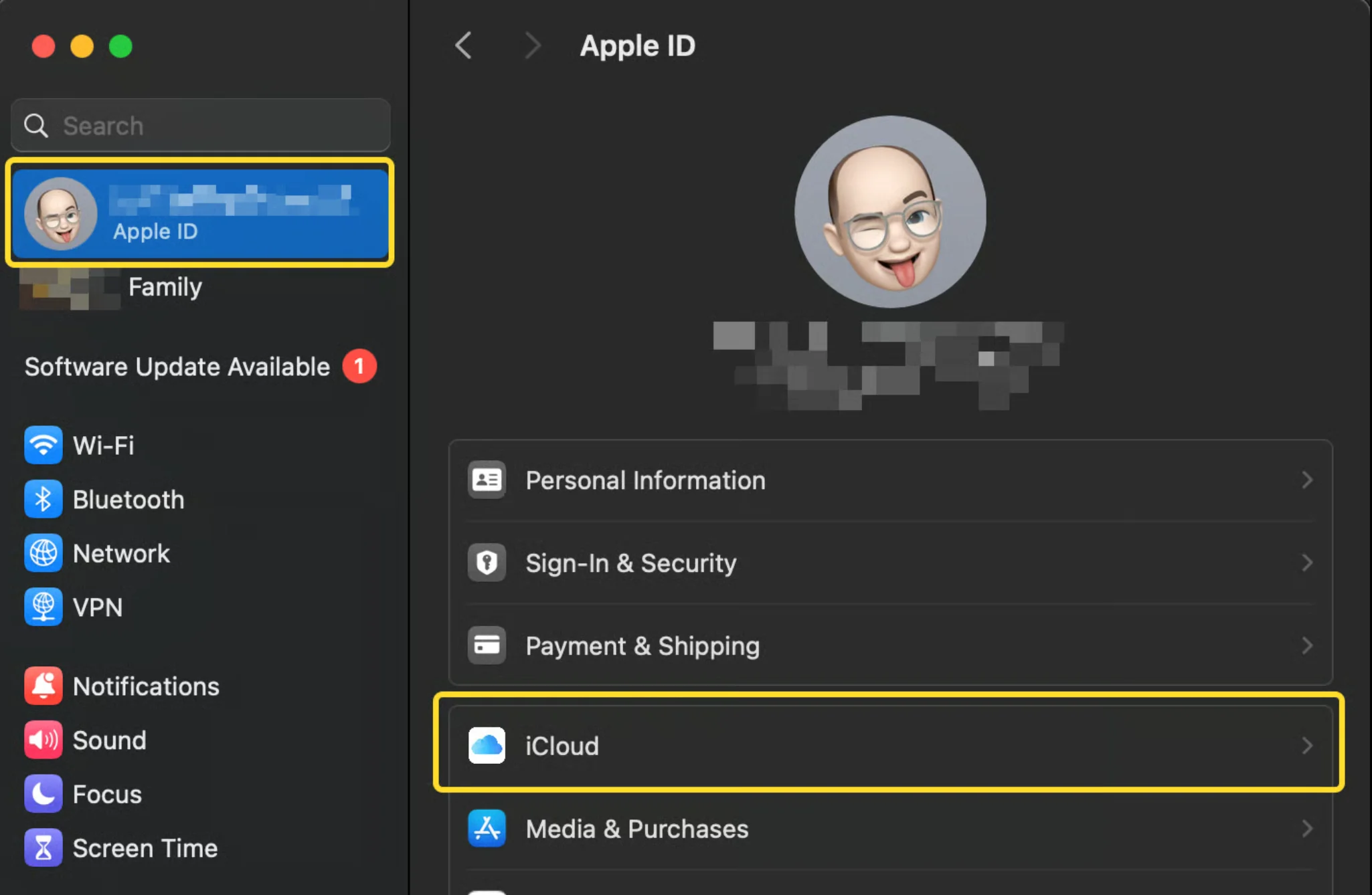
    Open je systeeminstellingen, open het tabblad Apple ID en klik op iCloud.
    <Frame>
      <img src="https://mintcdn.com/scribe/xbQhr3JjkYildsKM/images/unable-install-icloud-settings-apple-id-tab.png?fit=max&auto=format&n=xbQhr3JjkYildsKM&q=85&s=ce147a3b951f5111c52cea407a4d7100" alt="macOS-systeeminstellingen met Apple ID en het tabblad iCloud geopend" width="2050" height="1338" data-path="images/unable-install-icloud-settings-apple-id-tab.png" />
    </Frame>
  </Step>

  <Step title="iCloud Drive openen">
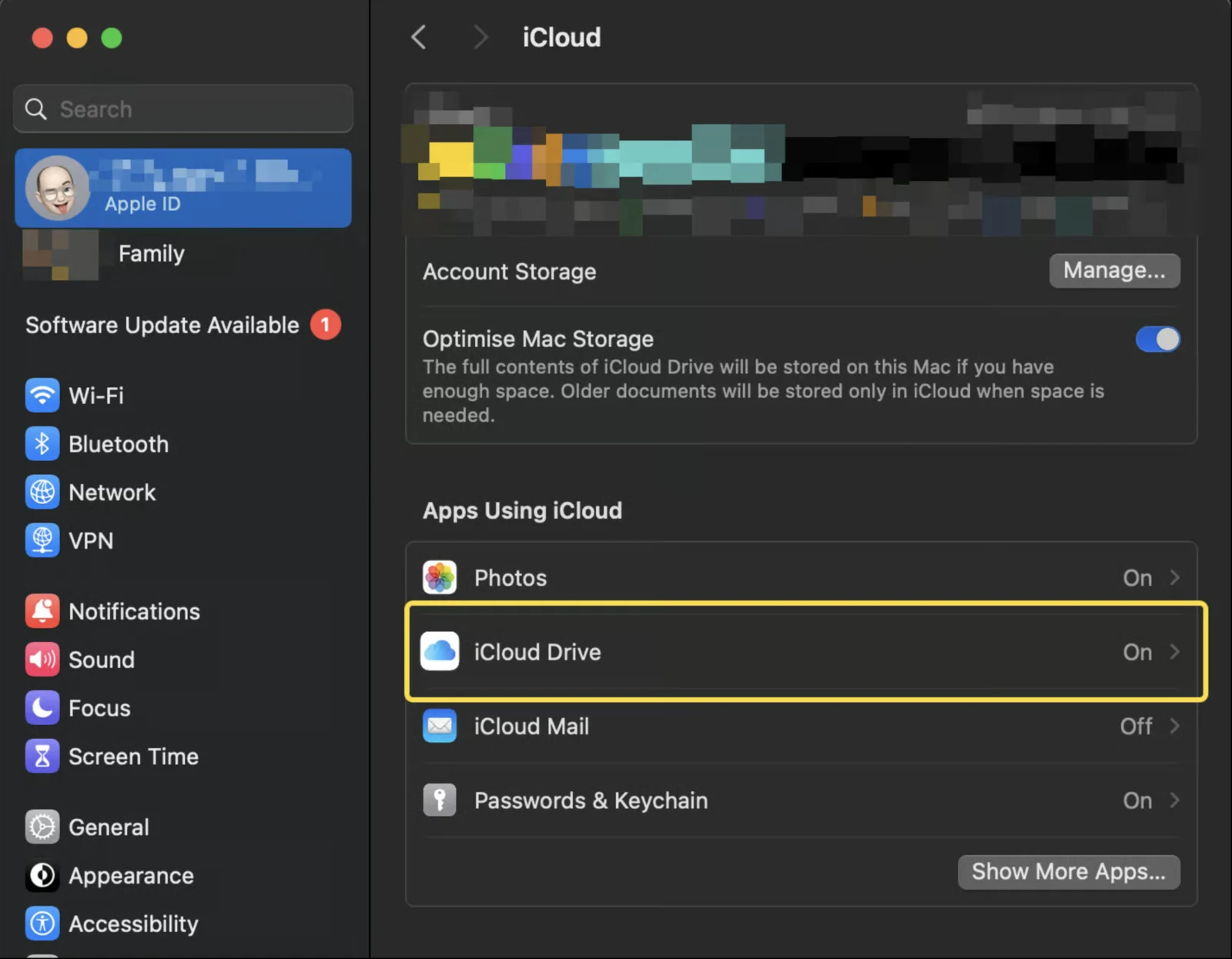
    Klik in het gedeelte iCloud op iCloud Drive.
    <Frame>
      <img src="https://mintcdn.com/scribe/KUDX8_mR6_d8dnD-/images/unable-install-icloud-drive-option.png?fit=max&auto=format&n=KUDX8_mR6_d8dnD-&q=85&s=5d416d9edbdc6480e8f84470b371a480" alt="iCloud-instellingenpaneel met de optie iCloud Drive gemarkeerd" width="1600" height="1246" data-path="images/unable-install-icloud-drive-option.png" />
    </Frame>
  </Step>

  <Step title="Apps openen die met iCloud Drive synchroniseren">
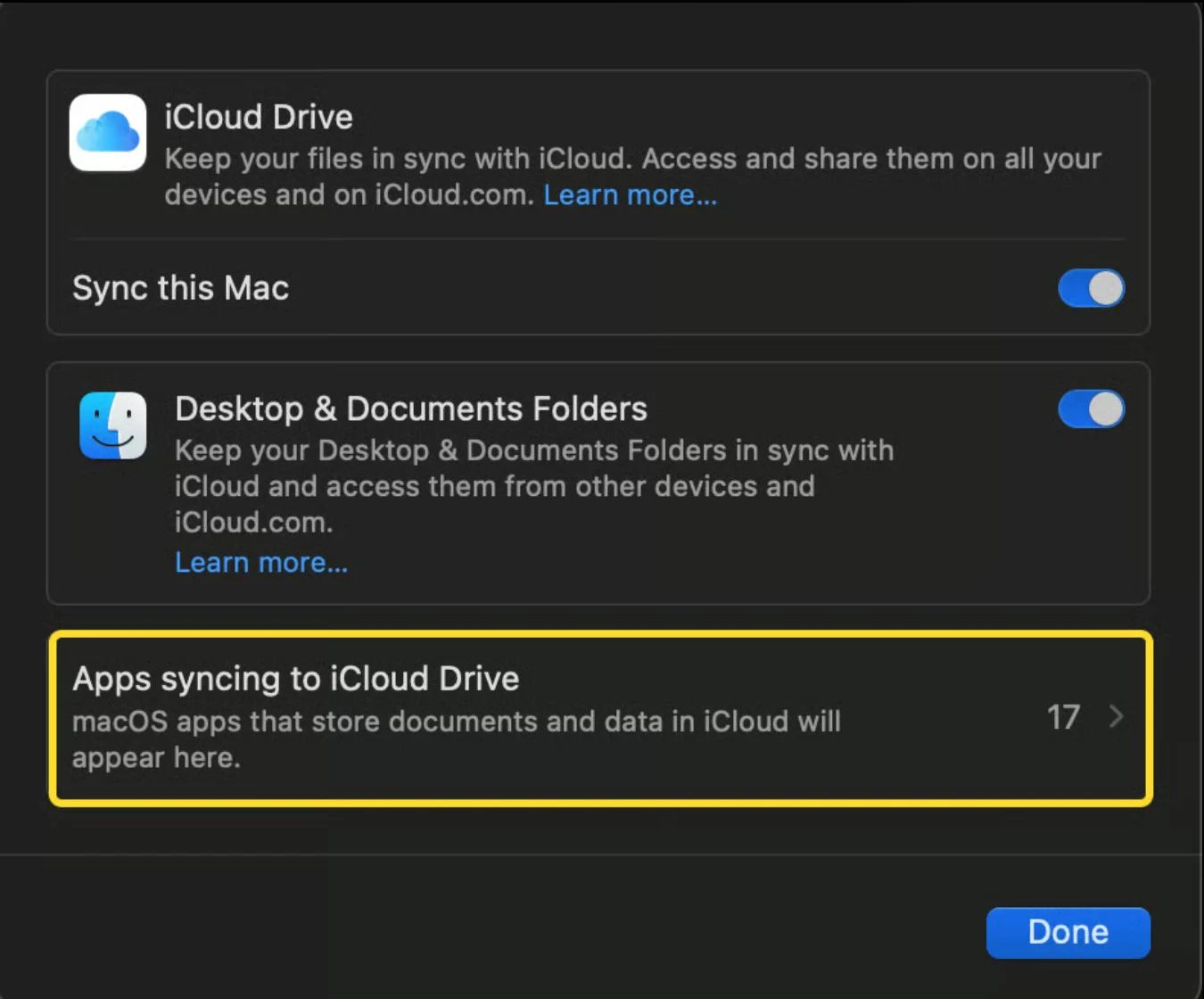
    Klik in het volgende venster op "Apps syncing to iCloud Drive."
    <Frame>
      <img src="https://mintcdn.com/scribe/xbQhr3JjkYildsKM/images/unable-install-apps-syncing-icloud-drive.png?fit=max&auto=format&n=xbQhr3JjkYildsKM&q=85&s=1d294fd53101792bb5c590871bb11026" alt="iCloud Drive-venster met de link Apps syncing to iCloud Drive" width="1350" height="1120" data-path="images/unable-install-apps-syncing-icloud-drive.png" />
    </Frame>
  </Step>

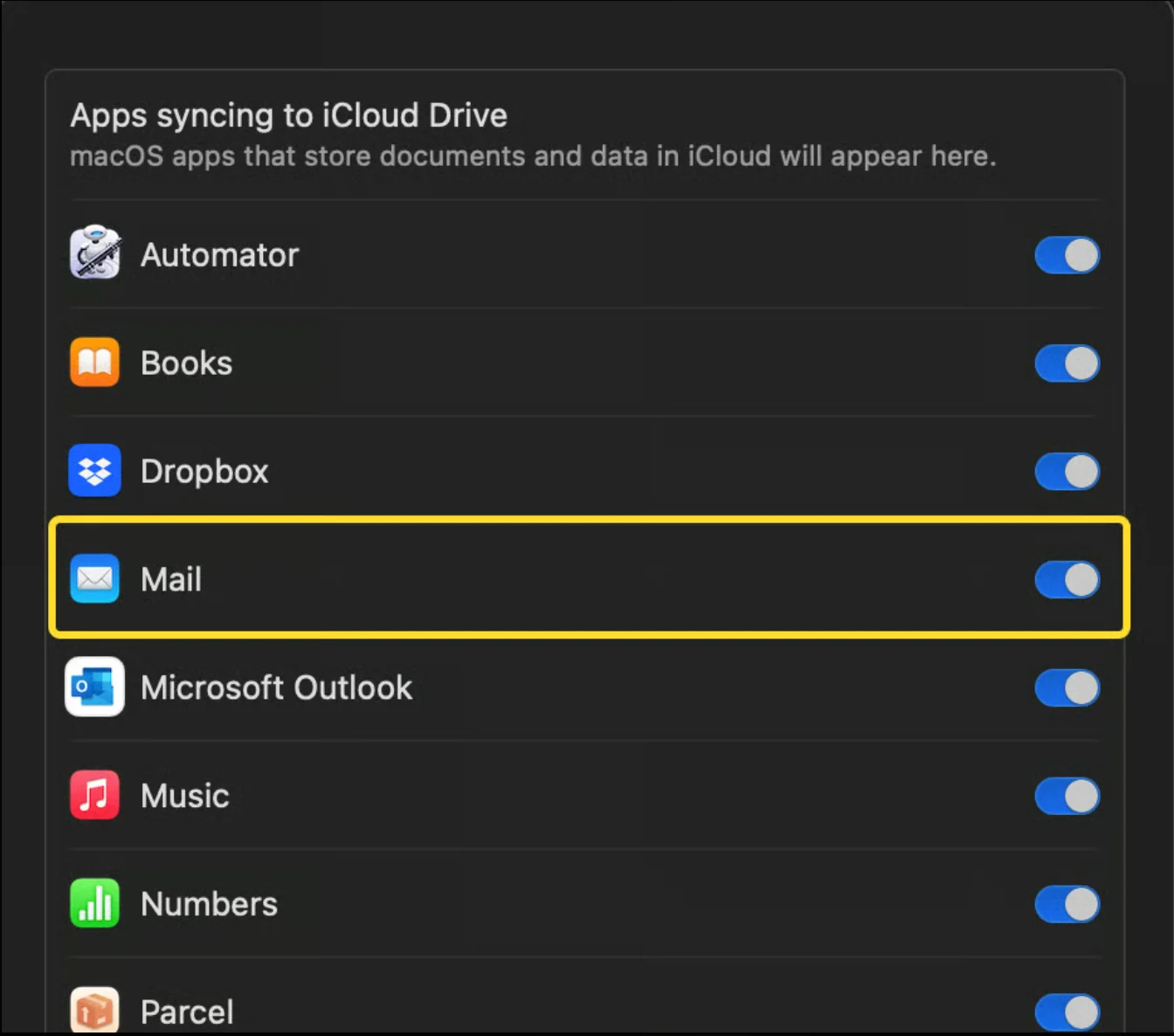
  <Step title="De optie Mail controleren">
    Controleer in het volgende venster of de optie Mail actief is.
    <Frame>
      <img src="https://mintcdn.com/scribe/xbQhr3JjkYildsKM/images/unable-install-icloud-drive-mail-toggle.png?fit=max&auto=format&n=xbQhr3JjkYildsKM&q=85&s=dafea63cf47028df82a6acde34bcd043" alt="iCloud Drive-applijst met de Mail-schakelaar in actieve of inactieve stand" width="1344" height="1186" data-path="images/unable-install-icloud-drive-mail-toggle.png" />
    </Frame>

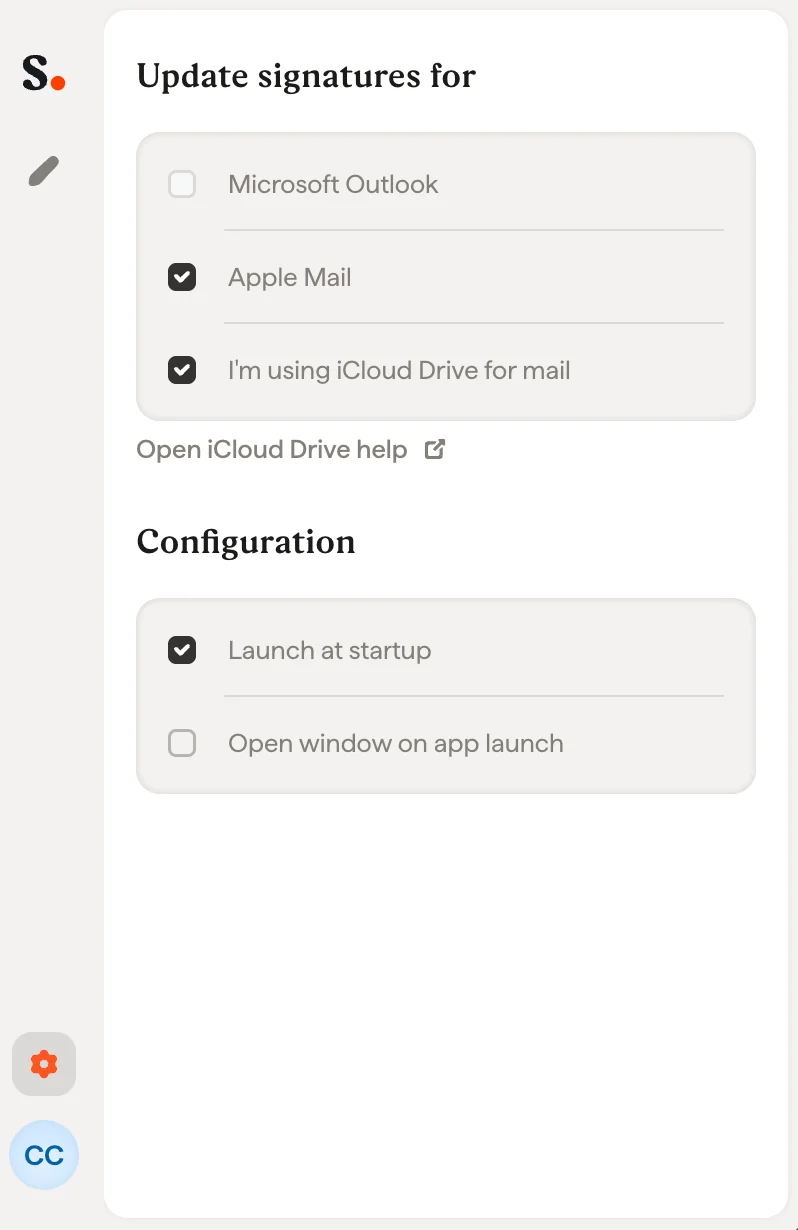
    Als de optie Mail actief is, kun je de optie "I am using iCloud Drive for Mail" in de Scribe-app inschakelen. Schakel anders dezelfde optie uit in de Scribe-app.
    <Frame>
      <img src="https://mintcdn.com/scribe/xbQhr3JjkYildsKM/images/unable-install-scribe-app-icloud-drive-setting.png?fit=max&auto=format&n=xbQhr3JjkYildsKM&q=85&s=363b5c84081c461c5707ff9a0d9cbfb7" alt="Scribe-appinstelling om de optie iCloud Drive voor Mail in te schakelen" title="Scribe-appinstelling om de optie iCloud Drive voor Mail in te schakelen" className="mx-auto" style={{ width:"54%" }} width="798" height="1230" data-path="images/unable-install-scribe-app-icloud-drive-setting.png" />
    </Frame>
  </Step>
</Steps>
