> ## Documentation Index
> Fetch the complete documentation index at: https://help.scribe-mail.com/llms.txt
> Use this file to discover all available pages before exploring further.
# BambooHR
> Hold e-postsignaturer nøyaktige og automatisk oppdaterte ved å synkronisere ansattdetaljer fra BambooHR, HR-systemet ditt, som navn, stillingstittel og egendefinerte felt.
Følg disse trinnene for å [autofylle kollegenes signaturer](/no/smart-fields) ved å bruke BambooHR som datakilde.
**Ingen handling kreves fra kollegene dine.**
**Endringer i BambooHR synkroniseres automatisk til Scribe.**
**SOC 2 Type II-sertifisert.** [Dataene dine er trygge](/no/security/data-collection/bamboohr).
## Installasjonsveiledning
### Forutsetninger
* En Scribe-konto med administratortilgang
* En BambooHR-konto med tilgang til API-nøkkel
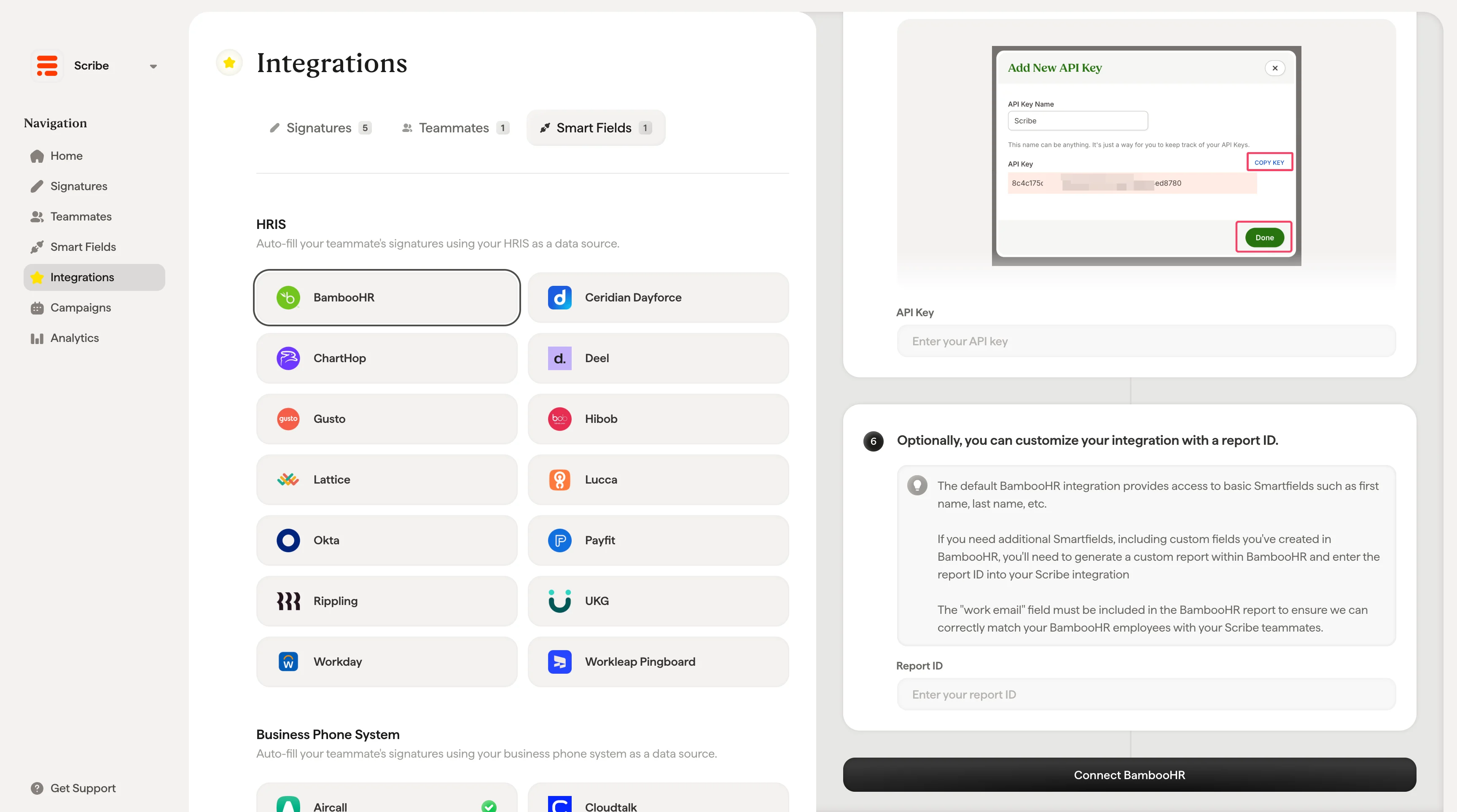
Underdomenet ditt er delen før `.bamboohr.com` i BambooHR-URL-en. Skriv det inn i **Subdomain**-feltet i Scribe.

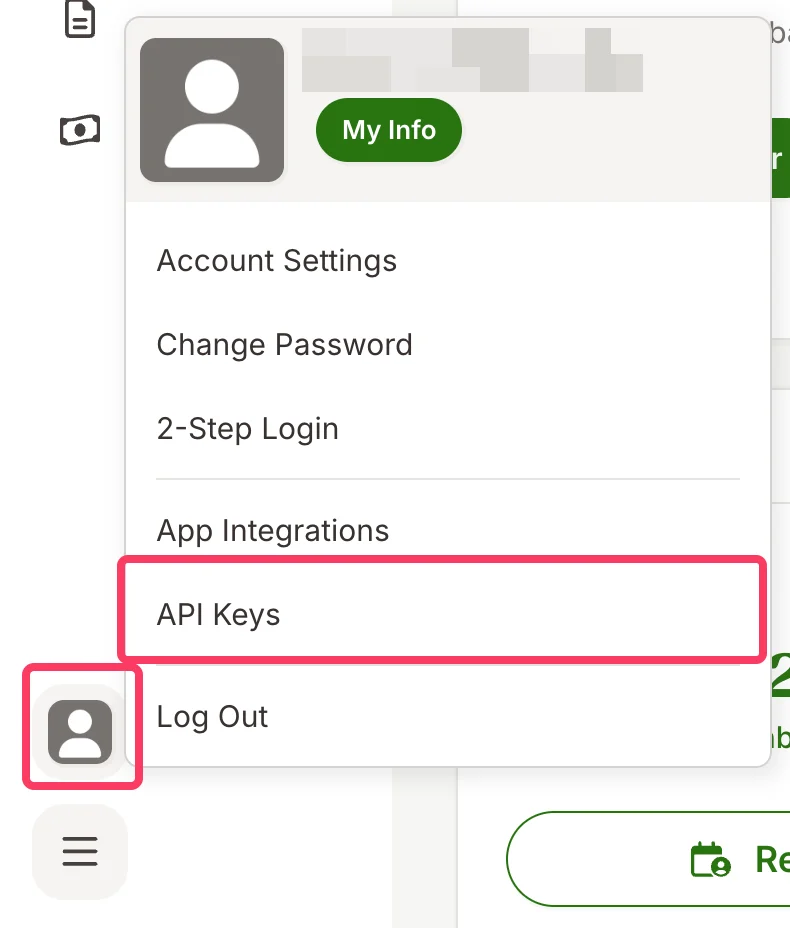
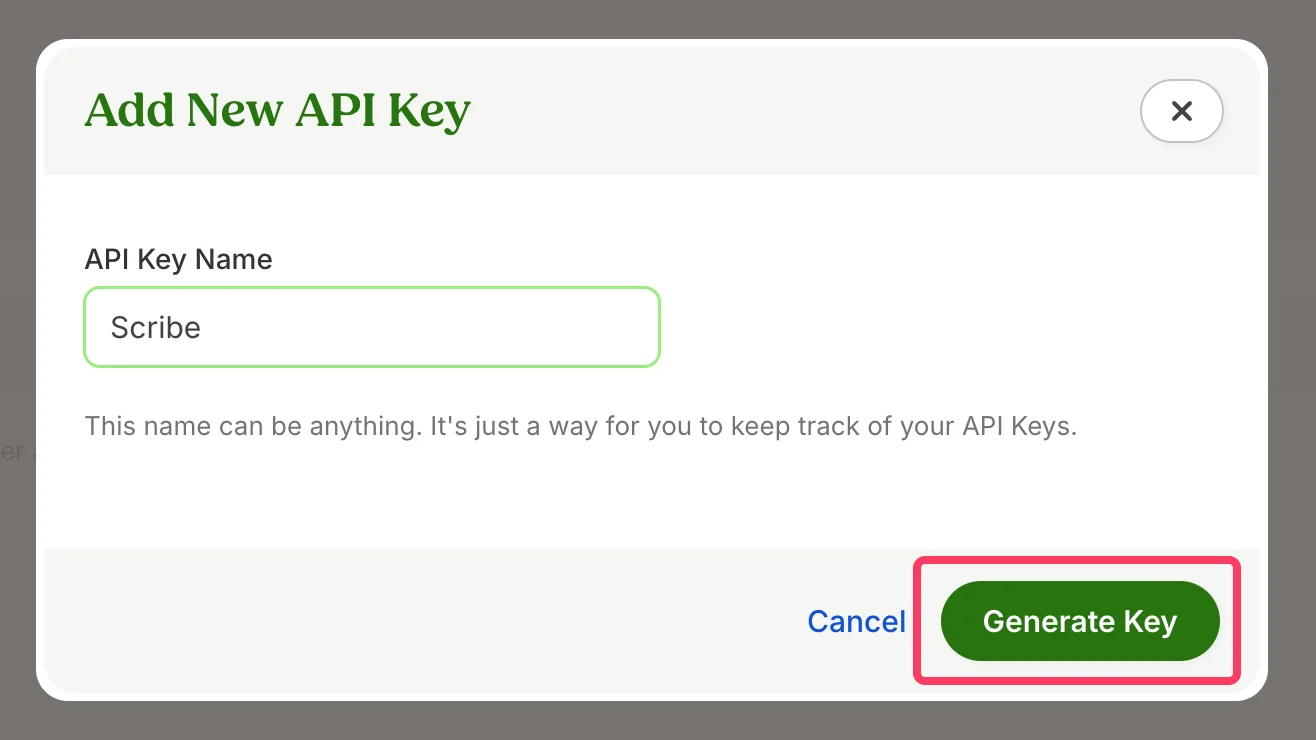
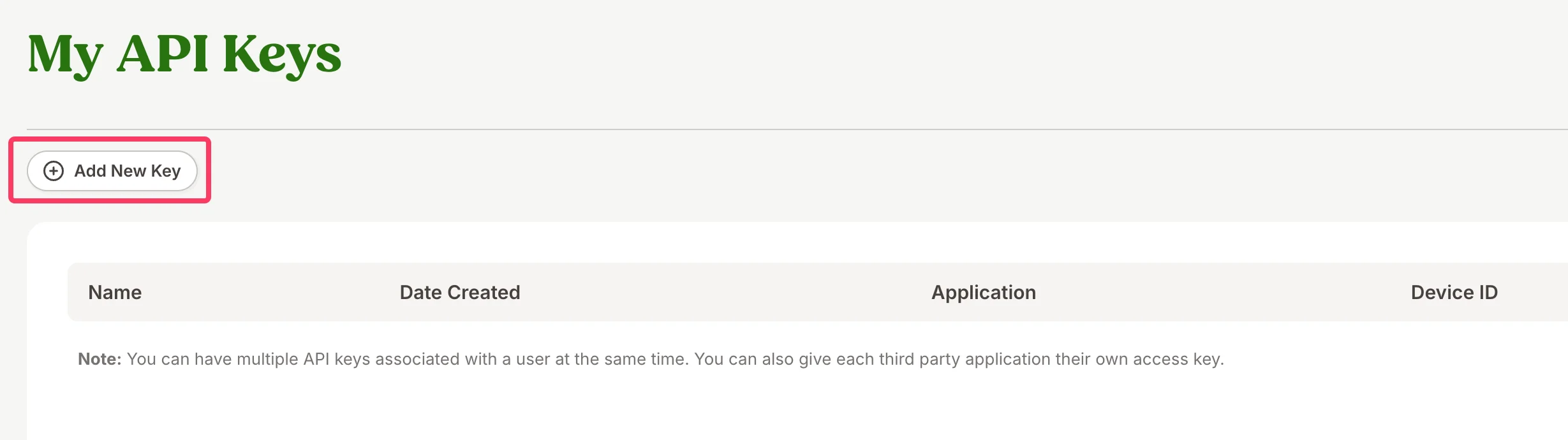 Du kan kalle nøkkelen hva du vil (f.eks. "Scribe"). Det er bare en måte for deg å holde oversikt over API-nøklene dine på.
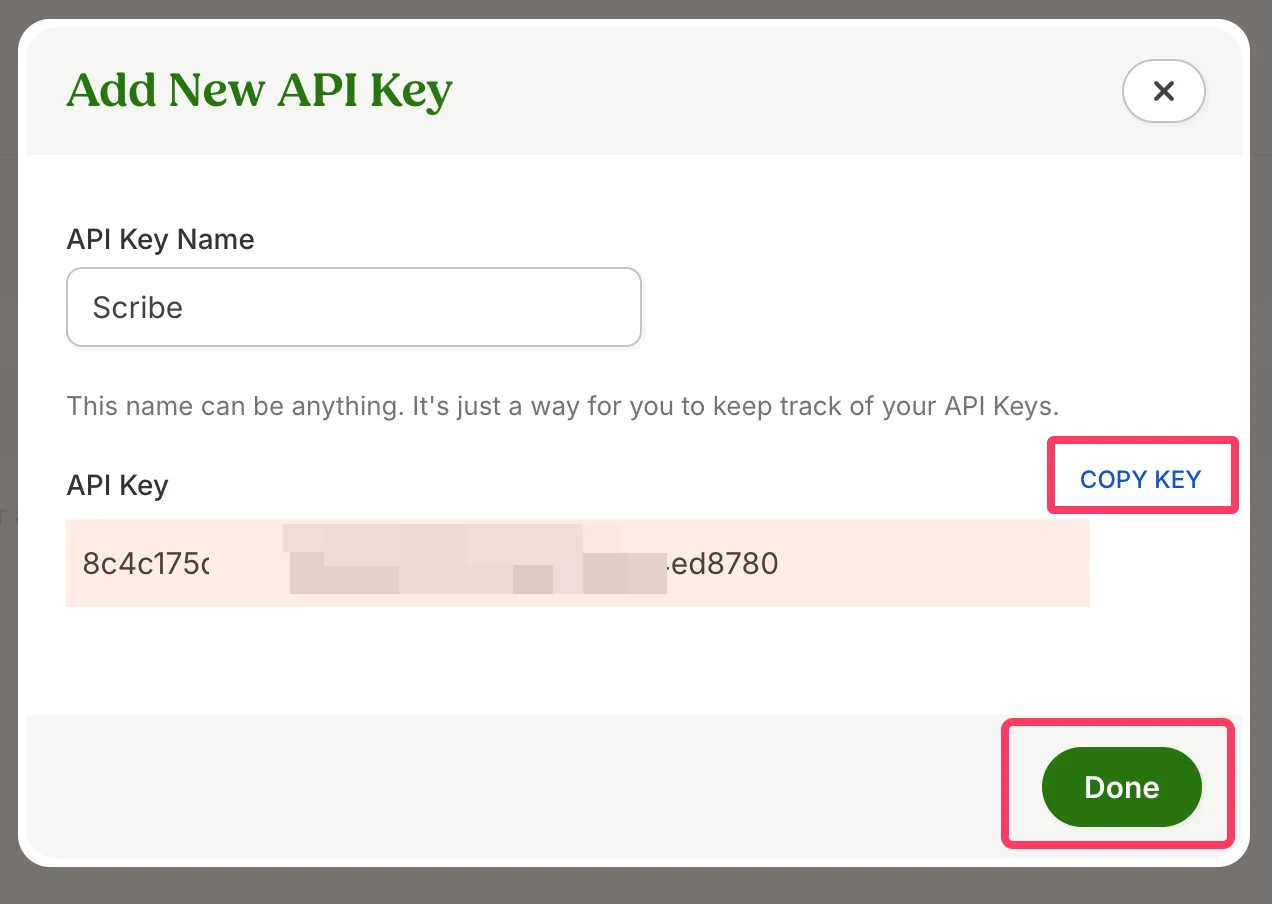 Standardintegrasjonen med BambooHR gir tilgang til grunnleggende Smartfields som fornavn, etternavn osv.
Hvis du trenger flere Smartfields, inkludert egendefinerte felter du har opprettet i BambooHR, må du generere en egendefinert rapport i BambooHR og legge inn rapport-ID-en i Scribe-integrasjonen din.
Feltet "work email" må inkluderes i BambooHR-rapporten for at vi skal kunne matche BambooHR-ansatte korrekt med Scribe-teammedlemmene dine.
Skriv inn rapport-ID-en din, og klikk deretter på **Connect BambooHR**.
Standardintegrasjonen med BambooHR gir tilgang til grunnleggende Smartfields som fornavn, etternavn osv.
Hvis du trenger flere Smartfields, inkludert egendefinerte felter du har opprettet i BambooHR, må du generere en egendefinert rapport i BambooHR og legge inn rapport-ID-en i Scribe-integrasjonen din.
Feltet "work email" må inkluderes i BambooHR-rapporten for at vi skal kunne matche BambooHR-ansatte korrekt med Scribe-teammedlemmene dine.
Skriv inn rapport-ID-en din, og klikk deretter på **Connect BambooHR**.
 ## Relaterte artikler
* [Ceridian Dayforce](/no/integrations/smart-fields/ceridian-dayforce-smart-fields): synkroniser Ceridian Dayforce-data inn i signaturene dine.
* [ChartHop](/no/integrations/smart-fields/charthop-smart-fields): synkroniser ChartHop-data inn i signaturene dine.
* [Tilordne kolleger til en signatur](/no/assign-teammates-to-a-signature): bruk Smartfield-betingelser for å tilordne signaturer automatisk.
## Relaterte artikler
* [Ceridian Dayforce](/no/integrations/smart-fields/ceridian-dayforce-smart-fields): synkroniser Ceridian Dayforce-data inn i signaturene dine.
* [ChartHop](/no/integrations/smart-fields/charthop-smart-fields): synkroniser ChartHop-data inn i signaturene dine.
* [Tilordne kolleger til en signatur](/no/assign-teammates-to-a-signature): bruk Smartfield-betingelser for å tilordne signaturer automatisk.