> ## Documentation Index
> Fetch the complete documentation index at: https://help.scribe-mail.com/llms.txt
> Use this file to discover all available pages before exploring further.

# ChartHop

> Hold e-postsignaturer nøyaktige og oppdaterte ved å synkronisere ansattdetaljer fra ChartHop, din HR- og organisasjonskartplattform, som stillingstittel og avdeling.

Følg disse trinnene for å [autofylle kollegaenes signaturer](/no/smart-fields) ved å bruke ChartHop som datakilde.

<Info>
  **Ingen handling kreves fra kollegene dine.**
</Info>

<Info>
  **Endringer i ChartHop synkroniseres automatisk til Scribe.**
</Info>

<Info>
  **SOC 2 Type II-sertifisert.** [Dataene dine er trygge](/no/security/data-collection/charthop).
</Info>

## Installasjonsveiledning

### Forutsetninger

* En Scribe-konto med administratortilgang
* En ChartHop-konto med tilgang til Apps & Bundles
<Steps>
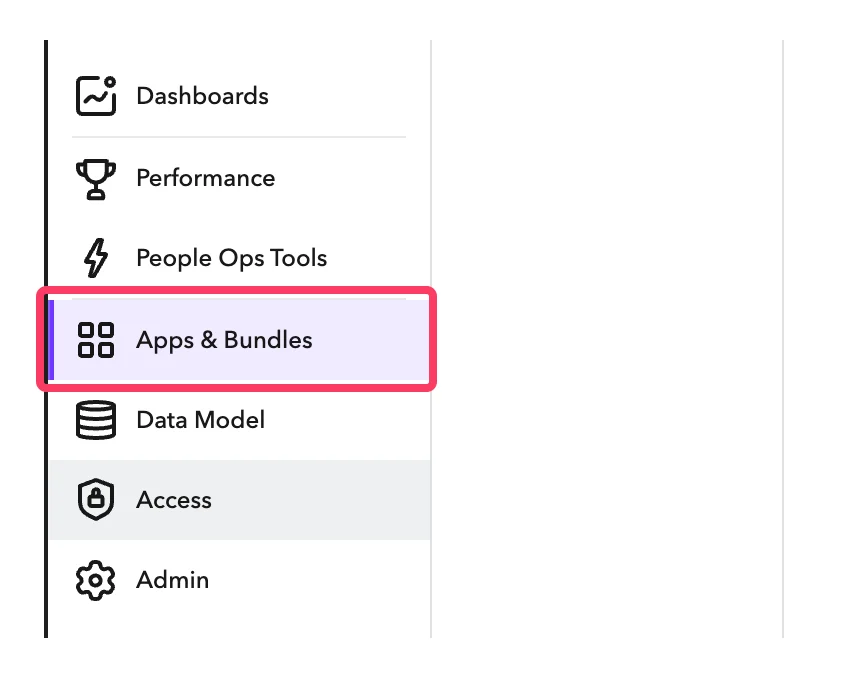
  <Step title="In your ChartHop account, go to Apps & Bundles">
    <Frame>
      <img src="https://mintcdn.com/scribe/I5V9iTucPI_EY3nq/integrations/smart-fields/images/charthop-step-1.png?fit=max&auto=format&n=I5V9iTucPI_EY3nq&q=85&s=a5ce5fb34e956605f619e21d5d68b5b8" alt="ChartHop-sidefelt med Apps & Bundles valgt" className="mx-auto" style={{ width:"62%" }} width="848" height="678" data-path="integrations/smart-fields/images/charthop-step-1.png" />
    </Frame>
  </Step>

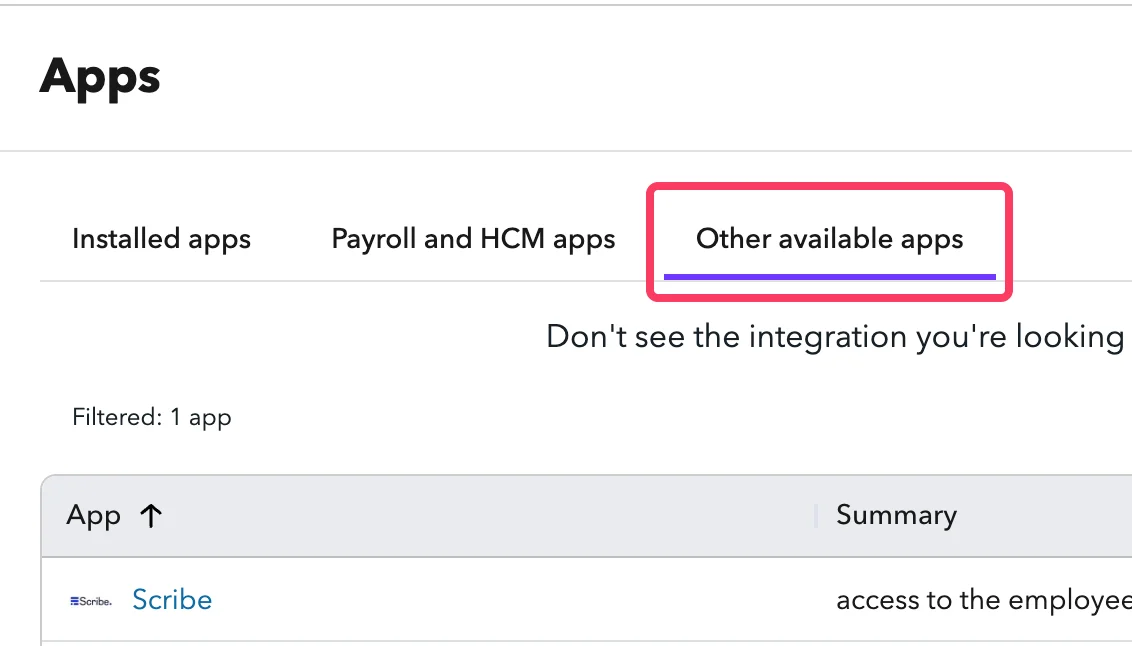
  <Step title="Click on 'Other available apps'">
    <Frame>
      <img src="https://mintcdn.com/scribe/I5V9iTucPI_EY3nq/integrations/smart-fields/images/charthop-step-2.png?fit=max&auto=format&n=I5V9iTucPI_EY3nq&q=85&s=355b0b39c29f6934ebf12900b6dfeb95" alt="Apps-side med fanen Other available apps" className="mx-auto" style={{ width:"72%" }} width="1132" height="646" data-path="integrations/smart-fields/images/charthop-step-2.png" />
    </Frame>
  </Step>

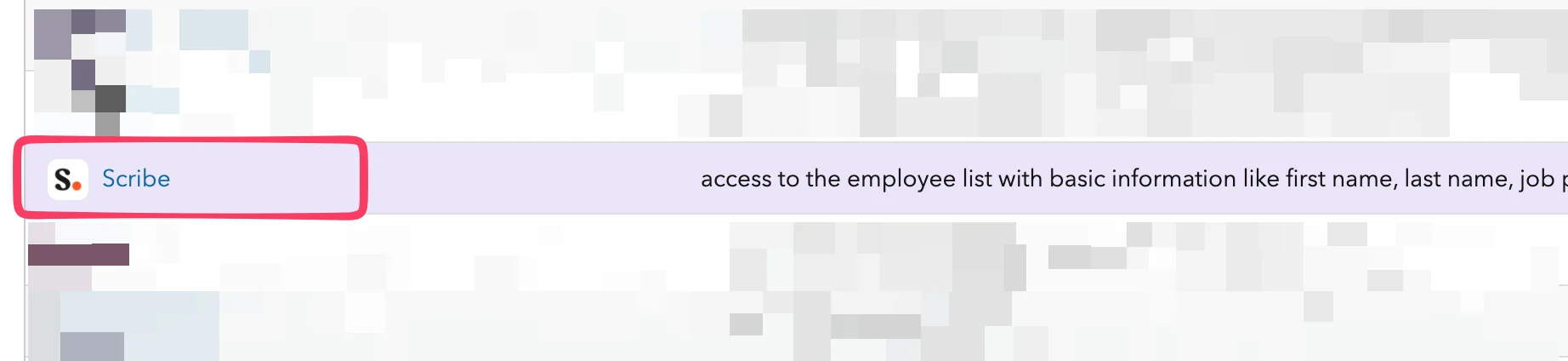
  <Step title="In the list, find 'Scribe' and click on it">
    <Frame>
      <img src="https://mintcdn.com/scribe/I5V9iTucPI_EY3nq/integrations/smart-fields/images/charthop-step-3.png?fit=max&auto=format&n=I5V9iTucPI_EY3nq&q=85&s=9fdba62ee41b55db630a61be0c335fe1" alt="Scribe-appen i listen over tilgjengelige apper" className="mx-auto" style={{ width:"78%" }} width="1844" height="424" data-path="integrations/smart-fields/images/charthop-step-3.png" />
    </Frame>
  </Step>

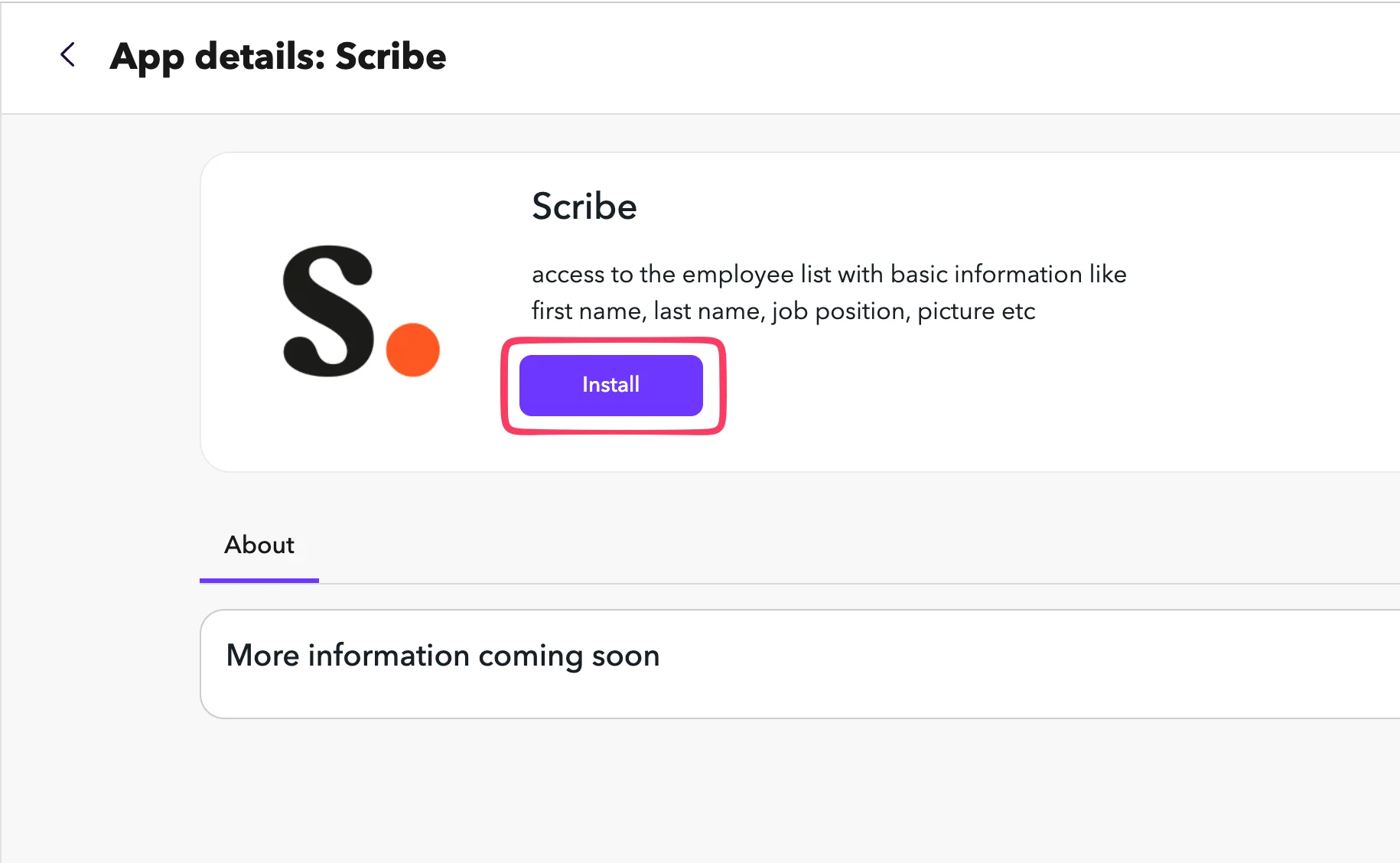
  <Step title="Click Install">
    <Frame>
      <img src="https://mintcdn.com/scribe/I5V9iTucPI_EY3nq/integrations/smart-fields/images/charthop-step-4.png?fit=max&auto=format&n=I5V9iTucPI_EY3nq&q=85&s=5086bedfb627927490e03cf1feebfa7a" alt="Detaljside for Scribe-appen med Install-knapp" className="mx-auto" style={{ width:"68%" }} width="1830" height="1128" data-path="integrations/smart-fields/images/charthop-step-4.png" />
    </Frame>
  </Step>

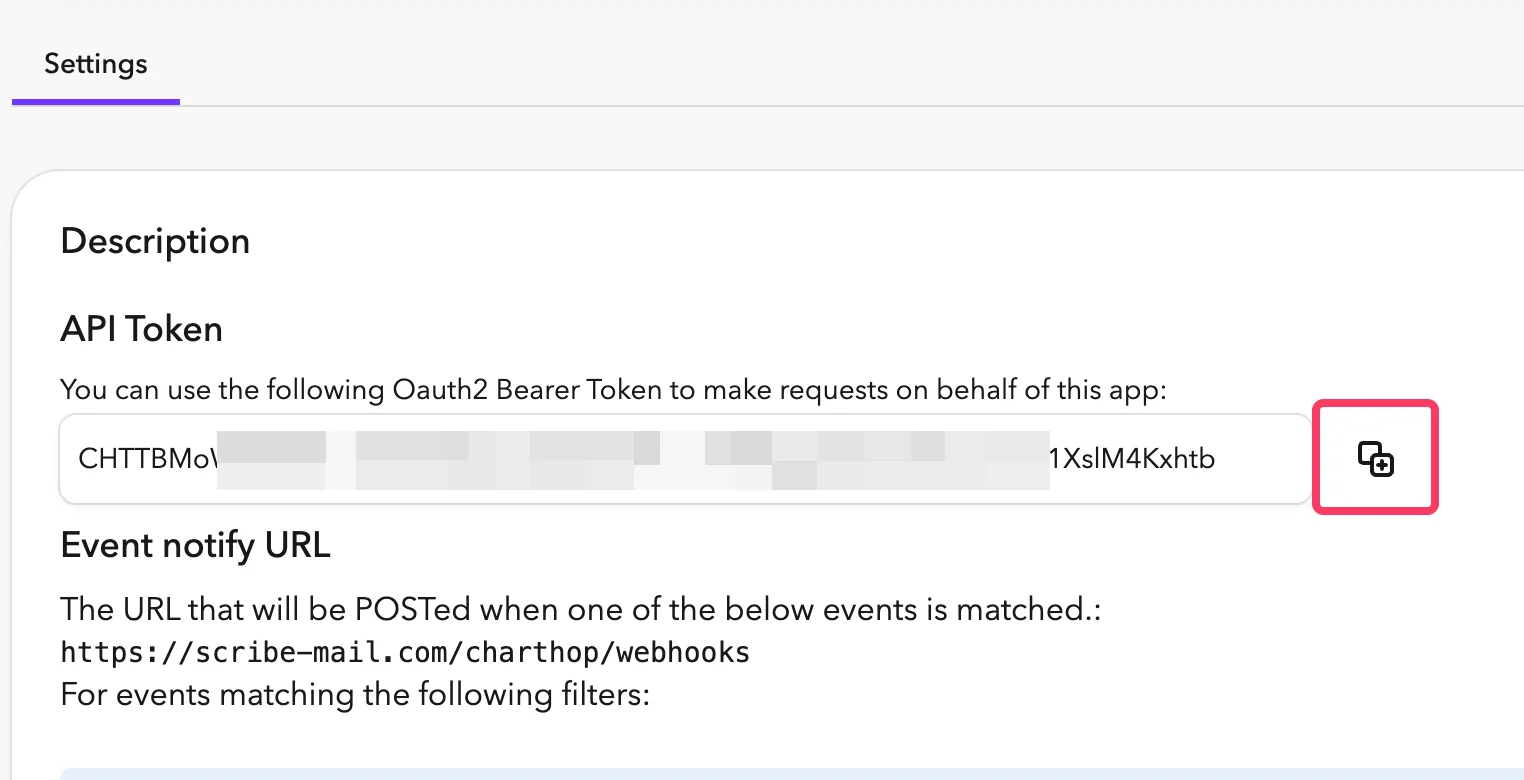
  <Step title="Copy the API Token and paste it into Scribe">
    I ChartHop, gå til fanen **Settings** i Scribe-appen. Kopier **API Token** og lim den inn i API Token-feltet i Scribe.
    <Frame>
      <img src="https://mintcdn.com/scribe/pvZJQ56rCCLLmCwt/integrations/smart-fields/images/charthop-step-5.png?fit=max&auto=format&n=pvZJQ56rCCLLmCwt&q=85&s=b03871665847eac7cb4e3ca93ff4cb11" alt="ChartHop Settings-fane med API Token" className="mx-auto" style={{ width:"76%" }} width="1524" height="780" data-path="integrations/smart-fields/images/charthop-step-5.png" />
    </Frame>
  </Step>

  <Step title="Copy your Org Nickname from the URL bar and paste it into Scribe, then connect ChartHop.">
    Org Nickname er delen rett etter `app.charthop.com/` i ChartHop-URL-en din. Skriv den inn i feltet **ChartHop Org Nickname** i Scribe, og klikk deretter **Connect ChartHop**.

    <Frame>
      <img src="https://mintcdn.com/scribe/pvZJQ56rCCLLmCwt/integrations/smart-fields/images/charthop-step-6.png?fit=max&auto=format&n=pvZJQ56rCCLLmCwt&q=85&s=48224a25fad95589135fda6cedad11cf" alt="ChartHop URL-linje som viser feltene Org Nickname og Scribe-tilkobling" className="mx-auto" style={{ width:"77%" }} width="892" height="152" data-path="integrations/smart-fields/images/charthop-step-6.png" />
    </Frame>
  </Step>
</Steps>

## Relaterte artikler

* [Deel](/no/integrations/smart-fields/deel-smart-fields): synkroniser Deel-data inn i signaturene dine.
* [Gusto](/no/integrations/smart-fields/gusto-smart-fields): synkroniser Gusto-data inn i signaturene dine.
* [Tildel kollegaer til en signatur](/no/assign-teammates-to-a-signature): bruk Smartfield-betingelser for å tildele signaturer automatisk.