> ## Documentation Index
> Fetch the complete documentation index at: https://help.scribe-mail.com/llms.txt
> Use this file to discover all available pages before exploring further.
# Microsoft Entra ID
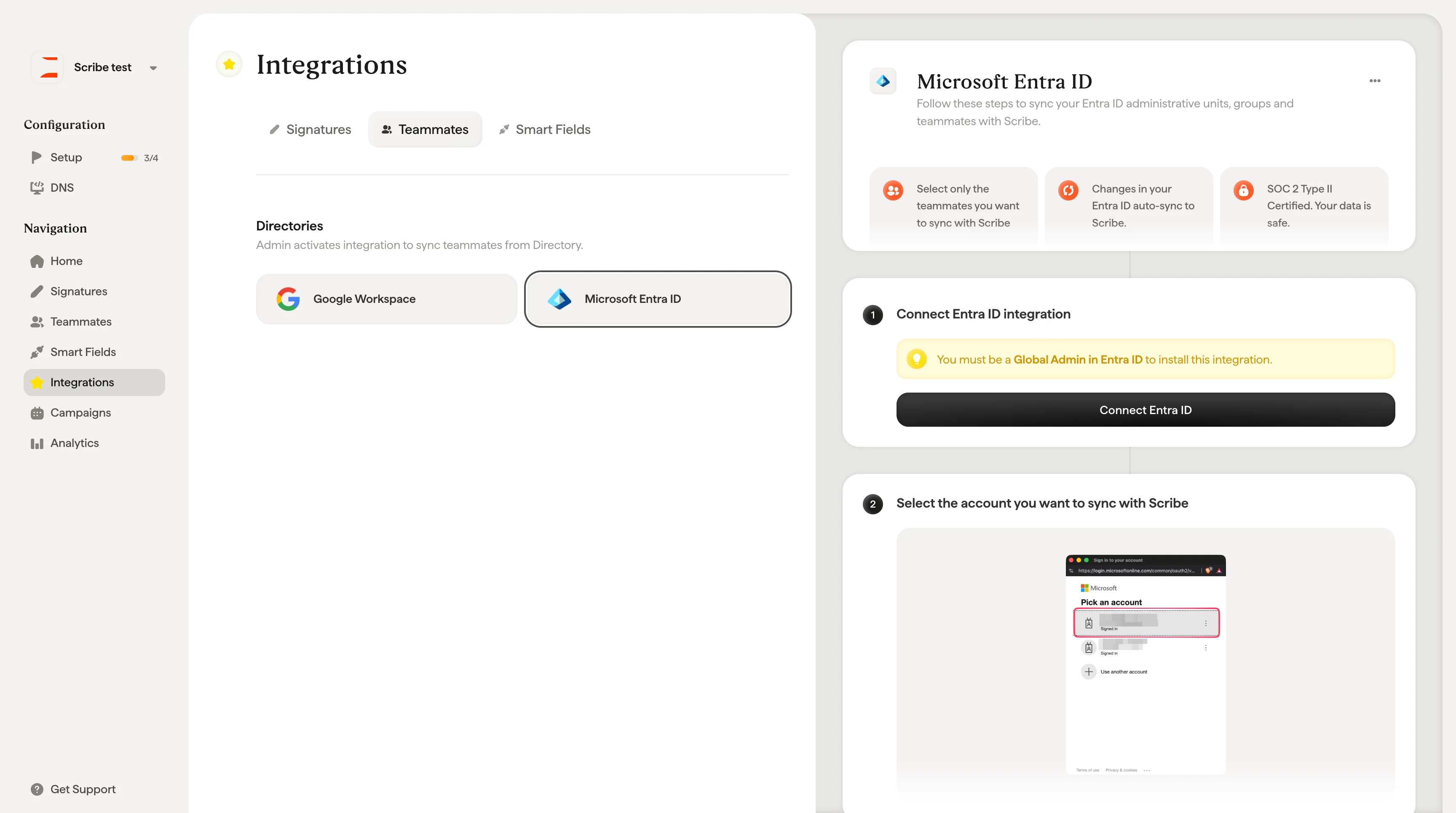
> Koble Microsoft Entra ID til Scribe og synkroniser de teammedlemmene du velger fra dine administrative enheter og grupper, med endringer som holdes automatisk oppdatert.
Følg disse trinnene for å synkronisere dine administrative enheter, grupper og teammedlemmer i Entra ID med Scribe.
**Velg kun de teammedlemmene du vil synkronisere med Scribe.**
**Endringer i Entra ID synkroniseres automatisk til Scribe.**
**SOC 2 Type II-sertifisert.** Dataene dine er trygge.
## Installasjonsveiledning
### Forutsetninger
* En Scribe-konto med administratortilgang
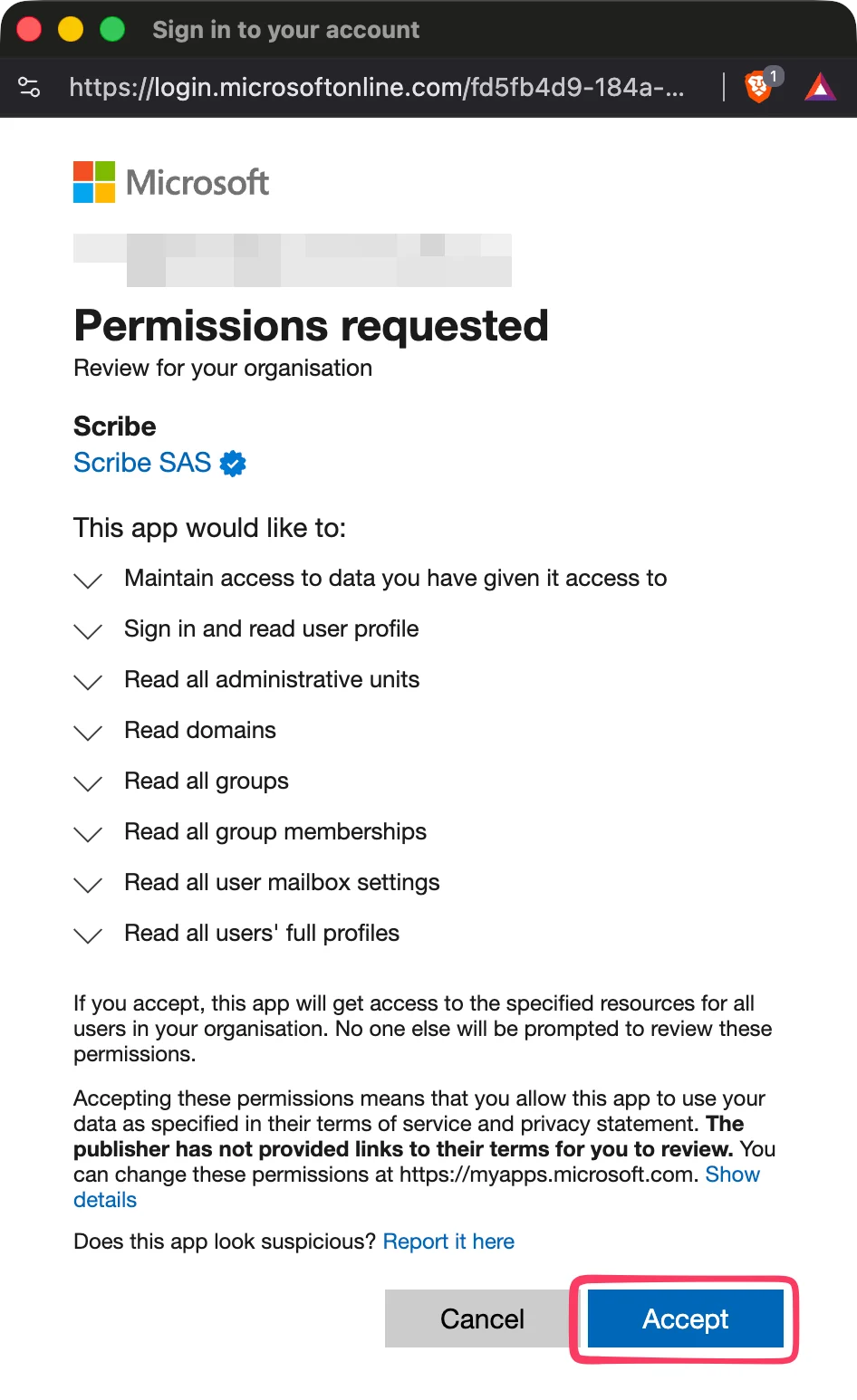
* En Microsoft Entra ID-konto med **Global Admin**-rettigheter
Du må være **Global Admin i Entra ID** for å installere denne integrasjonen.
Klikk på **Connect Entra ID** for å starte oppsettet.
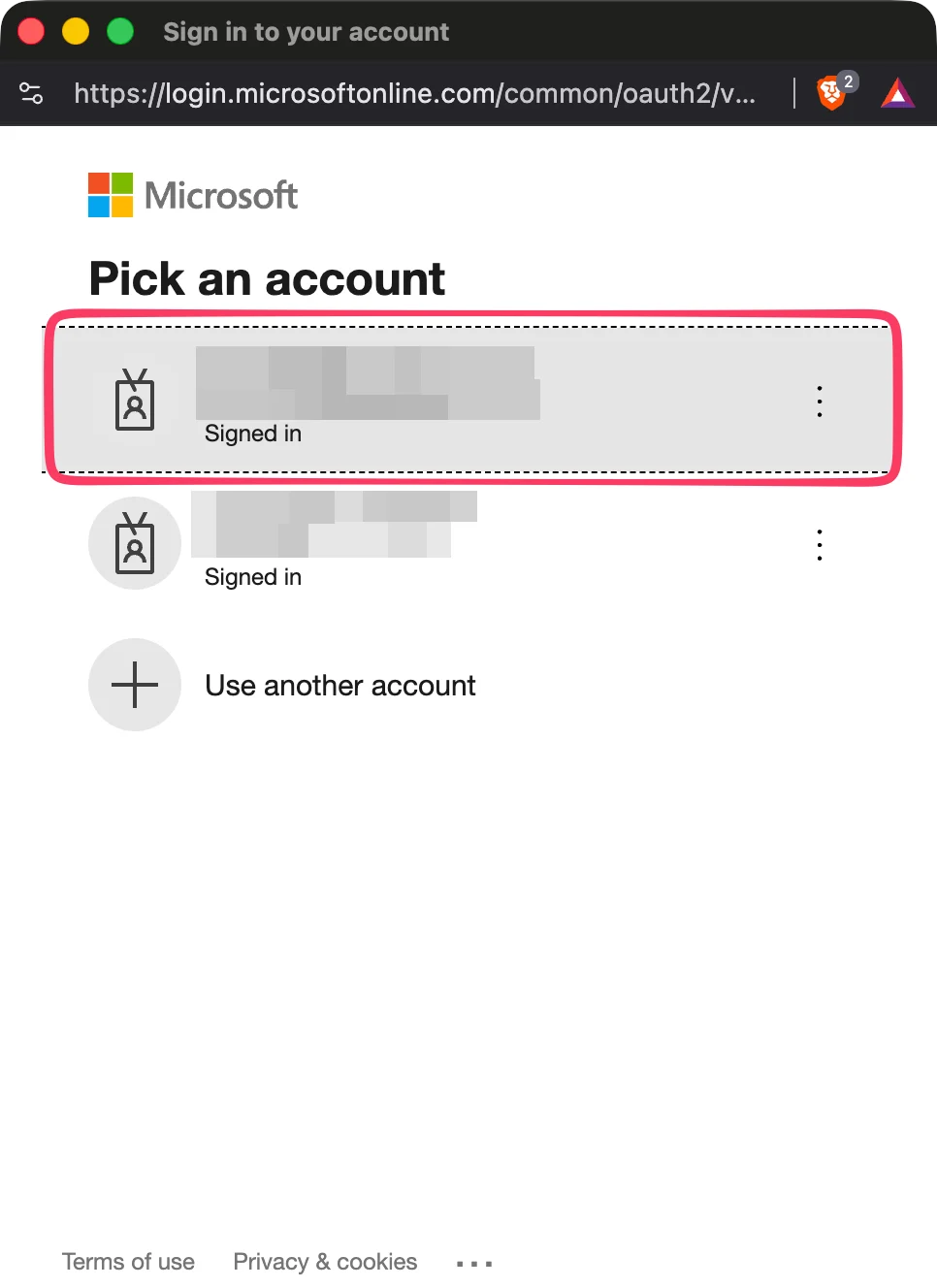 Importer utvalgte teammedlemmer fra Entra ID. Du bestemmer hvem som synkroniseres.
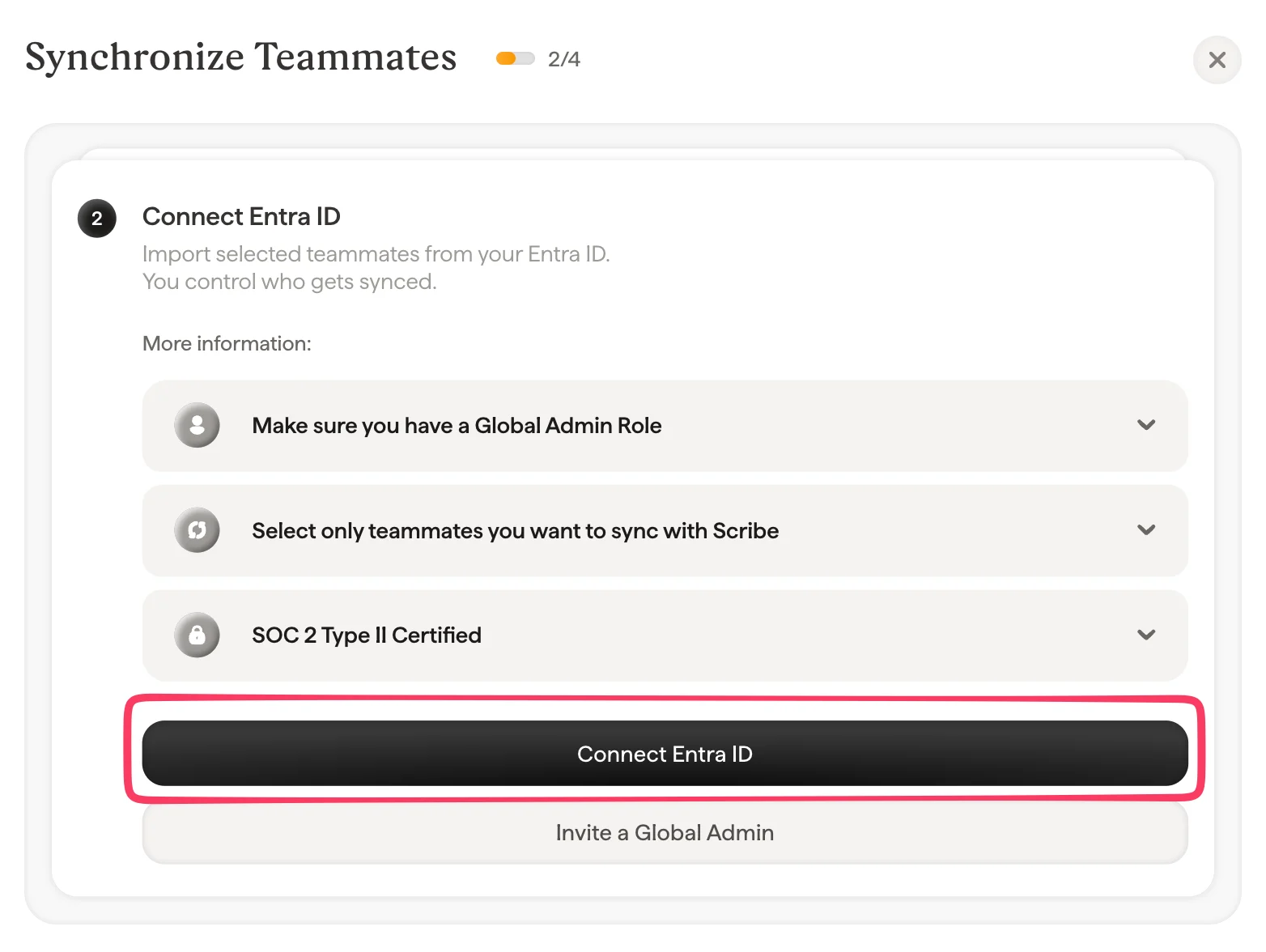
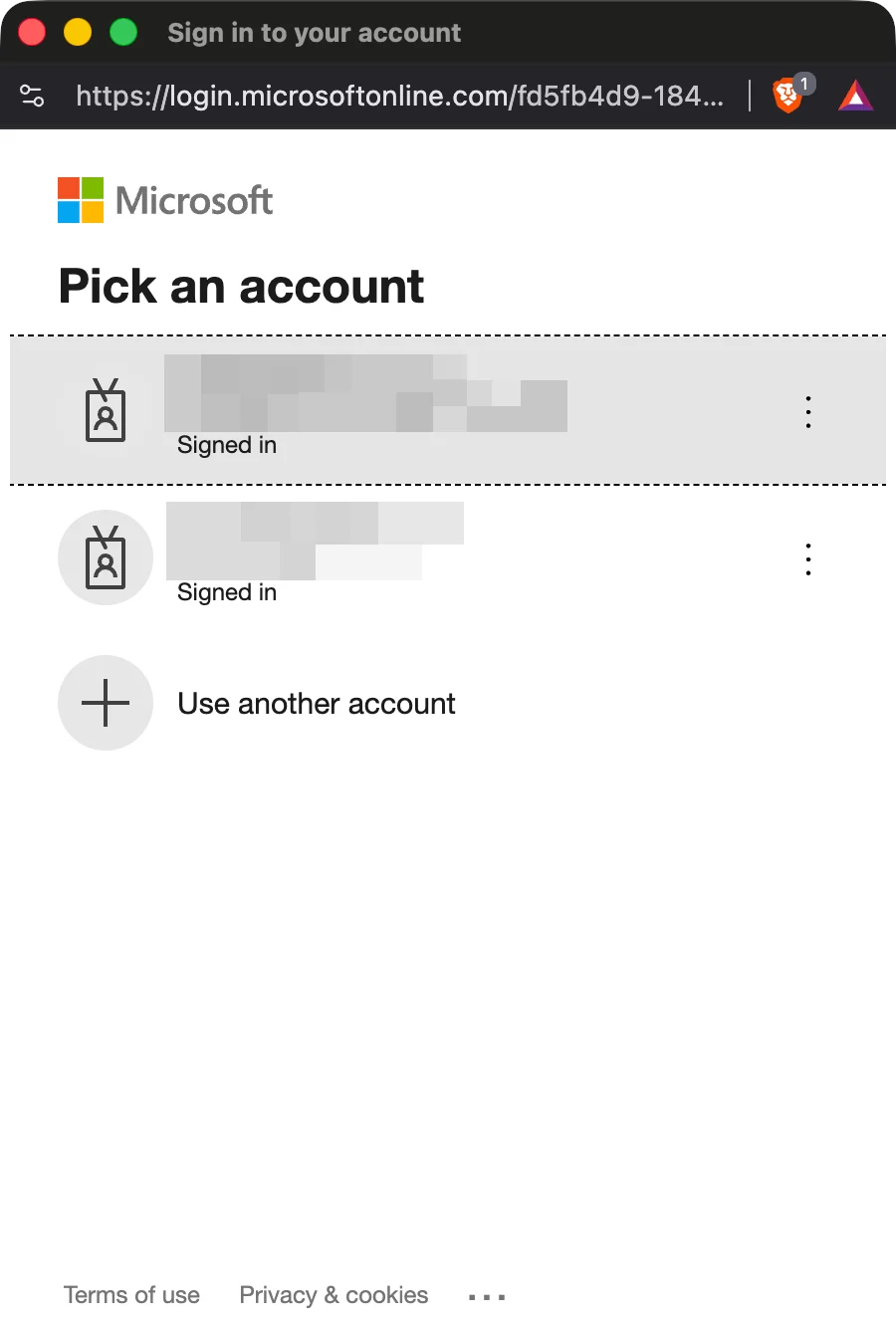 Scribe er SOC 2 Type II-kompatibel. Vi kan ikke sende eller lese e-postene dine.
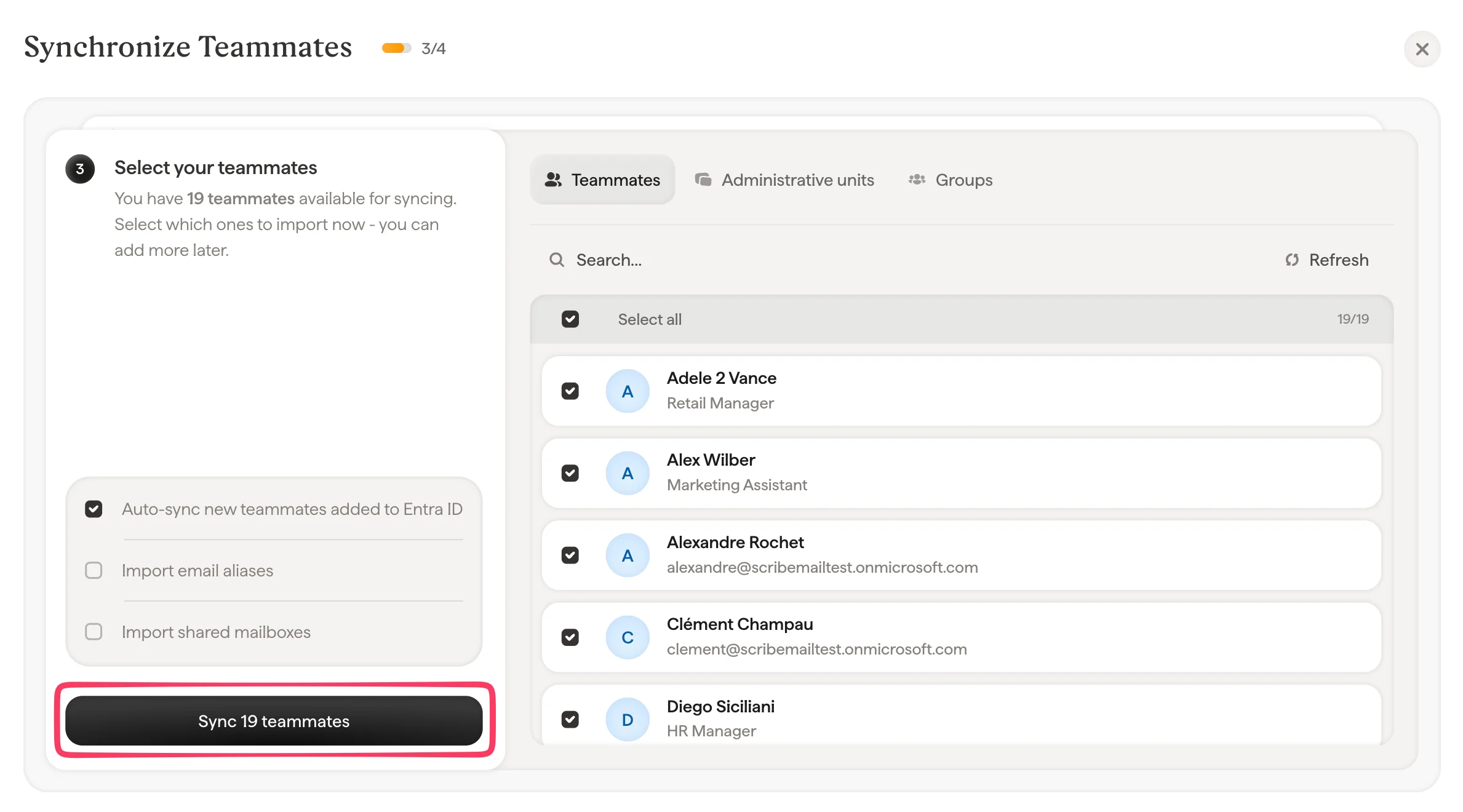
 Du kan velge kolleger fra kollegalisten din, administrative enheter eller grupper. Velg hvilke du vil importere nå. Du kan legge til flere senere. Informasjonen deres synkroniseres også, slik at du senere kan fylle ut signaturene deres automatisk ved hjelp av [Smart Field](/no/smart-fields).
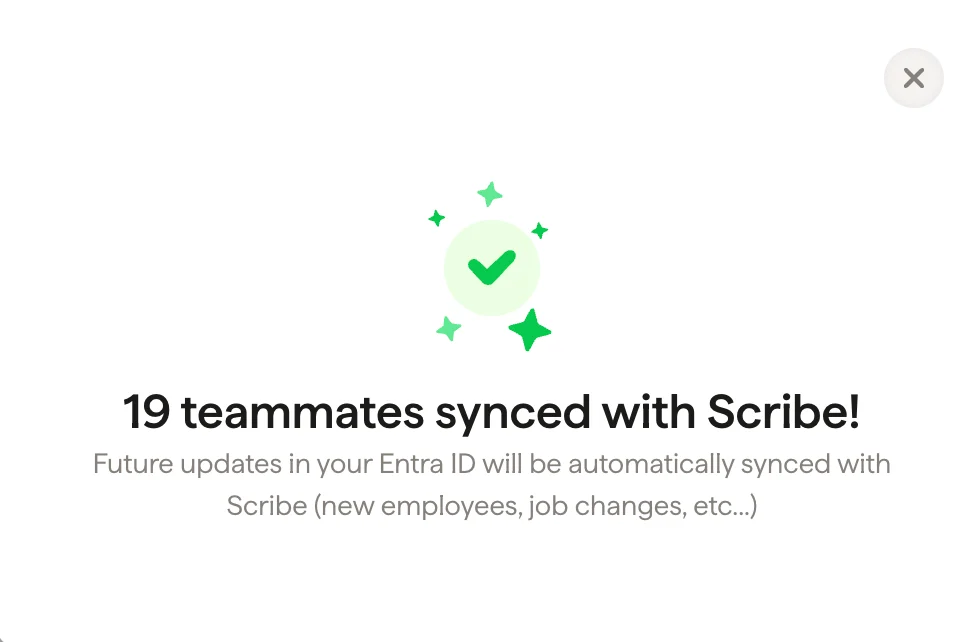
 Gå til Signaturer for å [tilordne kolleger](/no/assign-teammates-to-a-signature) og opprette signaturene deres. Fremtidige oppdateringer i din Entra ID synkroniseres automatisk med Scribe (nye ansatte, jobbendringer osv.).
 ## Relaterte artikler
* [Oversikt over kolleger](/no/teammates/teammates-overview)
* [Google Workspace](/no/integrations/teammates/google-workspace-teammates)
* [Hva Scribe gjør med tanke på sikkerhet](/no/what-scribe-does-concerning-security)
## Relaterte artikler
* [Oversikt over kolleger](/no/teammates/teammates-overview)
* [Google Workspace](/no/integrations/teammates/google-workspace-teammates)
* [Hva Scribe gjør med tanke på sikkerhet](/no/what-scribe-does-concerning-security)