

Chat assistants
Claude
Claude
Connect Claude to Scribe
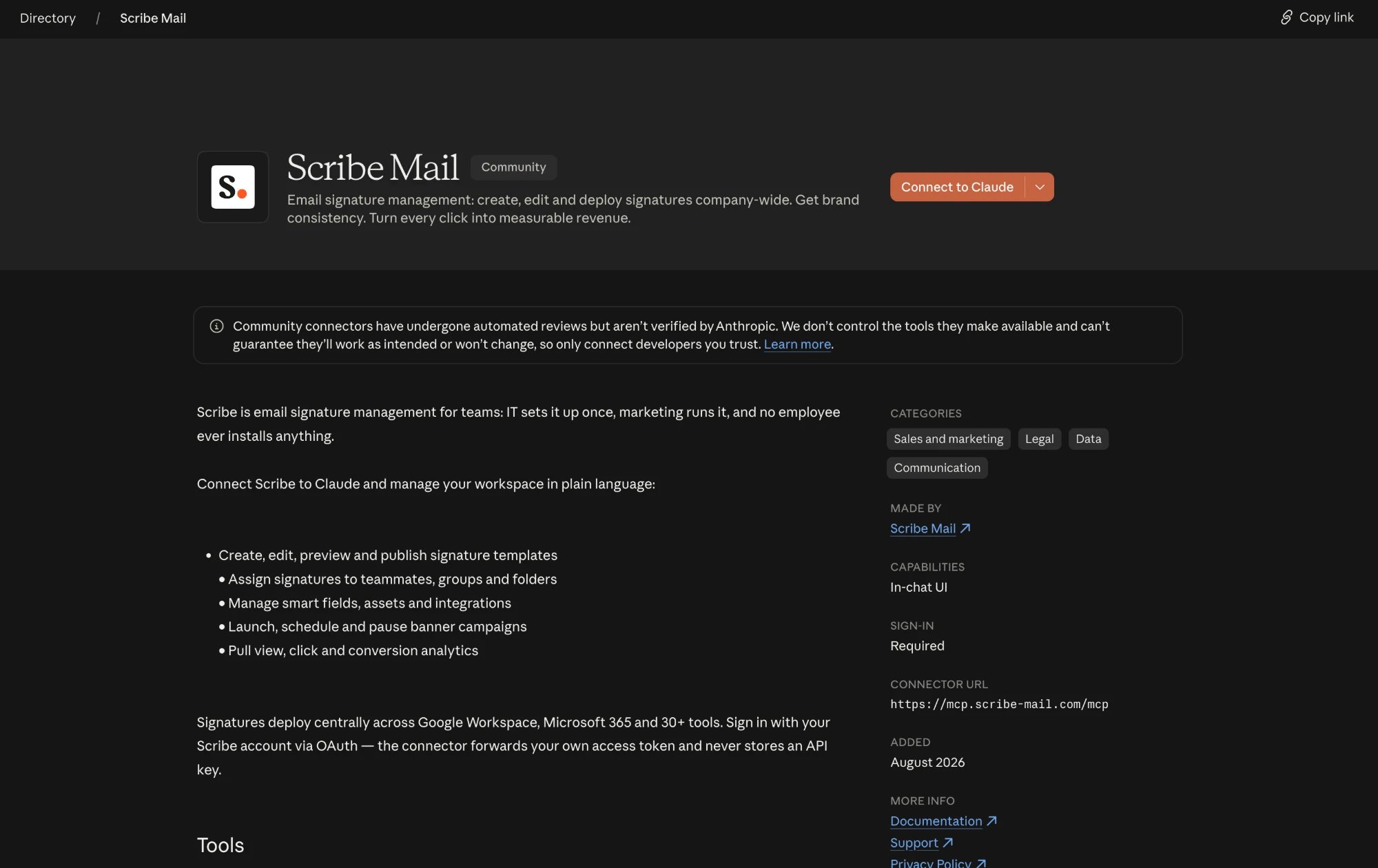
Scribe is listed in the Claude directory as Scribe Mail, so there is nothing to type. Works on all Claude plans, on web and desktop.- Open the Scribe Mail listing in the Claude directory, then click Connect to Claude.
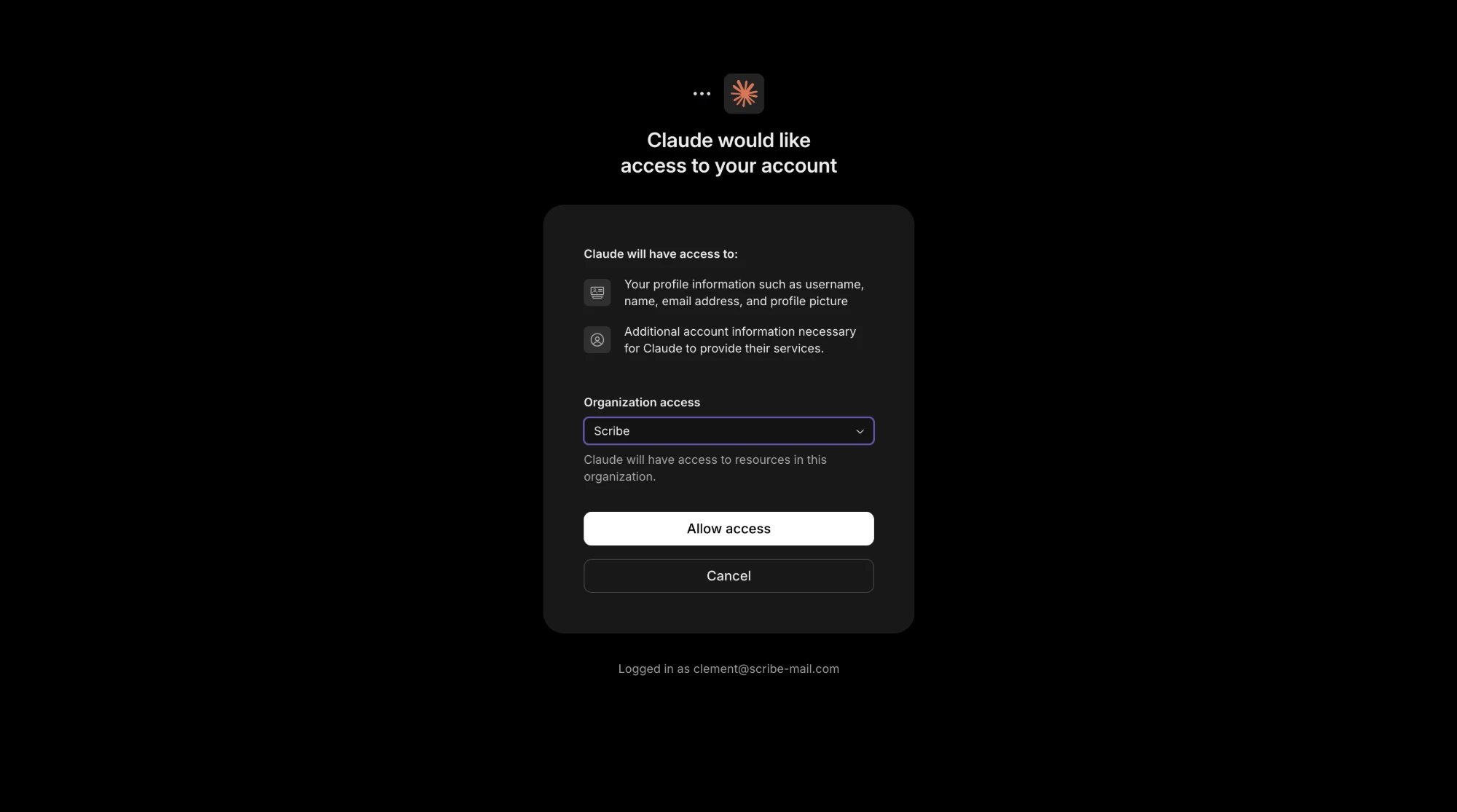
- Sign in with your Scribe account if prompted, choose the organization to connect, review the access, then click Allow access.
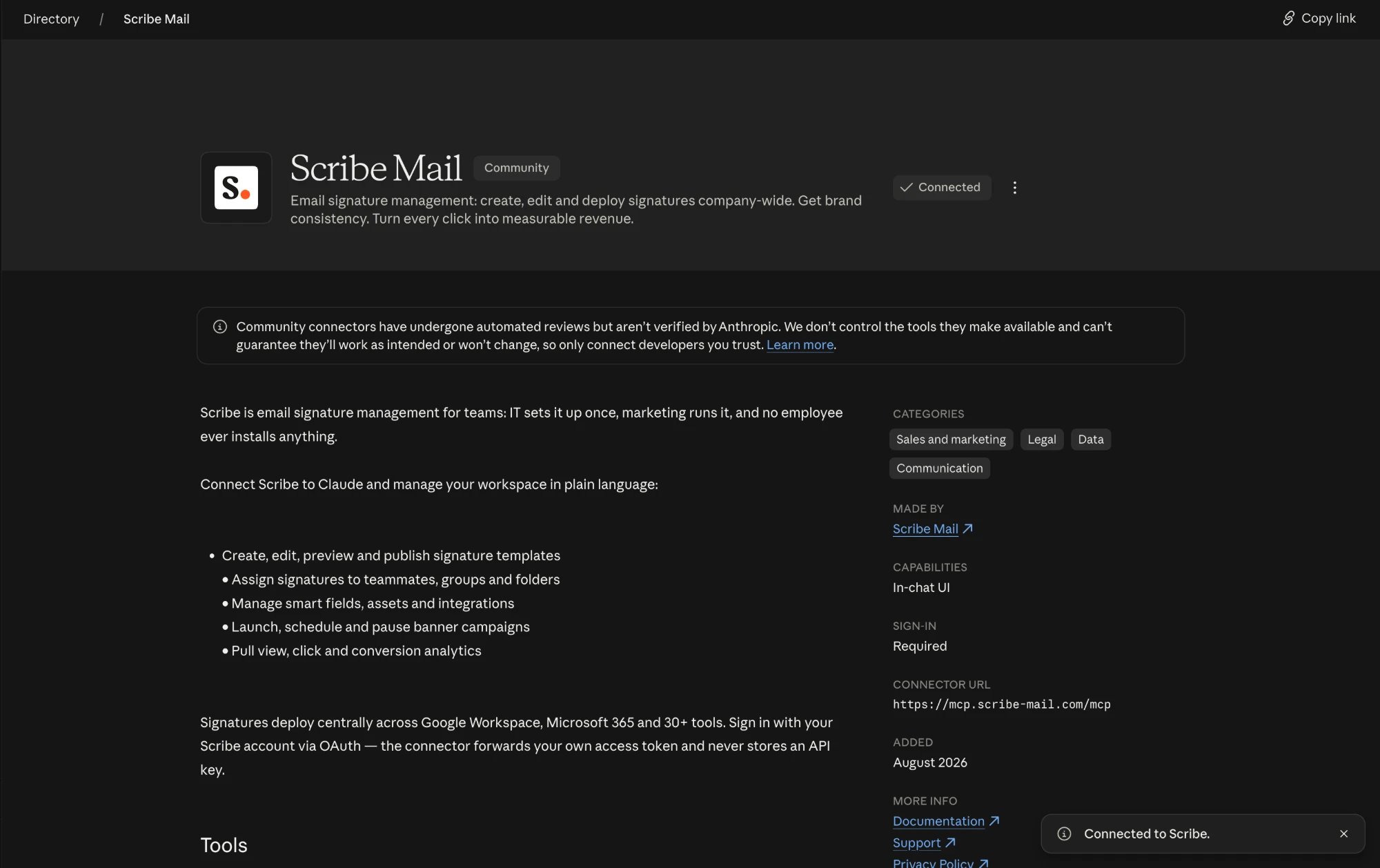
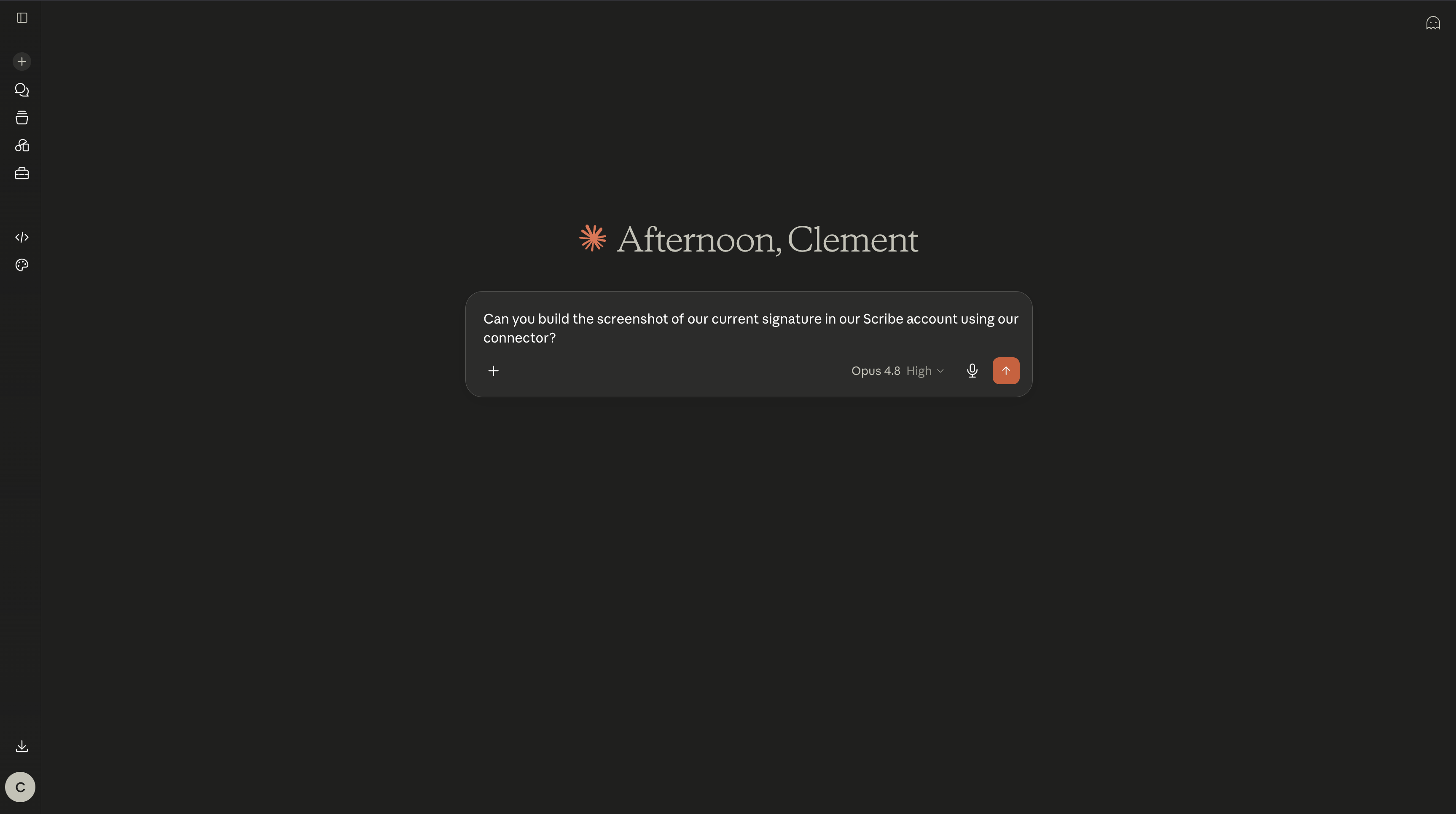
- Done. The listing now shows Connected, and Scribe appears in your connectors.
ChatGPT
ChatGPT
Connect ChatGPT to Scribe
Scribe is listed in the ChatGPT plugin store, so you install it like any other ChatGPT app, with no Developer Mode needed. Sign in to ChatGPT on the web first.- Open the Scribe plugin page, or open Plugins in the sidebar and search for Scribe, then click Install plugin.
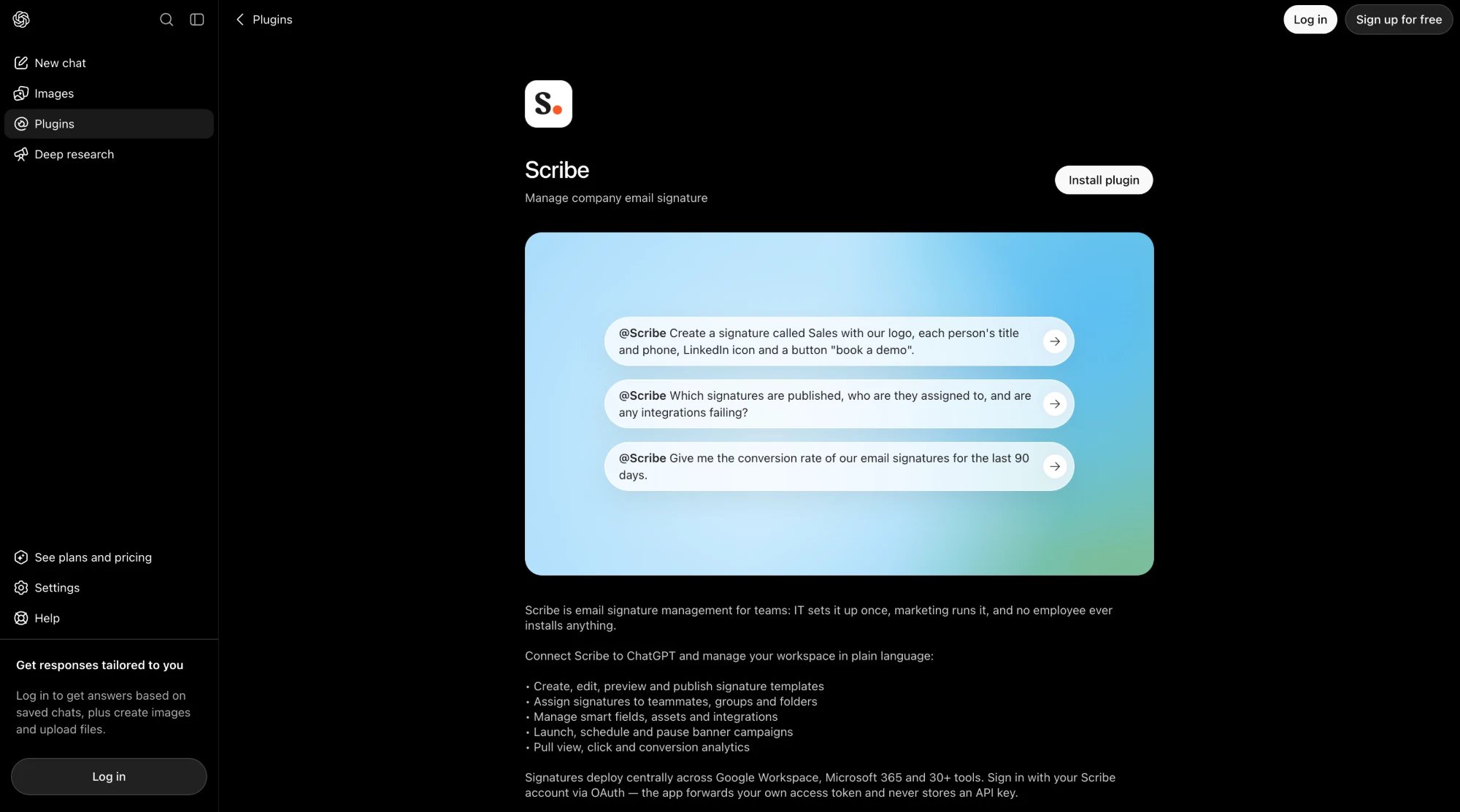
- In the Add Scribe to ChatGPT dialog, click Sign in with Scribe.
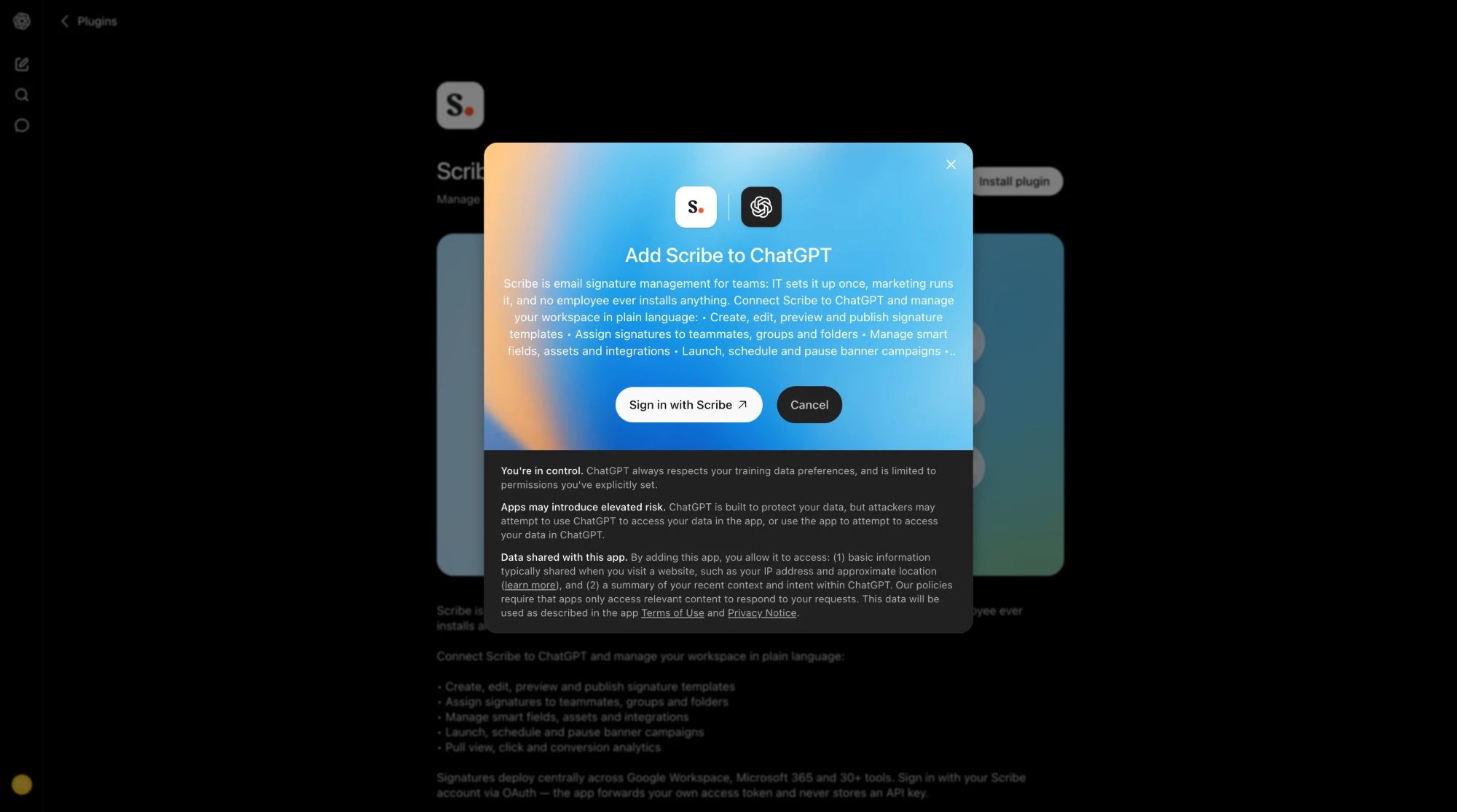
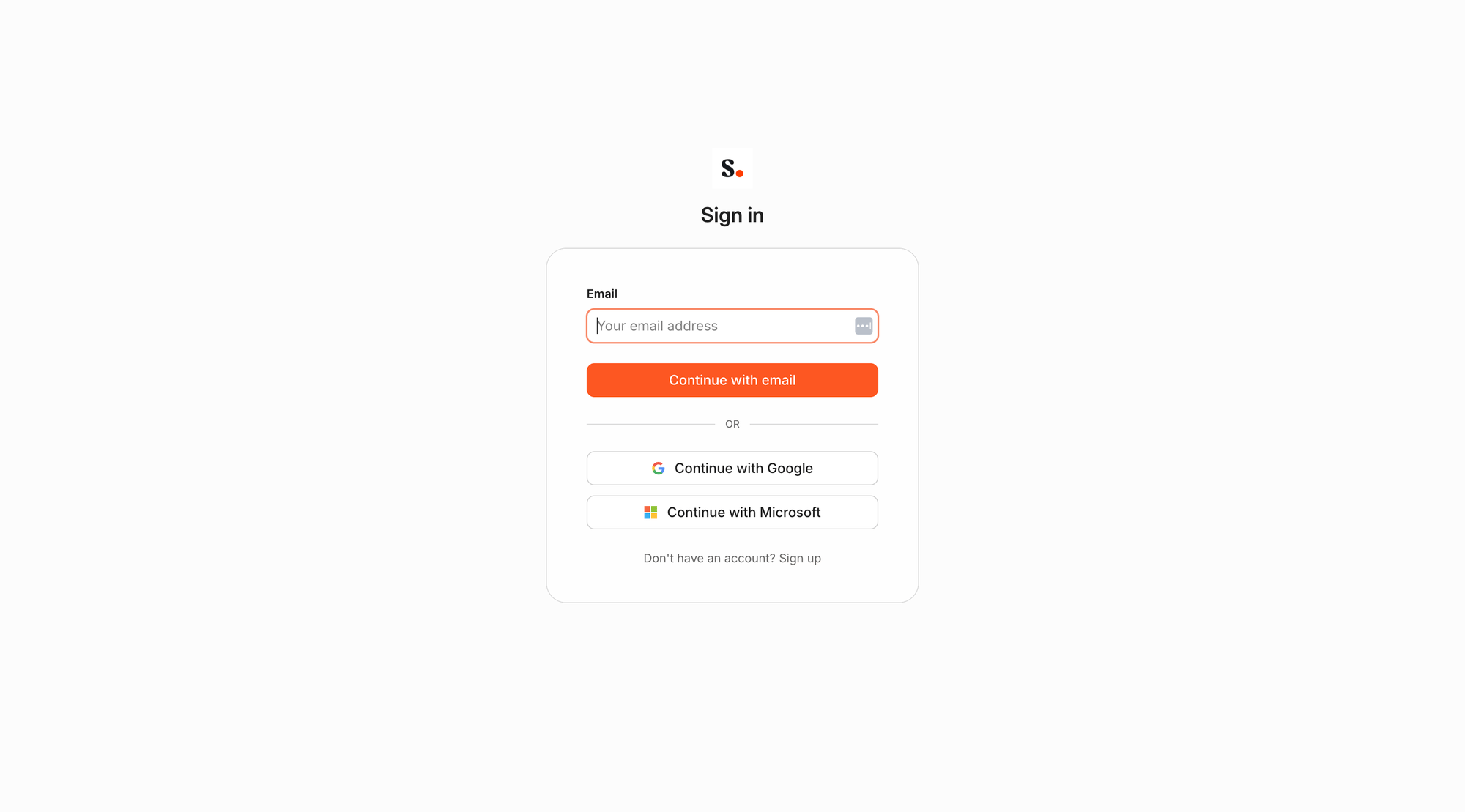
- Sign in with your Scribe account, review the access, then click Allow access.
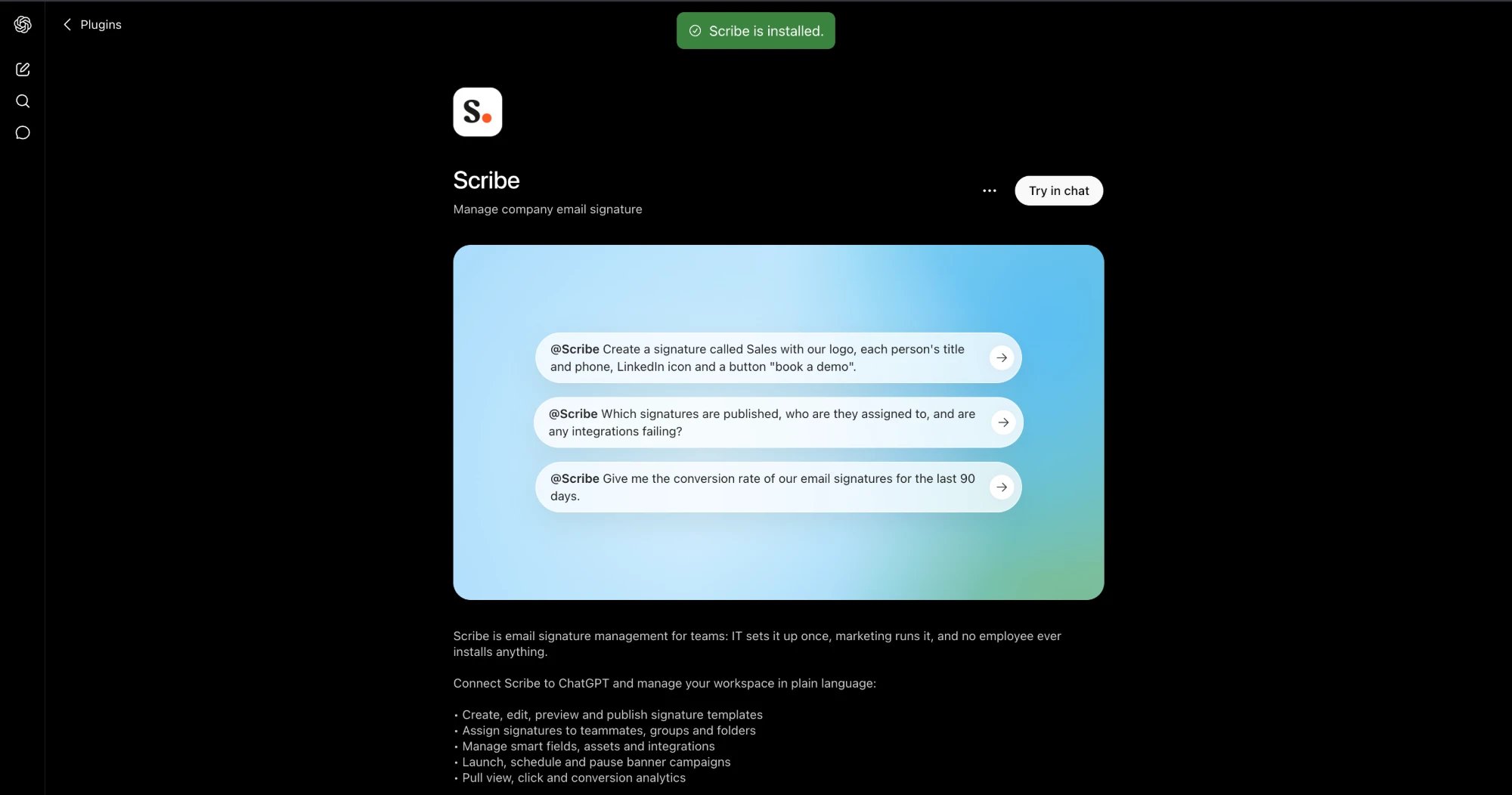
- Scribe is installed. Click Try in chat, or pick one of the example prompts on the listing.
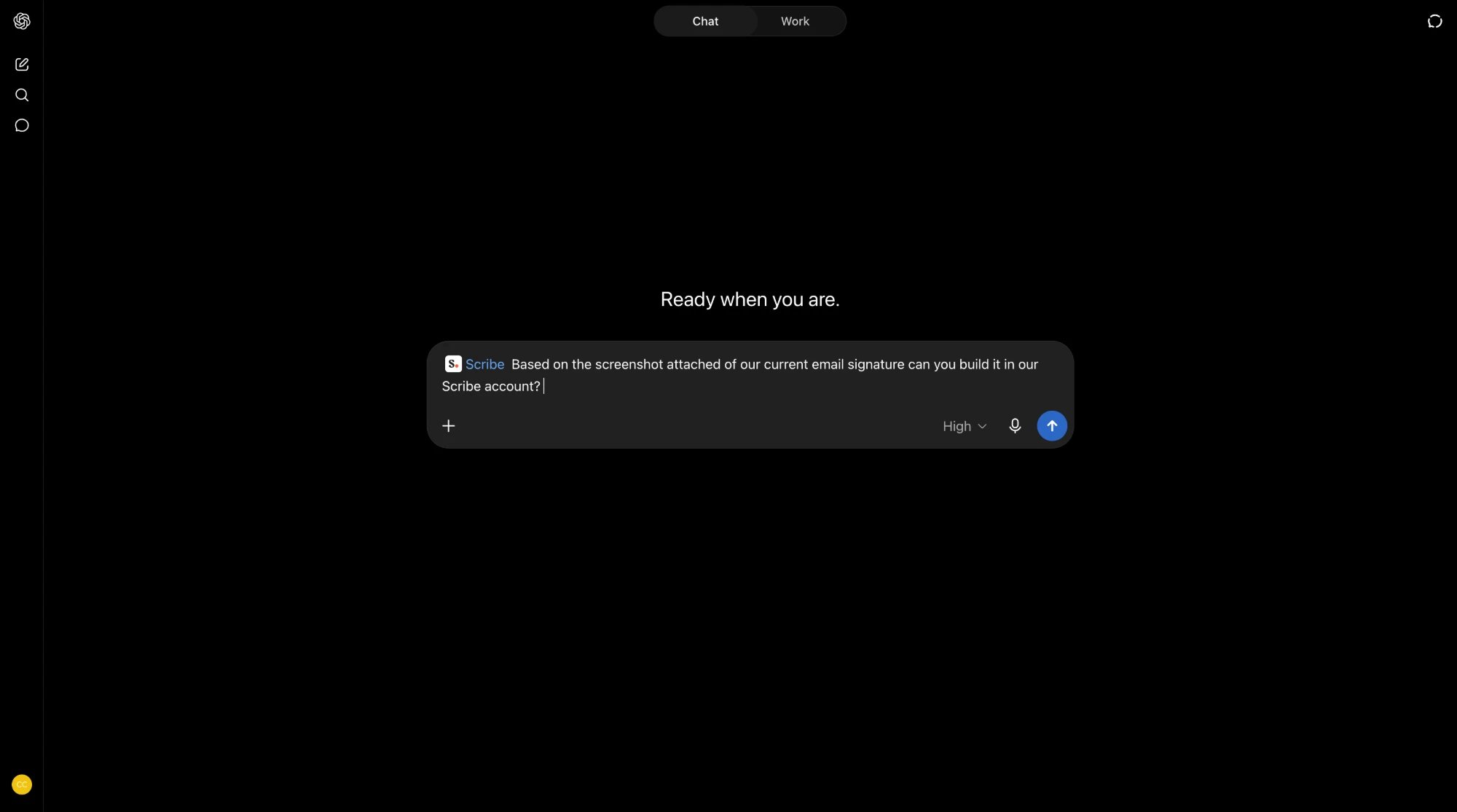
- In any chat, type
@Scribefollowed by your request, or open the plus menu and select the Scribe plugin.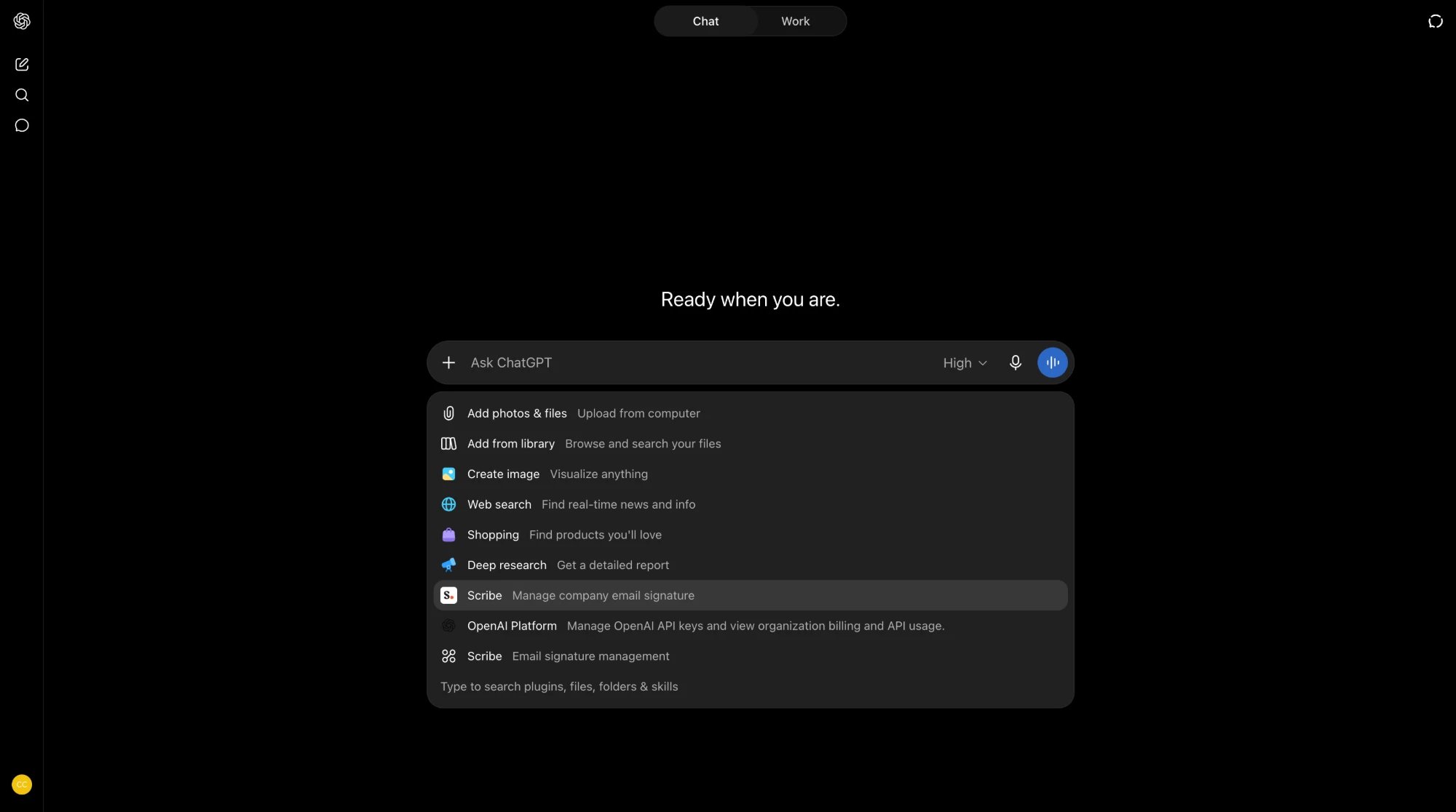
- Ask ChatGPT to manage your Scribe account, from creating a signature to pulling your analytics.
Mistral Vibe
Mistral Vibe
Connect Mistral Vibe to Scribe
Works on the free plan.- In Mistral Vibe, open Context, go to Connectors, then click Add Connector.
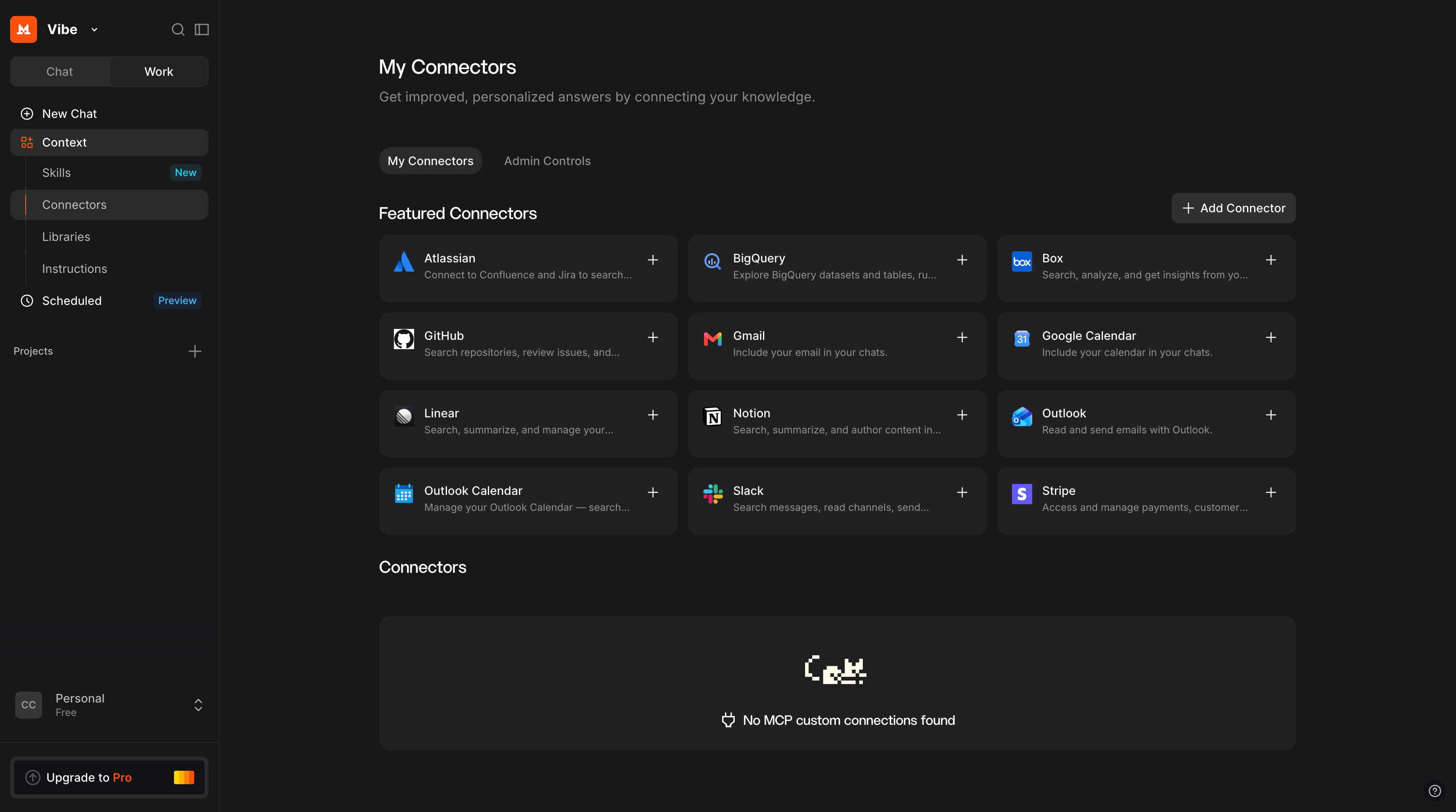
- Open the Custom MCP Connector tab. Name it
Scribe, paste the URL below into Server, leave the authentication method on OAuth2.1, then click Connect: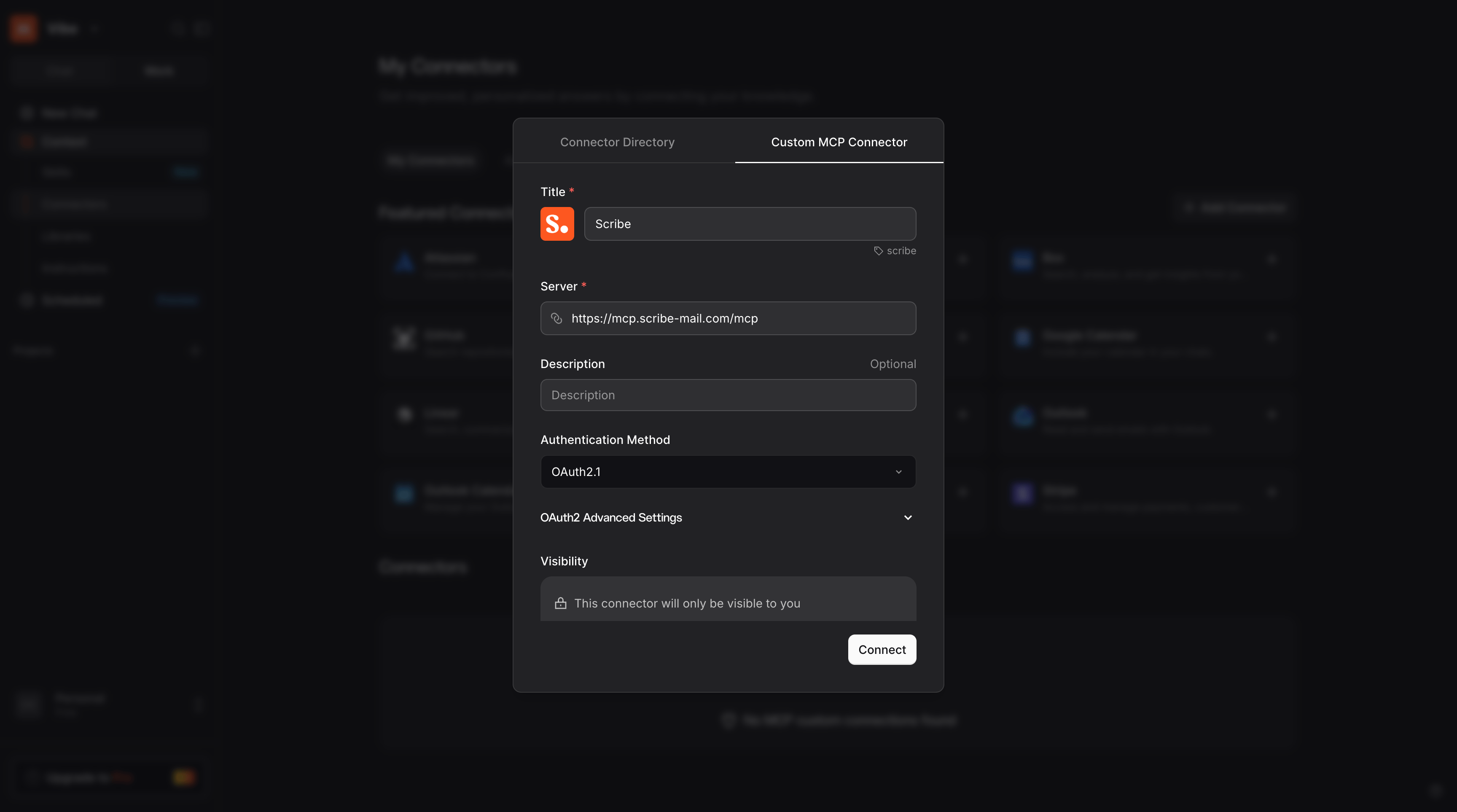
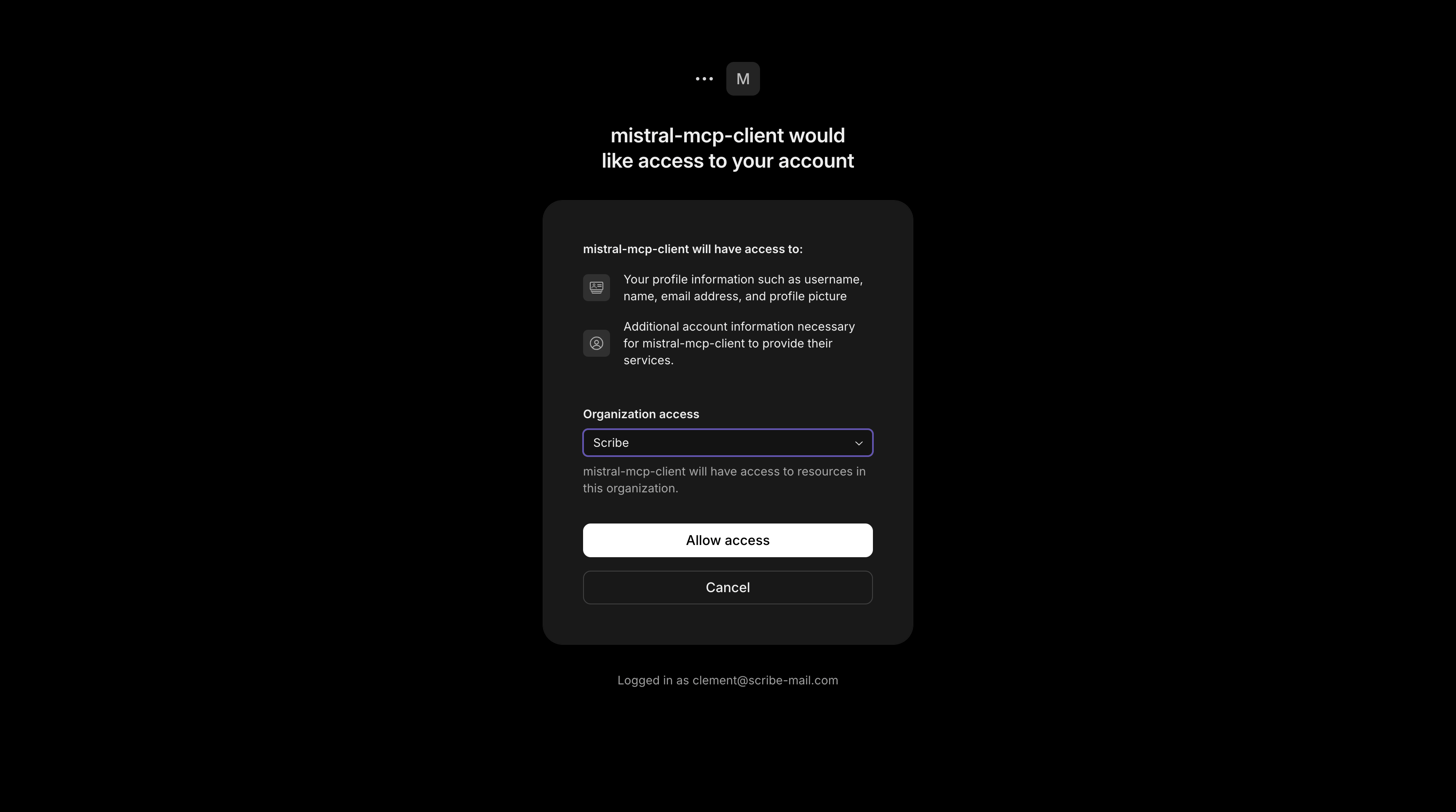
- Sign in with your Scribe account if prompted, review the access, then click Allow access.
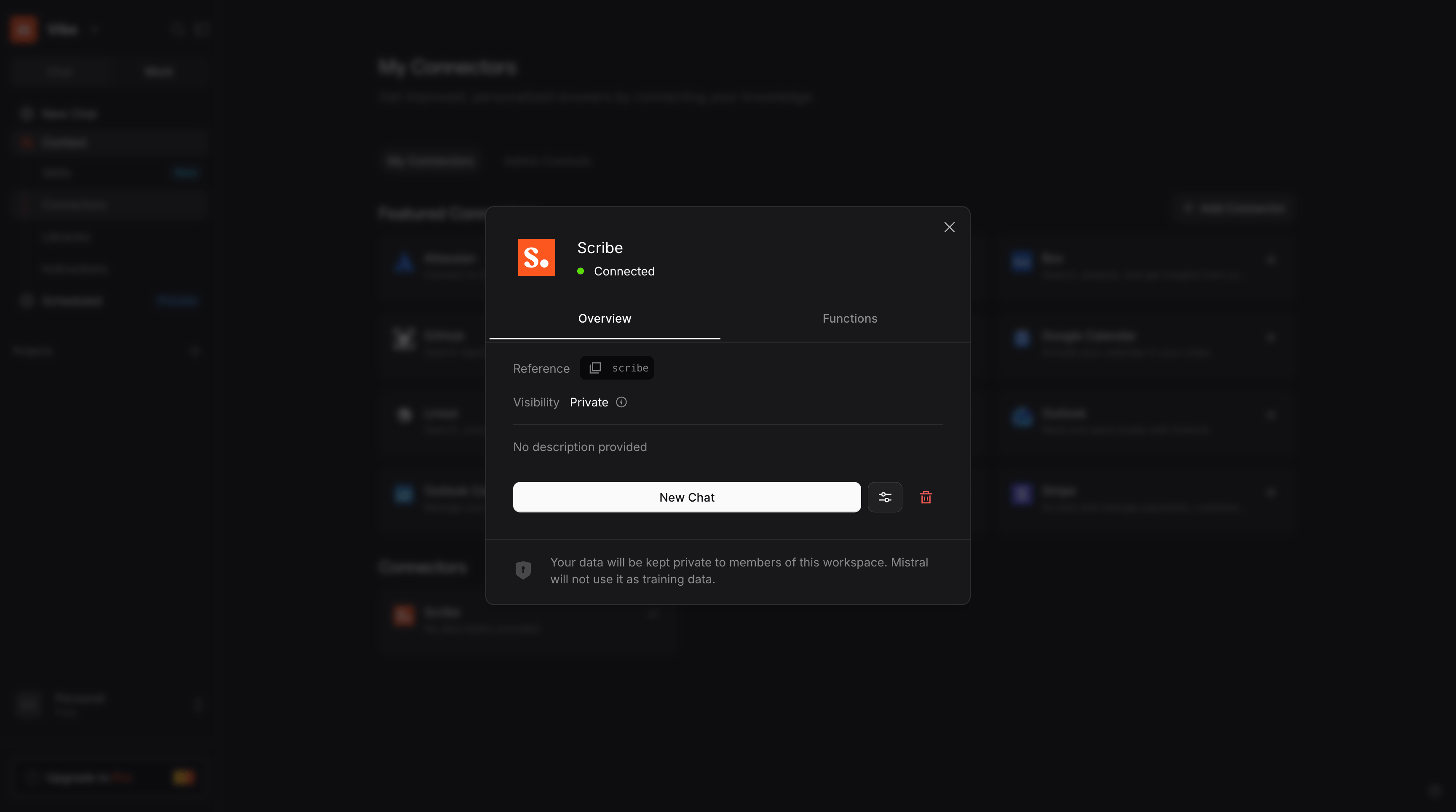
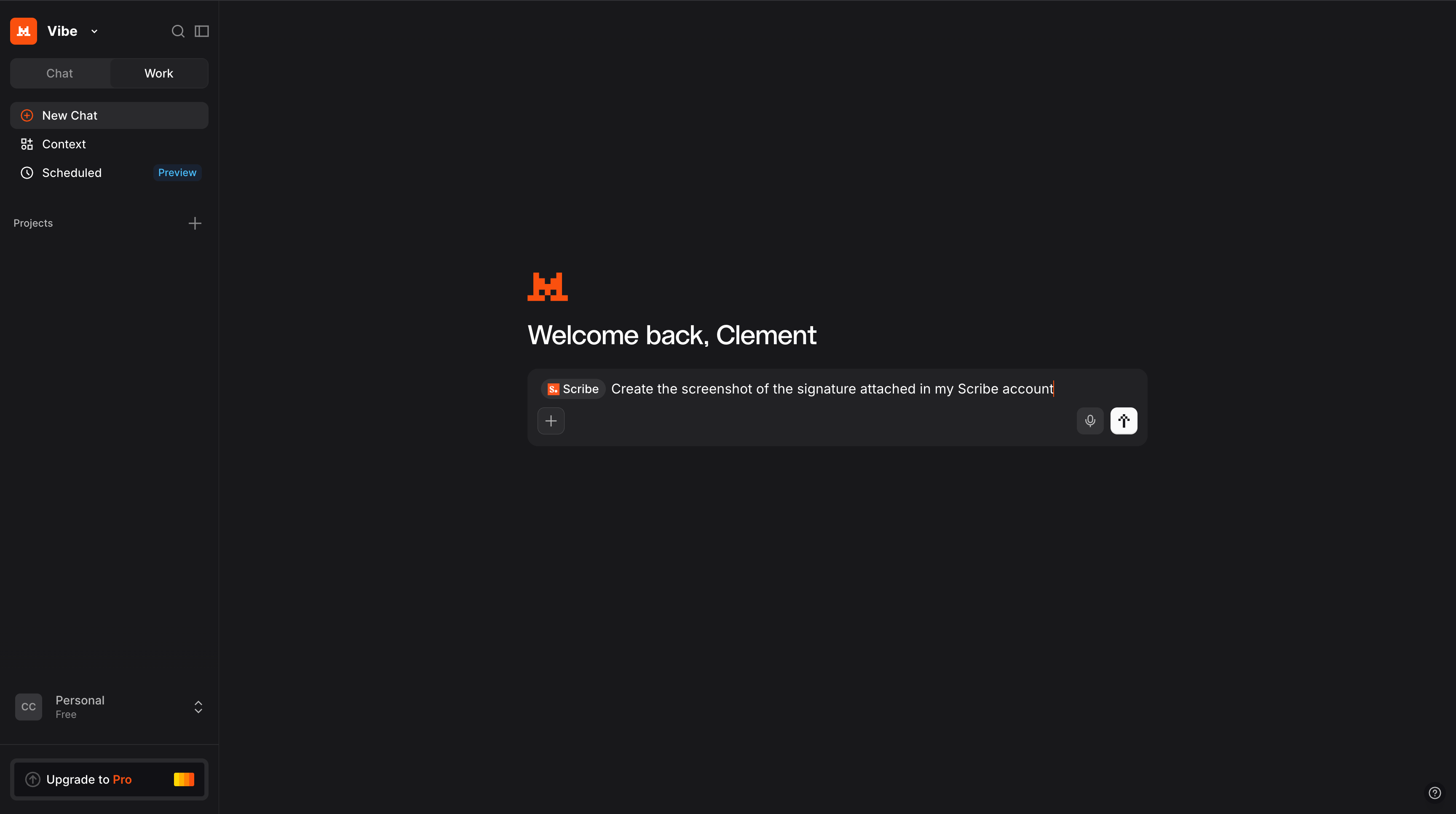
- Done. Scribe is connected, and you can review its tools under Functions whenever you need.
Grok
Grok
Connect Grok to Scribe
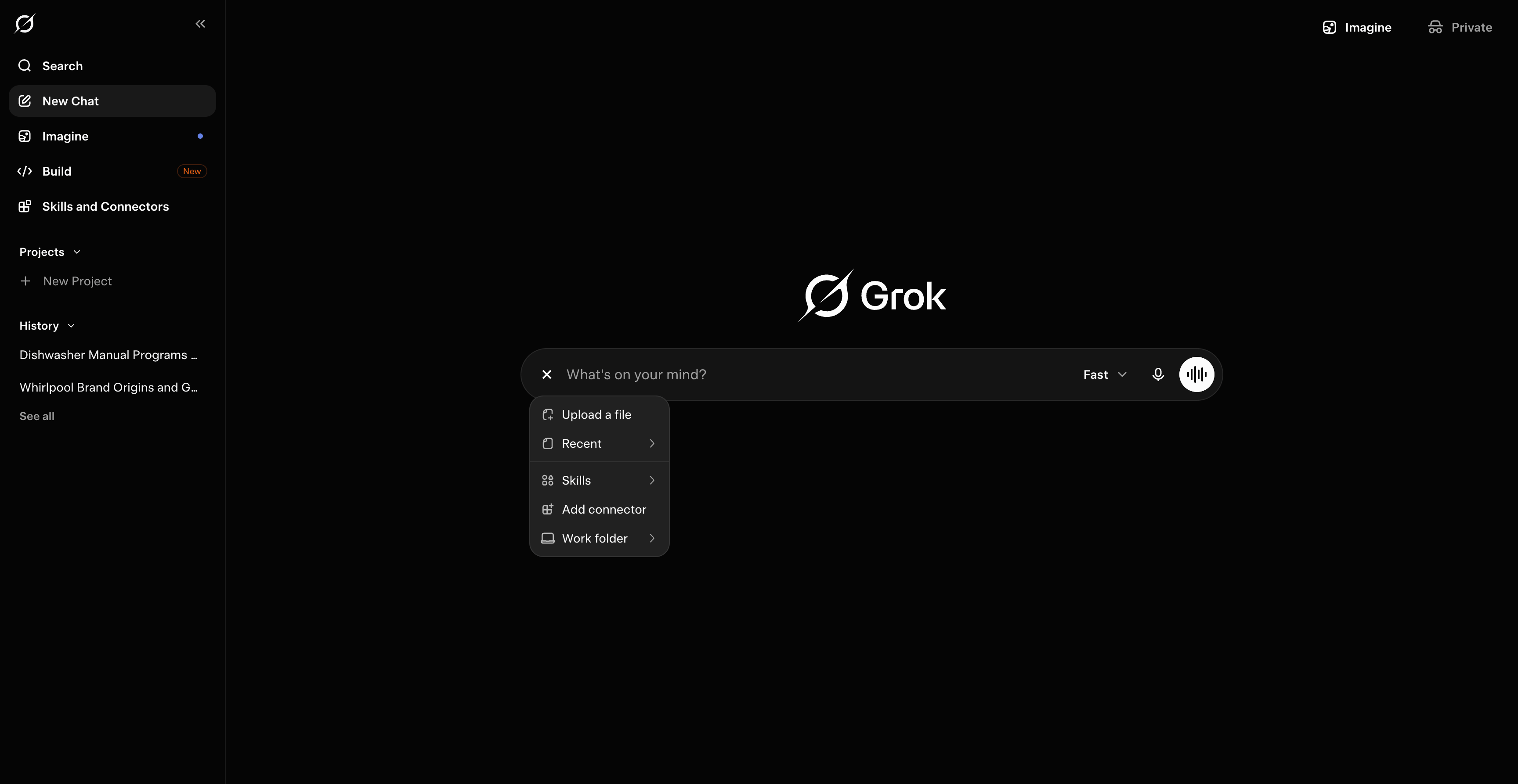
Requires a paid account.- On grok.com, open the + menu in the message composer, then click Add connector.
- In the New Connector dialog, choose Custom to add your own connector.
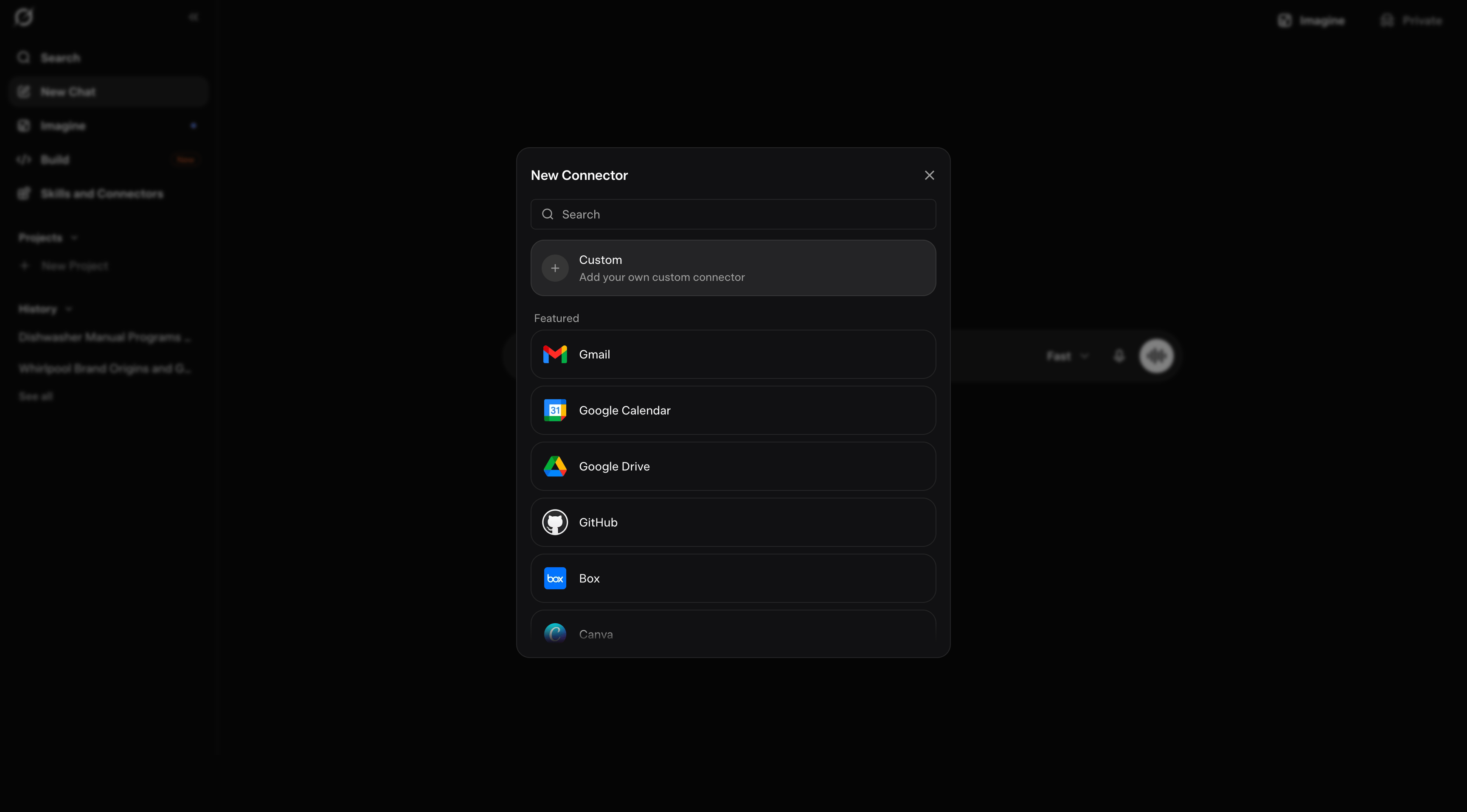
- Name it
Scribe, paste the URL below into Server URL, then click Add Connector: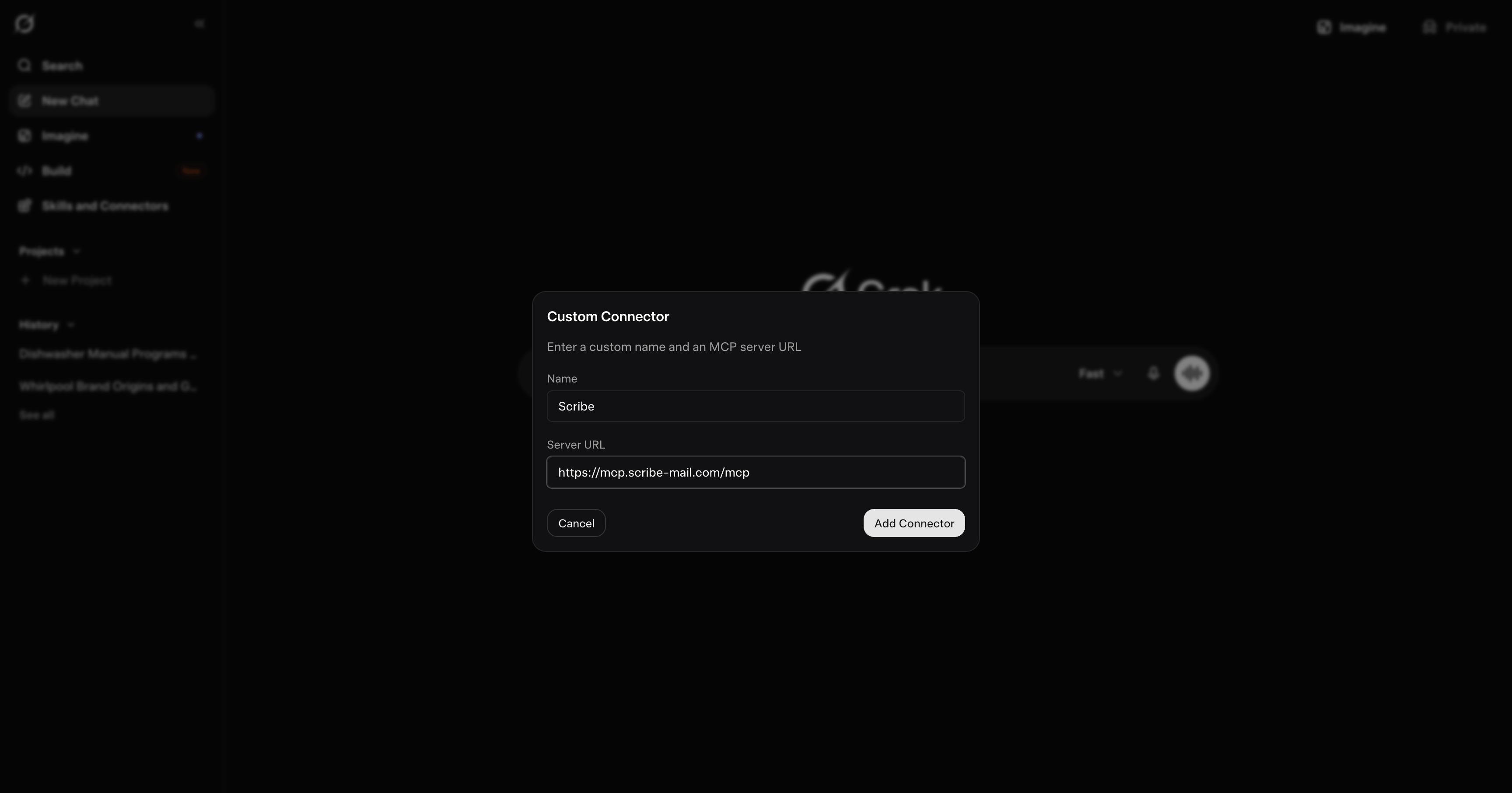
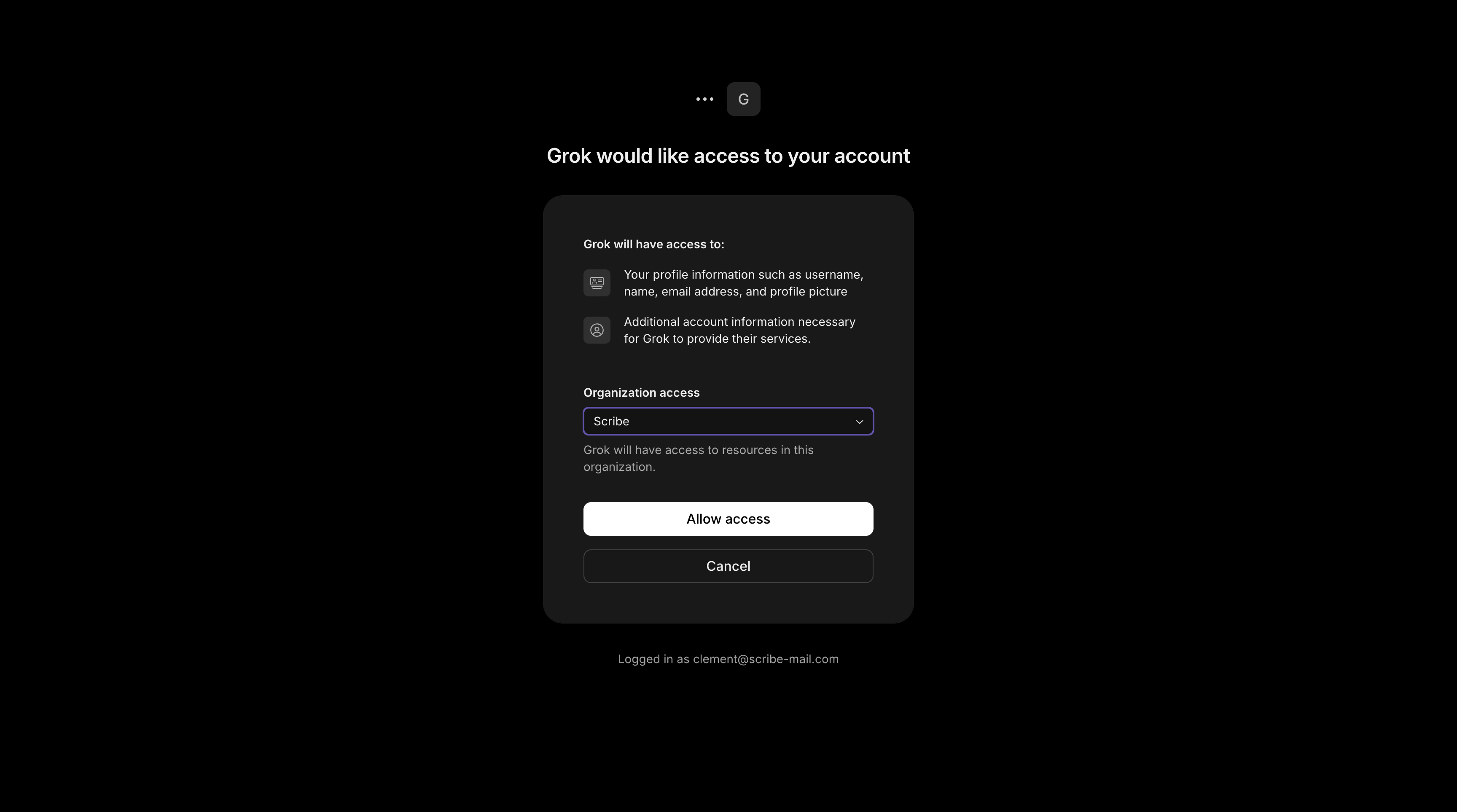
- Sign in with your Scribe account if prompted, review the access, then click Allow access.
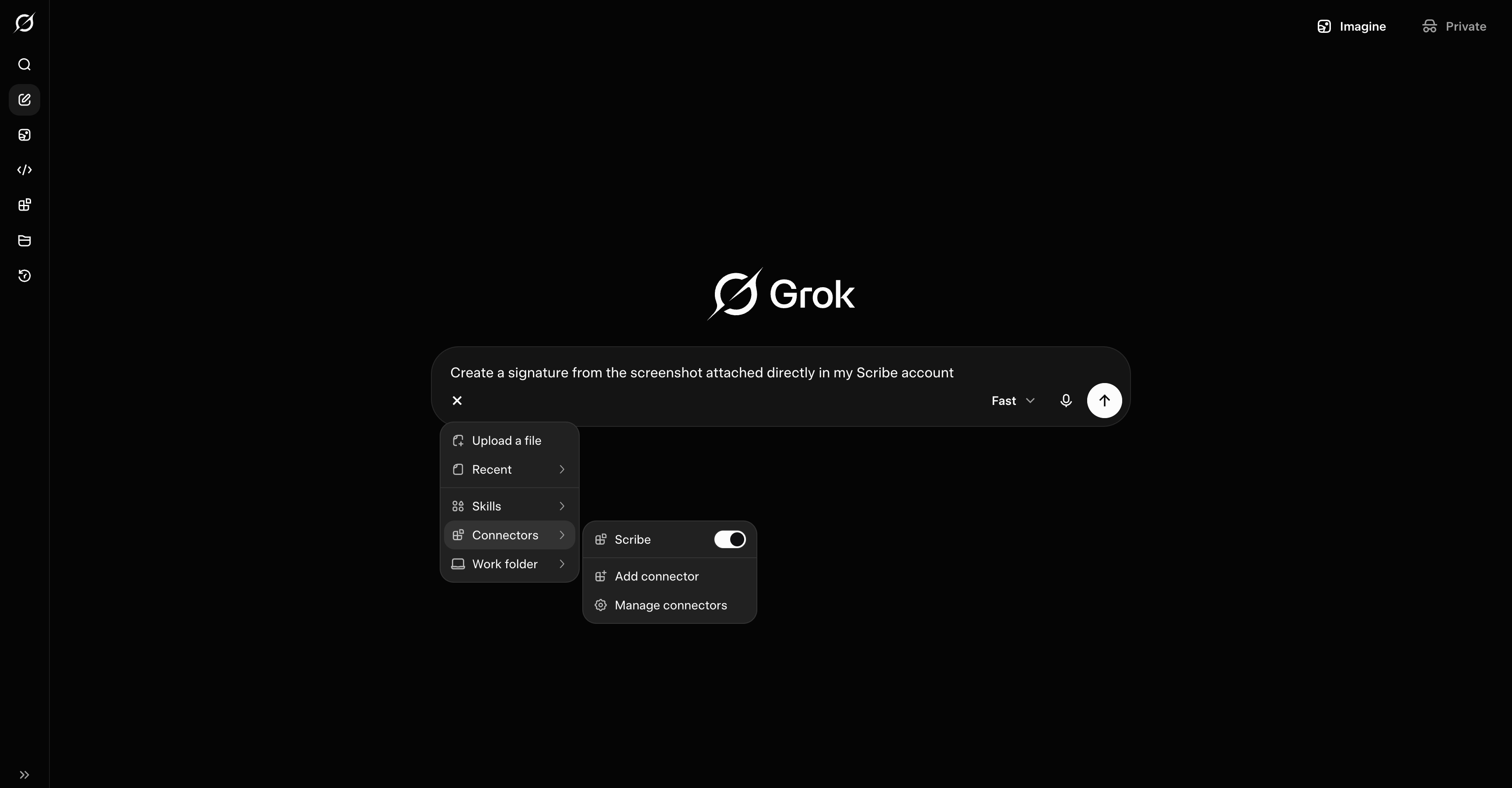
Gemini
Gemini
Connect Gemini to Scribe
Set up by your Google Workspace admin in Gemini Enterprise, from the Google Cloud console.- The admin adds a custom MCP server data store and enters the URL:
- The admin registers an OAuth client (a client id and secret plus a redirect), then authorizes it.
- The admin enables the Scribe tools for users.
Microsoft Copilot
Microsoft Copilot
Connect Microsoft Copilot to Scribe
A two-role setup: an admin or maker builds a Scribe agent once inCopilot Studio, then the team chats with that published agent. Plain Copilot chat does not get the Scribe tools on its own.Prerequisites- A
Microsoft 365 Copilotseat for each person who will use it Copilot Studiocapacity for the person who sets it up- Generative orchestration enabled on the agent
- Open or create an agent in
Copilot Studio, then go to Tools, Add a tool, New tool, Model Context Protocol. - In Add a Model Context Protocol server, set the Server name to
Scribe, add a short Server description, then paste the URL into Server URL as a streamable endpoint: - Set Authentication to OAuth 2.0, then choose Dynamic discovery so Copilot registers itself automatically, since Scribe supports OAuth dynamic client registration. Click Create, then enable the tool.
- Enable generative orchestration if it is not already on.
- Publish the agent.
- Under Channels, make it available where the team works, in Microsoft Teams or the
Microsoft 365 Copilotapp.
- Open the published Scribe agent in Microsoft Teams or the
Microsoft 365 Copilotapp. - Manage Scribe by chatting with it.
A tenant-wide federated connector surfaces Scribe for retrieval and grounding in Copilot chat. The published-agent route above is what enables actions like creating signatures and installing to the team.
DeepSeek
DeepSeek
Coding assistants
Scribe CLI (local MCP for any stdio agent)
Scribe CLI (local MCP for any stdio agent)
Connect a local agent through the Scribe CLI
Install the CLI, sign in once in your browser, and serve every Scribe tool to a local agent over stdio. There is no remote connector to set up, and it works with any MCP client that can launch a command:scribe signatures list, scribe teammates create --email jane@acme.com, scribe tools for the full list), handy for scripts and agents that prefer the shell. Full guide: Scribe CLI.Claude Code
Claude Code
Connect Claude Code to Scribe
Add the server, then verify it:claude mcp add --scope user scribe -- scribe mcp instead.Cursor
Cursor
Codex
Codex
Hermes
Hermes
OpenClaw
OpenClaw
Next steps
Skills
Give your assistant the full Scribe workflow
Tools reference
Every Scribe MCP tool, grouped by area
Troubleshooting
Fix connection and tool issues
FAQ
Access, data safety, supported assistants