

Why configure DNS?
Your Scribe email signatures contain multiple URLs: logos, profile pictures, social icons, website links, campaign banners, and tracking links. By default, these URLs use Scribe’s domain (sendassets.io).
The problem: spam filters flag emails that contain many URLs pointing to a domain different from the sender’s email domain. If your team sends from @yourcompany.com but all signature links point to sendassets.io, deliverability can suffer.
The fix: replace Scribe’s default domain with a subdomain of your own, like signature.yourcompany.com. This is called a sending domain. It tells spam filters that the links in your emails belong to your organization, keeping your emails out of spam folders.
For example, if your team sends from joe@my-company.com, you would configure a sending domain like signature.my-company.com.
How to set it up
1
Go to the DNS tab
In your Scribe dashboard, navigate to Settings → DNS. If you’ve already synced your email provider, your domain will appear automatically. Click Configure. Otherwise, click Add a domain.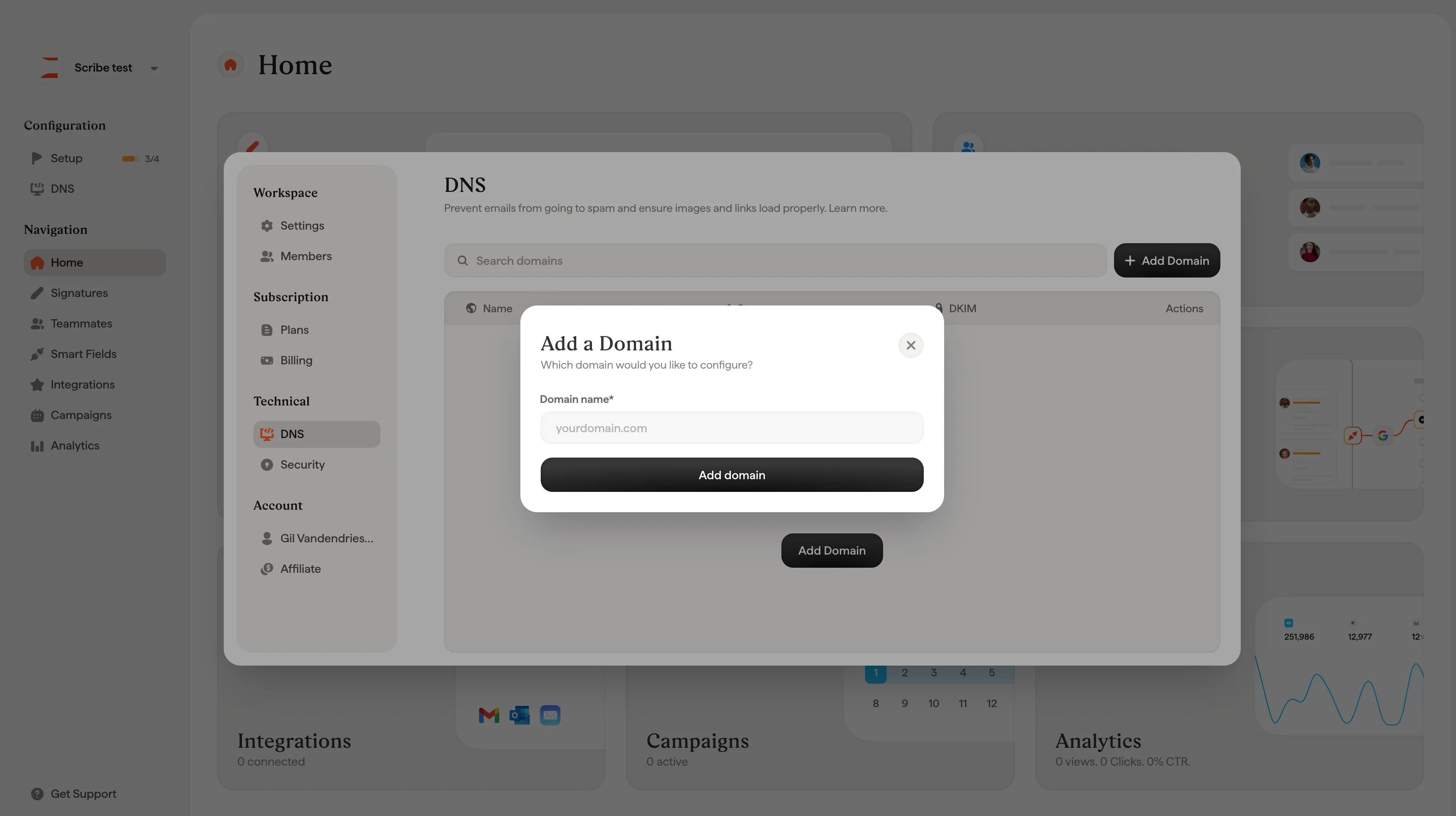
2
Enter your domain name
Type your company’s primary domain. For example,
mycompany.com.3
Choose a CNAME record
Pick a subdomain prefix for your sending domain. For example,
signature would create signature.mycompany.com. Other common choices include email or mail-assets.4
Follow the setup wizard
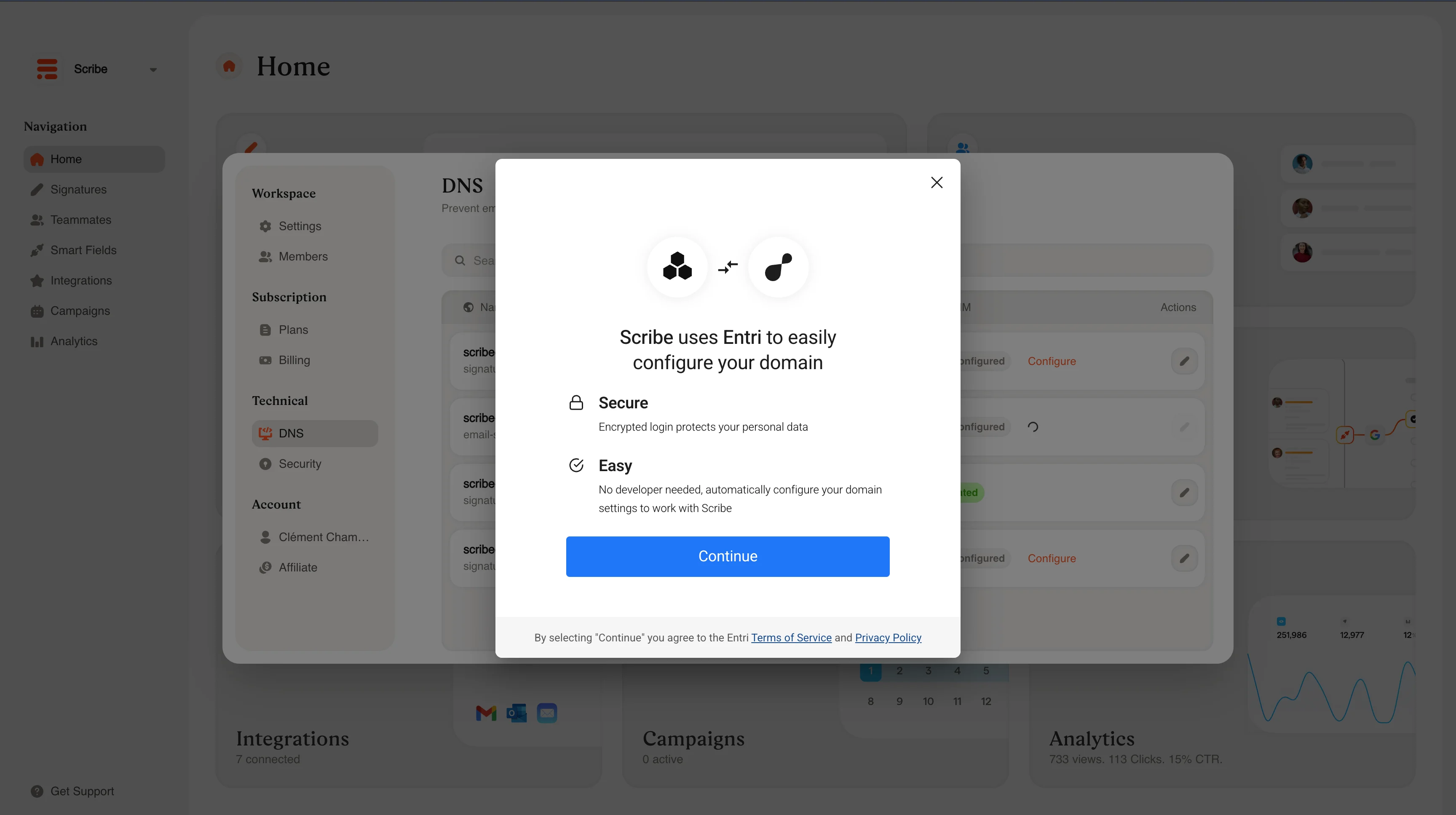
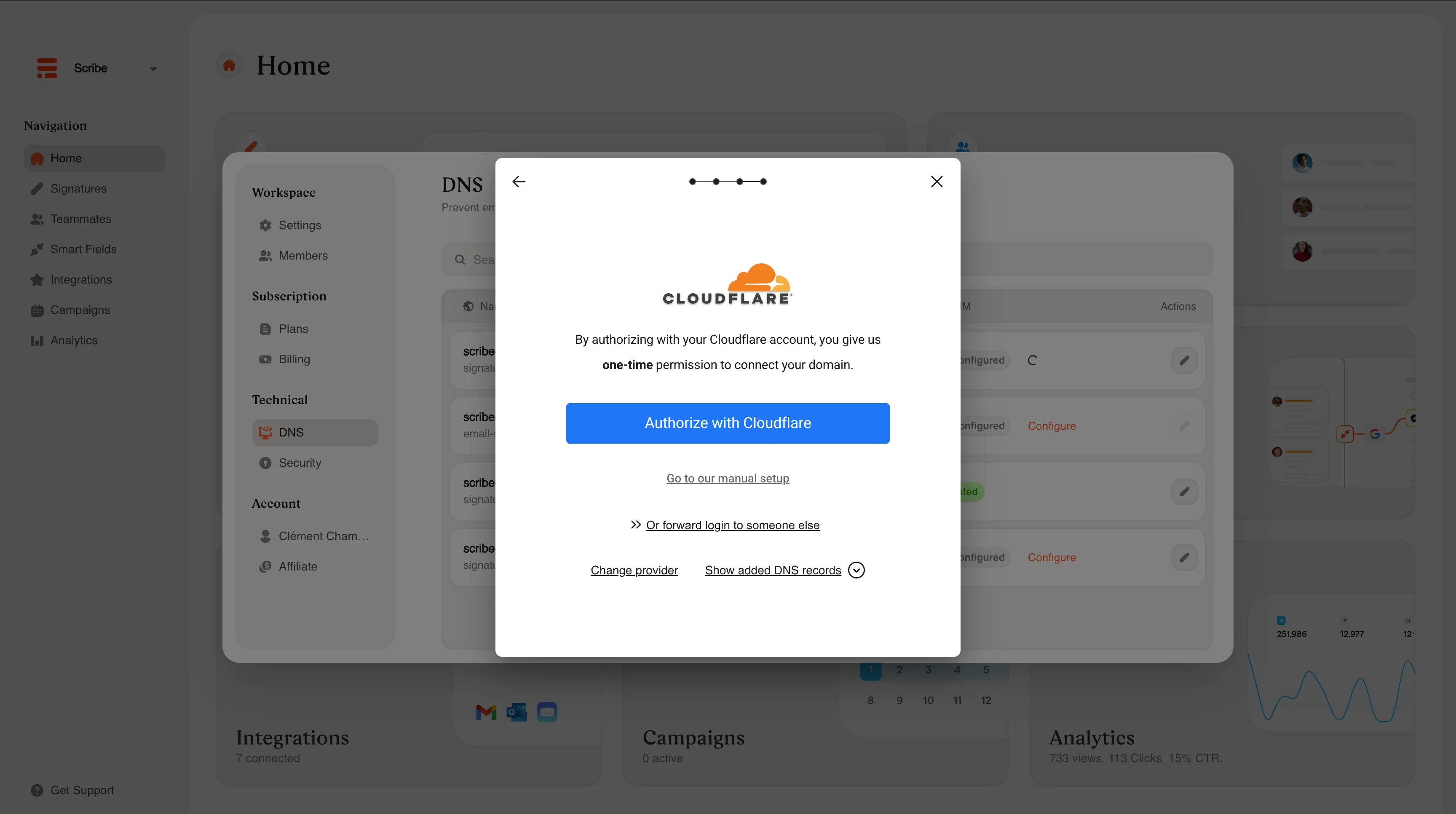
Scribe’s wizard will automatically configure the DNS settings with your domain provider. No developer or manual DNS editing required. Just follow the prompts.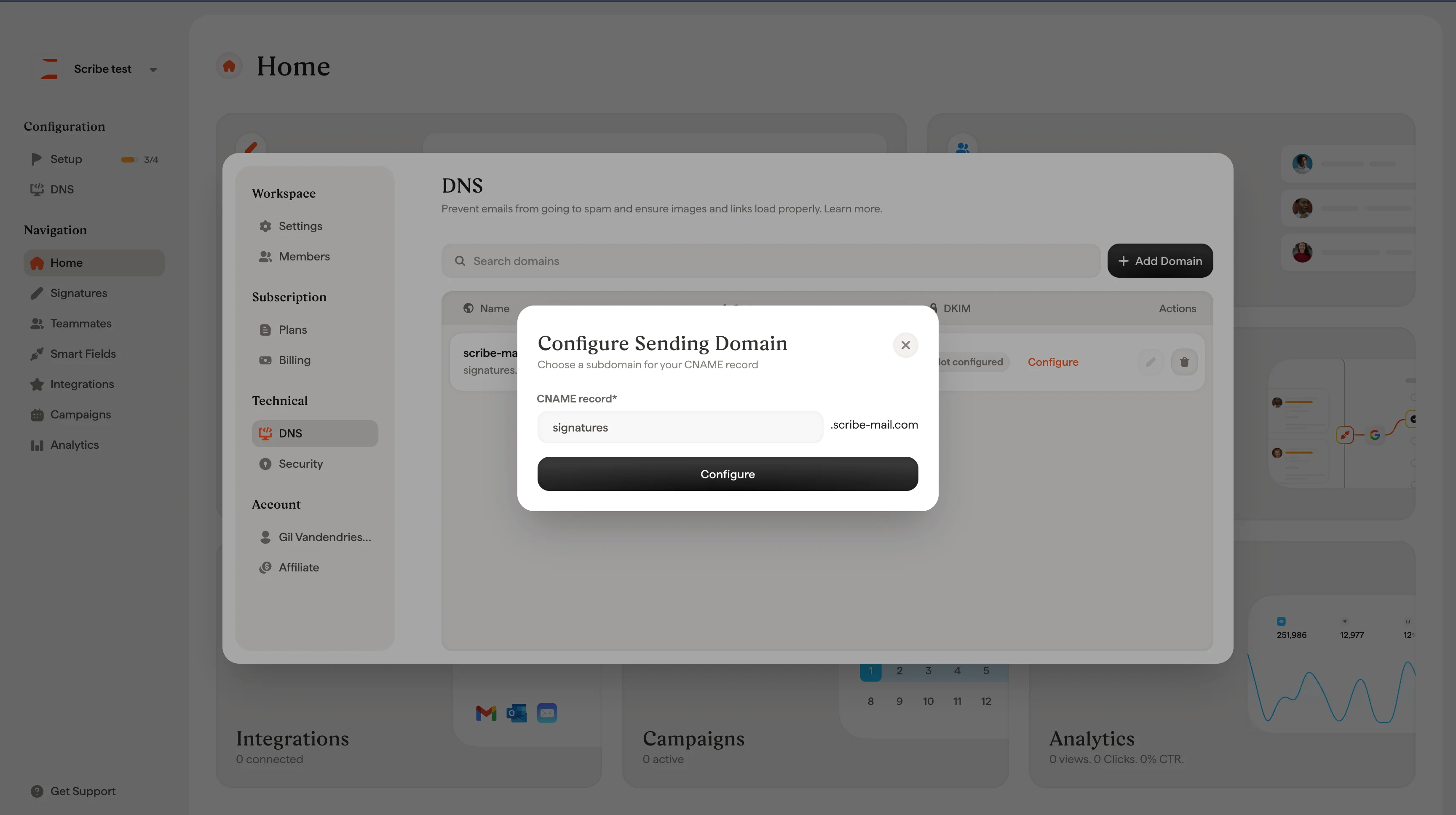
After setup
Once configured, DNS propagation can take up to 24 hours. You can check the status in two ways:- In your Scribe dashboard under Settings → DNS, where the status will change to Validated once propagation is complete
- Using an external tool like dnschecker.org
DNS settings reference
Full DNS configuration details and troubleshooting