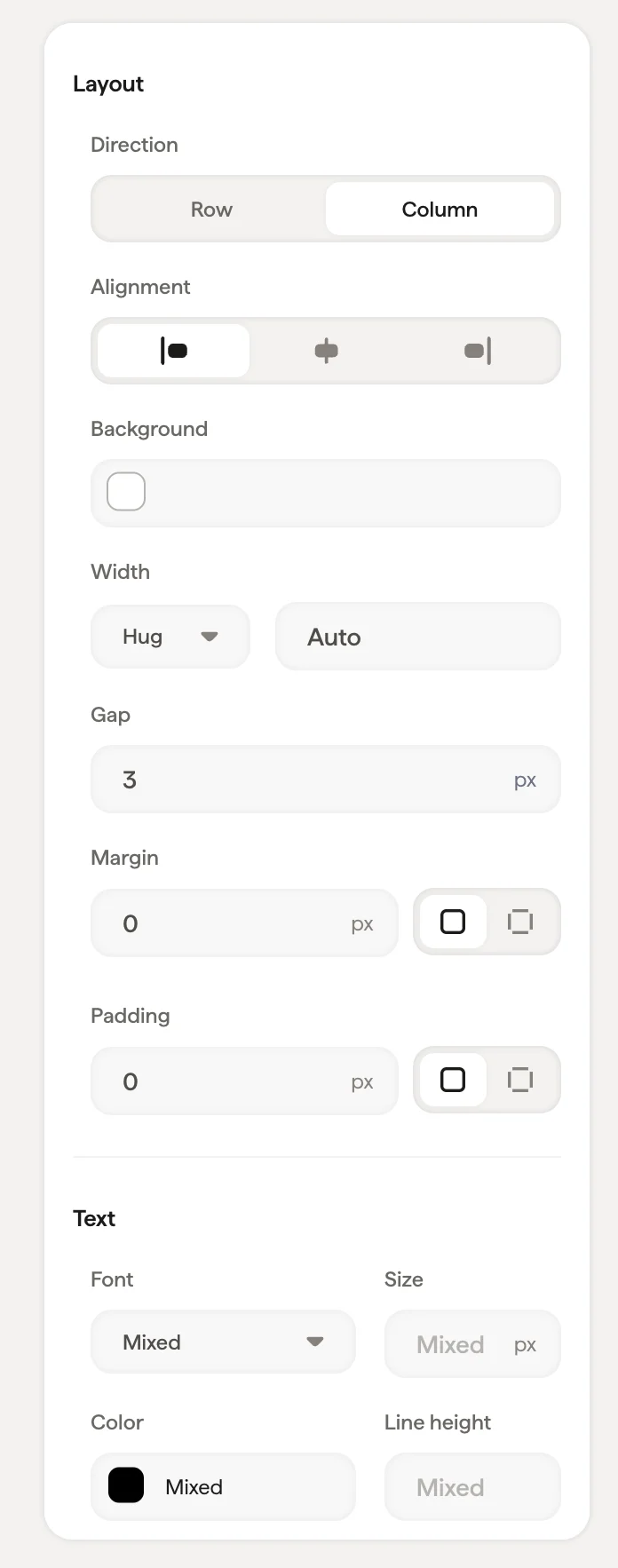
Layout
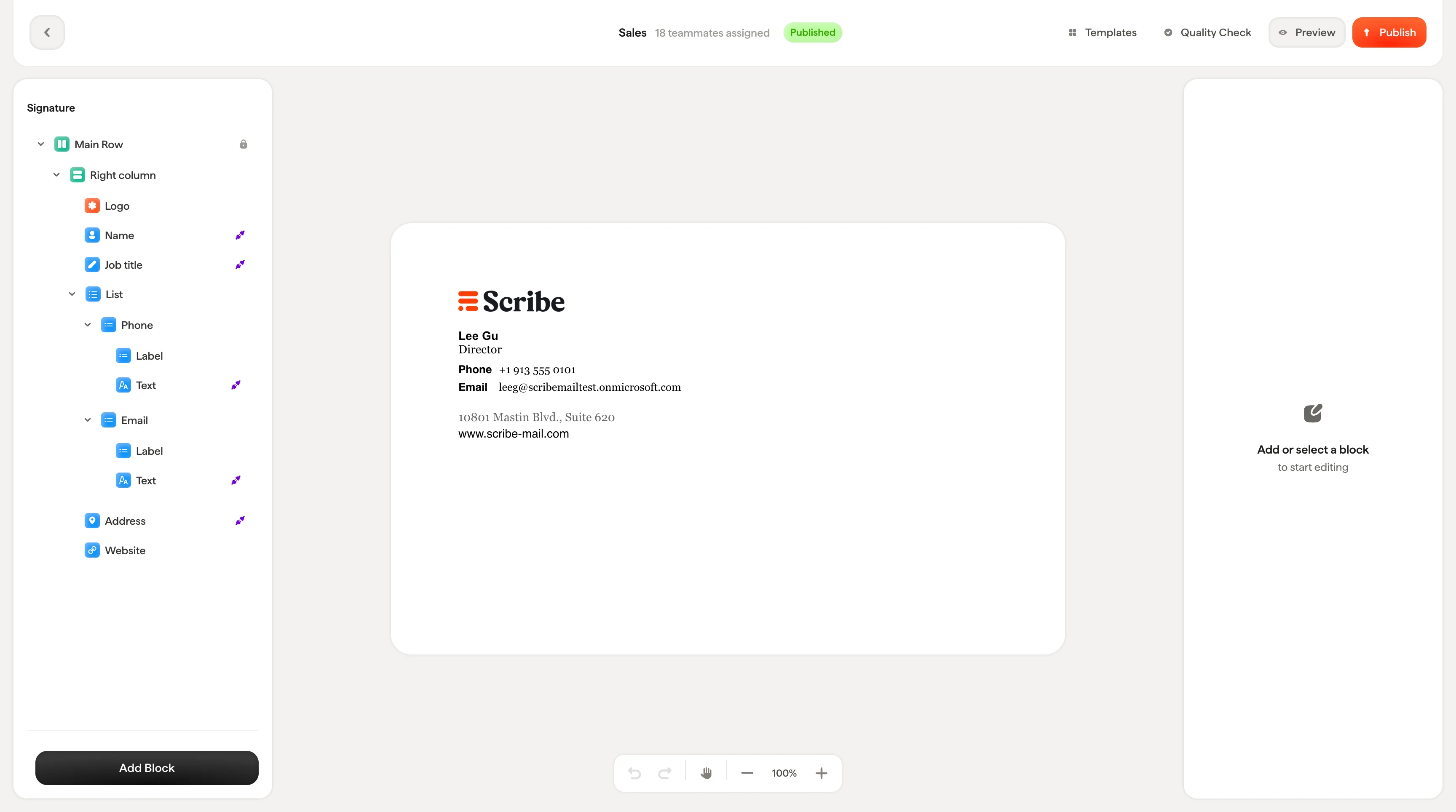
Tree panel (left): Shows the hierarchical structure of your signature as a collapsible tree. Every block in your signature appears here: columns, text blocks, images, banners. You can select, reorder, duplicate, hide, and delete blocks from this panel.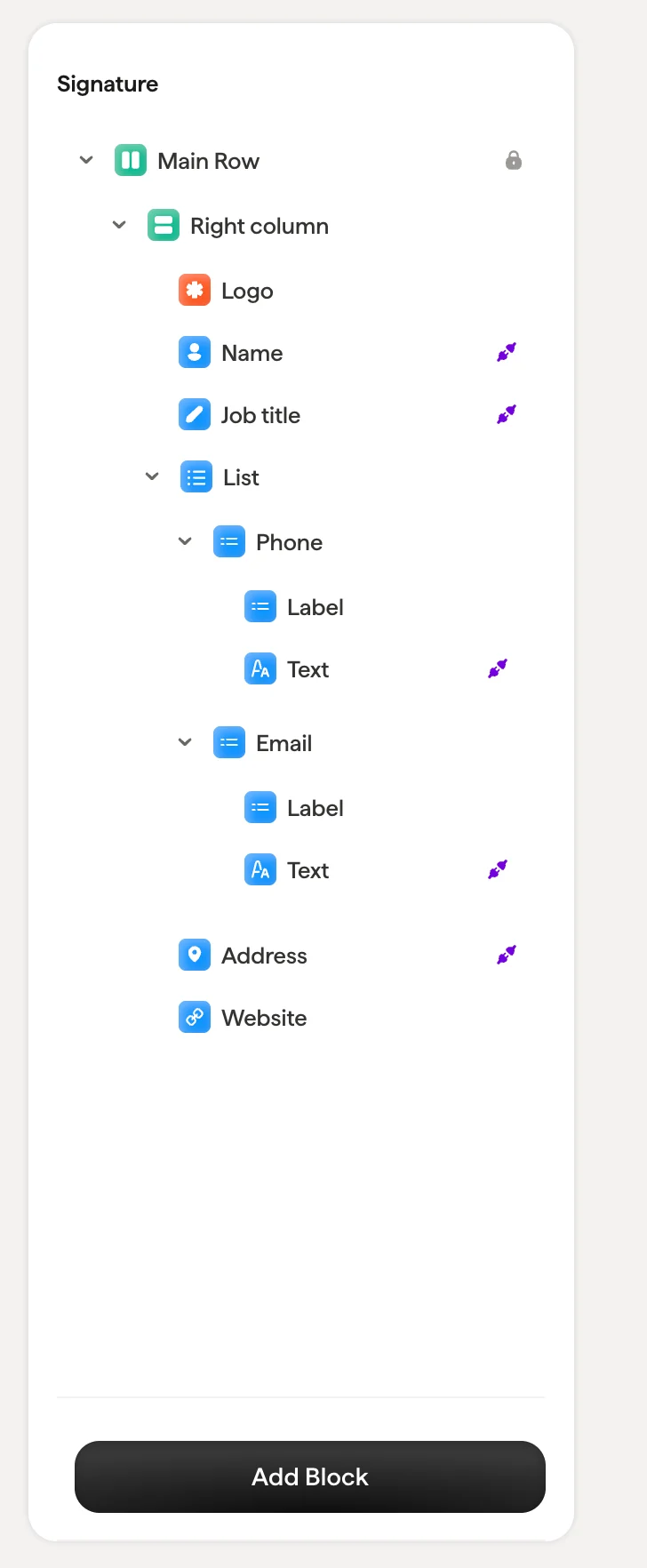
Top bar
The top bar shows key information and actions:- Back arrow: Return to the signature detail page
- Signature name and status: Shows the signature name, number of assigned teammates, and current status (Draft or Published)
- Templates: Browse the template library to start from a pre-built design
- Quality check: Runs a compatibility check on your signature design. Click to see a checklist that verifies your signature adapts responsively to all screen sizes, works with all email clients and browsers, functions across desktop/mobile/tablet, loads quickly with lightweight HTML, displays correctly when composing emails, and maintains image proportions across all platforms. All checks should show green before publishing.
- Preview: Open the preview modal to see how the signature looks for each teammate
- Publish: Push your design changes live. After publishing, updates are automatically sent to all installed teammates.

Action bar
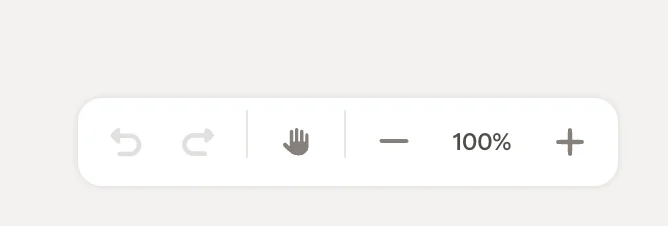
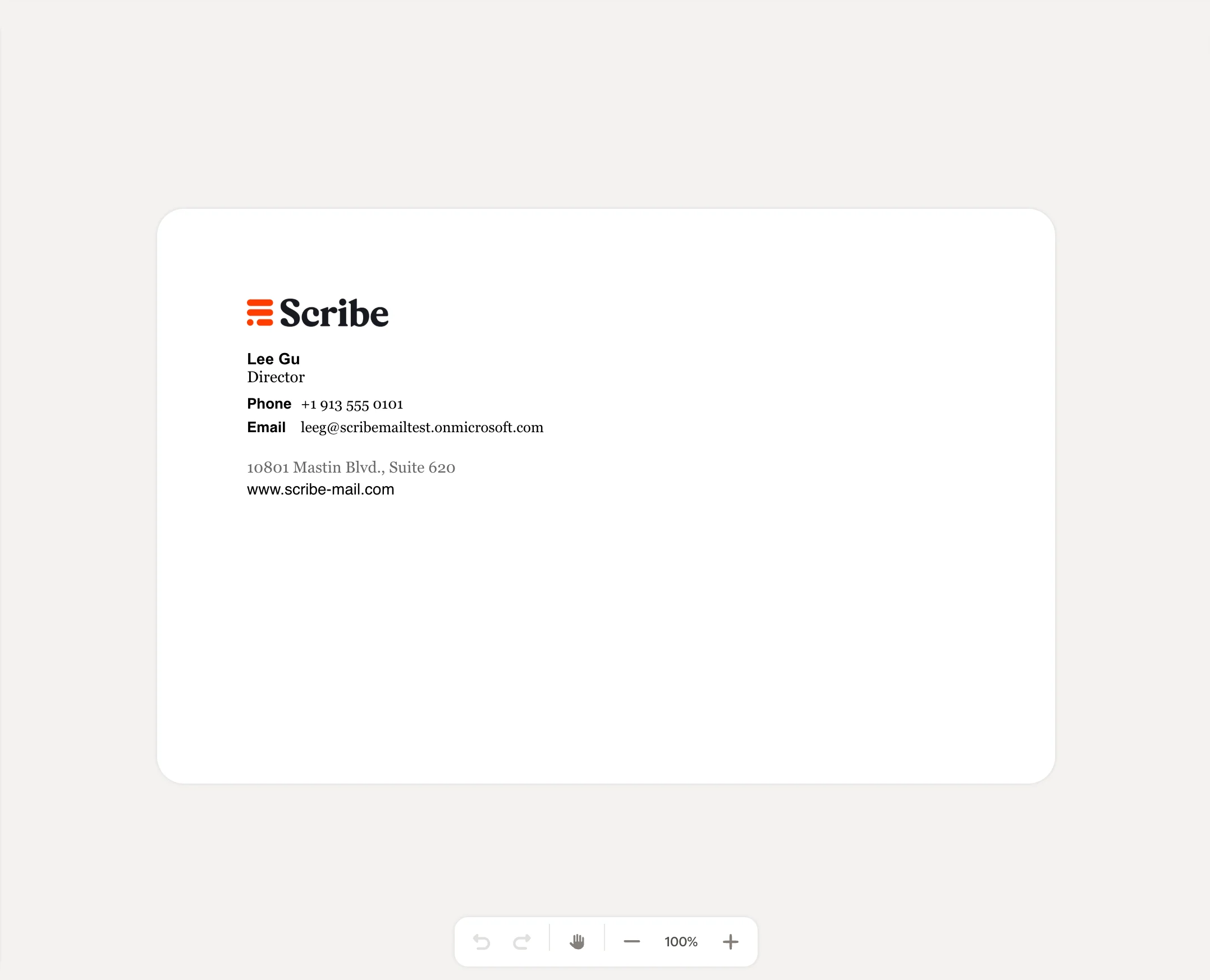
At the bottom of the canvas, the action bar provides:- Undo / Redo: Step backward or forward through your changes
- Drag handle: Reposition the canvas view
- Zoom controls: Zoom in (+), zoom out (−), or set a specific zoom level (e.g., 100%)