

Install all signatures at once
Click the Install Signatures button in the top-right corner of the Signatures page. This opens the installation modal, which shows every signature in your workspace with its current status. For each signature you can see:- Signature name and number of teammates assigned
- Status: Installed, Partially installed, Not installed, Pending, or Failed
- Integrations: Which integrations are connected (Google Workspace, Microsoft 365, or both)
- Last installed: When the signature was last deployed
- Actions: Install or uninstall individual signatures
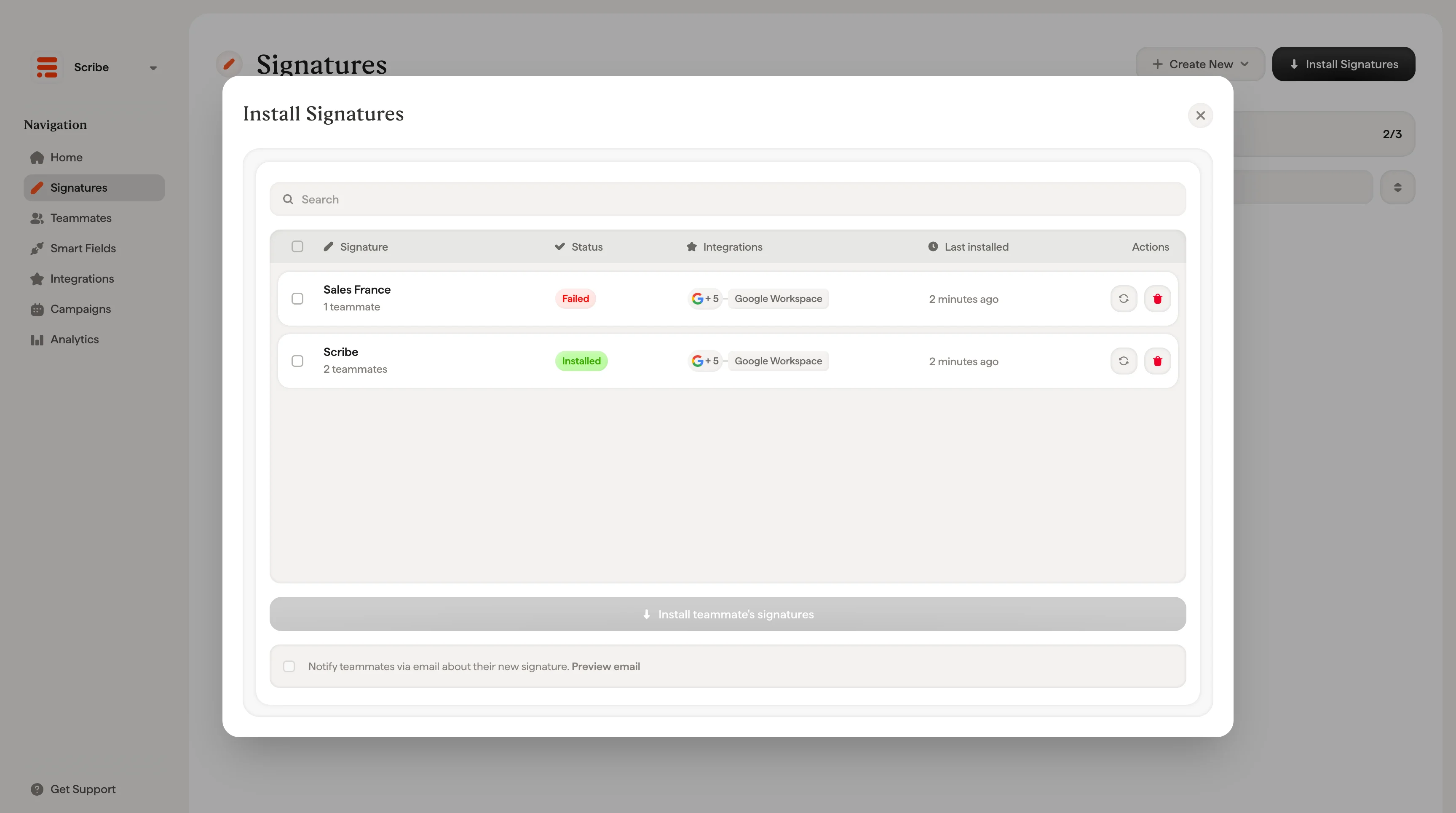
If no integration is connected yet, the modal will prompt you to connect one before you can install. Click Connect Integration to set it up.
Install one signature at a time
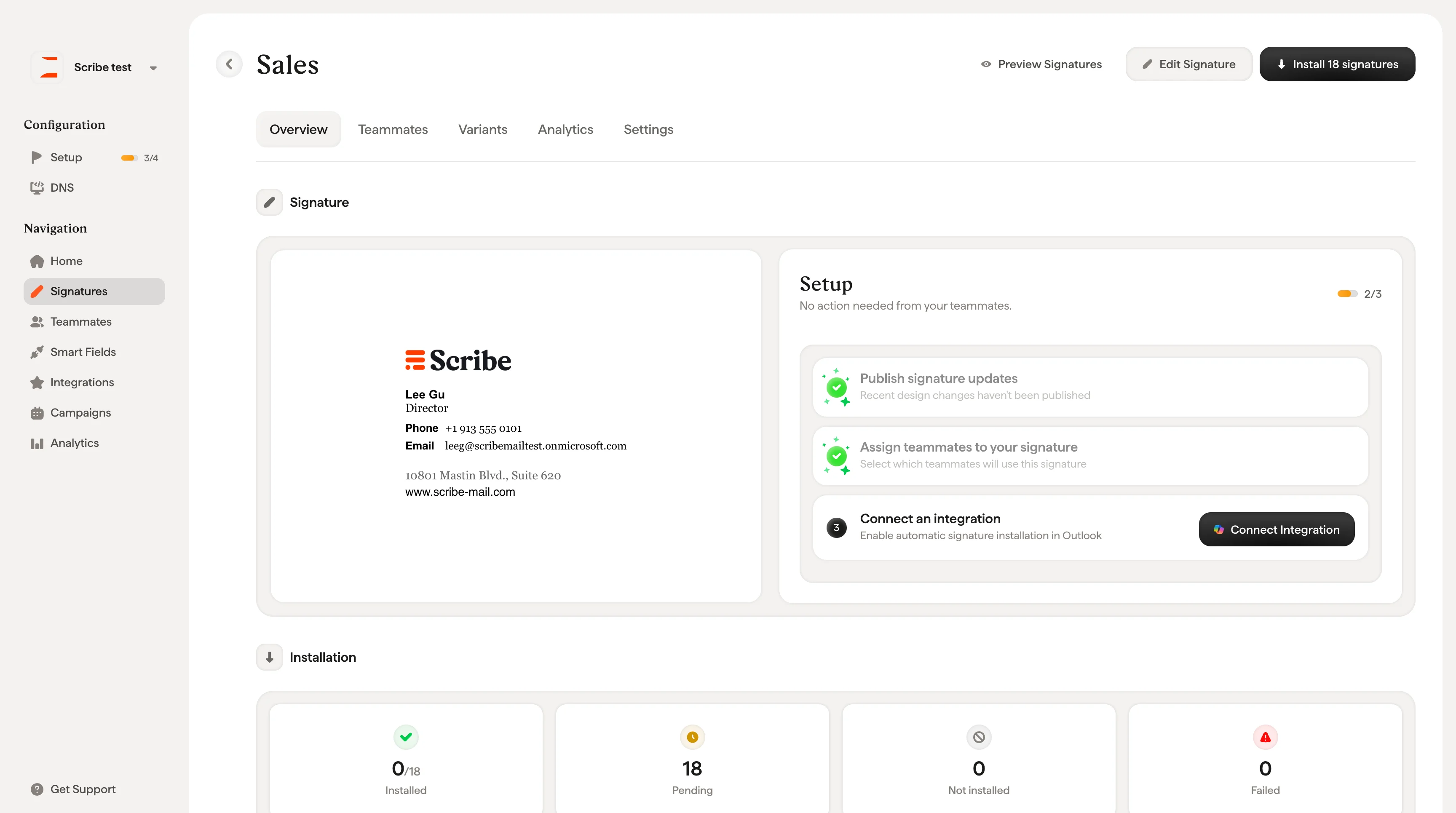
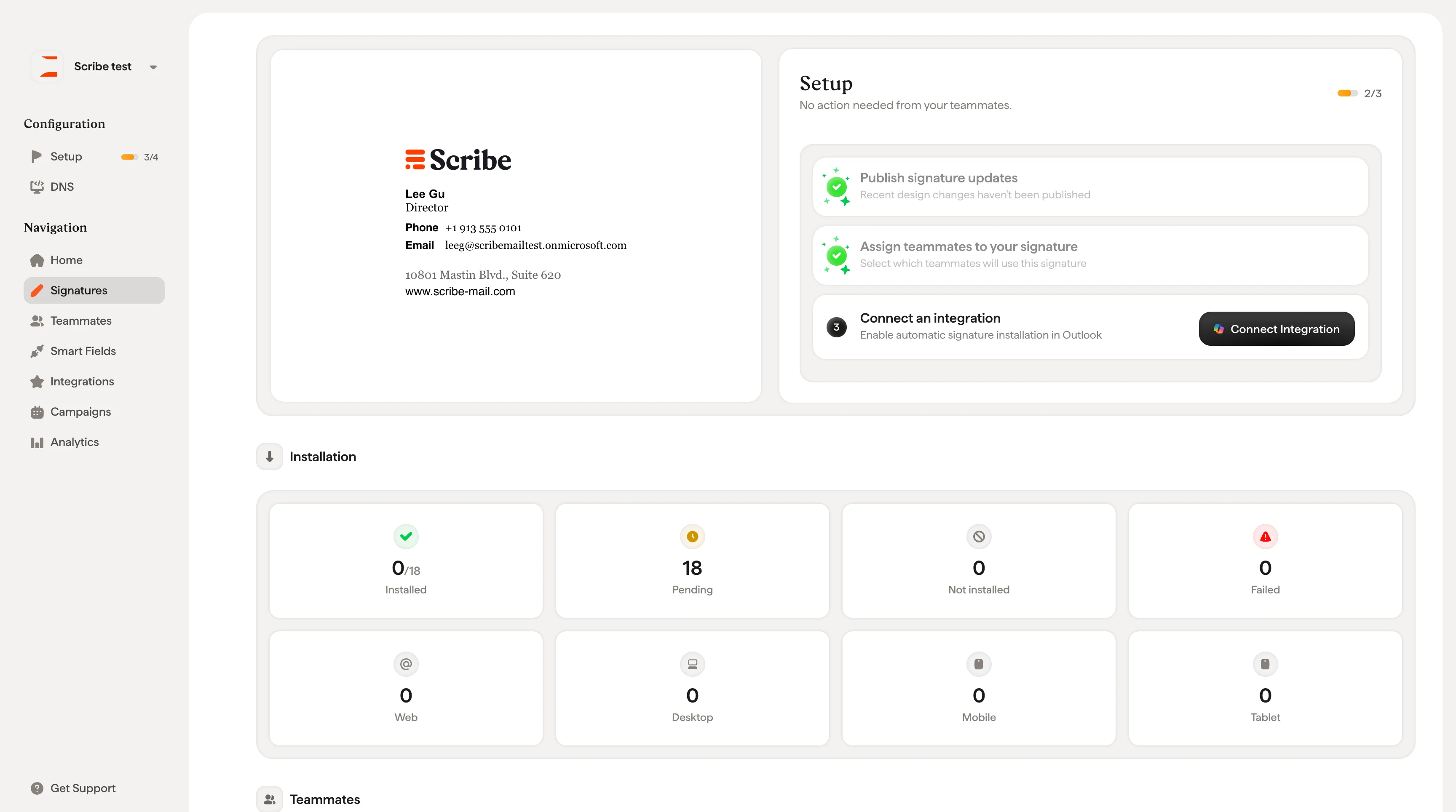
Click on any signature card to open its overview page. From there, the Setup panel on the right guides you through the steps:- Publish signature updates: Make sure your latest design changes are published
- Assign teammates: Select which teammates will use this signature
- Connect an integration: Enable automatic installation
Notify teammates
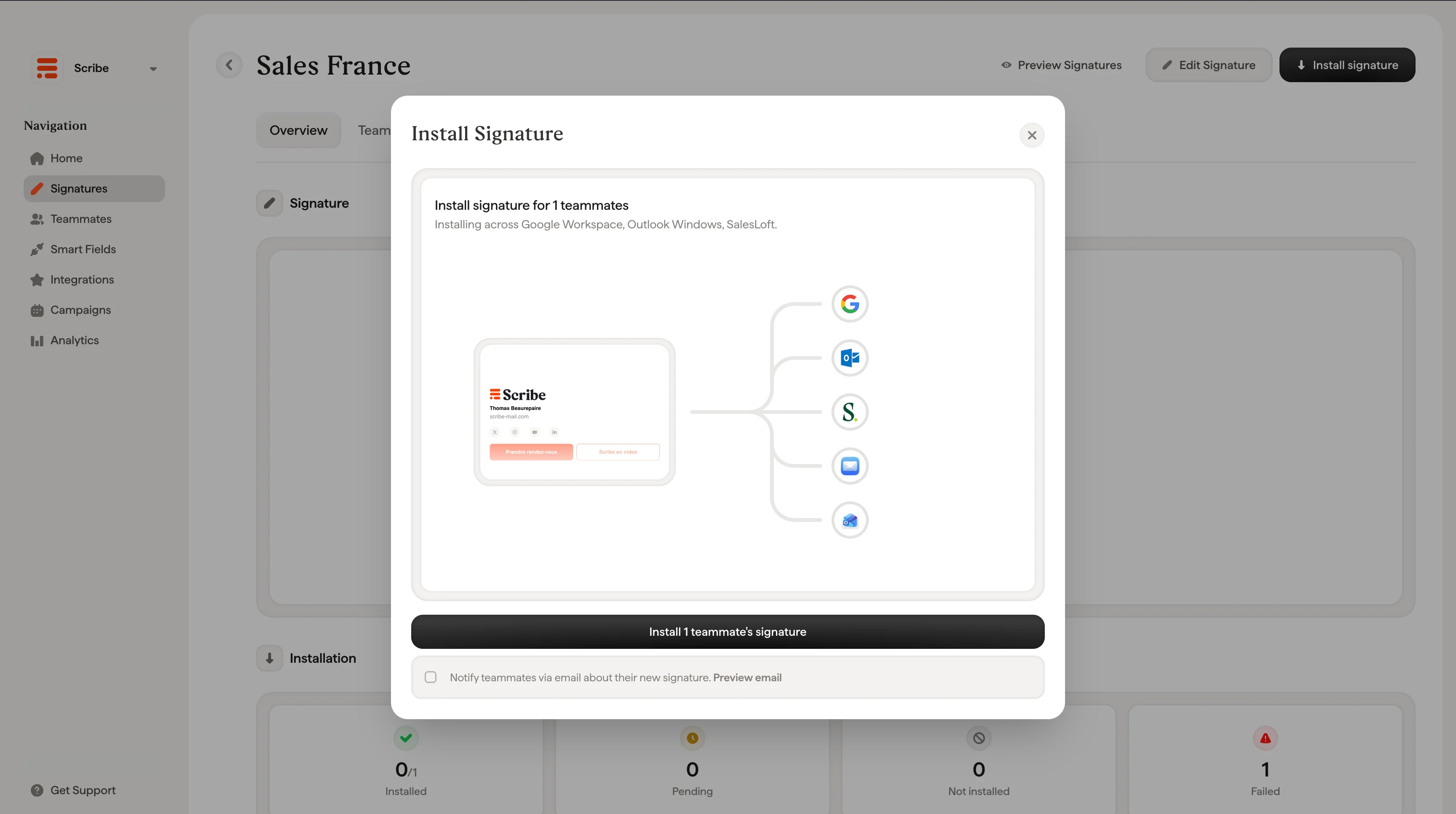
At the bottom of the Install Signatures modal, you can check “Notify teammates via email about their new signature” to automatically send an email to your teammates letting them know their signature has been updated. The email includes a preview of their new signature, the name of the admin who deployed it, and which email client it applies to. It also reassures them that no action is needed on their part. The signature will appear automatically when they compose their next email. This saves you from having to manually notify your team via Slack, Teams, or email every time you roll out a signature update.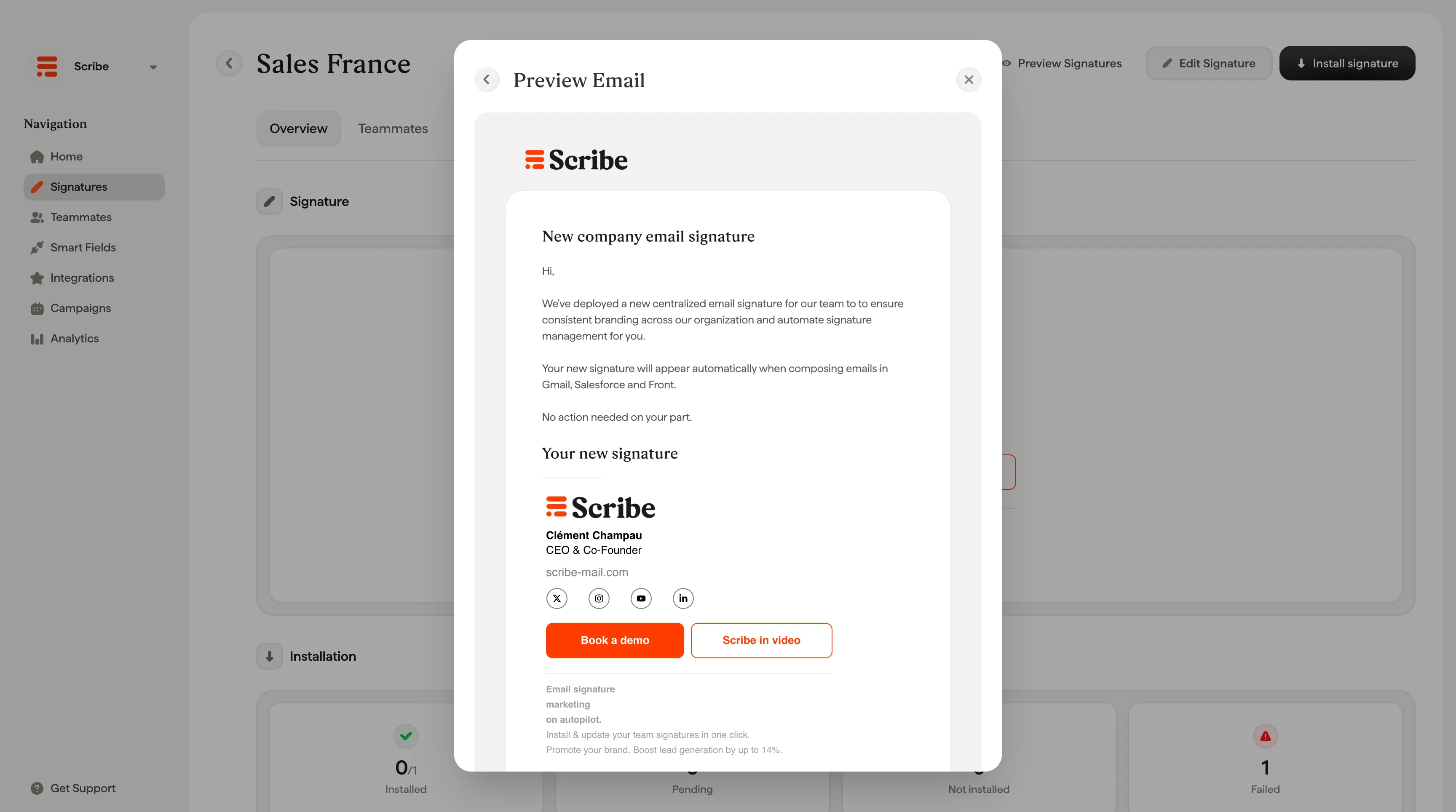
Installation statuses
Uninstall a signature
From the Install Signatures modal, click the ✕ button next to any signature to uninstall it from your teammates’ email clients.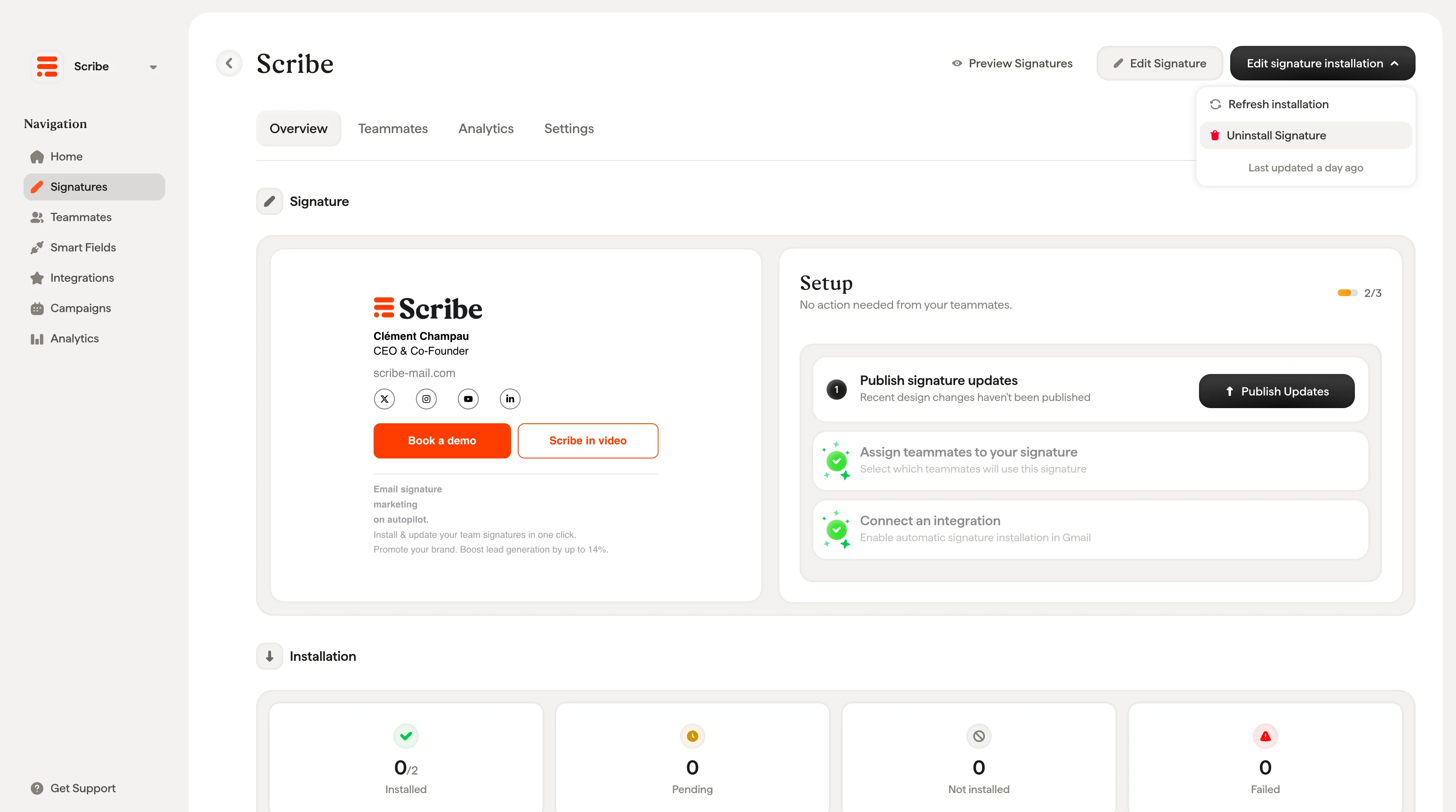
Related articles
- Signatures overview: where installation fits in the signature workflow.
- Signature installation statuses and errors: what each status means and how to resolve errors.
- Signature status: read installation progress from the signature card.
- Preview signatures: verify each teammate’s signature before you deploy.