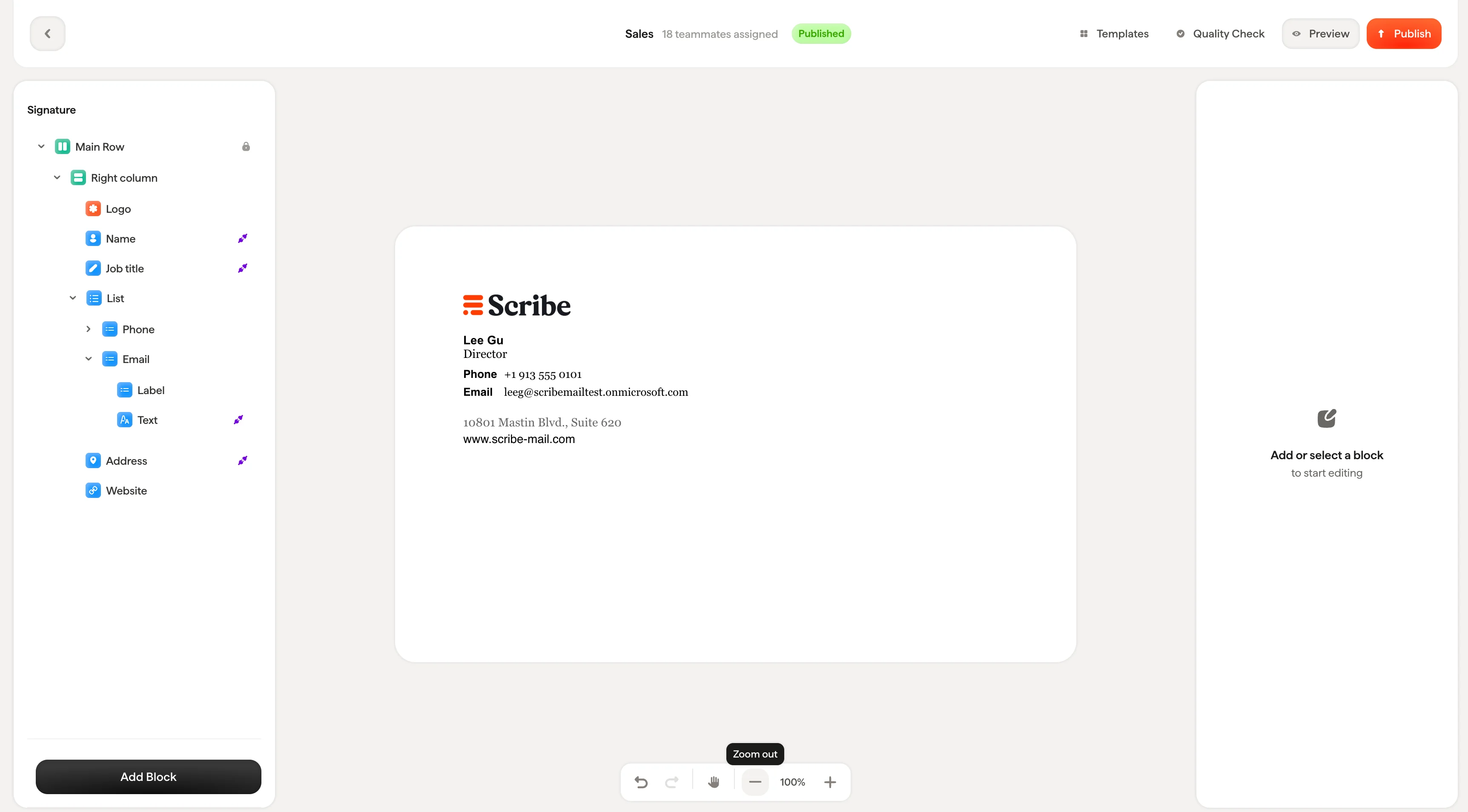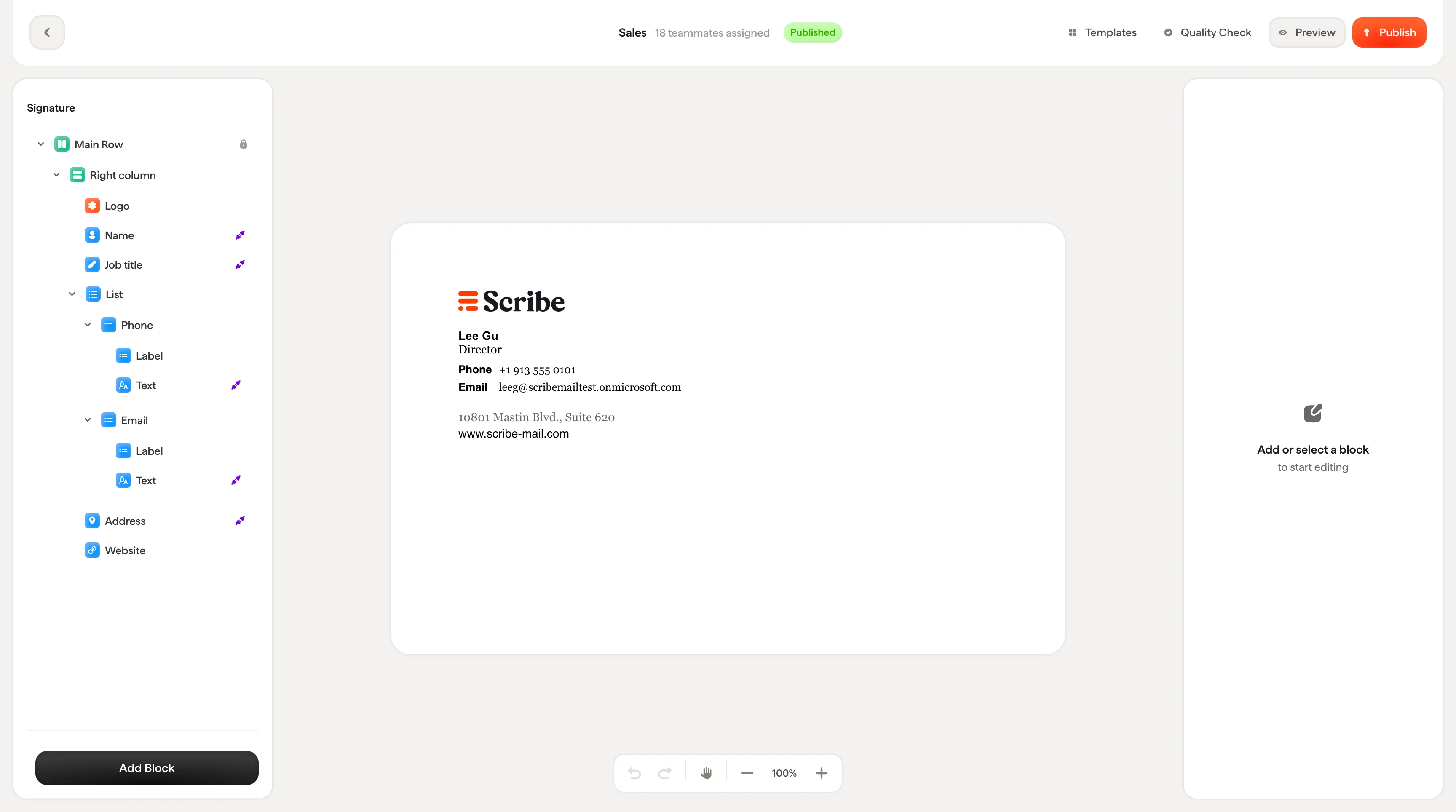
Selecting blocks
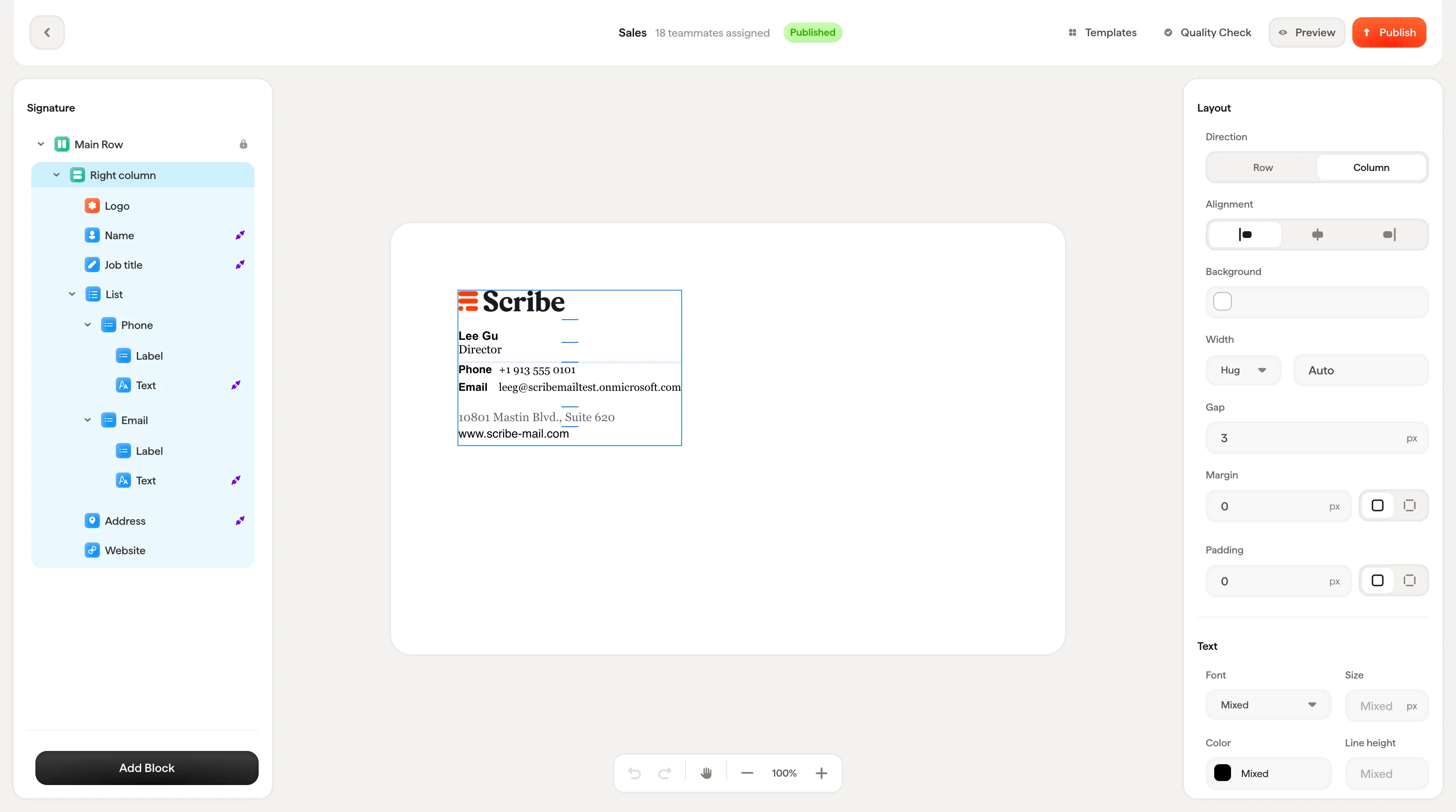
Click any block on the canvas to select it. A blue border appears around the selected block, and:- The corresponding item highlights in the tree panel
- The styling panel on the right updates to show that block’s settings
Editing text inline
For text blocks, you can edit content directly on the canvas. Click a text block to select it, then click again to place your cursor and start typing. You can select words or phrases to apply formatting from the styling panel. When you’re editing text inline, the styling panel shows text-level controls: font, size, color, line height, and formatting options (bold, italic, uppercase, strikethrough, underline).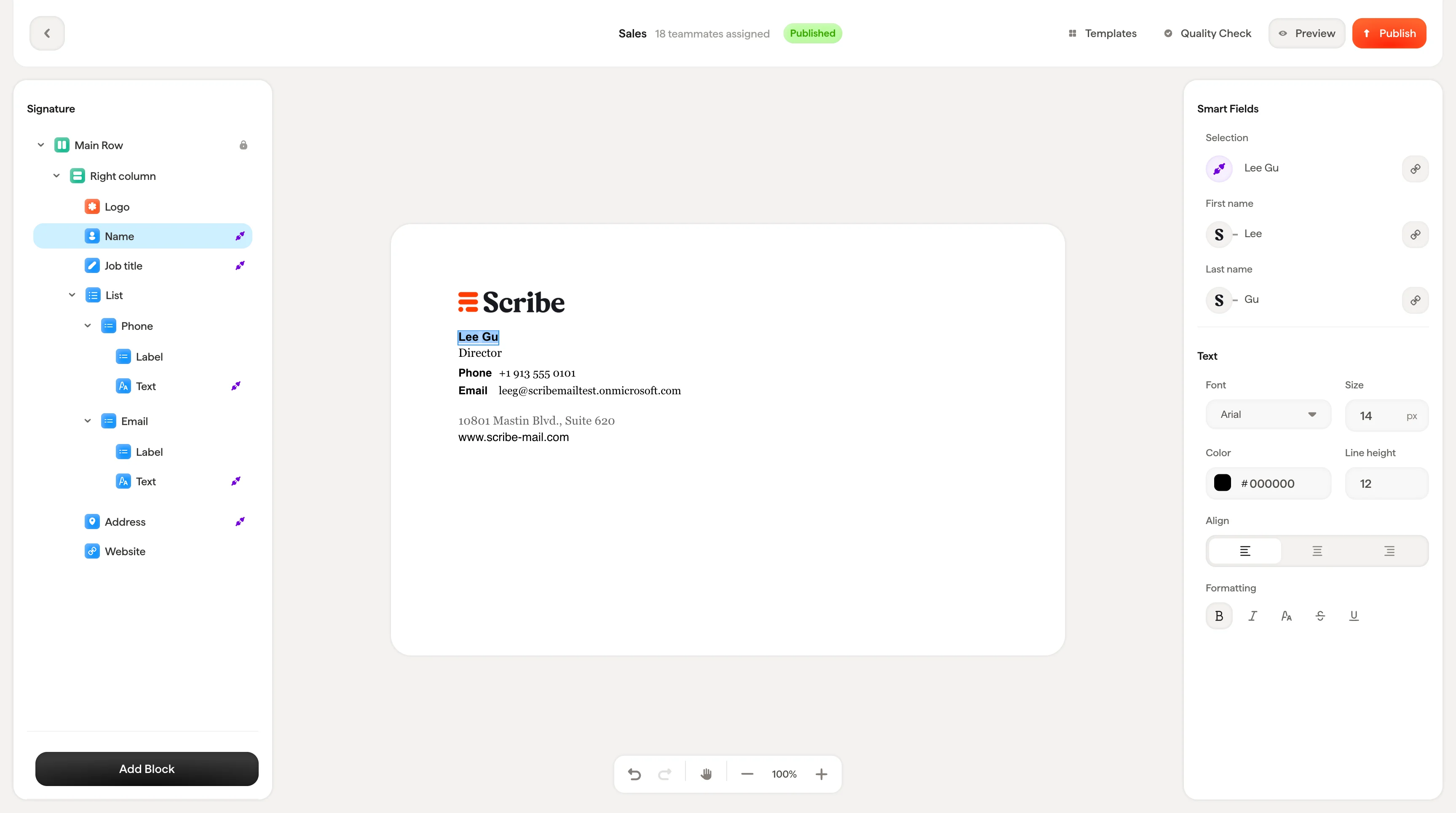
Text blocks connected to a Smart Field (like Name or Job title) show the Smart Field value on the canvas. You can’t edit the value itself here, since it’s pulled from your data source. But you can still style how it appears.
Adding rows and columns
Right-click any block on the canvas to open a context menu with two options: Add Row and Add Column. This lets you quickly group blocks together without leaving the canvas.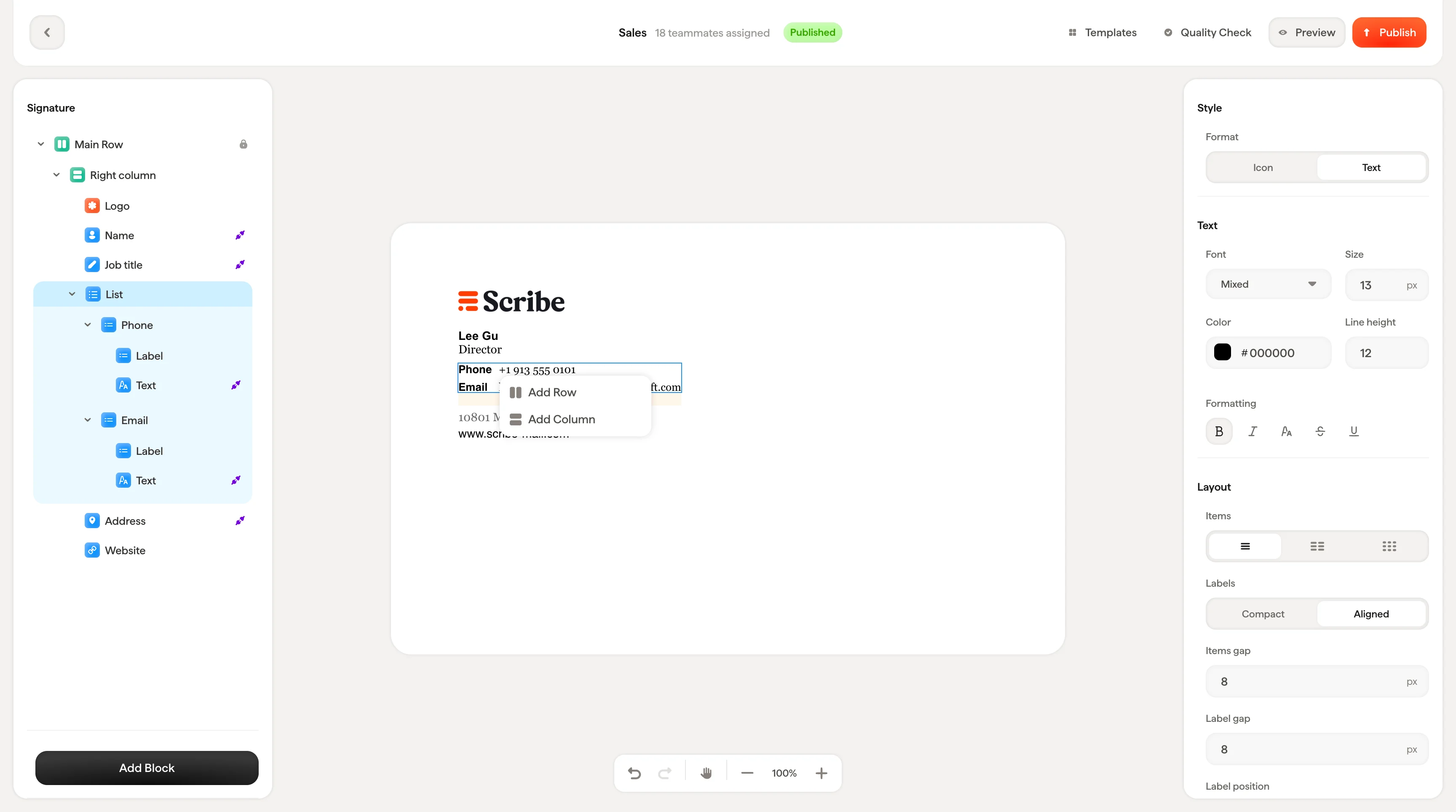
Reordering blocks
Drag any block on the canvas to reorder it within its container. As you drag, a dashed blue border shows where the block will land when you release. You can also reorder blocks by dragging them in the tree panel. The result is the same.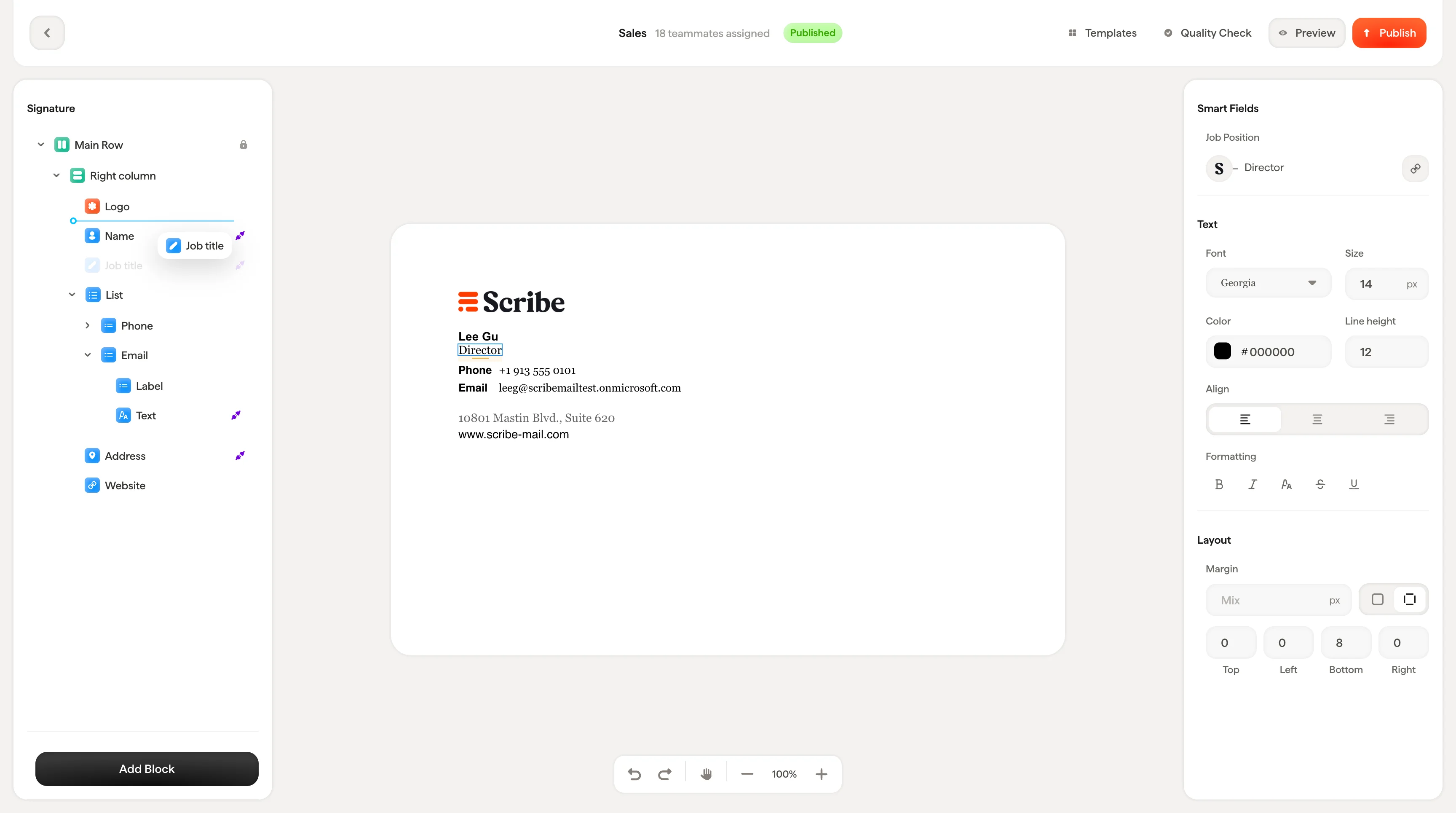
Resizing
Some blocks (like images) show resize handles (small blue squares) at the edges and corners when selected. Drag these handles to resize the block directly on the canvas. The exact dimensions update in real time in the styling panel.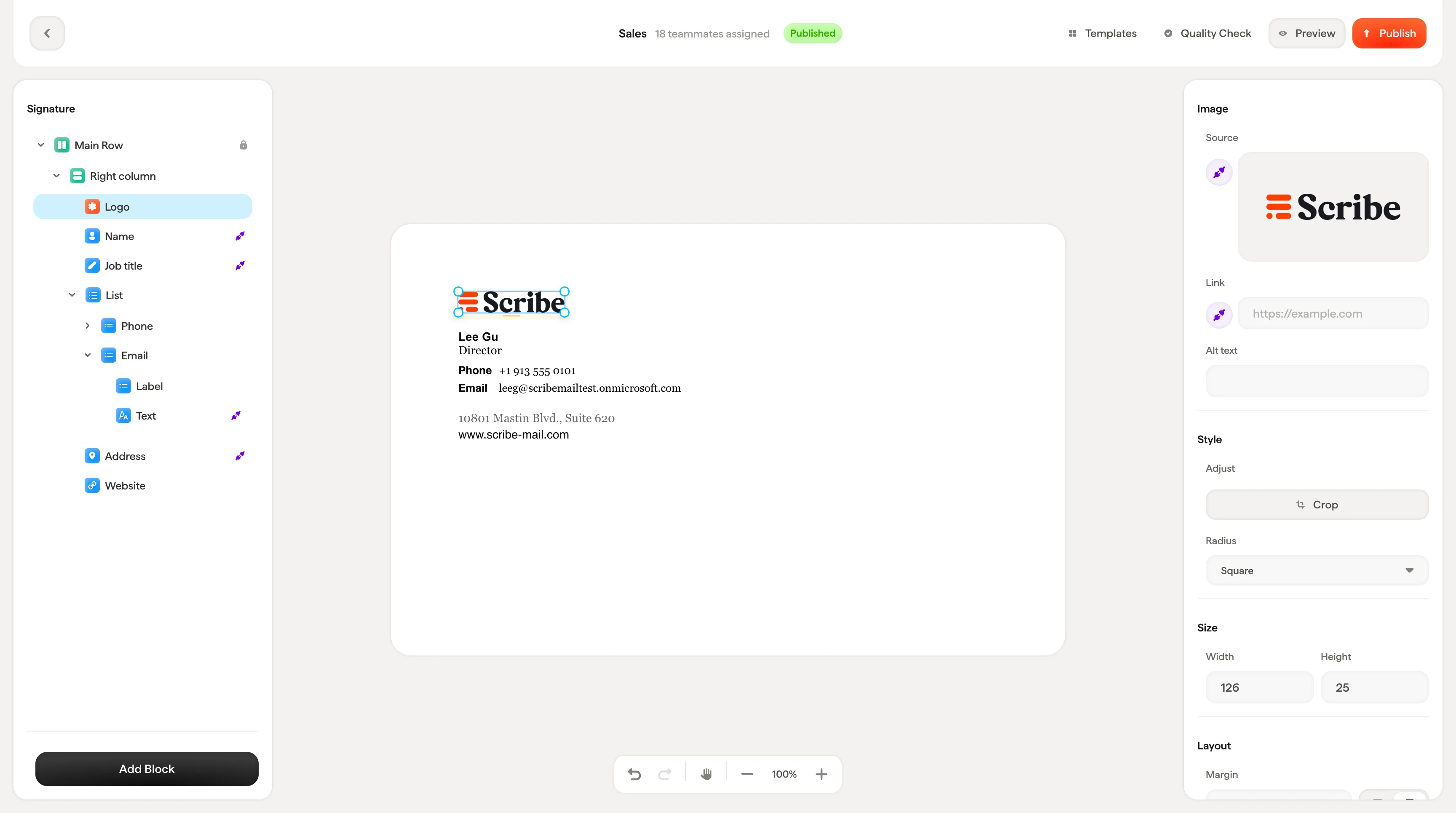
Navigating the canvas
The canvas is an infinite workspace. Use the action bar at the bottom to zoom in and out, or activate the hand tool to pan around without accidentally selecting blocks.