

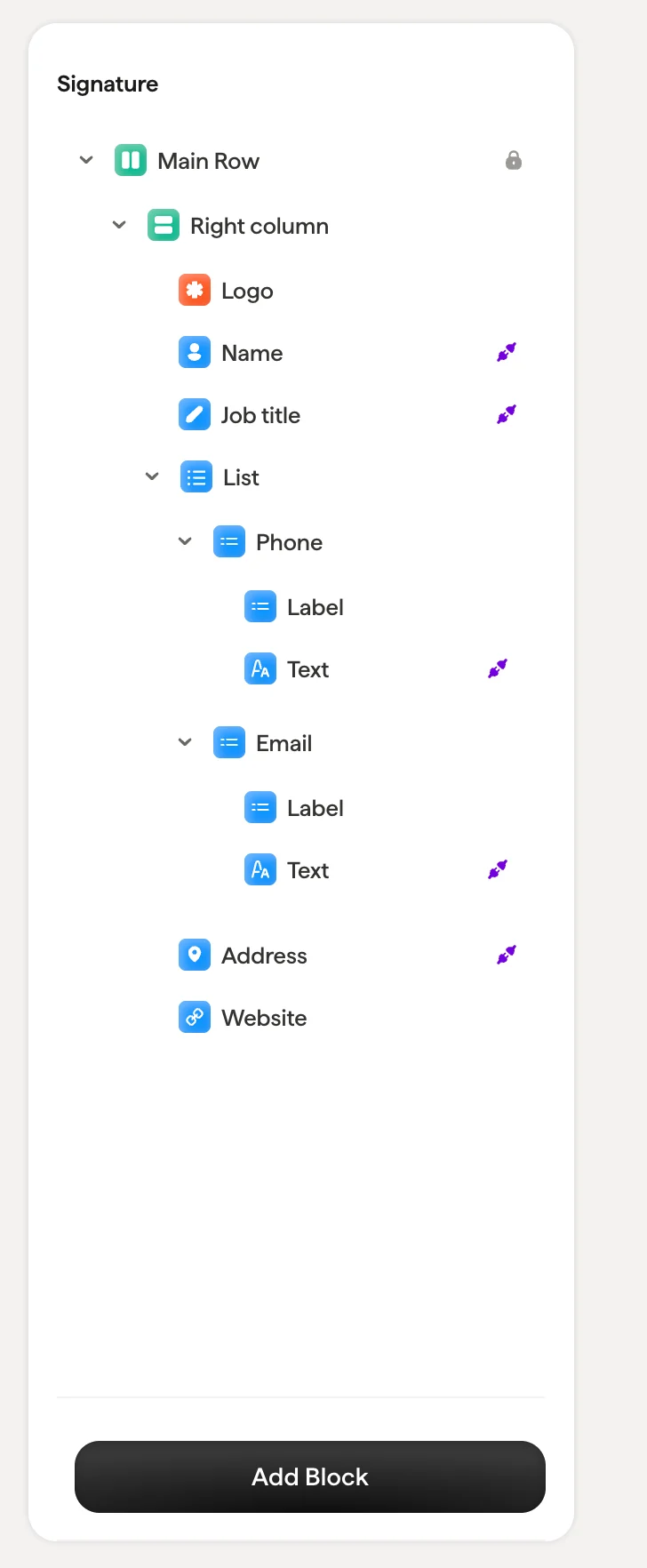
Structure
A signature is built from nested blocks:- Main Column: The root container of your signature. It cannot be deleted (indicated by the lock icon). All other blocks live inside it.
- Columns: Layout containers that hold content blocks. You can nest multiple columns to create side-by-side layouts (for example, a logo column next to a text column).
- Content blocks: Individual blocks like Name, Job title, Address, Logo, Banner, and more.
Select a block
Click any block in the tree to select it. The corresponding block is highlighted on the canvas, and the styling panel on the right updates to show that block’s properties. You can also click directly on a block in the canvas, and the tree panel will highlight the corresponding block.Block actions
Hover over any block in the tree to reveal action icons:- Duplicate: Create a copy of the block
- Hide: Toggle the block’s visibility on or off without deleting it. Hidden blocks remain in the tree but don’t appear in the final signature. This is useful for temporarily removing an element without losing its configuration.
- Smart Field indicator (purple pin icon): Shows that the block is connected to a Smart Field and pulls data dynamically for each teammate

Reorder blocks
Drag and drop blocks within the tree to reorder them. You can move blocks between columns or change their position within a column. The canvas updates in real time as you rearrange.The Main Column is locked and cannot be moved or deleted. It’s the root container that holds your entire signature structure.