

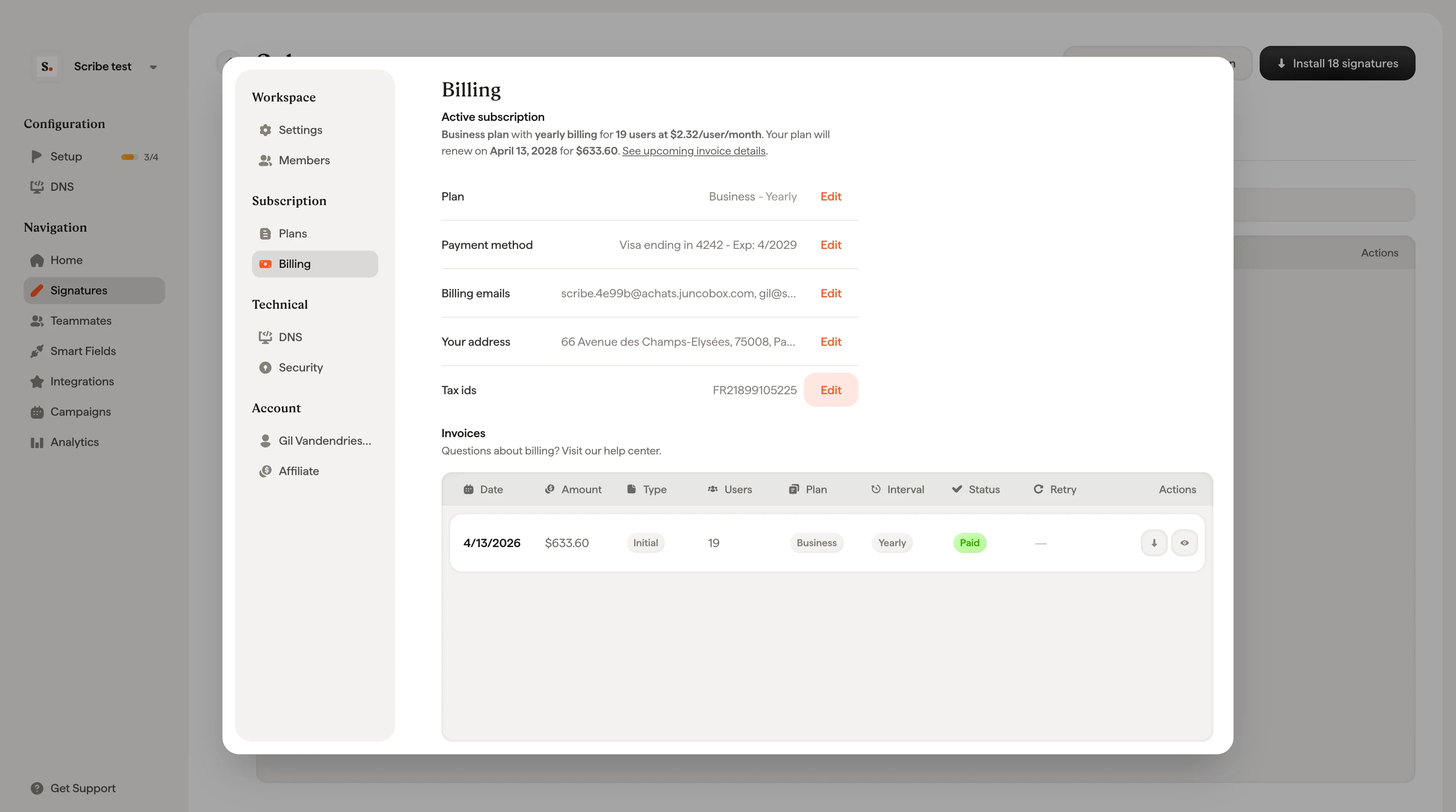
Subscription overview
At the top of the Billing page, you’ll see a summary of your current subscription status. During the free trial, this shows how many days remain and confirms you have access to unlimited users, unlimited signatures, and all Scribe features. Below the summary, you can view and edit the following fields:Update billing address
Click Edit next to Your address or Billing emails to open the billing address form. The form includes: Information- Company Name: Your legal company name as it should appear on invoices.
- Billing emails: Email addresses that receive invoices and payment notifications. You can add up to 10 email addresses, separated by commas.
- Tax IDs: Your company tax identification number (VAT number, GST, etc.).
- Street, house number, apartment/suite, postal code, city, and country.
Your billing address and tax ID are used to generate compliant invoices. Make sure they match your company’s official registration details.
Invoices
The bottom of the Billing page shows your full invoice history in a table. Each invoice row includes:Invoice types
Invoice statuses
Invoice actions
Each invoice row has action buttons on the right:- Download: Download the invoice PDF or receipt PDF.
- View invoice details: Opens a detailed breakdown of the invoice showing the subscription summary, user adjustments, taxes, and total.
- Retry payment: Manually retry a failed payment (only appears on failed invoices).
View invoice details
Click the eye icon on any invoice row to open the Invoice Details or Upcoming Invoice modal. The modal shows:- Subscription summary: Your plan name, billing interval, number of users, per-user price, and the calculation formula (e.g. $3.0 × 235 users × 12 months).
- User adjustments: Any users added or removed during the billing period, with prorated charges and credits.
- Subtotal (excl. tax): The total before tax.
- Tax: VAT or other applicable taxes based on your billing address.
- Total: The final amount charged.
- Renewal date: When your plan will automatically renew.
- Stripe Climate: Scribe contributes 1% of your subscription to remove CO₂ from the atmosphere through Stripe Climate.
If you see “User adjustment for current period” on an upcoming invoice, this is a prorated credit or charge for users added or removed mid-cycle.
Failed payments
When a payment fails, Scribe automatically retries the charge through Stripe. The Payment Retry column shows the current attempt count out of the maximum 9 attempts (e.g. 6/9). Hover over the retry count to see the date of the next automatic retry.Retry a payment manually
If you’ve updated your card or resolved the issue, you don’t have to wait for the next automatic retry.1
Find the failed invoice
Go to Configuration → Billing and locate the invoice with a Payment Failed status.
2
Click the retry icon
Click the retry icon (circular arrow) in the Actions column.
3
Confirm the charge
A confirmation dialog will show the card that will be charged, the invoice date, and the amount. Click Retry payment to proceed.
Credits
Credits are prepaid amounts that get applied automatically to your next invoice. Your current credit balance is displayed on the Billing page. Credits can be added by clicking Add next to the Credits field, or may be applied by the Scribe team for billing adjustments or account-specific reasons.Related articles
- Pricing: how per-user pricing, proration, and the free trial work.
- Plans: compare the Free, Business, and Enterprise tiers feature by feature.
- Plan limits and changes: what happens when your team size or plan changes.