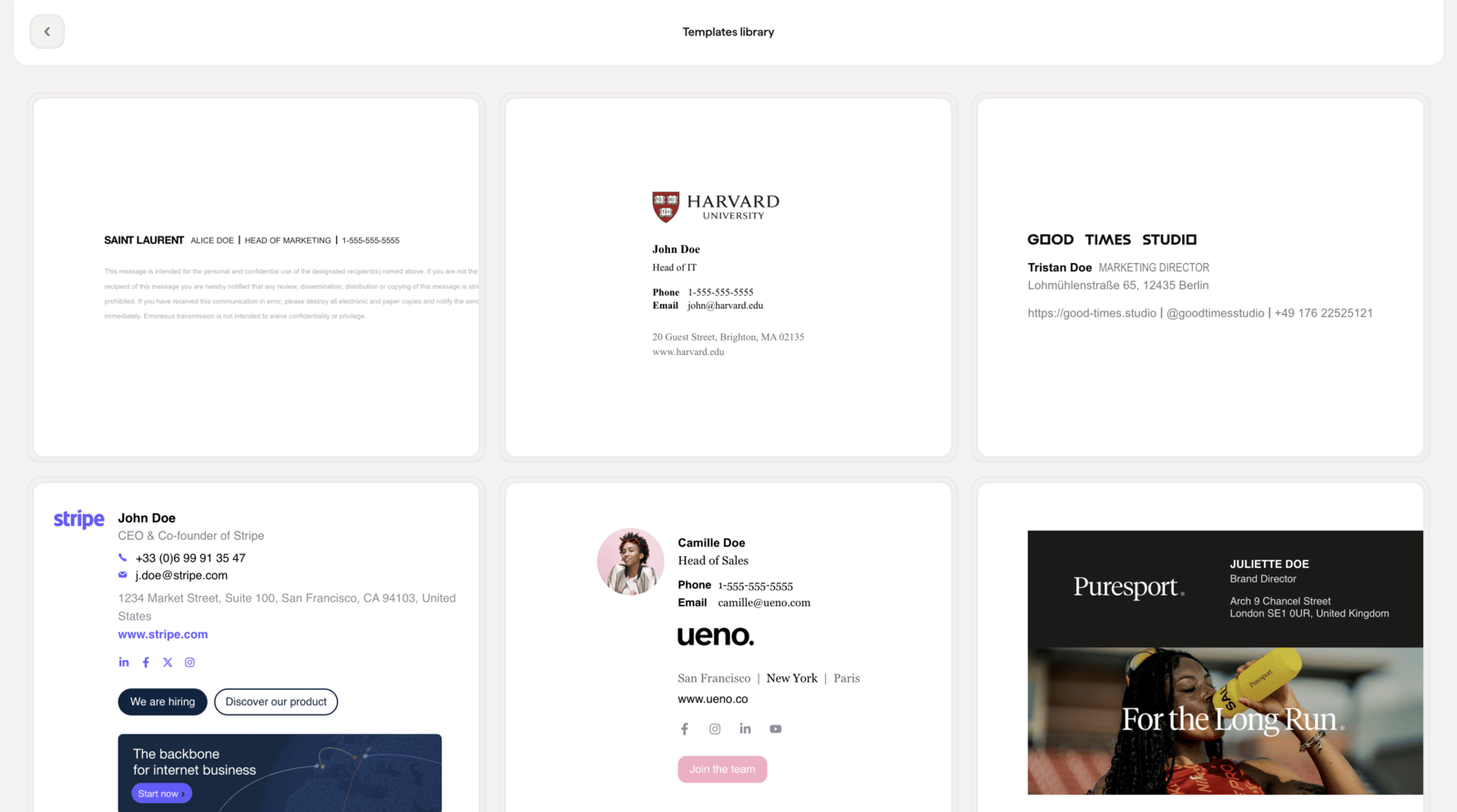
The Template Library gives you a collection of ready-made signature designs with different layouts. Instead of building from scratch, pick a template that fits your brand and customize it in the editor. All templates can be customized as much as needed.
Open the template library by clicking Templates in the top bar.
Previewing a template
Click a template card to open a detailed preview. From here you can:
- Toggle light / dark mode: See how the template looks on both light and dark backgrounds
- Switch between Template and Signature preview: “Template” shows the design with sample data, while “Signature preview” shows how the template looks with the information you’ve already added to your signature, so you can see exactly what the result will look like before applying it
- Review the template features: Each template is fully customizable, dark mode compatible, responsive, compatible with all email clients, and optimized for fast loading
Selecting a template
When you’ve found a template you like, click Select this template to apply it to your signature. The template replaces your current layout and design, but your existing data (names, contact details, social links, and other information) carries over automatically. You can then customize every visual element in the editor: colors, fonts, images, and structure.
Use the “Signature preview” toggle before selecting a template to see it with your actual data. This way you can be confident the layout works for your content before committing.