

Why use multiple workspaces
Workspaces let you keep things organized when you manage email signatures for more than one group. Common use cases include:- Agencies. Manage email signatures for multiple clients, each in their own workspace, from a single Scribe account.
- Consultants. Oversee email signatures for various clients without switching between separate accounts.
- Parent companies. Centralize signature management across different brands or subsidiary companies, all under one roof.
Create a workspace
1
Open the workspace menu
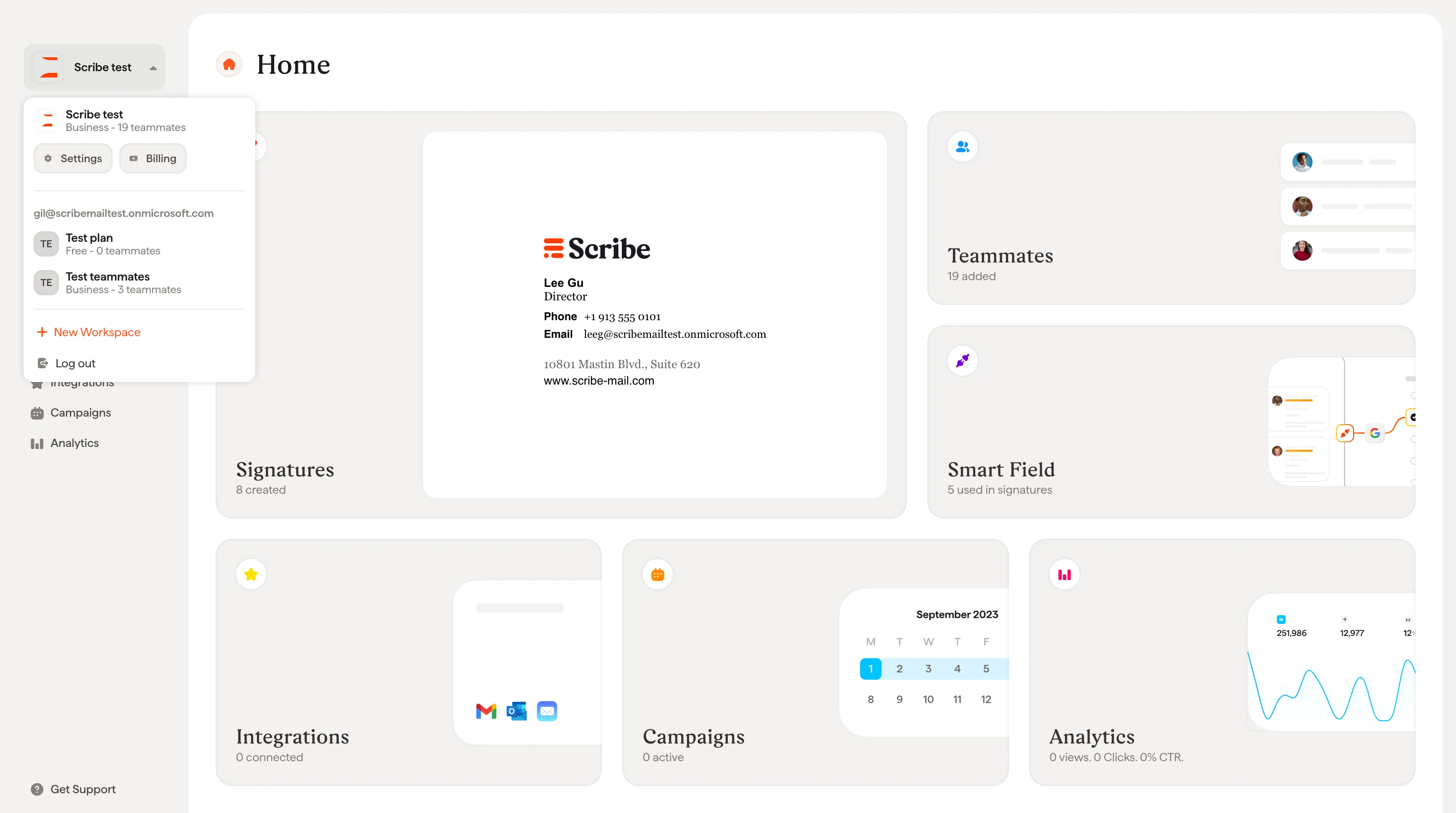
Click on your workspace name in the top left corner of the sidebar. This opens a dropdown showing your existing workspaces and a + New Workspace option.Click + New Workspace.
2
Name the workspace
In the New Workspace modal, enter a name in the Workspace name field. The name must be between 2 and 25 characters.
3
Choose whether to create a signature for yourself
Select Yes or No for the question “Do you need a signature for yourself in this new workspace?”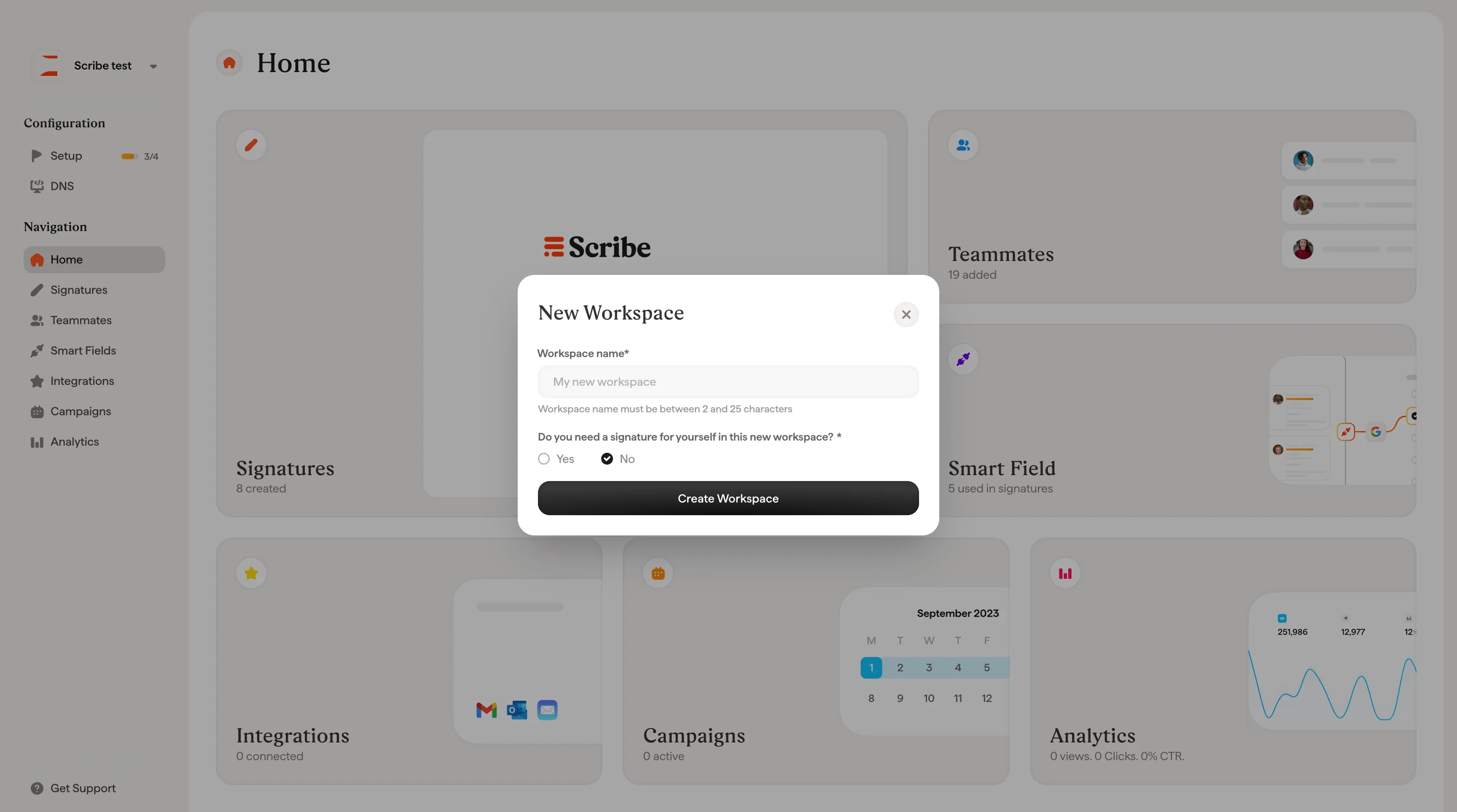
- If you select No, click Create Workspace to finish.
- If you select Yes, an additional Your email address field appears. Enter the email address that will be assigned to your teammate profile in this new workspace, then click Create Workspace.
Switch between workspaces
Click on your workspace name in the top left corner of the sidebar to open the dropdown. All your workspaces are listed there. Click on any workspace to switch to it. Each workspace has its own set of signatures, teammates, smart fields, integrations, campaigns, and analytics.Workspace settings
To configure a workspace, open Workspace Settings from the sidebar and click Settings. These settings apply only to the workspace you’re currently in.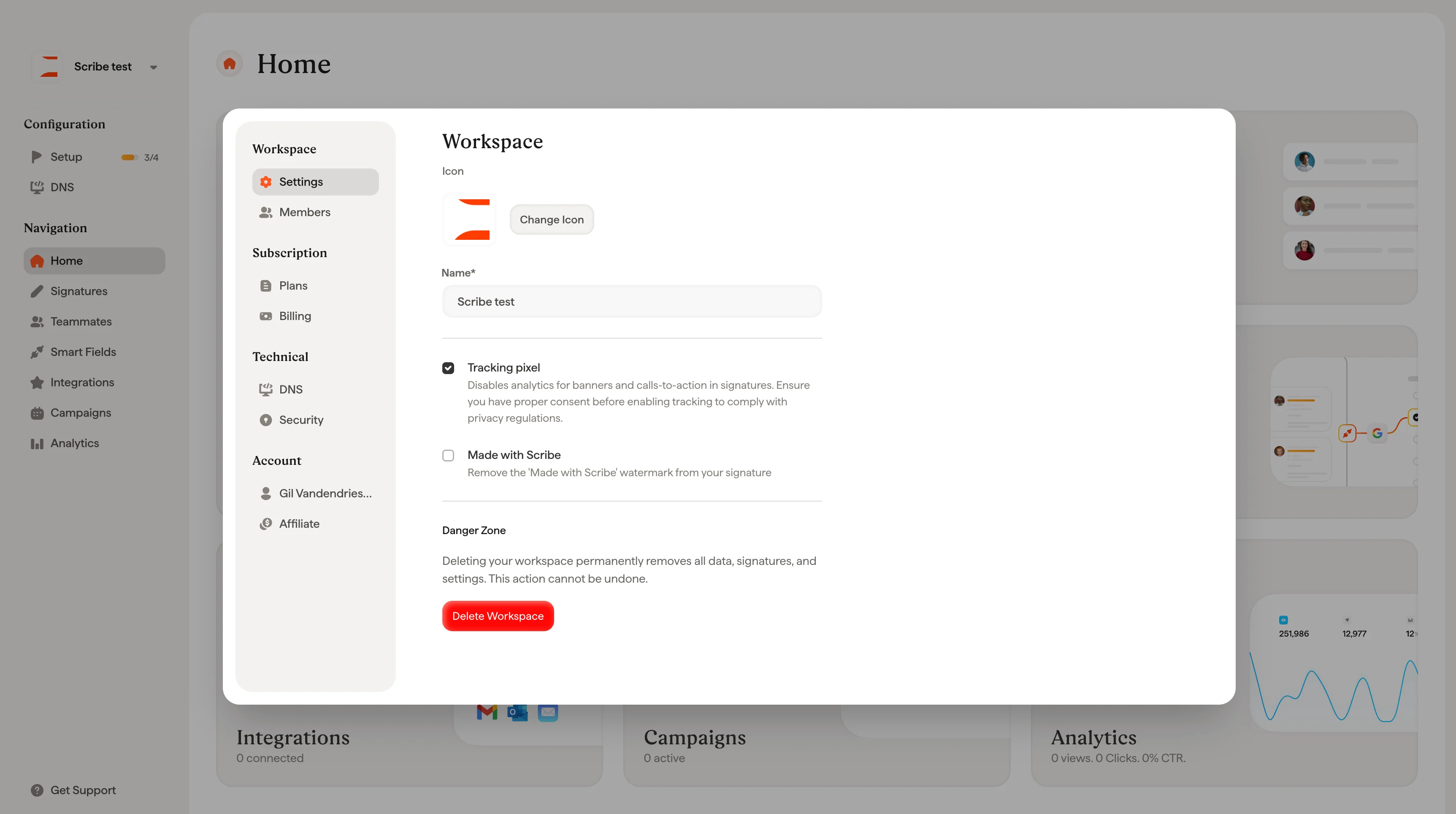
Icon and name
Every workspace has an icon and a name. Click Change Icon to upload a new one, and edit the Name field to rename your workspace. The icon appears in the sidebar and helps you tell workspaces apart if you manage more than one.Tracking pixel
Enable this to track analytics on banners and calls-to-action in your signatures. When turned off, no tracking data is collected. Make sure you have proper consent before enabling tracking to comply with privacy regulations.Made with Scribe
This toggle controls whether a “Made with Scribe” watermark appears on your signatures. Removing it requires a paid plan.Delete a workspace
The Danger Zone at the bottom of the settings page contains the Delete Workspace button. Deleting a workspace permanently removes all its data, including signatures, teammates, and settings. This action cannot be undone and is only available to the workspace Owner. When you click Delete Workspace, a confirmation dialog asks you to select a reason and optionally leave a comment before proceeding.Related articles
- Members: invite people to a workspace and set what each one can manage.
- Teammates overview: the people whose signatures live in a workspace.
- Integrations overview: connect each workspace to its own email provider.