

Each user has to install and configure the integration.
Users see signatures when composing emails.
Cloud-based installation. Emails don’t go through Scribe servers.
Installation guide
Prerequisites
- A Scribe account
- At least one signature created in Scribe
- macOS with Apple Mail installed
1
Download Scribe desktop app
Download the Scribe desktop app from the integrations page.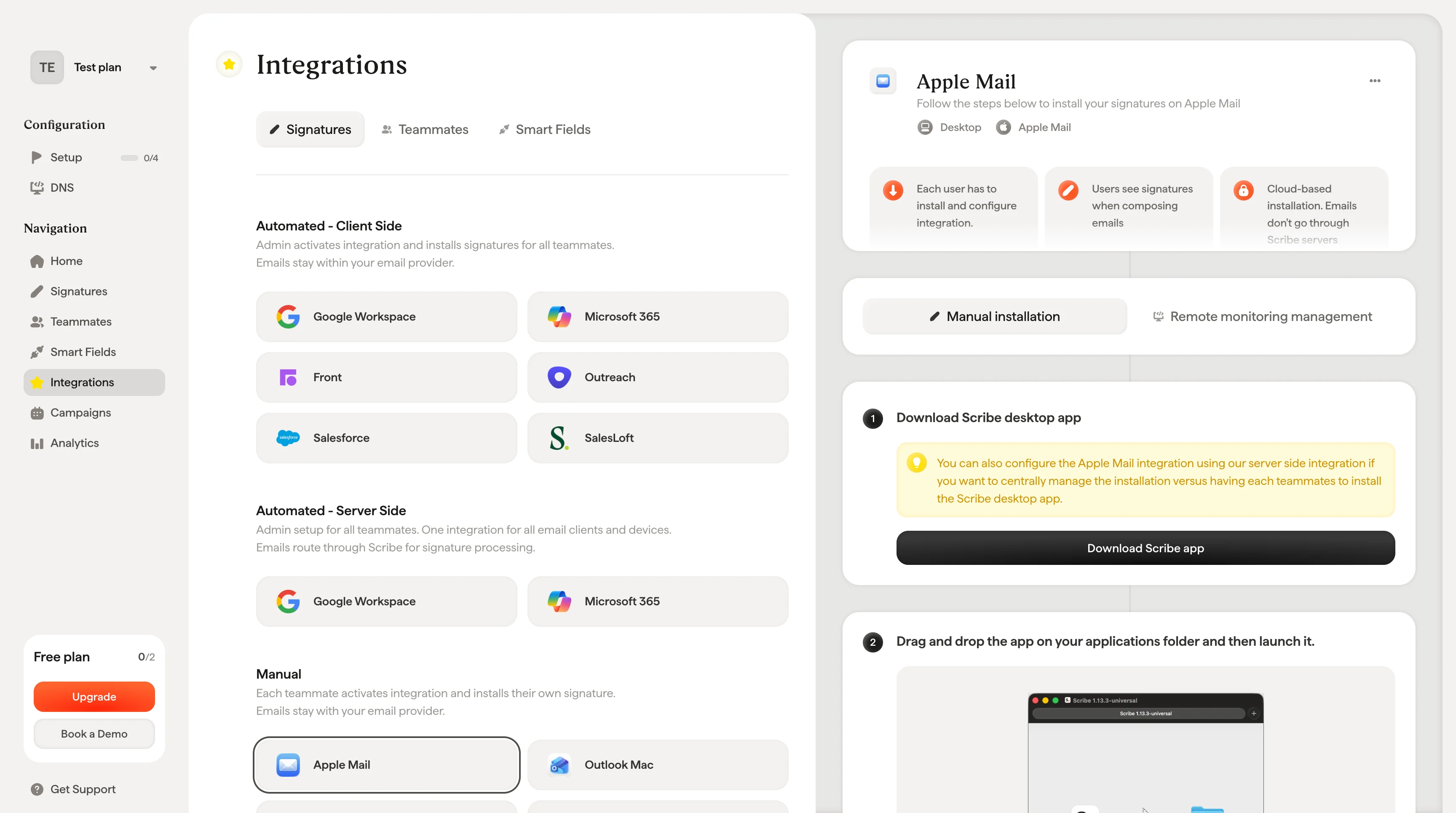
2
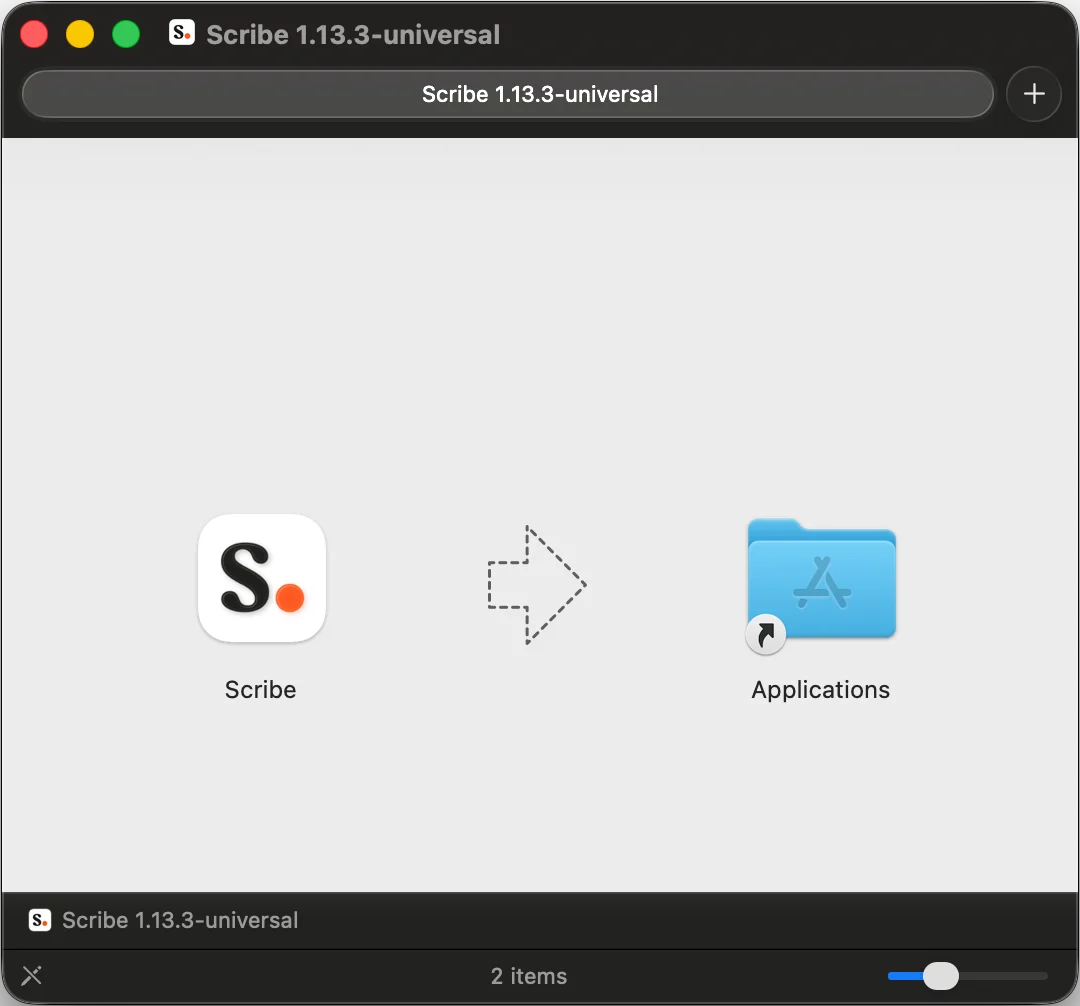
Drag and drop the app into your Applications folder and then launch it
3
Log in with your Scribe credentials
Log in to the Scribe app just as you do on Scribe’s website.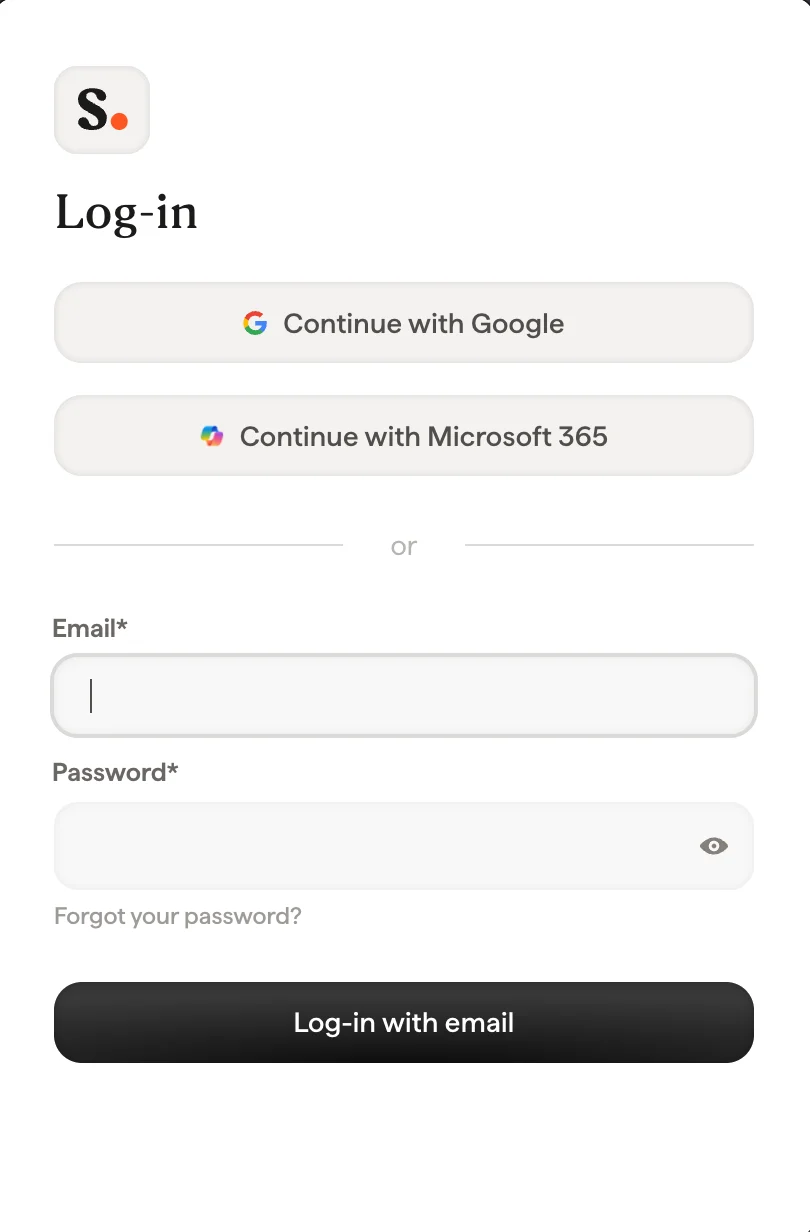
4
Turn on Apple Mail installation
Click the settings wheel and activate Apple Mail.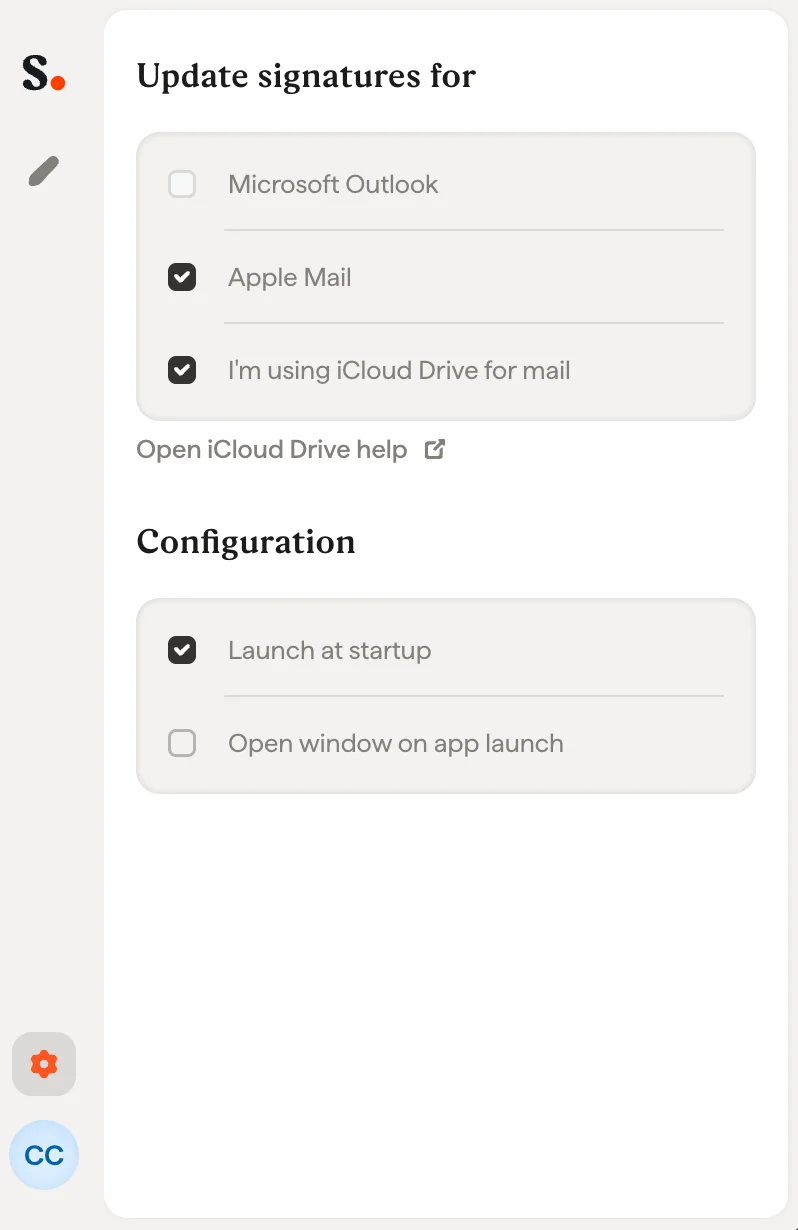
5
Open Apple Mail and go to Settings then the Signatures tab
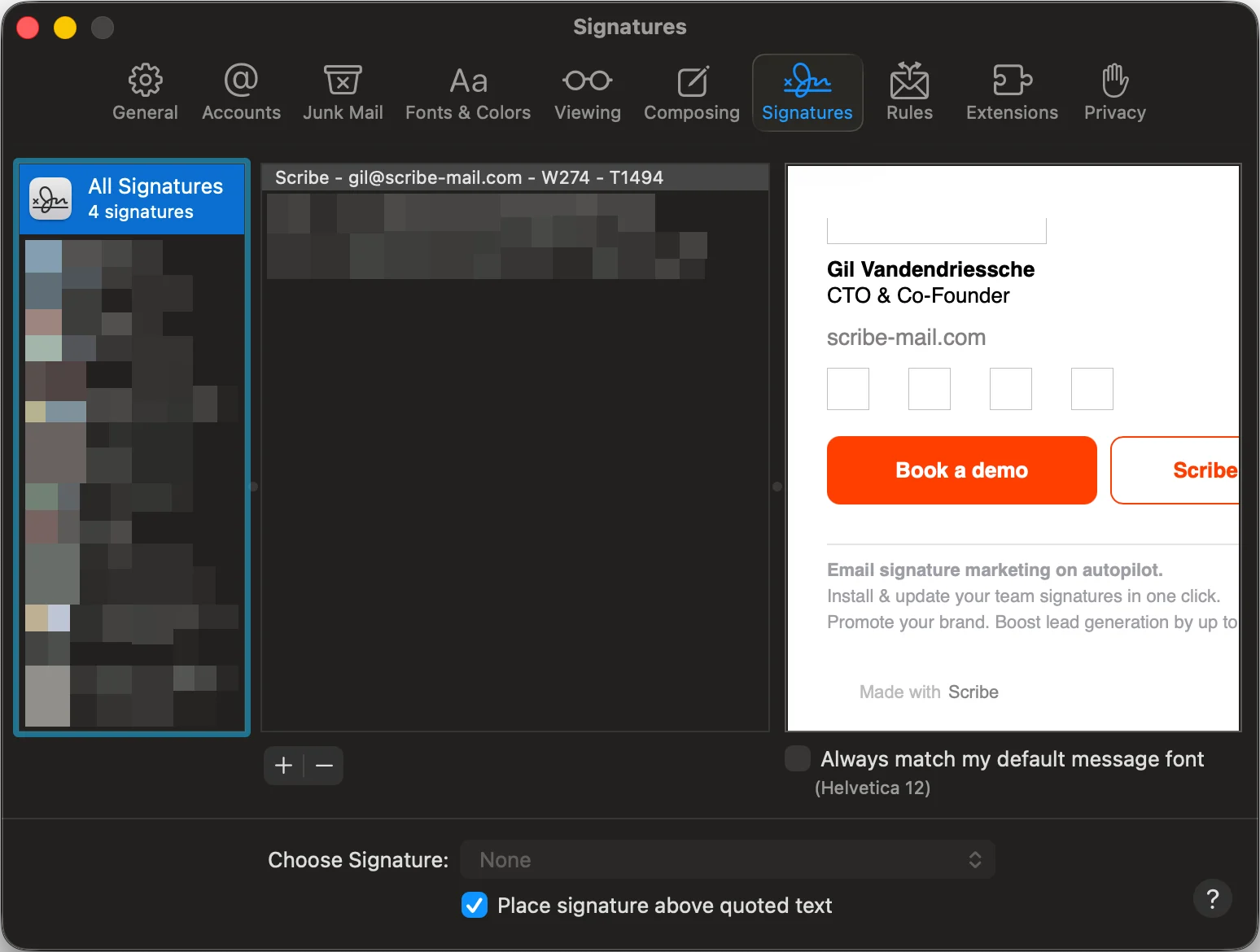
6
Select Scribe signature
Click on the ‘All signatures’ tab. Then, drag your Scribe signature to the linked email account.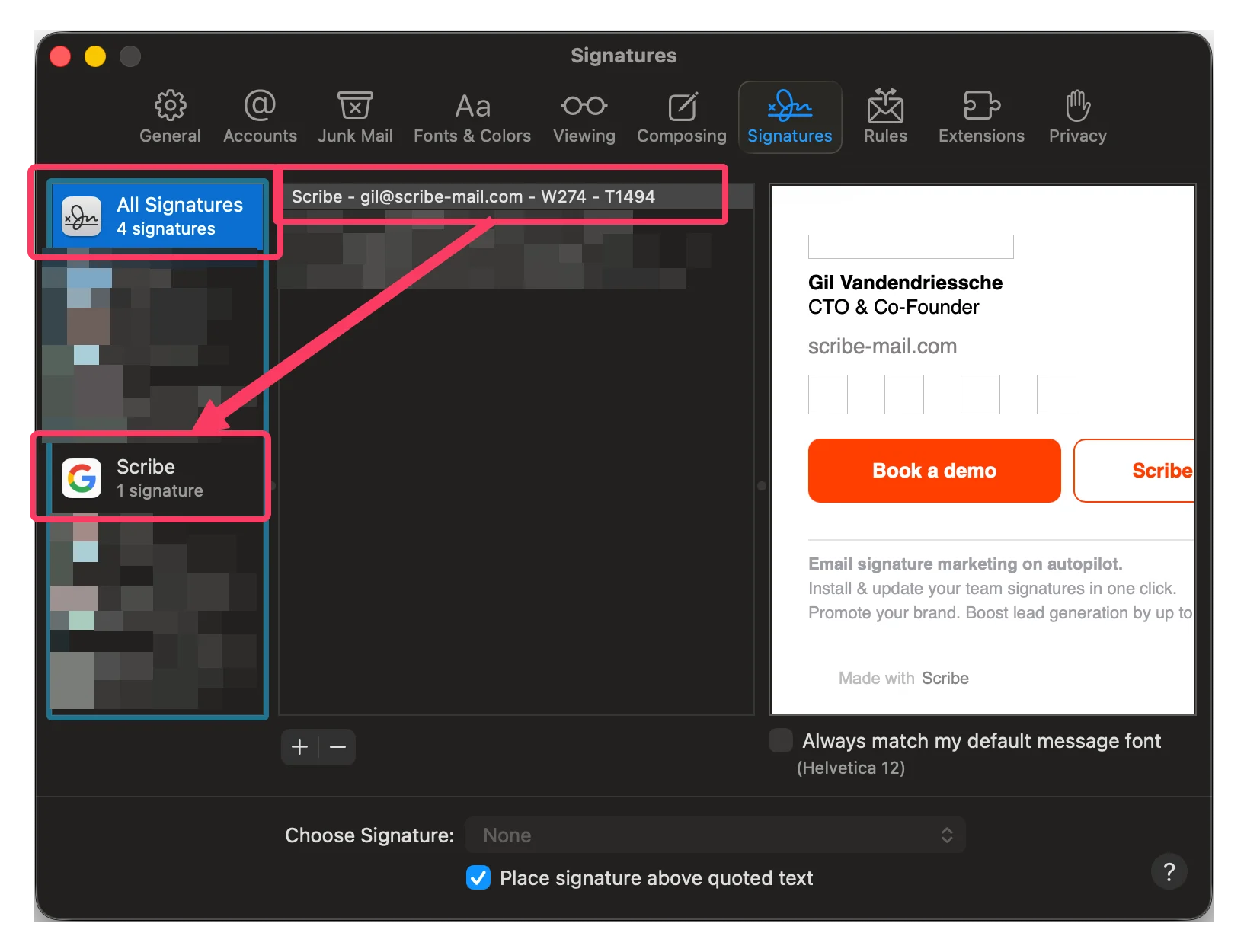
7
Set the signature as default in Apple Mail
In the ‘choose your signature’ field, pick your Scribe signature.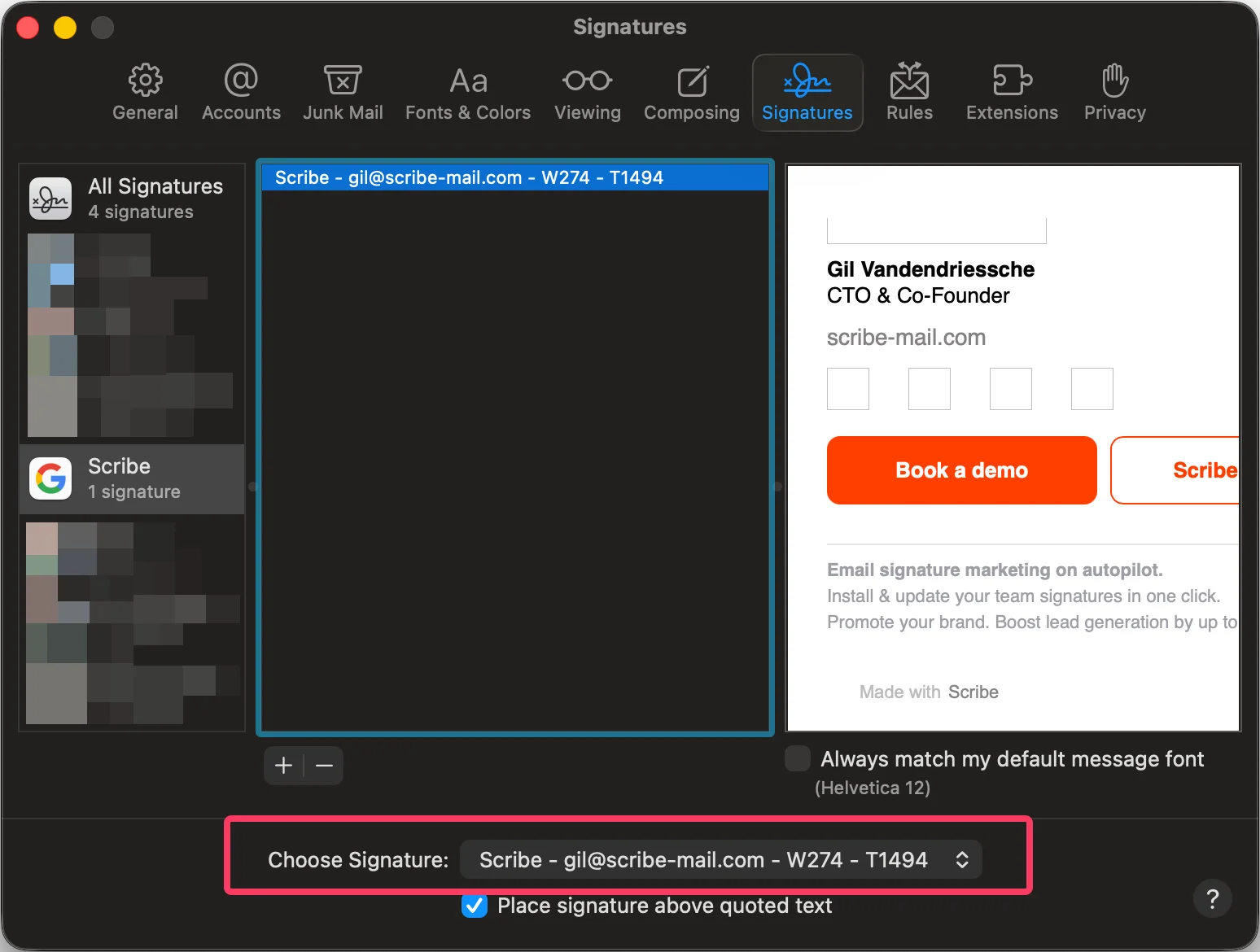
8
Install team signatures
From your signatures list, install all signatures at once for your teammates or install them one by one for a progressive rollout.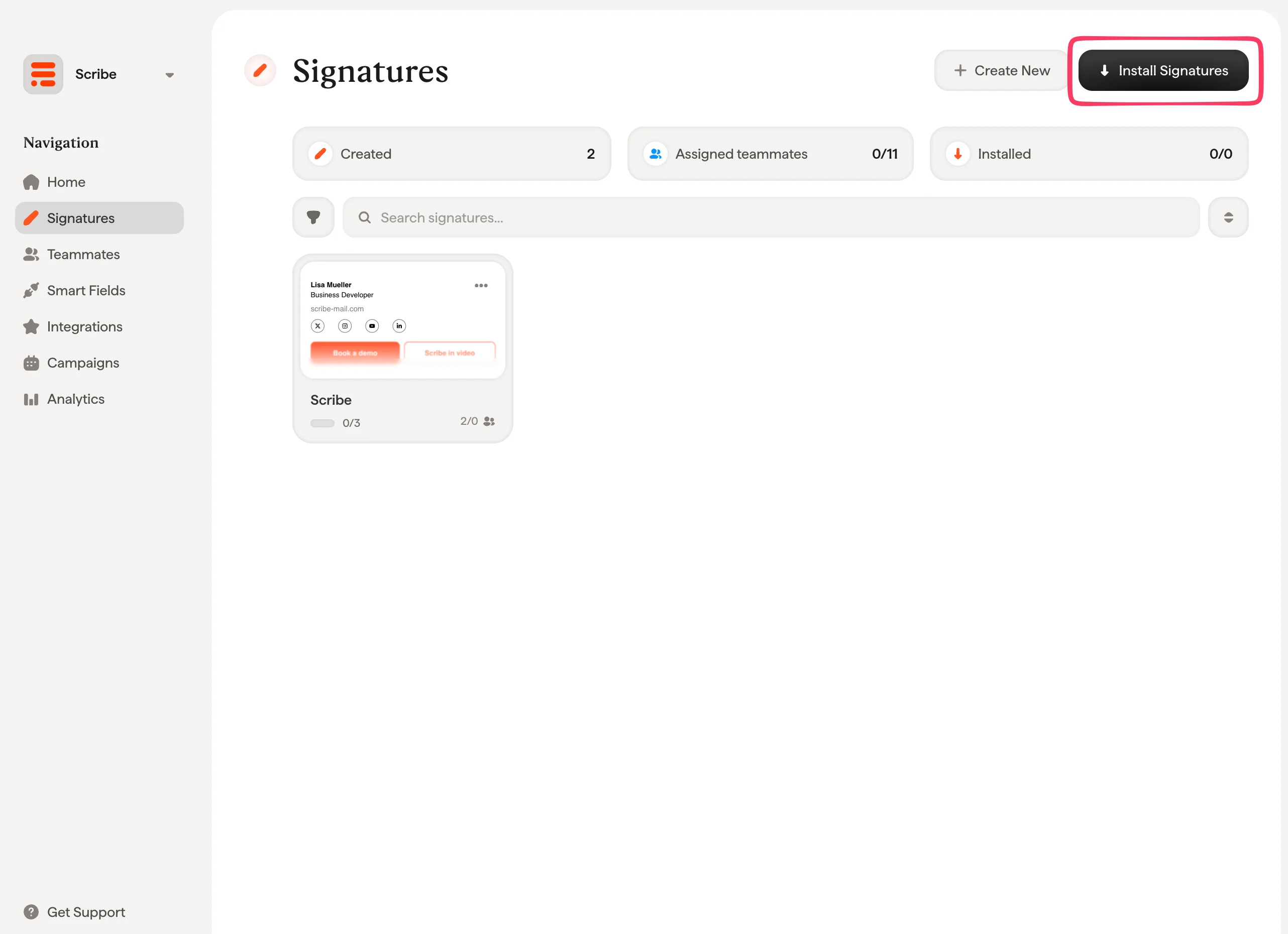
Related articles
- Integrations overview: all the ways to deploy Scribe signatures, cloud or server side.
- Images are not showing: fix missing images in installed signatures.
- Unable to install signature: fix a signature that will not install.