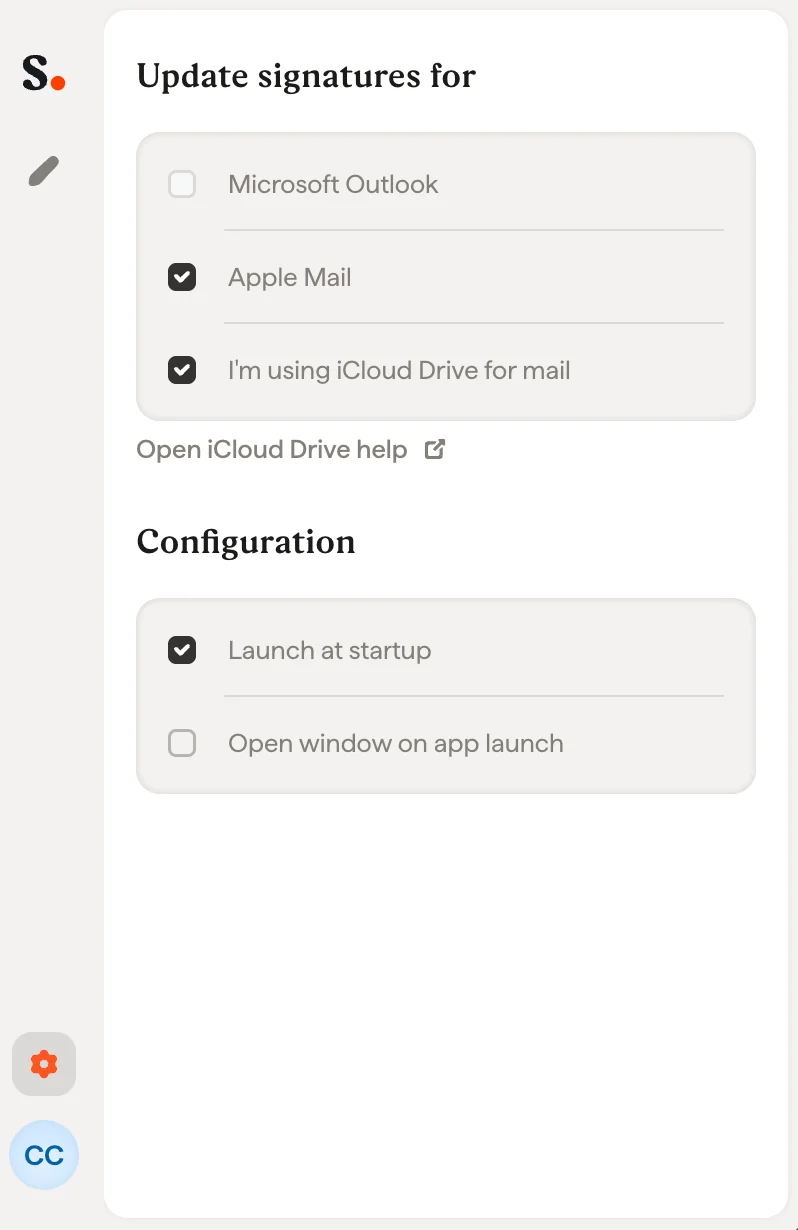
If you see your Scribe signature in the list
The Scribe signature begins with “Scribe” followed by your email. If you see the signature in the list, follow this article to finish the installation.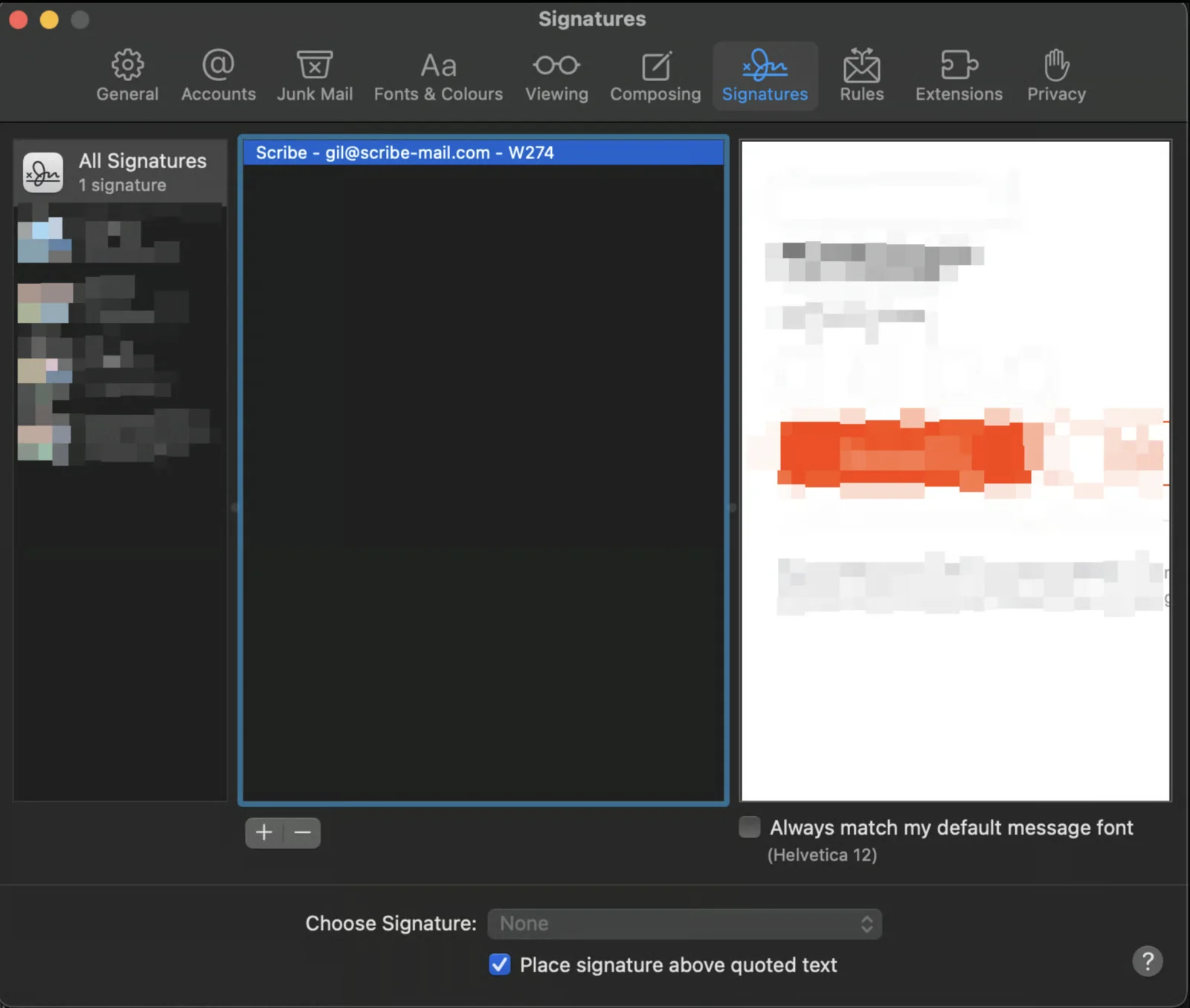
If you do not see the Scribe signature in the list
Follow these steps to check if you are using iCloud Drive for Mail or not.1
Open iCloud settings
Open your system settings, open the Apple ID tab, and click on iCloud.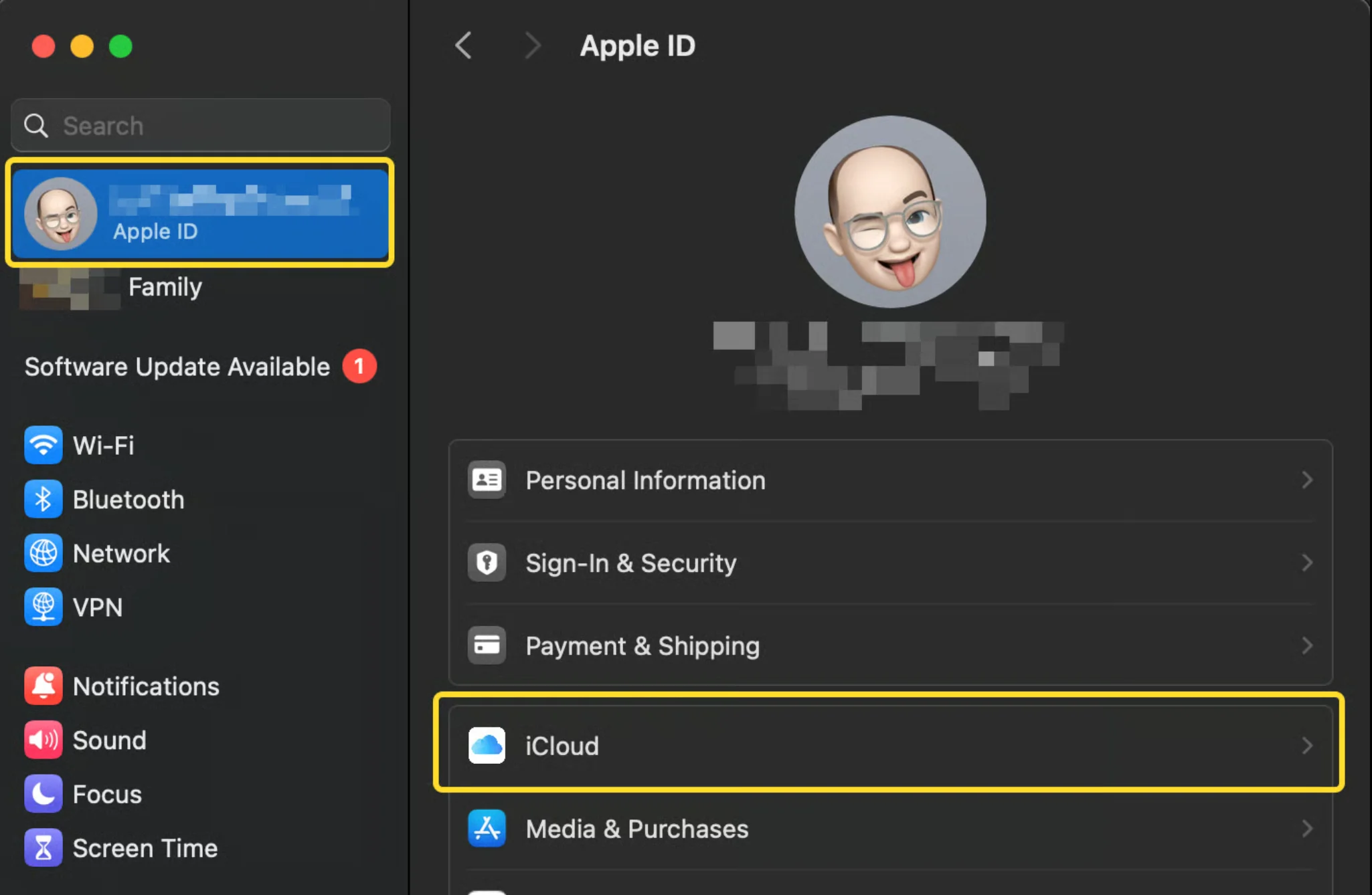
2
Open iCloud Drive
In the iCloud section, click on iCloud Drive.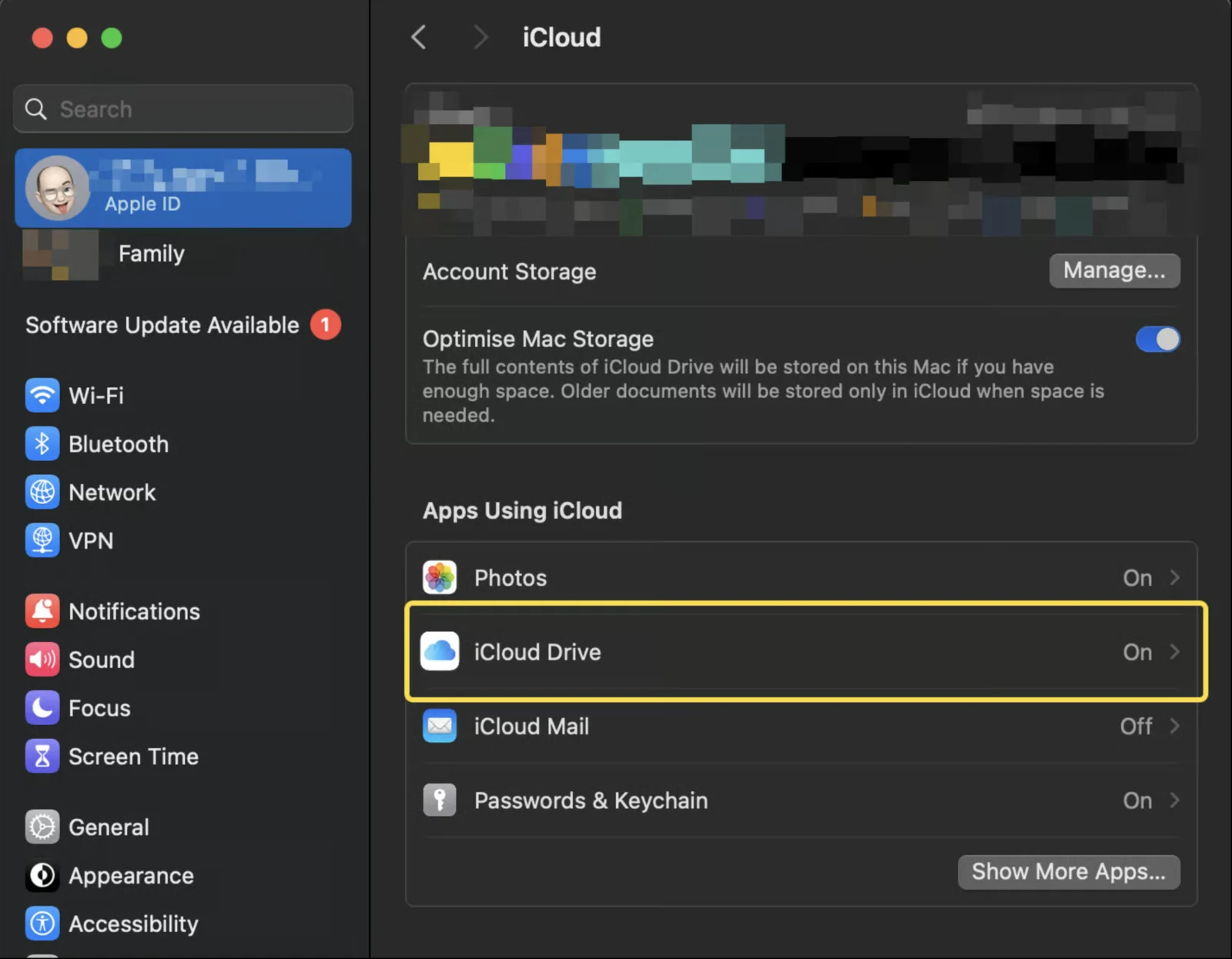
3
Open apps syncing to iCloud Drive
In the next window, click on “Apps syncing to iCloud Drive.”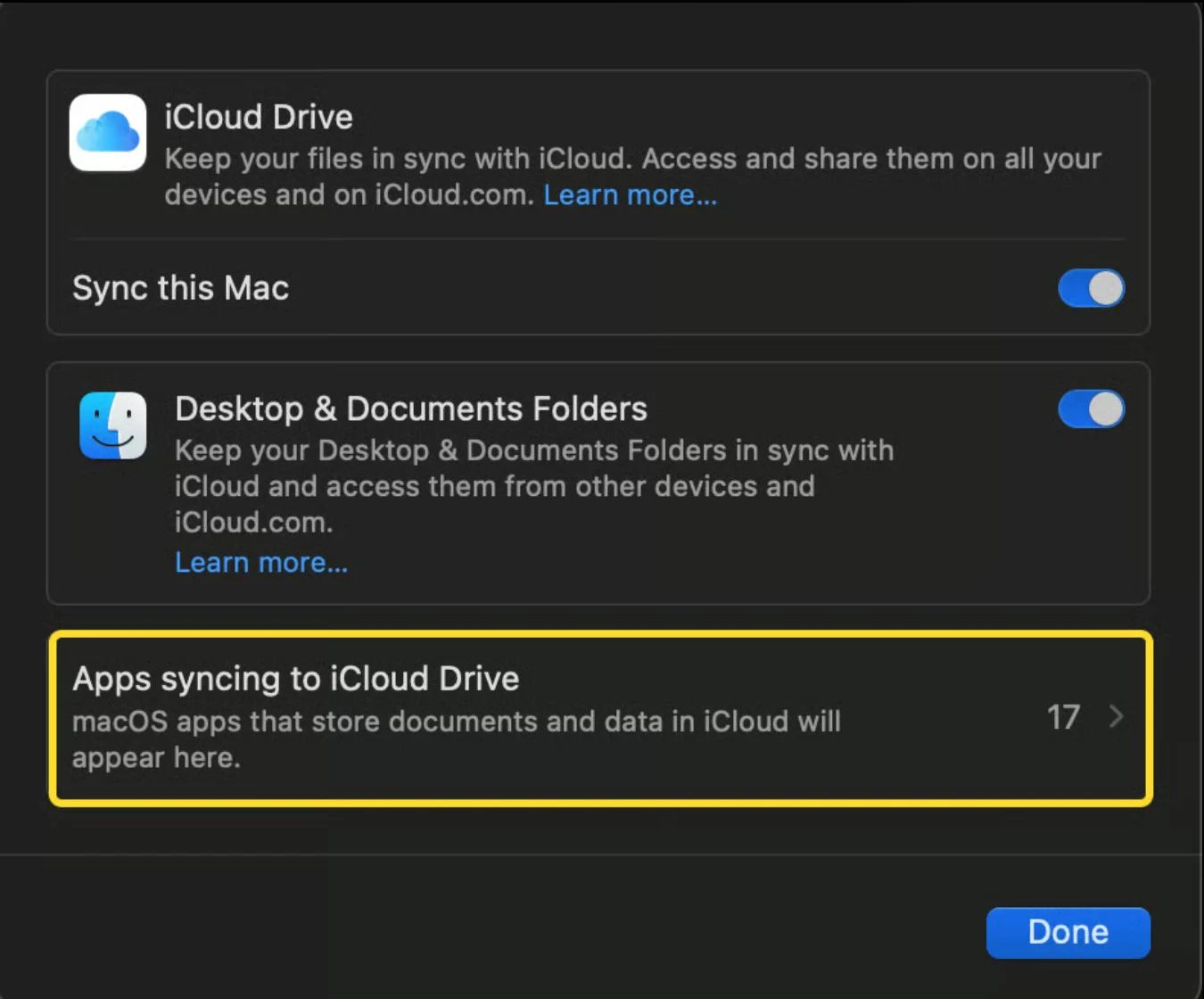
4
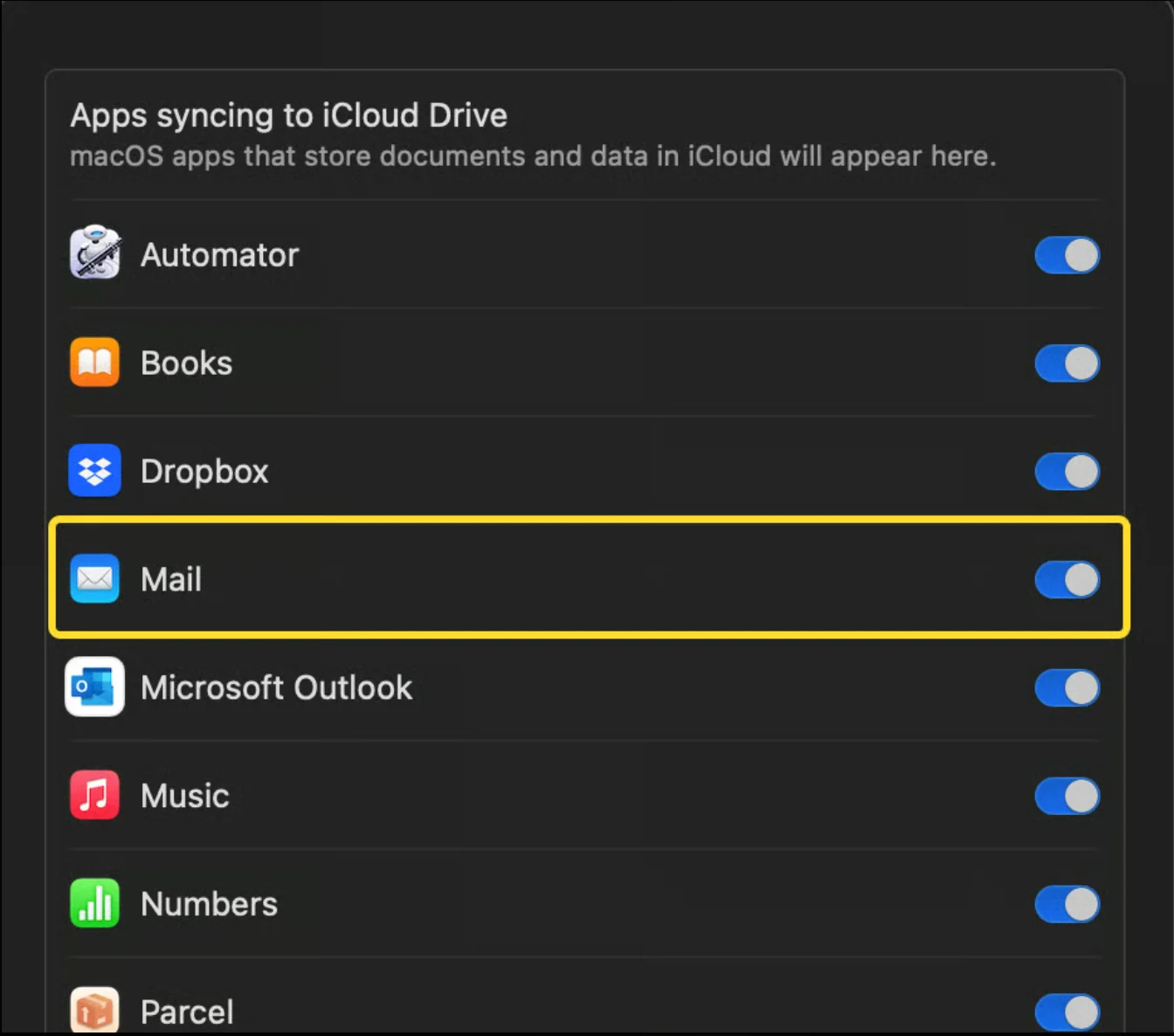
Check the Mail option
In the next window, check if the Mail option is active.