

Prerequisites
- Your Scribe signature HTML copied to clipboard (copy it from here)
1
Open Gmail settings
In Gmail, click the gear icon in the top right corner, then click See all settings.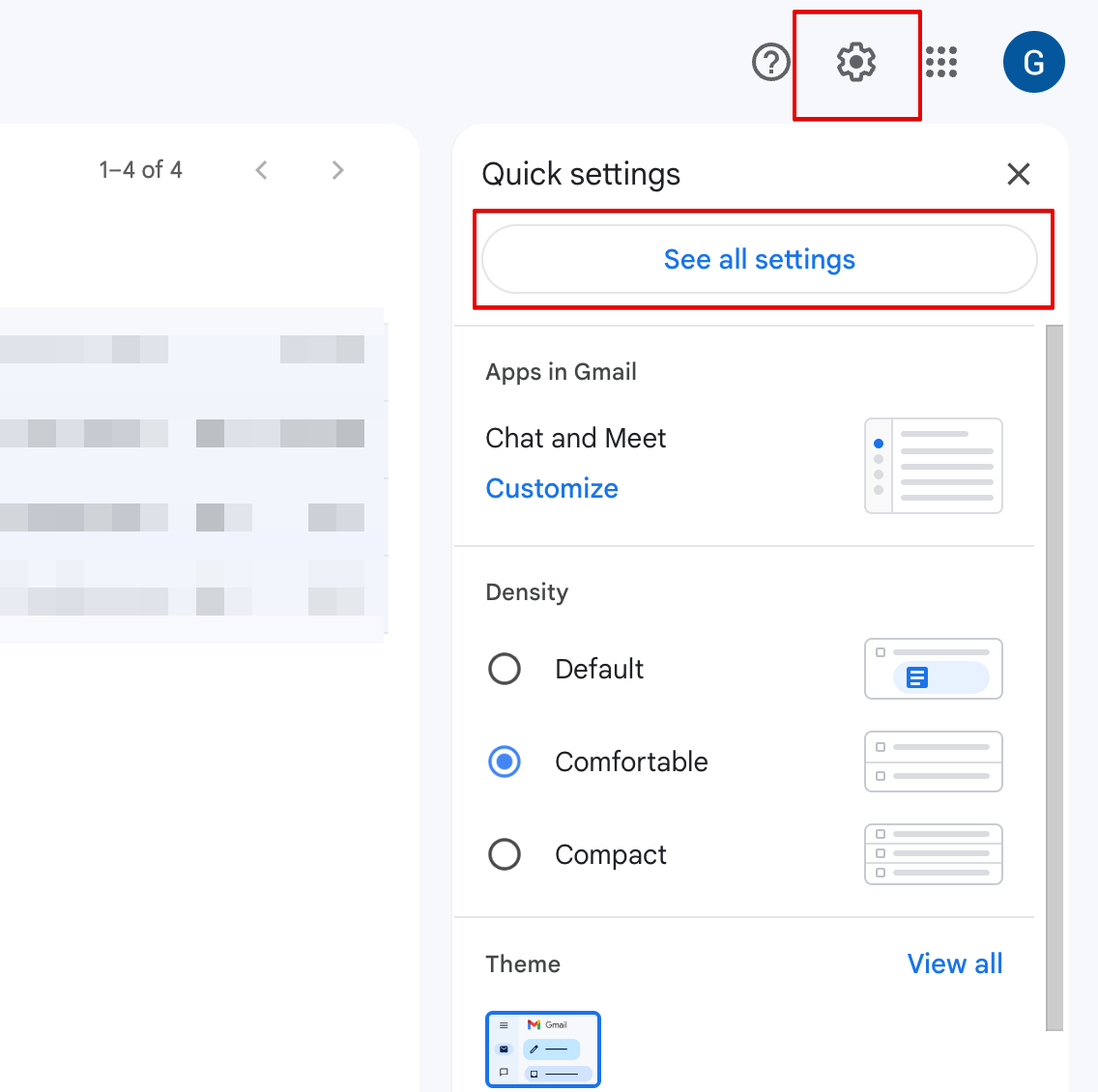
2
Scroll down to the Signature section
In the General tab, scroll down until you find the Signature section.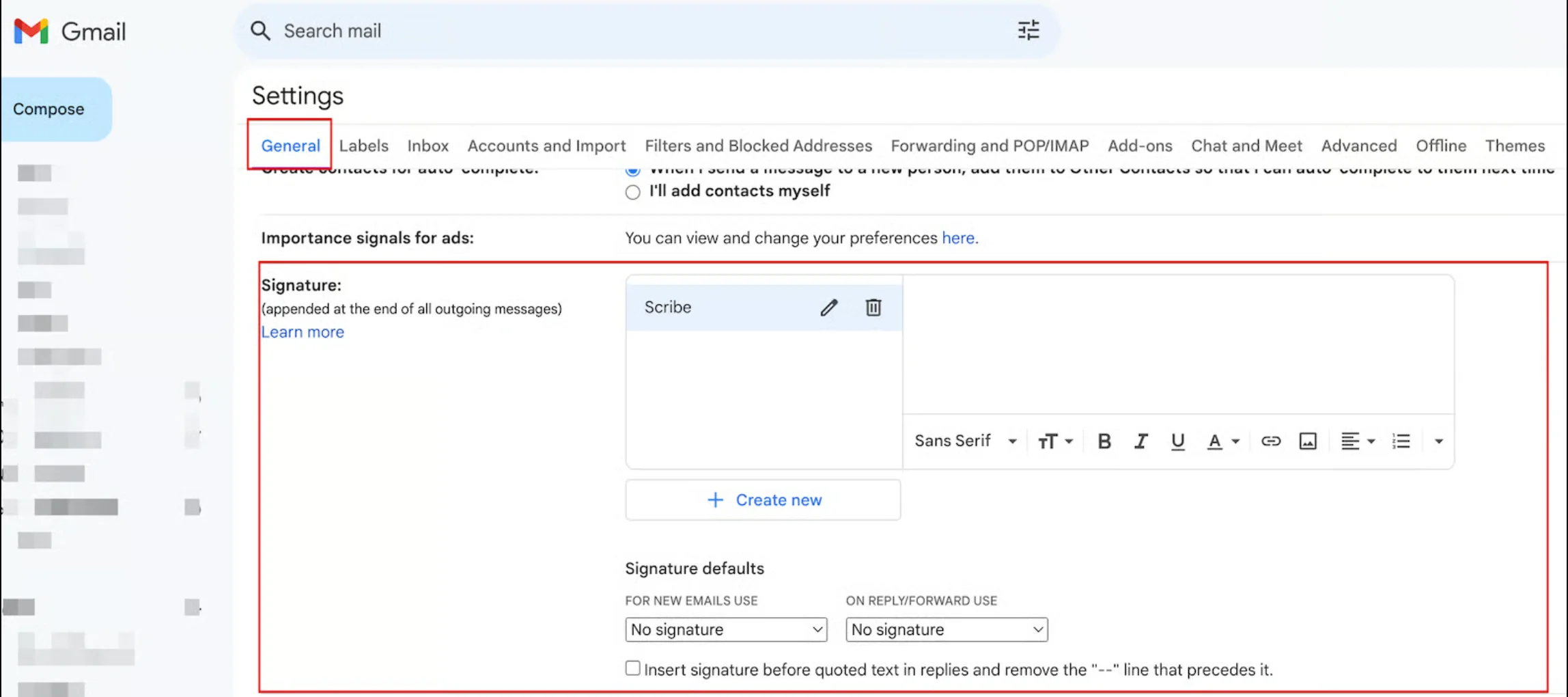
3
Create a new signature
Click + Create new and give your signature a name (e.g. “Scribe”).
4
Paste your HTML signature
Click inside the signature text box, then paste your Scribe HTML signature using Ctrl+V (Windows) or Cmd+V (Mac).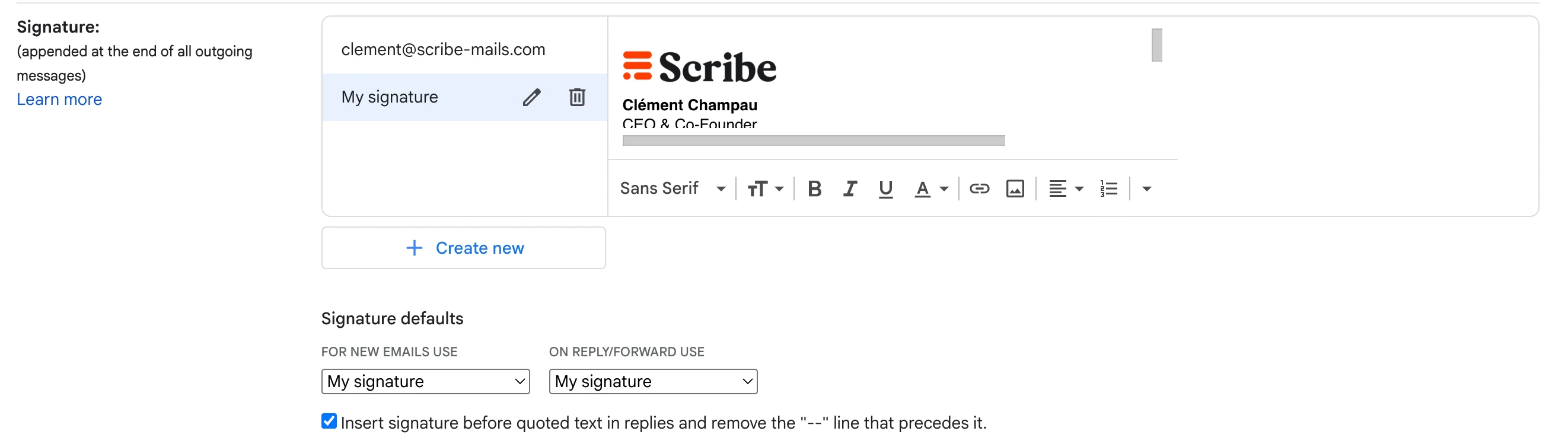
5
Set as default signature
Below the signature editor, choose your new signature as the default for:
- For new emails use: select your Scribe signature
- On reply/forward use: select your Scribe signature
6
Save changes
Scroll to the bottom of the page and click Save Changes.