

These instructions are for Outlook on the web (outlook.office.com). For Outlook desktop on Windows or Mac, we recommend using the Outlook Windows or Outlook Mac integration instead.
Prerequisites
- Your Scribe signature HTML copied to clipboard (copy it from here)
1
Open Outlook settings
In Outlook on the web, click the gear icon in the top right corner to open Settings.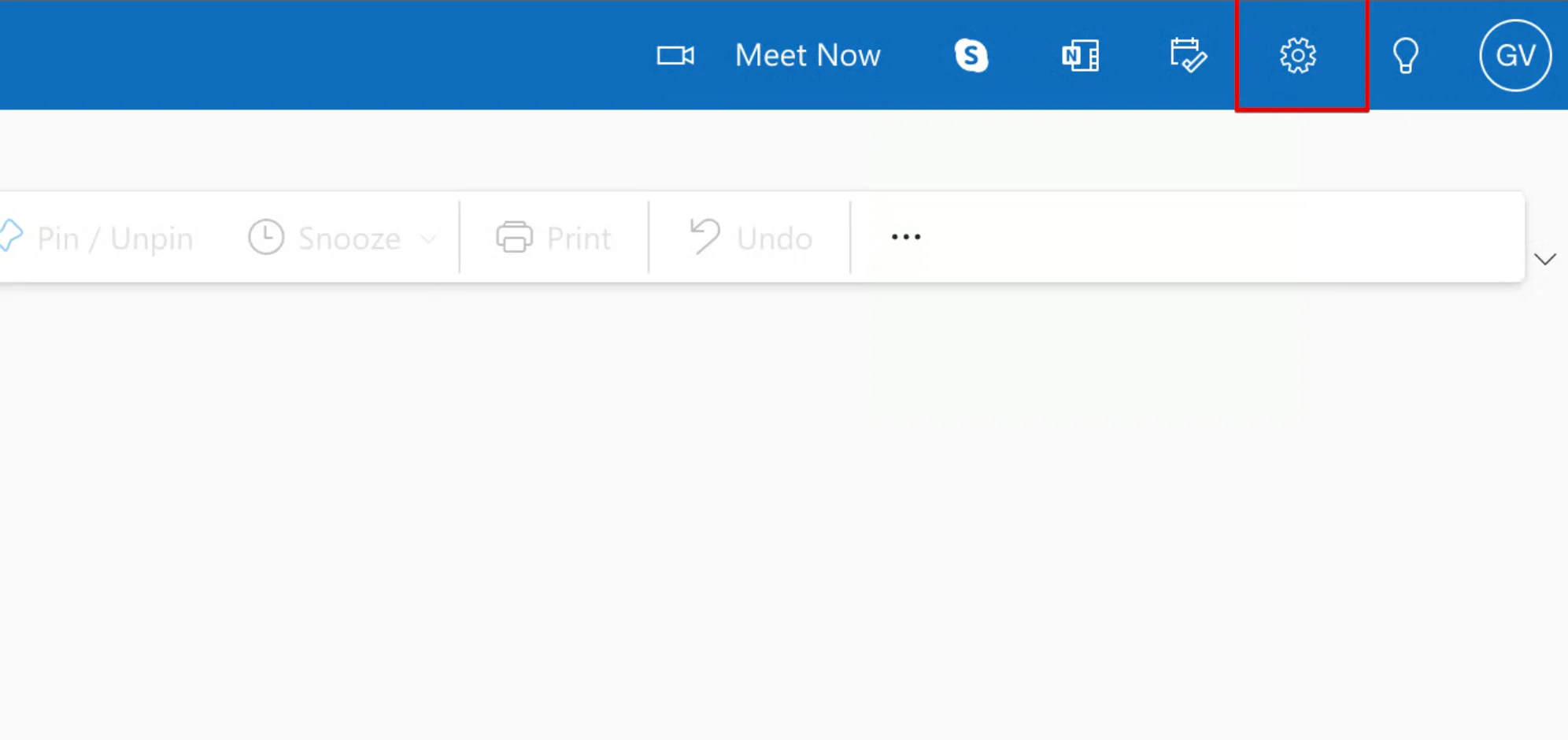
2
Go to Email > Compose and reply
In the settings panel, navigate to Email, then select Compose and reply.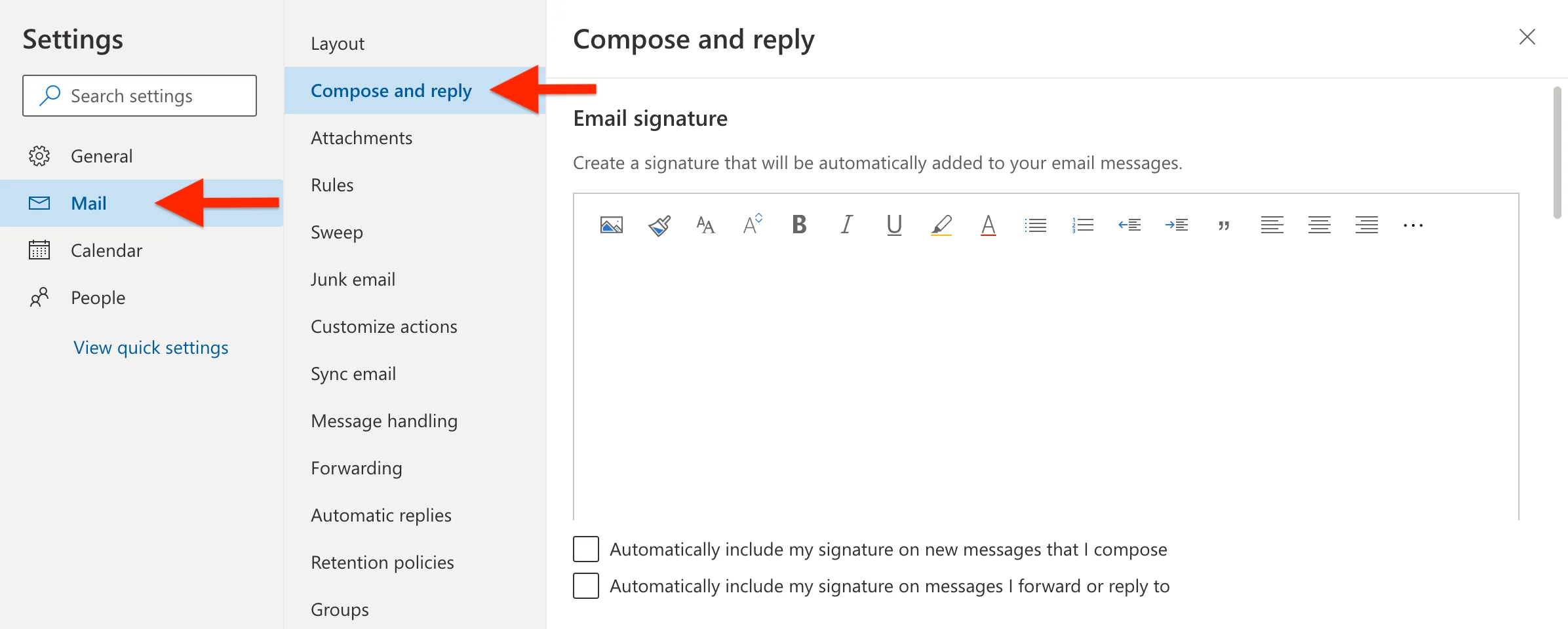
3
Paste your HTML signature
Click inside the signature text box, then paste your Scribe HTML signature using Ctrl+V (Windows) or Cmd+V (Mac).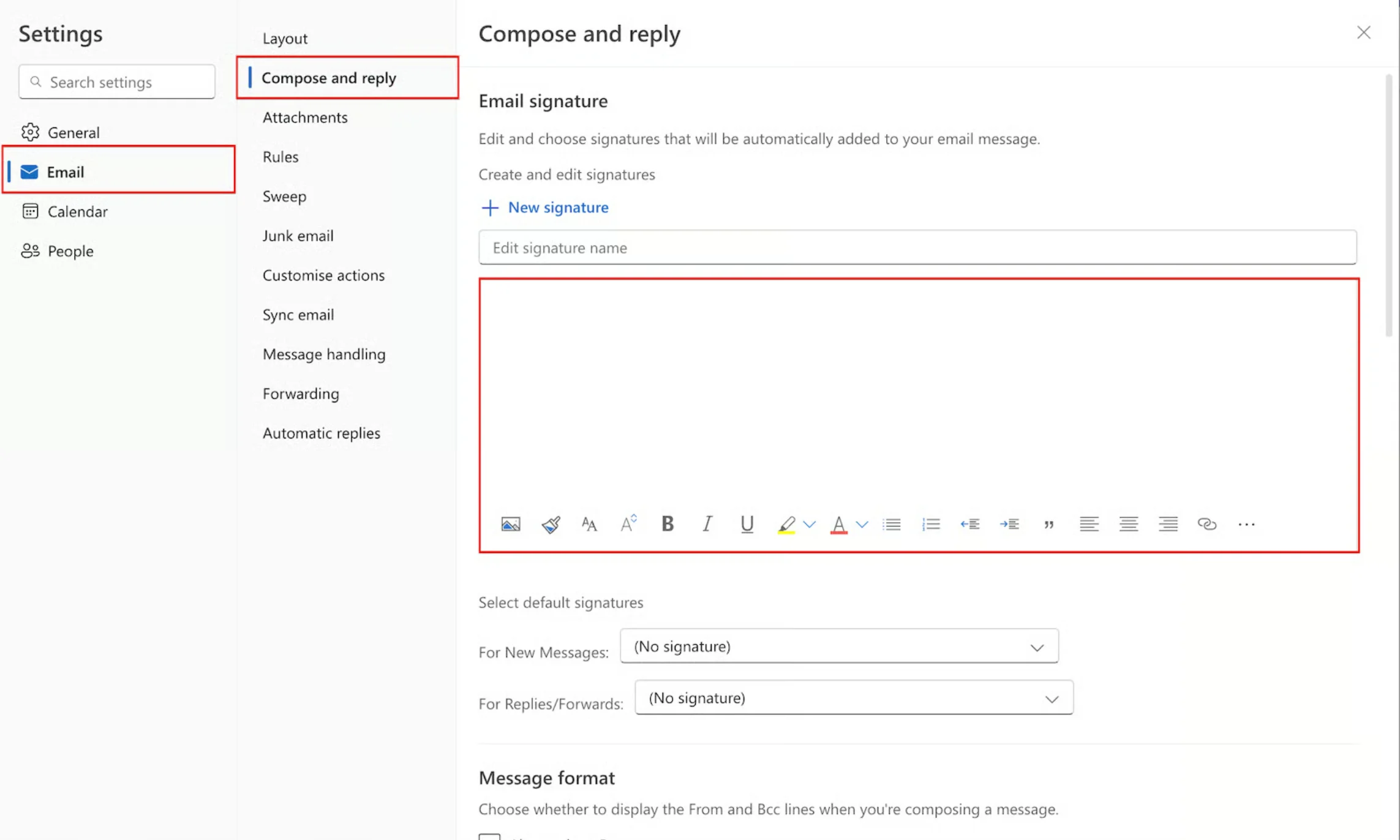
4
Set as default signature
At the bottom of the signature section, set your default signatures: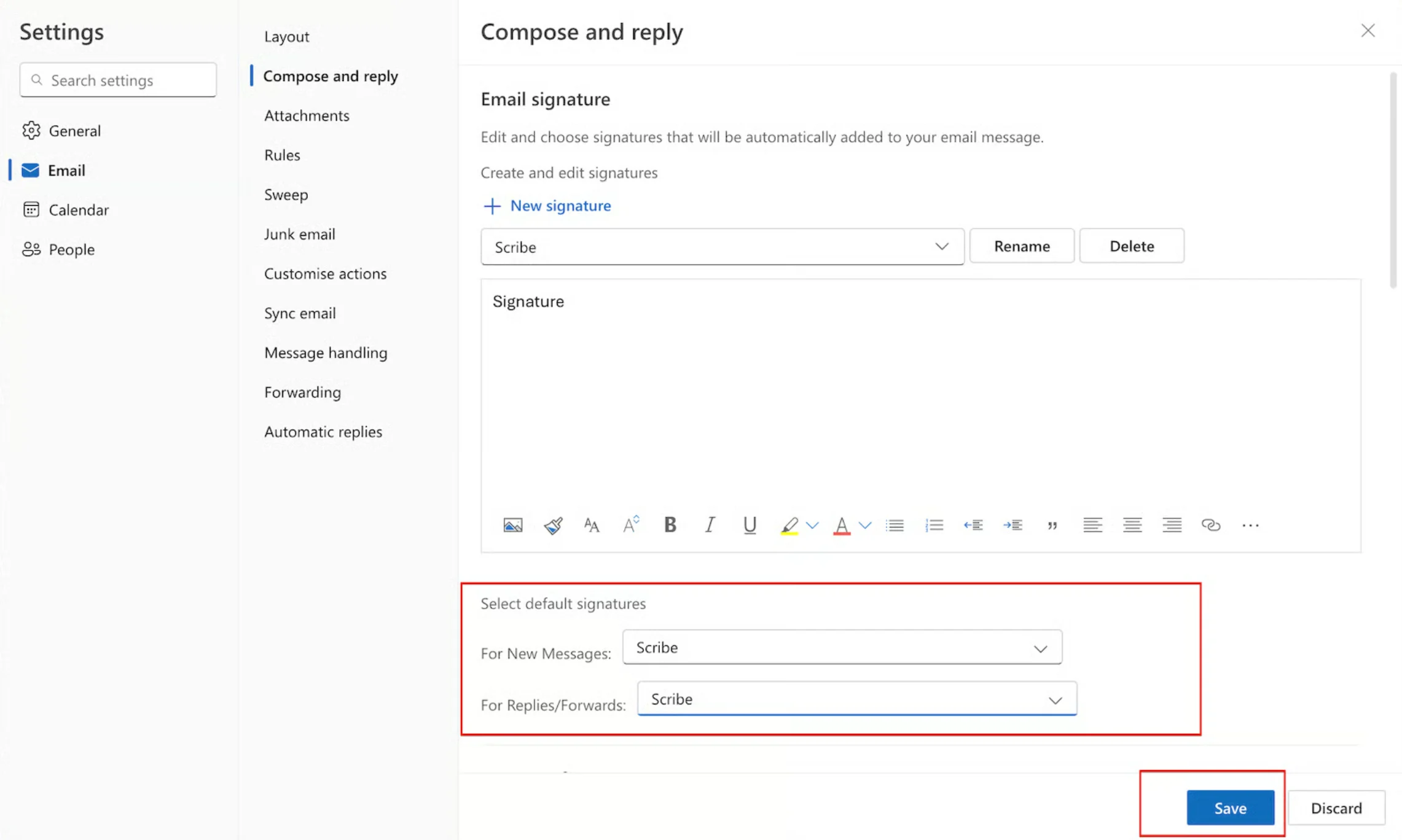
- For new messages: select your Scribe signature
- For replies/forwards: select your Scribe signature
5
Save changes
Click Save to apply your new signature.