

The correct Microsoft account is selected
Make sure you selected the Microsoft account you want to use with Scribe. Users sometimes accidentally choose accounts from different domains. You can verify this in Microsoft AppSource.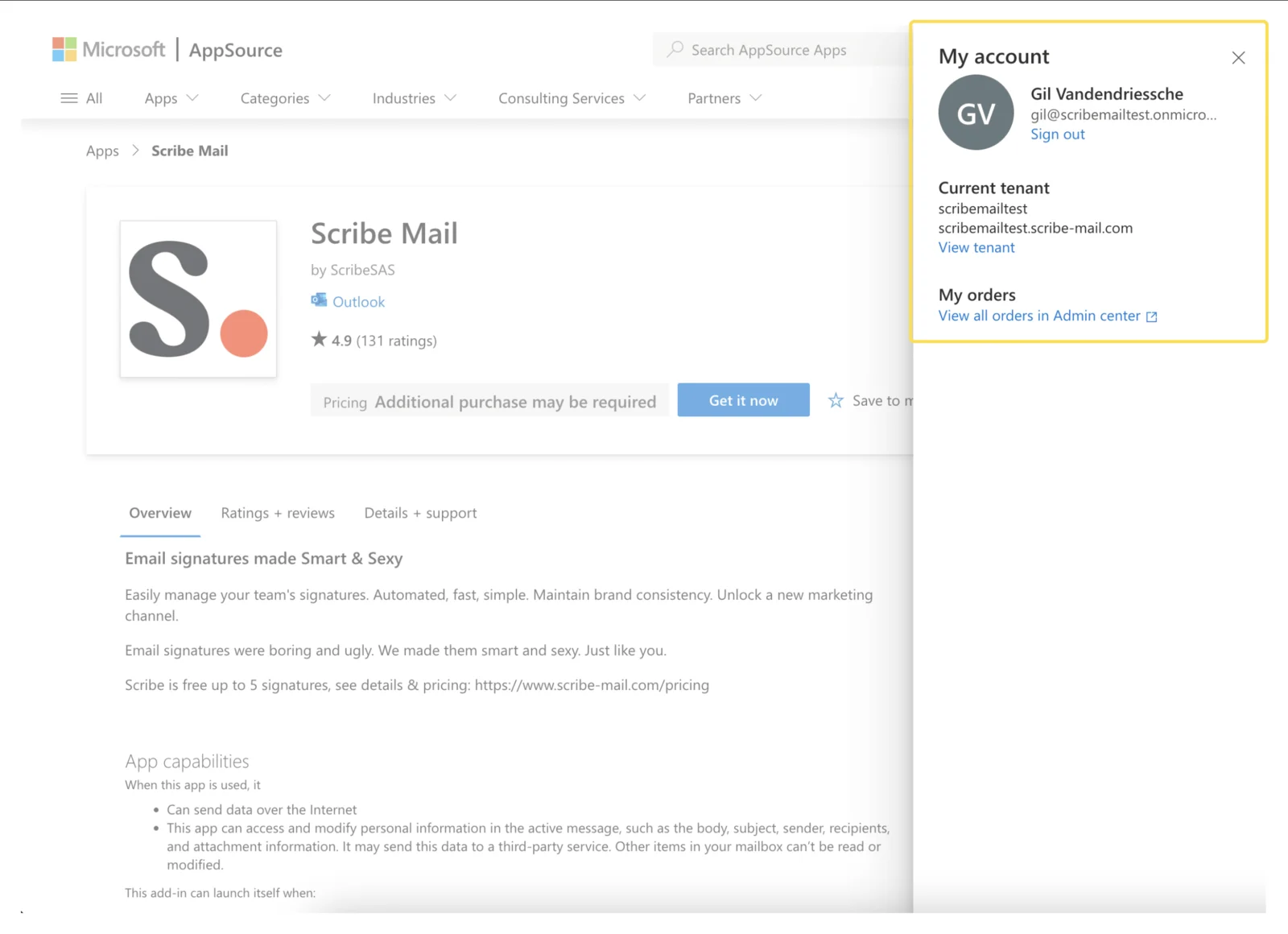
The correct email is selected
Make sure the email associated with your account is part of your Microsoft 365 organization. You can change this email in Scribe.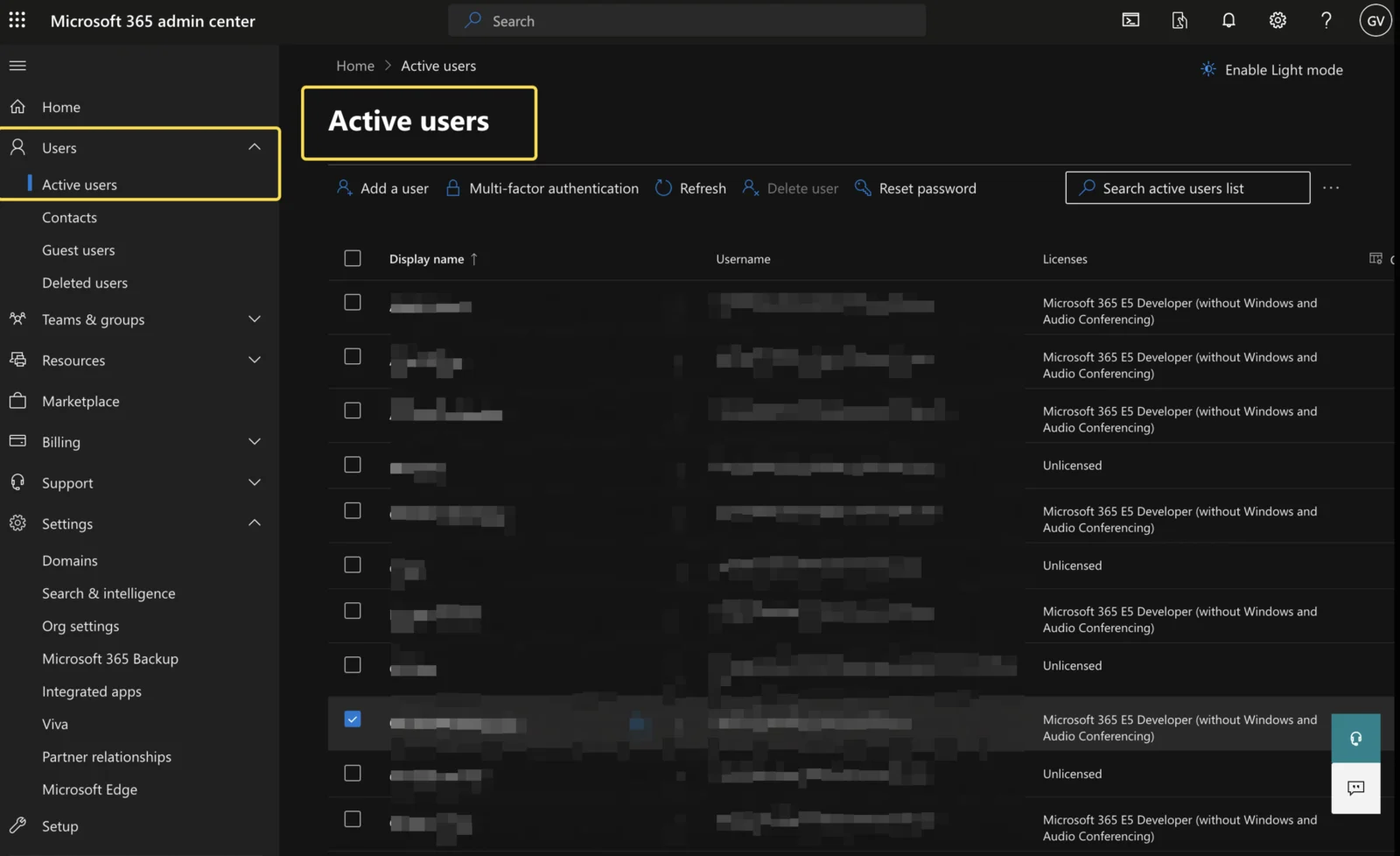
You have selected the entire organization
Make sure to select the option “entire organization” when installing the app.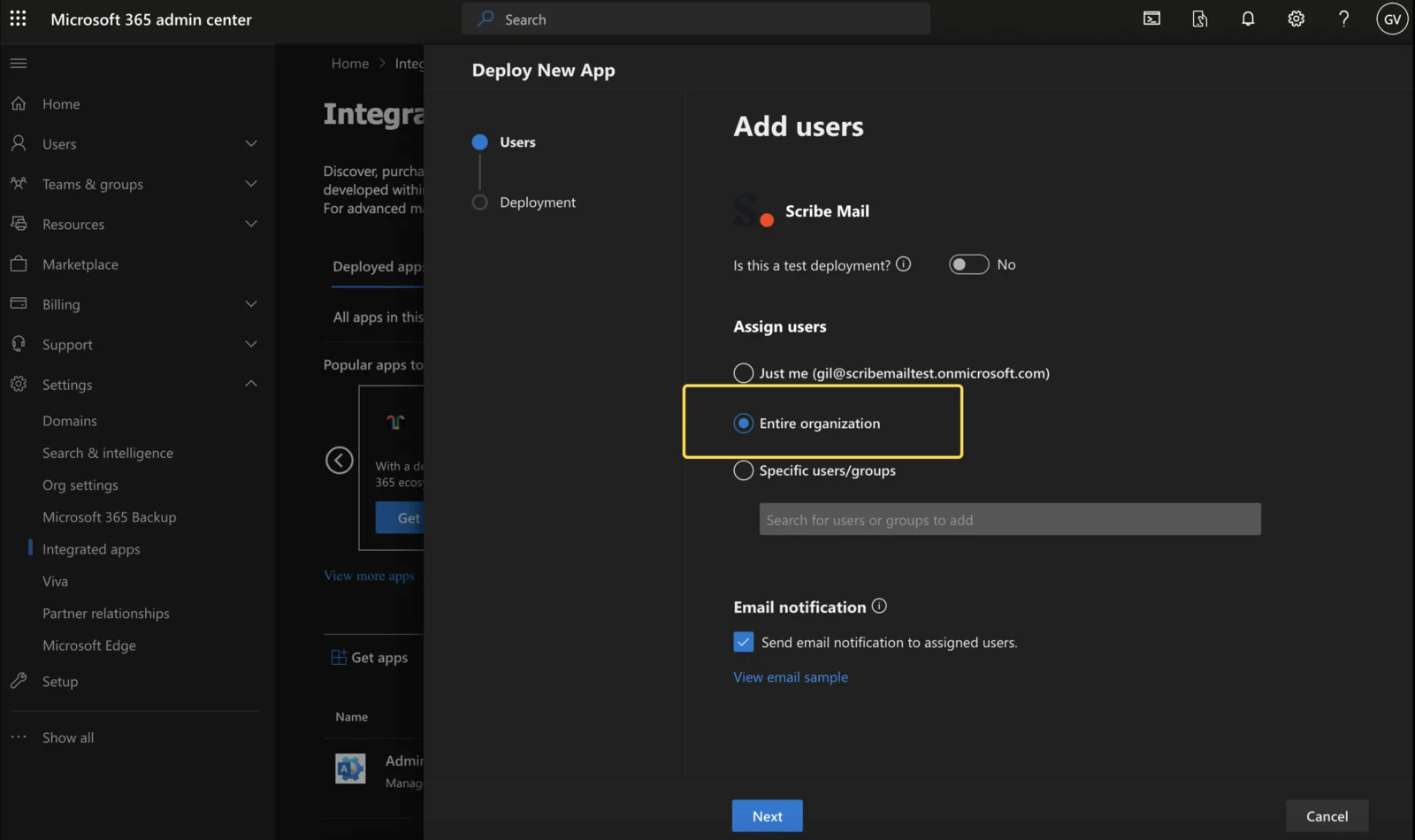
The add-in is installed as an integrated app
Ensure the Scribe add-in is installed as an integrated app in the Microsoft 365 admin center, not just in your Outlook account. Ask your IT department if necessary.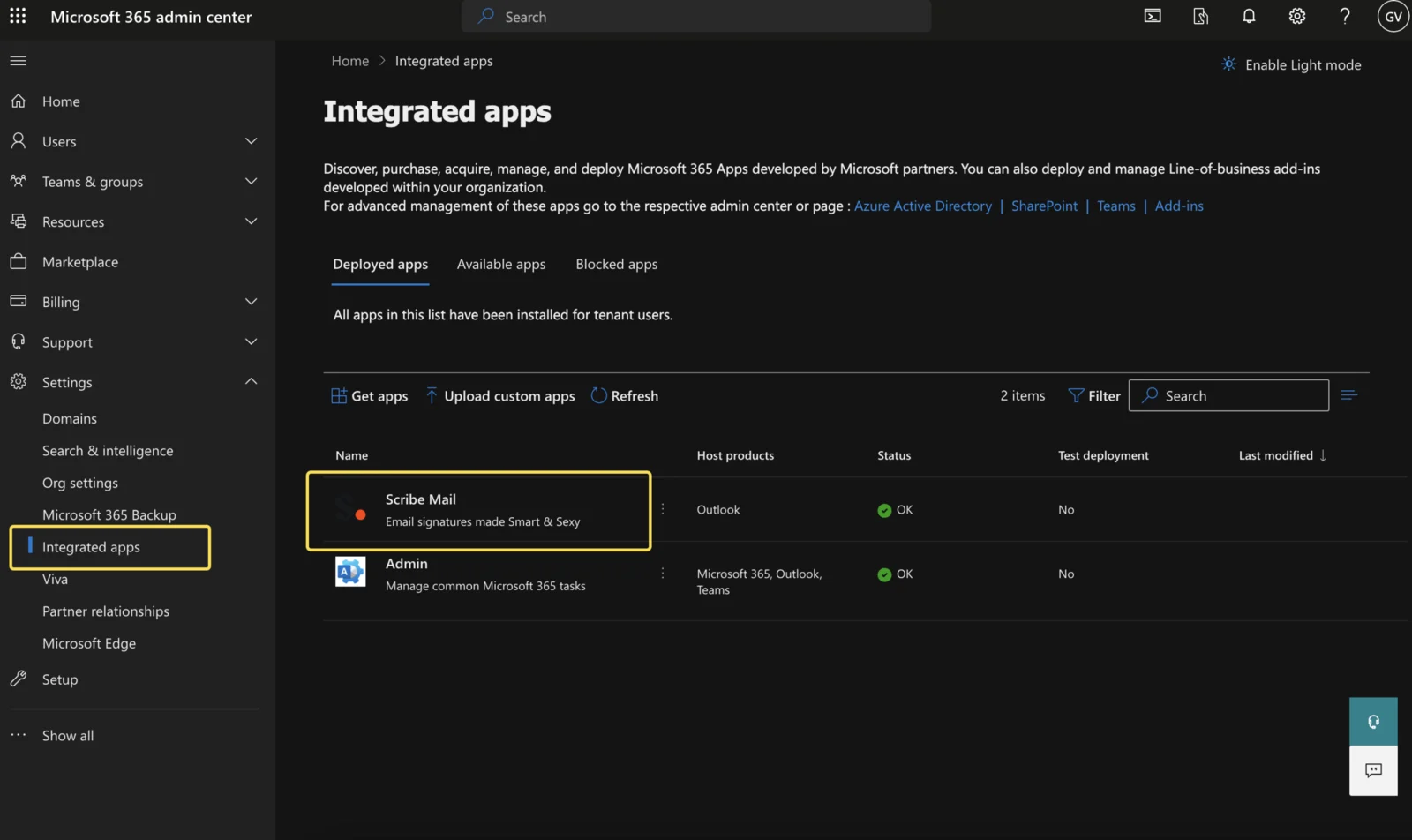
Check your Outlook compatibility
The user requires an active Microsoft 365 subscription that includes Outlook Desktop. The Scribe Outlook add-in is compatible with the following Outlook versions.On Windows
The minimum compatible versions are:- For users on the current channel: v16.0.14026.20000
- For users on the monthly channel: v16.0.14131.20000
- For users on the semi-annual channel: v16.0.14326.10000
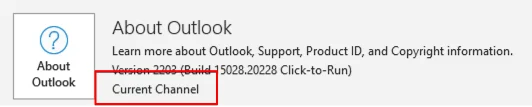
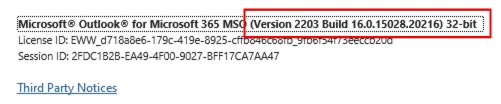
On macOS
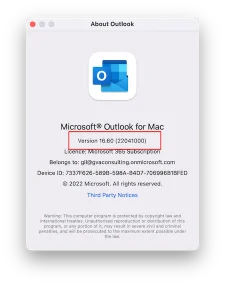
The Outlook add-in is compatible only with the new version of Outlook for Mac, V16.54 (21101001) and later versions. How to activate the new version of Outlook for Mac? Activate the new Outlook version using the toggle at the top right. Click on “Open the new Outlook,” and Outlook will restart using the new version.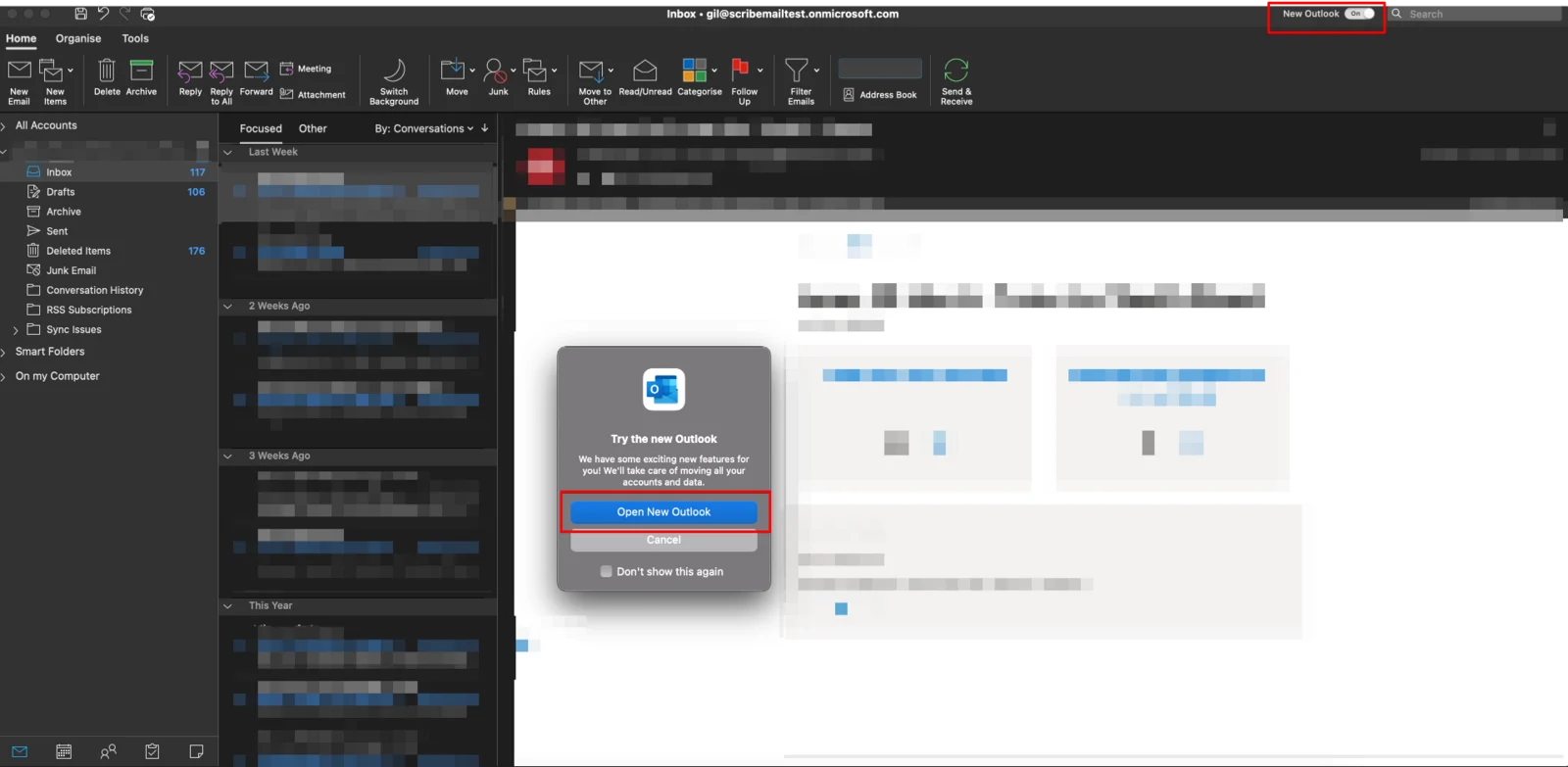
This integration will install your Scribe signature on the Microsoft 365 PC and Apple desktop apps, as well as on the Microsoft 365 web version.