

No action needed from your teammates.
Changes in your Workleap Pingboard auto-sync to Scribe.
SOC 2 Type II Certified. Your data is safe.
Installation guide
Prerequisites
- Admin access to your Pingboard account
- A Scribe account with admin access
1
Navigate to your Pingboard account, select 'Settings' > 'Add-Ons'
In your Pingboard account, open the Settings menu and click Add-Ons.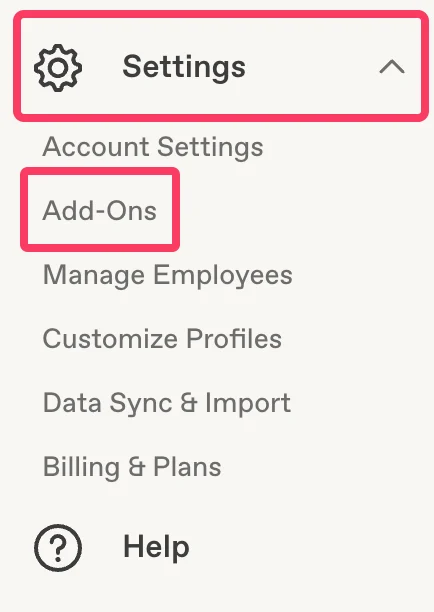
2
Click 'Pingboard API' from the list
Select the Pingboard API add-on from the list.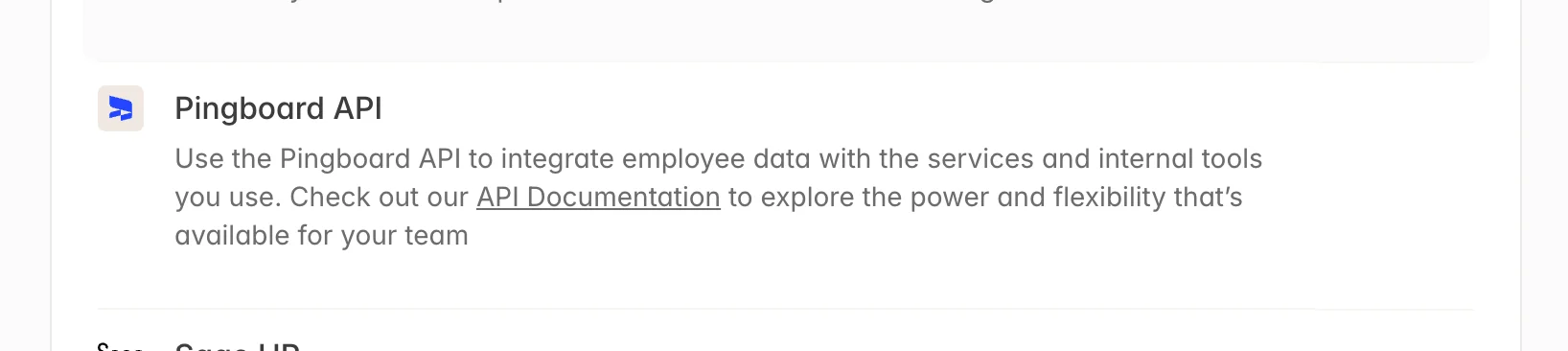
3
Click on 'Manage Service Accounts'
On the Pingboard API page, click Manage Service Accounts.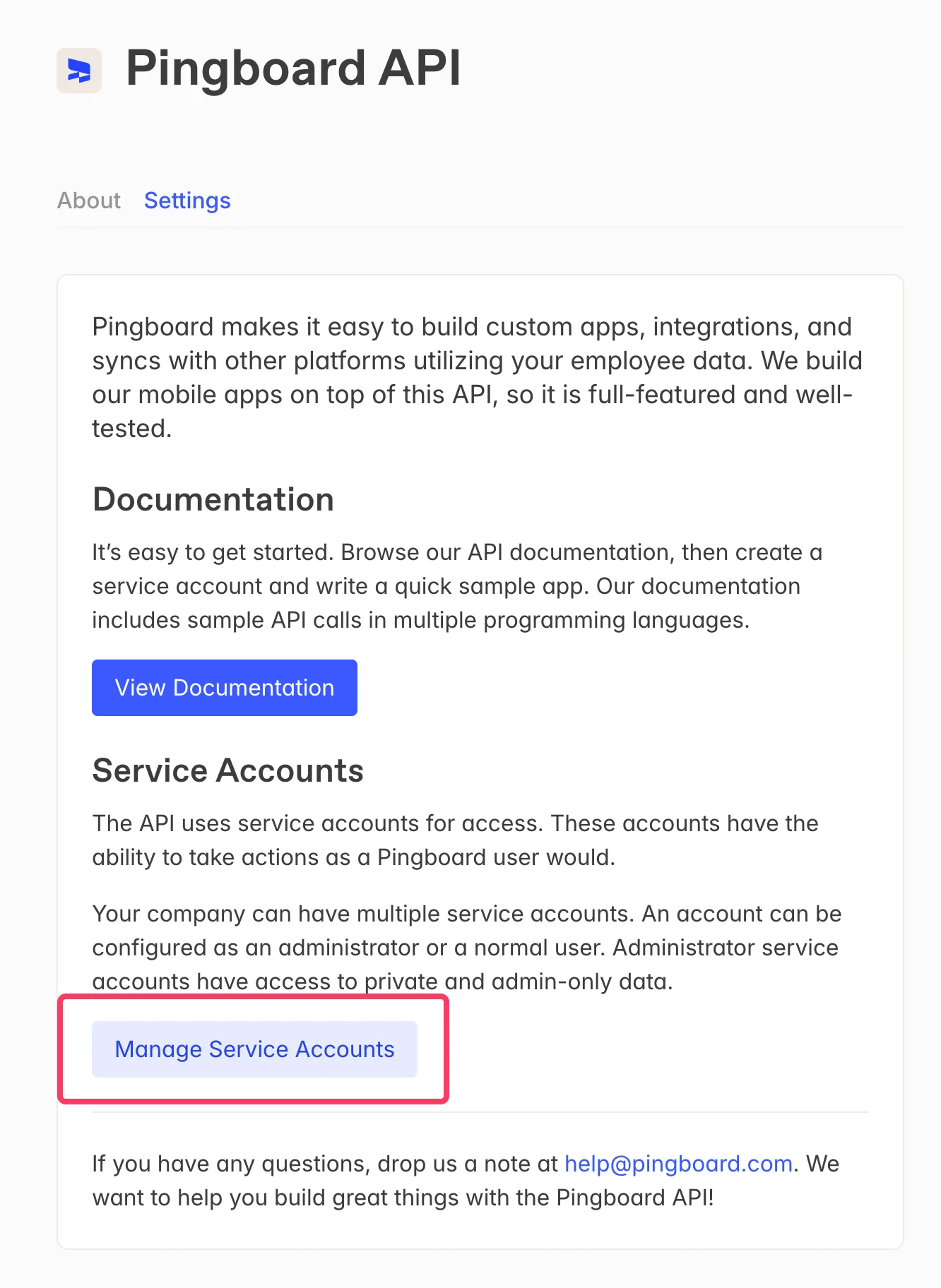
4
Click on New Service Account
Click + New Service Account to create a new service account for Scribe.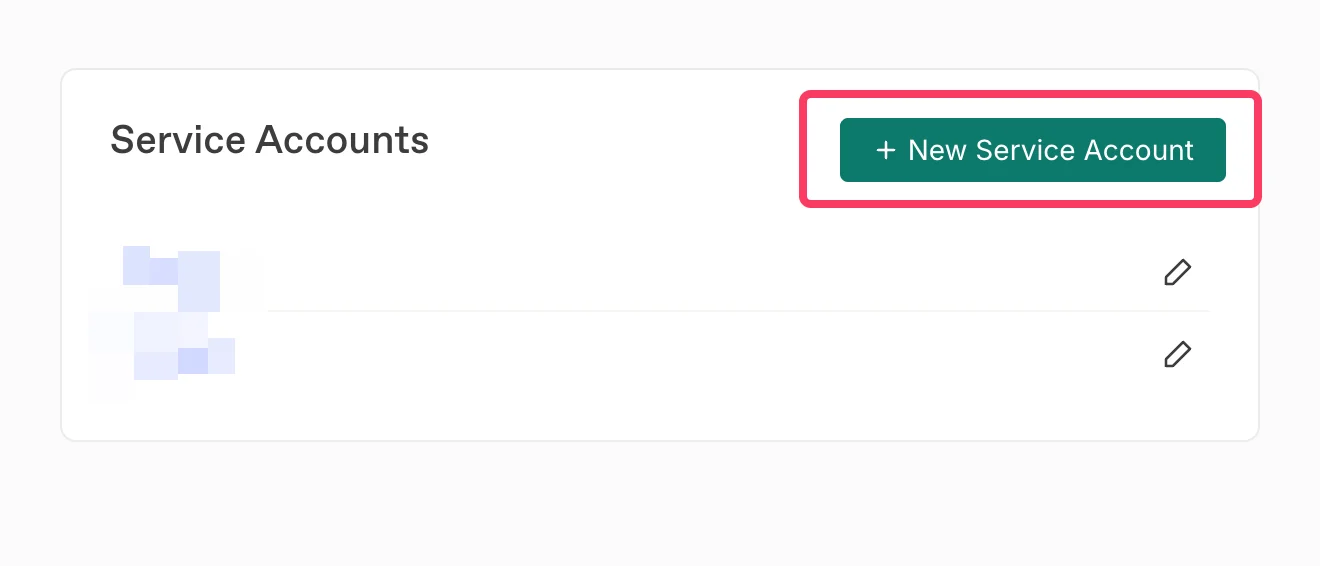
5
Give your Service Account key a name and click 'Save.'
Enter Scribe as the name for the service account, then click Save.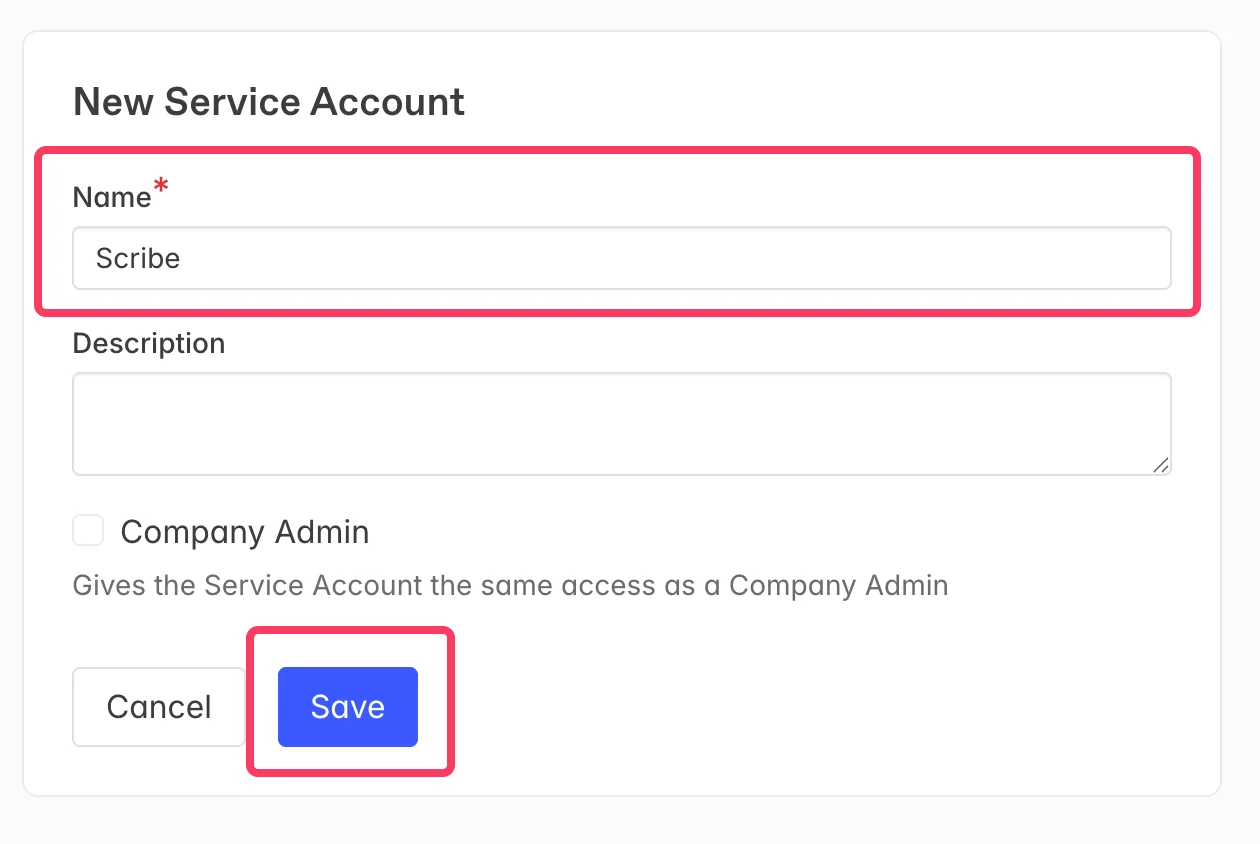
6
Copy the Client ID and Client Secret, then paste them into the fields below
Copy the Client ID and Client Secret from Pingboard using the Copy buttons, then paste them into the corresponding fields in Scribe. Click Connect Pingboard to complete the integration.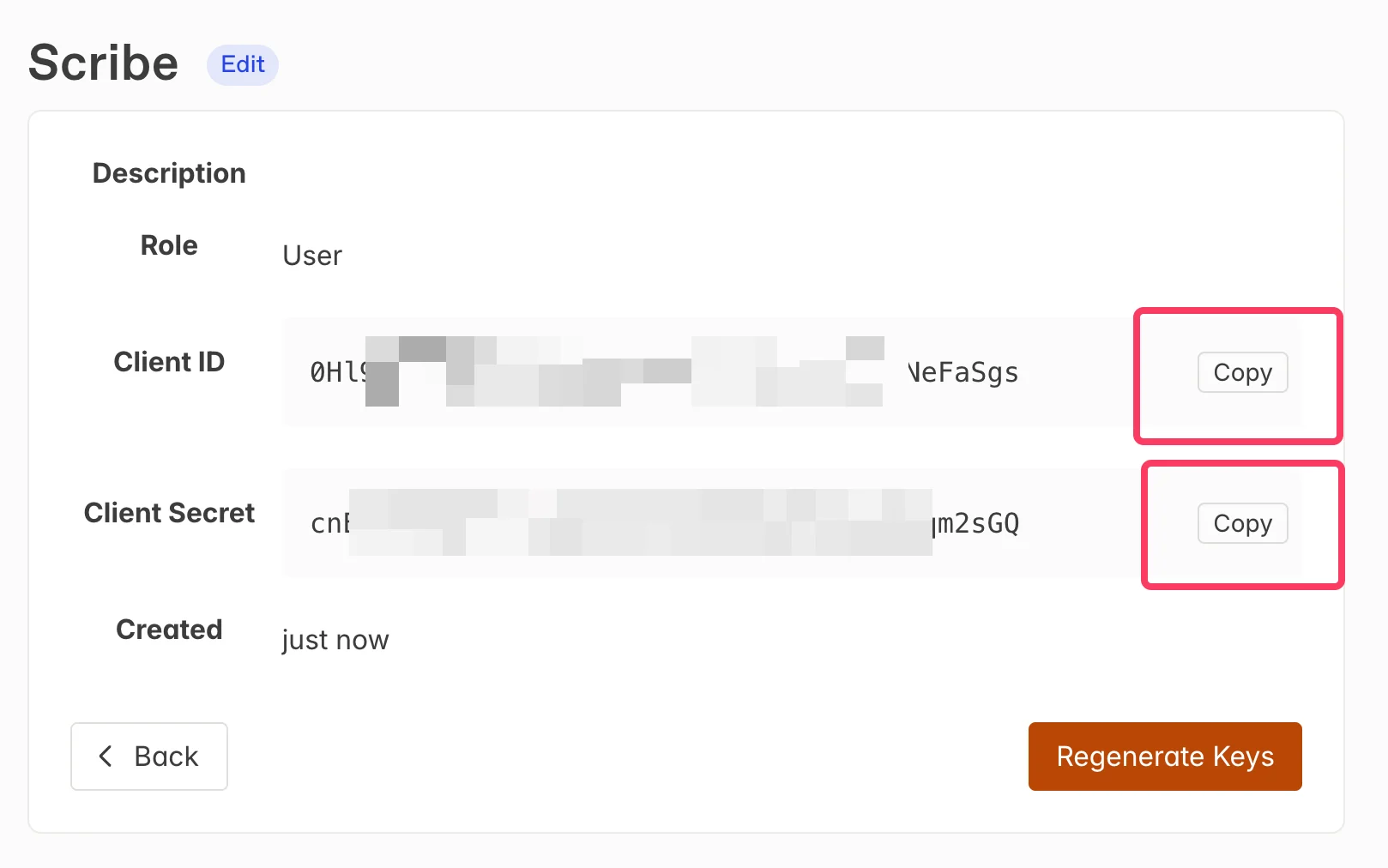
Related articles
- BambooHR: sync BambooHR data into your signatures.
- Ceridian Dayforce: sync Ceridian Dayforce data into your signatures.
- Assign teammates to a signature: use Smart Field conditions to assign signatures automatically.