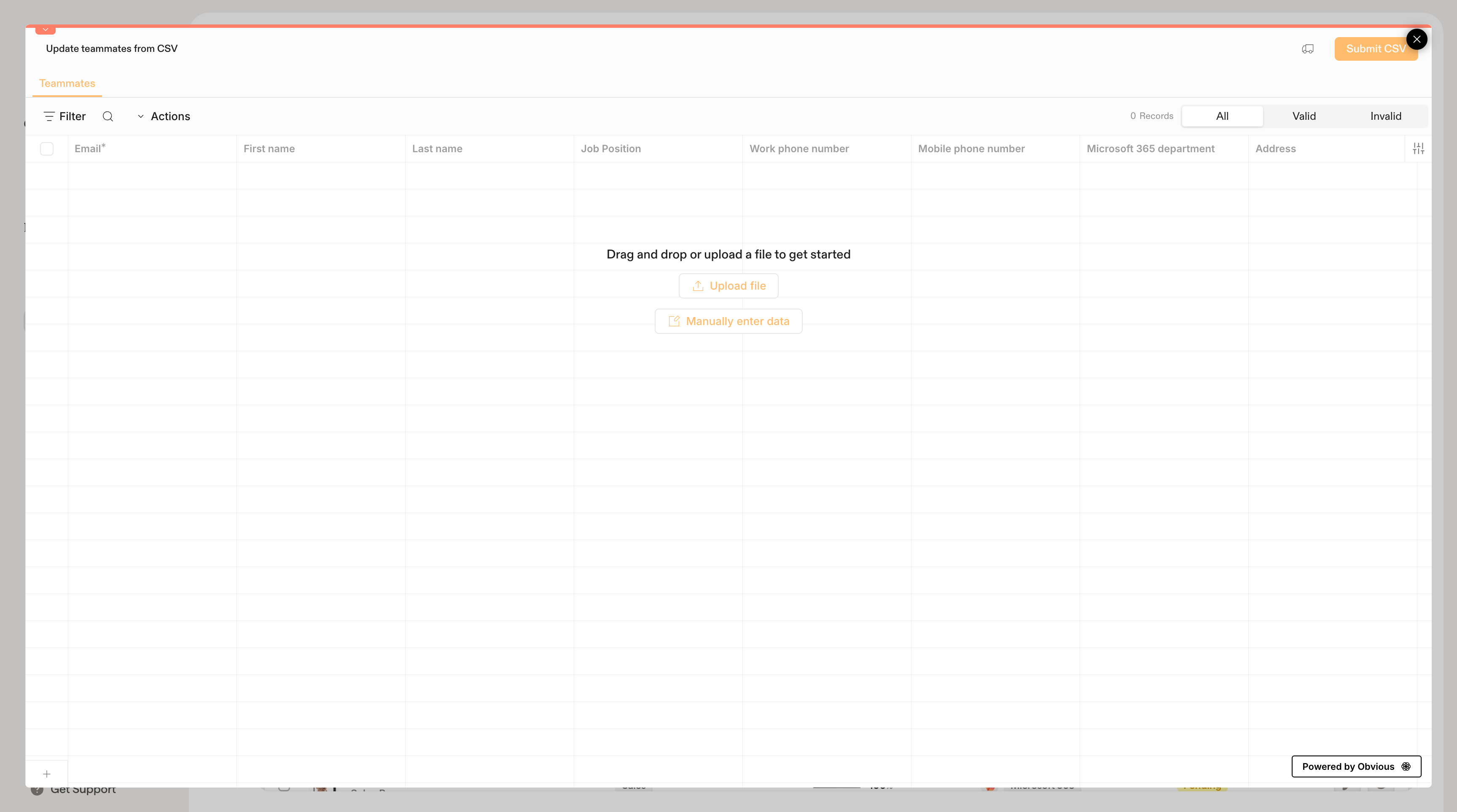
Import multiple teammates at once by uploading a CSV file. This is the fastest way to add teammates manually when you don’t use a directory integration.
How to upload a CSV
- Go to Teammates and click + Add Teammates in the top-right corner.
- Select Upload a CSV under the Manual section.
- In the import modal, either drag and drop your CSV file or click Upload file to browse.
- Review the imported data. Scribe will validate each row and flag any issues.
- Click Submit CSV to import your teammates.
CSV columns
Your file should include the following columns. Only Email is required; all other fields are optional.
You don’t need to match the column names exactly. Scribe will map your columns automatically when possible and let you adjust the mapping before import.
Enter data manually
If you don’t have a CSV file ready, click Manually enter data in the import modal to type directly into the spreadsheet grid. This can be handy for pasting data from another source.
Validation
Before submitting, Scribe checks each row and categorizes it as Valid or Invalid. Common issues include missing or malformed email addresses. Fix any flagged rows directly in the grid before submitting.
If you later connect a directory integration (Google Workspace or Microsoft Entra ID), it will override your CSV-imported teammates. Only use this option if you don’t plan to sync from a directory, or if you need to add people who aren’t in your directory. Related articles