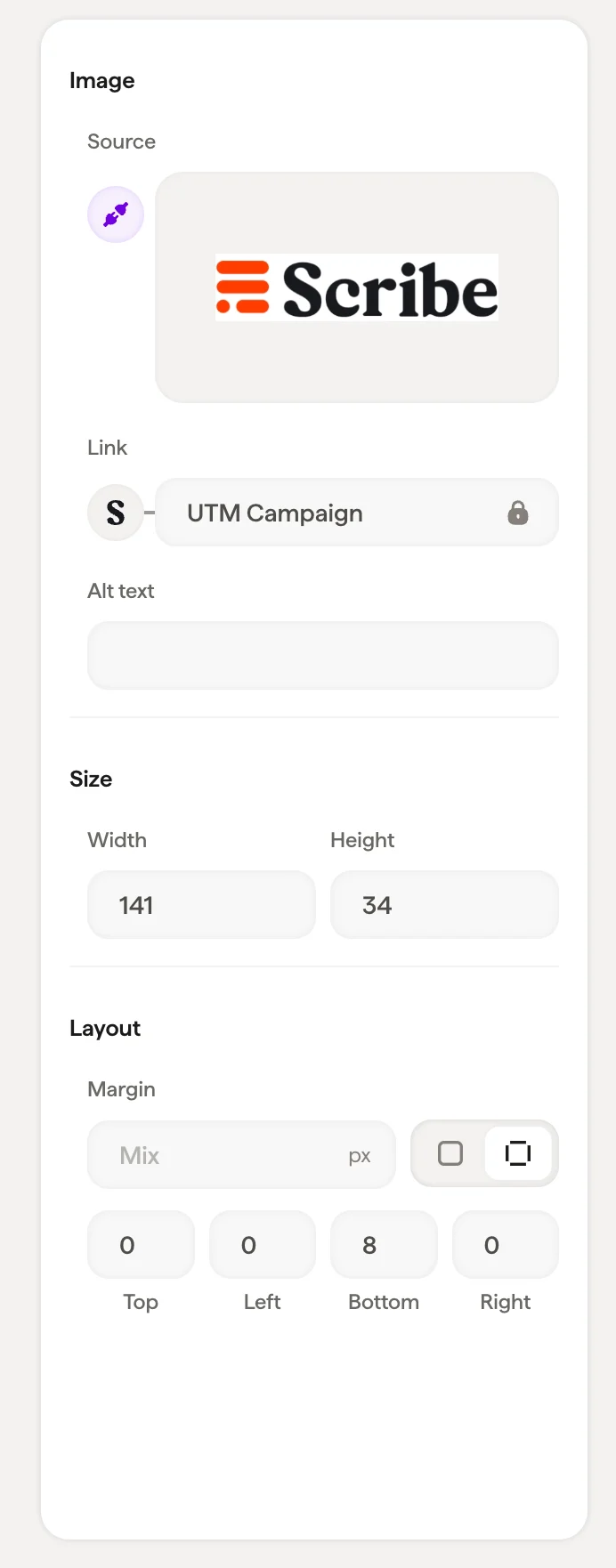
Click Select image to upload a new image or pick one from your image library.The panel adapts to the image state:
Empty: Shows a placeholder with a “Select image” button
Uploaded: Shows the image preview with options to replace or adjust it
Profile picture: When synced from Google Workspace, shows the Google icon indicating the image updates automatically for each teammate
For profile pictures synced from Google Workspace, the image updates automatically when a teammate changes their Google profile photo. You don’t need to manage these manually.
Add a URL so the image becomes clickable, useful for linking a company logo to your website or a banner to a landing page. The link can be personalized per teammate to prefill the destination page or track who drives clicks.
Open the crop tool to adjust the visible area of the image
Radius
Corner rounding in pixels: set to 0 for sharp corners, increase for rounded corners, or use a high value for a fully circular crop (great for profile photos)
{"docsConfig":{"theme":"mint","$schema":"https://mintlify.com/schema.json","name":"Scribe Mail Documentation","description":"Learn how to create, manage, and deploy professional email signatures at scale with Scribe. Find step by step guides for the signature editor, teammate management, smart fields, campaign banners, analytics, integrations with Google Workspace and Microsoft 365, API access, MCP server connection, and more.","colors":{"primary":"#FD5721","light":"#FD5721","dark":"#FD5721"},"logo":{"light":"https://mintcdn.com/scribe/rBwYeOF3Rj63uiuF/logo/light.svg?fit=max\u0026auto=format\u0026n=rBwYeOF3Rj63uiuF\u0026q=85\u0026s=76534d22a2e75a5a9ea0e852f0c45a20","dark":"https://mintcdn.com/scribe/rBwYeOF3Rj63uiuF/logo/dark.svg?fit=max\u0026auto=format\u0026n=rBwYeOF3Rj63uiuF\u0026q=85\u0026s=e9ddbc8308b1a2a0cb116fdb4ddbc4ad"},"favicon":"https://mintcdn.com/scribe/viKPFTjse_ZIHgzR/favicon.svg?fit=max\u0026auto=format\u0026n=viKPFTjse_ZIHgzR\u0026q=85\u0026s=f660b139502109050340e578cdecd19f","navbar":{"links":[{"href":"https://cal.com/forms/33a695aa-3046-40da-ba42-1d7cbb815da3","label":"Book a demo"},{"href":"https://app.scribe-mail.com/login","label":"Login"},{"href":"https://app.scribe-mail.com/registration","label":"Start 14-days free trial","type":"button"}]},"footer":{"socials":{"x":"https://x.com/ScribeMail","linkedin":"https://www.linkedin.com/company/scribemail","website":"https://www.scribe-mail.com/","instagram":"https://www.instagram.com/scribe_mail","youtube":"https://www.youtube.com/@scribe-email-signatures/featured"}},"seo":{"metatags":{"twitter:site":"@ScribeMail"},"indexing":"all"},"fonts":{"family":"Inter"},"icons":{"library":"lucide"},"integrations":{"ga4":{"measurementId":"G-CEG0NJ333Y"},"posthog":{"apiKey":"phc_zFx4ffhm0OjiQvy9PmXaPUGs1BkA4rsE8ZQw8q6BYop","apiHost":"https://eu.i.posthog.com","sessionRecording":false}},"contextual":{"options":["copy","view","assistant","download-spec","chatgpt","claude","perplexity","grok","aistudio","windsurf","mcp","cursor","vscode"],"display":"header"},"styling":{"latex":true},"navigation":{"languages":[{"language":"en","default":true,"href":"en/why-email-signatures"},{"language":"fr","href":"fr/why-email-signatures"},{"language":"de","href":"de/why-email-signatures"},{"language":"it","href":"it/why-email-signatures"},{"language":"es","href":"es/why-email-signatures"},{"language":"pt-BR","href":"pt-BR/why-email-signatures"},{"language":"nl","href":"nl/why-email-signatures"},{"language":"sv","href":"sv/why-email-signatures"},{"language":"no","href":"no/why-email-signatures"},{"language":"pl","href":"pl/why-email-signatures"},{"language":"id","href":"id/why-email-signatures"},{"language":"ja","href":"ja/why-email-signatures"},{"language":"ko","href":"ko/why-email-signatures"}]}},"deployment":{"deploymentMetadataValue":{"subdomain":"scribe","hasAudioNarration":false,"actualSubdomain":"scribe","customDomains":["help.scribe-mail.com"],"gitSource":{"type":"github","owner":"scribemail","repo":"documentation","deployBranch":"main","contentDirectory":"","isPrivate":true,"mountPath":"","label":""},"chroma":{"liveDeploymentHistoryId":"6ae4aeeed2f3537f5ebaf950","collectionId":"70b3c95f-10be-4dae-bd15-e6074af84aac","schemaVersion":"v3","latestBuiltDeploymentHistoryId":"6ae4aeeed2f3537f5ebaf950"},"feedback":{"thumbs":true},"entitlements":{"AI_CHAT":{"status":"ENABLED"}},"buildId":"6ae4aeeed2f3537f5ebaf950","clientVersion":"0.0.4043","searchFilterCounts":[{"language":"de","tag":"Product documentation","count":126},{"language":"en","tag":"Product documentation","count":126},{"language":"es","tag":"Product documentation","count":126},{"language":"fr","tag":"Product documentation","count":126},{"language":"id","tag":"Product documentation","count":126},{"language":"it","tag":"Product documentation","count":126},{"language":"ja","tag":"Product documentation","count":126},{"language":"ko","tag":"Product documentation","count":126},{"language":"nl","tag":"Product documentation","count":126},{"language":"no","tag":"Product documentation","count":126},{"language":"pl","tag":"Product documentation","count":126},{"language":"pt-BR","tag":"Product documentation","count":126},{"language":"sv","tag":"Product documentation","count":126},{"language":"default","tag":"API Reference","count":74},{"language":"de","tag":"Integrations","count":46},{"language":"en","tag":"Integrations","count":46},{"language":"es","tag":"Integrations","count":46},{"language":"fr","tag":"Integrations","count":46},{"language":"id","tag":"Integrations","count":46},{"language":"it","tag":"Integrations","count":46},{"language":"ja","tag":"Integrations","count":46},{"language":"ko","tag":"Integrations","count":46},{"language":"nl","tag":"Integrations","count":46},{"language":"no","tag":"Integrations","count":46},{"language":"pl","tag":"Integrations","count":46},{"language":"pt-BR","tag":"Integrations","count":46},{"language":"sv","tag":"Integrations","count":46},{"language":"de","tag":"Introduction","count":40},{"language":"en","tag":"Introduction","count":40},{"language":"es","tag":"Introduction","count":40},{"language":"fr","tag":"Introduction","count":40},{"language":"id","tag":"Introduction","count":40},{"language":"it","tag":"Introduction","count":40},{"language":"ja","tag":"Introduction","count":40},{"language":"ko","tag":"Introduction","count":40},{"language":"nl","tag":"Introduction","count":40},{"language":"no","tag":"Introduction","count":40},{"language":"pl","tag":"Introduction","count":40},{"language":"pt-BR","tag":"Introduction","count":40},{"language":"sv","tag":"Introduction","count":40},{"language":"de","tag":"Signatures","count":33},{"language":"de","tag":"Security","count":33},{"language":"en","tag":"Signatures","count":33},{"language":"en","tag":"Security","count":33},{"language":"es","tag":"Signatures","count":33},{"language":"es","tag":"Security","count":33},{"language":"fr","tag":"Signatures","count":33},{"language":"fr","tag":"Security","count":33},{"language":"id","tag":"Signatures","count":33},{"language":"id","tag":"Security","count":33},{"language":"it","tag":"Signatures","count":33},{"language":"it","tag":"Security","count":33},{"language":"ja","tag":"Signatures","count":33},{"language":"ja","tag":"Security","count":33},{"language":"ko","tag":"Signatures","count":33},{"language":"ko","tag":"Security","count":33},{"language":"nl","tag":"Signatures","count":33},{"language":"nl","tag":"Security","count":33},{"language":"no","tag":"Signatures","count":33},{"language":"no","tag":"Security","count":33},{"language":"pl","tag":"Signatures","count":33},{"language":"pl","tag":"Security","count":33},{"language":"pt-BR","tag":"Signatures","count":33},{"language":"pt-BR","tag":"Security","count":33},{"language":"sv","tag":"Signatures","count":33},{"language":"sv","tag":"Security","count":33},{"language":"de","tag":"Troubleshooting","count":24},{"language":"en","tag":"Troubleshooting","count":24},{"language":"es","tag":"Troubleshooting","count":24},{"language":"fr","tag":"Troubleshooting","count":24},{"language":"id","tag":"Troubleshooting","count":24},{"language":"it","tag":"Troubleshooting","count":24},{"language":"ja","tag":"Troubleshooting","count":24},{"language":"ko","tag":"Troubleshooting","count":24},{"language":"nl","tag":"Troubleshooting","count":24},{"language":"no","tag":"Troubleshooting","count":24},{"language":"pl","tag":"Troubleshooting","count":24},{"language":"pt-BR","tag":"Troubleshooting","count":24},{"language":"sv","tag":"Troubleshooting","count":24},{"language":"de","tag":"Smart Fields","count":23},{"language":"en","tag":"Smart Fields","count":23},{"language":"es","tag":"Smart Fields","count":23},{"language":"fr","tag":"Smart Fields","count":23},{"language":"id","tag":"Smart Fields","count":23},{"language":"it","tag":"Smart Fields","count":23},{"language":"ja","tag":"Smart Fields","count":23},{"language":"ko","tag":"Smart Fields","count":23},{"language":"nl","tag":"Smart Fields","count":23},{"language":"no","tag":"Smart Fields","count":23},{"language":"pl","tag":"Smart Fields","count":23},{"language":"pt-BR","tag":"Smart Fields","count":23},{"language":"sv","tag":"Smart Fields","count":23},{"language":"default","tag":"Signatures","count":22},{"language":"de","tag":"Data \u0026 Privacy","count":19},{"language":"en","tag":"Data \u0026 Privacy","count":19},{"language":"es","tag":"Data \u0026 Privacy","count":19},{"language":"fr","tag":"Data \u0026 Privacy","count":19},{"language":"id","tag":"Data \u0026 Privacy","count":19},{"language":"it","tag":"Data \u0026 Privacy","count":19},{"language":"ja","tag":"Data \u0026 Privacy","count":19},{"language":"ko","tag":"Data \u0026 Privacy","count":19},{"language":"nl","tag":"Data \u0026 Privacy","count":19},{"language":"no","tag":"Data \u0026 Privacy","count":19},{"language":"pl","tag":"Data \u0026 Privacy","count":19},{"language":"pt-BR","tag":"Data \u0026 Privacy","count":19},{"language":"sv","tag":"Data \u0026 Privacy","count":19},{"language":"de","tag":"Editor","count":18},{"language":"en","tag":"Editor","count":18},{"language":"es","tag":"Editor","count":18},{"language":"fr","tag":"Editor","count":18},{"language":"id","tag":"Editor","count":18},{"language":"it","tag":"Editor","count":18},{"language":"ja","tag":"Editor","count":18},{"language":"ko","tag":"Editor","count":18},{"language":"nl","tag":"Editor","count":18},{"language":"no","tag":"Editor","count":18},{"language":"pl","tag":"Editor","count":18},{"language":"pt-BR","tag":"Editor","count":18},{"language":"sv","tag":"Editor","count":18},{"language":"de","tag":"Data collection","count":16},{"language":"en","tag":"Data collection","count":16},{"language":"es","tag":"Data collection","count":16},{"language":"fr","tag":"Data collection","count":16},{"language":"id","tag":"Data collection","count":16},{"language":"it","tag":"Data collection","count":16},{"language":"ja","tag":"Data collection","count":16},{"language":"ko","tag":"Data collection","count":16},{"language":"nl","tag":"Data collection","count":16},{"language":"no","tag":"Data collection","count":16},{"language":"pl","tag":"Data collection","count":16},{"language":"pt-BR","tag":"Data collection","count":16},{"language":"sv","tag":"Data collection","count":16},{"language":"default","tag":"Marketing campaigns","count":8},{"language":"default","tag":"Get started","count":6},{"language":"default","tag":"Webhooks","count":6},{"language":"default","tag":"Emails","count":5},{"language":"default","tag":"Assets","count":4},{"language":"default","tag":"Folders","count":4},{"language":"default","tag":"Smart fields","count":4},{"language":"default","tag":"Teammates","count":4}]},"assistantConfig":{"enableAskAiButton":false,"enableStarterQuestions":false,"enableAskAiSearchBar":true,"deflection":{"enabled":true,"email":"support@scribe-mail.com","showHelpButton":true}},"basePath":"","hasChatPermissions":true,"hasWebMcpPermissions":false,"toggles":[{"name":"kill-isr","enabled":true,"variant":{"name":"disabled","enabled":false,"feature_enabled":true},"impressionData":false},{"name":"agent-mintlify-slack","enabled":true,"variant":{"name":"disabled","enabled":false,"feature_enabled":true},"impressionData":false},{"name":"agent-integrations-settings","enabled":true,"variant":{"name":"disabled","enabled":false,"feature_enabled":true},"impressionData":false},{"name":"automations-pr-grouping","enabled":true,"variant":{"name":"disabled","enabled":false,"feature_enabled":true},"impressionData":false},{"name":"custom-prefix","enabled":true,"variant":{"name":"disabled","enabled":false,"feature_enabled":true},"impressionData":false},{"name":"analytics-v7","enabled":true,"variant":{"name":"disabled","enabled":false,"feature_enabled":true},"impressionData":false},{"name":"user-flows-analytics","enabled":true,"variant":{"name":"disabled","enabled":false,"feature_enabled":true},"impressionData":false},{"name":"no-publish-flow","enabled":true,"variant":{"name":"disabled","enabled":false,"feature_enabled":true},"impressionData":false},{"name":"workos-onboarding","enabled":true,"variant":{"name":"disabled","enabled":false,"feature_enabled":true},"impressionData":false},{"name":"llms-txt-v2","enabled":true,"variant":{"name":"disabled","enabled":false,"feature_enabled":true},"impressionData":false},{"name":"snapshot-serving-live","enabled":true,"variant":{"name":"disabled","enabled":false,"feature_enabled":true},"impressionData":false},{"name":"stripTemperatureMiddleware","enabled":true,"variant":{"name":"disabled","enabled":false,"feature_enabled":true},"impressionData":false},{"name":"support-platform-pylon-zendesk","enabled":true,"variant":{"name":"disabled","enabled":false,"feature_enabled":true},"impressionData":false},{"name":"snapshot-serving","enabled":true,"variant":{"name":"disabled","enabled":false,"feature_enabled":true},"impressionData":false},{"name":"instant-rollback","enabled":true,"variant":{"name":"disabled","enabled":false,"feature_enabled":true},"impressionData":false},{"name":"granular-notifications-server","enabled":true,"variant":{"name":"disabled","enabled":false,"feature_enabled":true},"impressionData":false},{"name":"granular-notifications","enabled":true,"variant":{"name":"disabled","enabled":false,"feature_enabled":true},"impressionData":false},{"name":"automations-fable","enabled":true,"variant":{"name":"disabled","enabled":false,"feature_enabled":true},"impressionData":false},{"name":"fixed-ai-action-pricing","enabled":true,"variant":{"name":"disabled","enabled":false,"feature_enabled":true},"impressionData":false},{"name":"automation-resolve-merge-conflict","enabled":true,"variant":{"name":"disabled","enabled":false,"feature_enabled":true},"impressionData":false},{"name":"scoped-publishing","enabled":true,"variant":{"name":"disabled","enabled":false,"feature_enabled":true},"impressionData":false},{"name":"mintql","enabled":true,"variant":{"name":"disabled","enabled":false,"feature_enabled":true},"impressionData":false},{"name":"page-level-analytics","enabled":true,"variant":{"name":"disabled","enabled":false,"feature_enabled":true},"impressionData":false},{"name":"editor-version-history-v2","enabled":true,"variant":{"name":"disabled","enabled":false,"feature_enabled":true},"impressionData":false},{"name":"billing-page-v2","enabled":true,"variant":{"name":"disabled","enabled":false,"feature_enabled":true},"impressionData":false},{"name":"full-page-search","enabled":true,"variant":{"name":"disabled","enabled":false,"feature_enabled":true},"impressionData":false},{"name":"workspace-projects","enabled":true,"variant":{"name":"disabled","enabled":false,"feature_enabled":true},"impressionData":false},{"name":"assistant-v5","enabled":true,"variant":{"name":"disabled","enabled":false,"feature_enabled":true},"impressionData":false},{"name":"byok-sep-25","enabled":true,"variant":{"name":"disabled","enabled":false,"feature_enabled":true},"impressionData":false},{"name":"fork-pr-previews","enabled":true,"variant":{"name":"disabled","enabled":false,"feature_enabled":true},"impressionData":false},{"name":"revalidation-jwt","enabled":true,"variant":{"name":"disabled","enabled":false,"feature_enabled":true},"impressionData":false},{"name":"vite-origin","enabled":true,"variant":{"name":"disabled","enabled":false,"feature_enabled":true},"impressionData":false},{"name":"billing-updated-9-15","enabled":true,"variant":{"name":"disabled","enabled":false,"feature_enabled":true},"impressionData":false},{"name":"workos-sso-scim","enabled":true,"variant":{"name":"disabled","enabled":false,"feature_enabled":true},"impressionData":false},{"name":"hobby-abuse-scan","enabled":true,"variant":{"name":"disabled","enabled":false,"feature_enabled":true},"impressionData":false},{"name":"dashboard-inbox","enabled":true,"variant":{"name":"disabled","enabled":false,"feature_enabled":true},"impressionData":false},{"name":"workos-signup","enabled":true,"variant":{"name":"disabled","enabled":false,"feature_enabled":true},"impressionData":false},{"name":"turbopuffer-dual-write","enabled":true,"variant":{"name":"disabled","enabled":false,"feature_enabled":true},"impressionData":false},{"name":"workos-enabled","enabled":true,"variant":{"name":"disabled","enabled":false,"feature_enabled":true},"impressionData":false},{"name":"approve-review-flow","enabled":true,"variant":{"name":"disabled","enabled":false,"feature_enabled":true},"impressionData":false}],"googleFontsInlined":false},"customCss":[],"page":{"pagePath":"en/editor/image-blocks","slug":"/en/editor/image-blocks","pageMetadata":{"title":"Image blocks","description":"Add profile photos, logos, and banners to your email signature, then crop them, round the corners, set the size, and link the image to a URL.","href":"/en/editor/image-blocks"},"description":{"compiledSource":"\"use strict\";\nconst {jsx: _jsx} = arguments[0];\nconst {useMDXComponents: _provideComponents} = arguments[0];\nfunction _createMdxContent(props) {\n const _components = {\n p: \"p\",\n ..._provideComponents(),\n ...props.components\n };\n return _jsx(_components.p, {\n children: \"Add profile photos, logos, and banners to your email signature, then crop them, round the corners, set the size, and link the image to a URL.\"\n });\n}\nfunction MDXContent(props = {}) {\n const {wrapper: MDXLayout} = {\n ..._provideComponents(),\n ...props.components\n };\n return MDXLayout ? _jsx(MDXLayout, {\n ...props,\n children: _jsx(_createMdxContent, {\n ...props\n })\n }) : _createMdxContent(props);\n}\nreturn {\n default: MDXContent\n};\n","frontmatter":{},"scope":{}},"pageType":"default","mdx":{"mdxSource":{"compiledSource":"\"use strict\";const{Fragment:_Fragment,jsx:_jsx,jsxs:_jsxs}=arguments[0];const{useMDXComponents:_provideComponents}=arguments[0];function _createMdxContent(props){const _components={a:`a`,code:`code`,li:`li`,p:`p`,strong:`strong`,tbody:`tbody`,td:`td`,th:`th`,thead:`thead`,tr:`tr`,ul:`ul`,..._provideComponents(),...props.components},{Frame,Heading,Note,OptimizedImage,Table,Tip}=_components;if(!Frame)_missingMdxReference(`Frame`,true);if(!Heading)_missingMdxReference(`Heading`,true);if(!Note)_missingMdxReference(`Note`,true);if(!OptimizedImage)_missingMdxReference(`OptimizedImage`,true);if(!Table)_missingMdxReference(`Table`,true);if(!Tip)_missingMdxReference(`Tip`,true);return _jsxs(_Fragment,{children:[_jsx(_components.p,{children:`Image blocks handle profile photos, company logos, banners, and any other visual element in your signature.`}),`\n`,_jsx(Frame,{children:_jsx(OptimizedImage,{src:`https://mintcdn.com/scribe/xbQhr3JjkYildsKM/images/signature-editor-canvas.png?fit=max\u0026auto=format\u0026n=xbQhr3JjkYildsKM\u0026q=85\u0026s=277601f9b630813e10eb6fef13e9435b`,alt:`Email signature editor canvas`,\"data-og-width\":`3456`,width:`3456`,\"data-og-height\":`1930`,height:`1930`,\"data-path\":`images/signature-editor-canvas.png`,\"data-optimize\":`true`,\"data-opv\":`3`,srcset:`https://mintcdn.com/scribe/xbQhr3JjkYildsKM/images/signature-editor-canvas.png?w=280\u0026fit=max\u0026auto=format\u0026n=xbQhr3JjkYildsKM\u0026q=85\u0026s=61b3bfcea1a6ccdb9170a37d5bfc833f 280w, https://mintcdn.com/scribe/xbQhr3JjkYildsKM/images/signature-editor-canvas.png?w=560\u0026fit=max\u0026auto=format\u0026n=xbQhr3JjkYildsKM\u0026q=85\u0026s=b60abfb81379f40b7658f2a6e3309260 560w, https://mintcdn.com/scribe/xbQhr3JjkYildsKM/images/signature-editor-canvas.png?w=840\u0026fit=max\u0026auto=format\u0026n=xbQhr3JjkYildsKM\u0026q=85\u0026s=95ce7cb01c1807d38dee2ecfecf04947 840w, https://mintcdn.com/scribe/xbQhr3JjkYildsKM/images/signature-editor-canvas.png?w=1100\u0026fit=max\u0026auto=format\u0026n=xbQhr3JjkYildsKM\u0026q=85\u0026s=02aff522a10a9c10a7a5f94a562f3672 1100w, https://mintcdn.com/scribe/xbQhr3JjkYildsKM/images/signature-editor-canvas.png?w=1650\u0026fit=max\u0026auto=format\u0026n=xbQhr3JjkYildsKM\u0026q=85\u0026s=511e3ab1cce978d32c9ff5656cdb71b3 1650w, https://mintcdn.com/scribe/xbQhr3JjkYildsKM/images/signature-editor-canvas.png?w=2500\u0026fit=max\u0026auto=format\u0026n=xbQhr3JjkYildsKM\u0026q=85\u0026s=bbc0edeecb345cc1ea4ec9726b0ac325 2500w`})}),`\n`,_jsx(Frame,{children:_jsx(OptimizedImage,{src:`https://mintcdn.com/scribe/Z_G2D9X-Tlrxu_Eh/images/image-block-settings-panel.png?fit=max\u0026auto=format\u0026n=Z_G2D9X-Tlrxu_Eh\u0026q=85\u0026s=1df7683dc1205f596ad16e7e5879daef`,alt:`Image block settings panel with crop, radius, and size controls`,title:`Image block settings panel with crop, radius, and size controls`,className:`mint-mx-auto`,style:{width:`34%`},\"data-og-width\":`692`,width:`692`,\"data-og-height\":`1762`,height:`1762`,\"data-path\":`images/image-block-settings-panel.png`,\"data-optimize\":`true`,\"data-opv\":`3`,srcset:`https://mintcdn.com/scribe/Z_G2D9X-Tlrxu_Eh/images/image-block-settings-panel.png?w=280\u0026fit=max\u0026auto=format\u0026n=Z_G2D9X-Tlrxu_Eh\u0026q=85\u0026s=abd071d26419f02707e08f6f8d2d14ca 280w, https://mintcdn.com/scribe/Z_G2D9X-Tlrxu_Eh/images/image-block-settings-panel.png?w=560\u0026fit=max\u0026auto=format\u0026n=Z_G2D9X-Tlrxu_Eh\u0026q=85\u0026s=216e388f8fc8583edf501a71431ae40b 560w, https://mintcdn.com/scribe/Z_G2D9X-Tlrxu_Eh/images/image-block-settings-panel.png?w=840\u0026fit=max\u0026auto=format\u0026n=Z_G2D9X-Tlrxu_Eh\u0026q=85\u0026s=9ccb4fe3e3399e959fb15c4af8e5f032 840w, https://mintcdn.com/scribe/Z_G2D9X-Tlrxu_Eh/images/image-block-settings-panel.png?w=1100\u0026fit=max\u0026auto=format\u0026n=Z_G2D9X-Tlrxu_Eh\u0026q=85\u0026s=44d03722bc3c8c153a69e0548d60e12d 1100w, https://mintcdn.com/scribe/Z_G2D9X-Tlrxu_Eh/images/image-block-settings-panel.png?w=1650\u0026fit=max\u0026auto=format\u0026n=Z_G2D9X-Tlrxu_Eh\u0026q=85\u0026s=9c40c087504dcfe7544d61c0fb195dcc 1650w, https://mintcdn.com/scribe/Z_G2D9X-Tlrxu_Eh/images/image-block-settings-panel.png?w=2500\u0026fit=max\u0026auto=format\u0026n=Z_G2D9X-Tlrxu_Eh\u0026q=85\u0026s=e84610ad2b2fd55142d37b12528e4527 2500w`})}),`\n`,_jsx(Heading,{level:`2`,id:`image-source`,children:`Image source`}),`\n`,_jsxs(_components.p,{children:[`Click `,_jsx(_components.strong,{children:`Select image`}),` to upload a new image or pick one from your `,_jsx(_components.a,{href:`/en/editor/image-library`,children:`image library`}),`.`]}),`\n`,_jsx(_components.p,{children:`The panel adapts to the image state:`}),`\n`,_jsxs(_components.ul,{children:[`\n`,_jsxs(_components.li,{children:[_jsx(_components.strong,{children:`Empty`}),`: Shows a placeholder with a “Select image” button`]}),`\n`,_jsxs(_components.li,{children:[_jsx(_components.strong,{children:`Uploaded`}),`: Shows the image preview with options to replace or adjust it`]}),`\n`,_jsxs(_components.li,{children:[_jsx(_components.strong,{children:`Profile picture`}),`: When synced from Google Workspace, shows the Google icon indicating the image updates automatically for each teammate`]}),`\n`]}),`\n`,_jsx(Note,{children:_jsxs(_components.p,{children:[`For profile pictures synced from `,_jsx(_components.a,{href:`/en/editor/google-workspace-directory`,children:`Google Workspace`}),`, the image updates automatically when a teammate changes their Google profile photo. You don’t need to manage these manually.`]})}),`\n`,_jsx(Heading,{level:`2`,id:`link`,children:`Link`}),`\n`,_jsxs(_components.p,{children:[`Add a URL so the image becomes clickable, useful for linking a company logo to your website or a banner to a landing page. The link can be `,_jsx(_components.a,{href:`/en/editor/personalize-links`,children:`personalized per teammate`}),` to prefill the destination page or track who drives clicks.`]}),`\n`,_jsx(Heading,{level:`2`,id:`style`,children:`Style`}),`\n`,_jsxs(Table,{children:[_jsx(_components.thead,{children:_jsxs(_components.tr,{children:[_jsx(_components.th,{children:`Setting`}),_jsx(_components.th,{children:`What it does`})]})}),_jsxs(_components.tbody,{children:[_jsxs(_components.tr,{children:[_jsx(_components.td,{children:_jsx(_components.strong,{children:`Crop`})}),_jsx(_components.td,{children:`Open the crop tool to adjust the visible area of the image`})]}),_jsxs(_components.tr,{children:[_jsx(_components.td,{children:_jsx(_components.strong,{children:`Radius`})}),_jsxs(_components.td,{children:[`Corner rounding in pixels: set to `,_jsx(_components.code,{children:`0`}),` for sharp corners, increase for rounded corners, or use a high value for a fully circular crop (great for profile photos)`]})]})]})]}),`\n`,_jsx(Heading,{level:`2`,id:`size`,children:`Size`}),`\n`,_jsxs(_components.p,{children:[`Set the `,_jsx(_components.strong,{children:`Width`}),` and `,_jsx(_components.strong,{children:`Height`}),` in pixels. These control the display size of the image in the signature.`]}),`\n`,_jsx(Tip,{children:_jsx(_components.p,{children:`For profile photos, try equal width and height with a high border radius for a clean circular look.`})}),`\n`,_jsx(Heading,{level:`2`,id:`layout`,children:`Layout`}),`\n`,_jsx(_components.p,{children:`Padding controls the space around the image block.`}),`\n`,_jsx(Heading,{level:`2`,id:`related-articles`,children:`Related articles`}),`\n`,_jsxs(_components.ul,{children:[`\n`,_jsx(_components.li,{children:_jsx(_components.a,{href:`/en/editor/add-blocks`,children:`Add blocks`})}),`\n`,_jsx(_components.li,{children:_jsx(_components.a,{href:`/en/editor/styling-panel`,children:`Styling panel`})}),`\n`,_jsx(_components.li,{children:_jsx(_components.a,{href:`/en/editor/badge-blocks`,children:`Badge blocks`})}),`\n`]})]})}function MDXContent(props={}){const{wrapper:MDXLayout}={..._provideComponents(),...props.components};return MDXLayout?_jsx(MDXLayout,{...props,children:_jsx(_createMdxContent,{...props})}):_createMdxContent(props)}return{default:MDXContent};function _missingMdxReference(id,component){throw new Error(`Expected `+(component?`component`:`object`)+\" `\"+id+\"` to be defined: you likely forgot to import, pass, or provide it.\")}","frontmatter":{},"scope":{"config":{},"pageMetadata":{"title":"Image blocks","description":"Add profile photos, logos, and banners to your email signature, then crop them, round the corners, set the size, and link the image to a URL.","href":"/en/editor/image-blocks"}}},"mdxSourceWithNoJs":null},"mdxExtracts":{"tableOfContents":[{"title":"Image source","slug":"image-source","depth":2,"children":[]},{"title":"Link","slug":"link","depth":2,"children":[]},{"title":"Style","slug":"style","depth":2,"children":[]},{"title":"Size","slug":"size","depth":2,"children":[]},{"title":"Layout","slug":"layout","depth":2,"children":[]},{"title":"Related articles","slug":"related-articles","depth":2,"children":[]}],"codeExamples":{}},"jsLinks":["/_mintlify/custom/scribe/accca995bc9052c5/crisp.js","/_mintlify/custom/scribe/05d6e606e8b34eff/webmcp.js"],"dynamicCss":".mint-mx-auto {\n margin-left: auto;\n margin-right: auto\n}","subdomain":"scribe","siteName":"Scribe Mail Documentation","title":"Image blocks - Scribe Mail Documentation","navMaps":{"firstHrefInVersion":{},"firstHrefInLanguage":{"en":{"href":"/en/editor/image-blocks","matchLevel":0},"fr":{"href":"/fr/editor/image-blocks","matchLevel":1},"de":{"href":"/de/editor/image-blocks","matchLevel":1},"it":{"href":"/it/editor/image-blocks","matchLevel":1},"es":{"href":"/es/editor/image-blocks","matchLevel":1},"pt-BR":{"href":"/pt-BR/editor/image-blocks","matchLevel":1},"nl":{"href":"/nl/editor/image-blocks","matchLevel":1},"sv":{"href":"/sv/editor/image-blocks","matchLevel":1},"no":{"href":"/no/editor/image-blocks","matchLevel":1},"pl":{"href":"/pl/editor/image-blocks","matchLevel":1},"id":{"href":"/id/editor/image-blocks","matchLevel":1},"ja":{"href":"/ja/editor/image-blocks","matchLevel":1},"ko":{"href":"/ko/editor/image-blocks","matchLevel":1}}},"lastModified":"2026-09-02T06:48:34.460Z","originalFileLocation":"en/editor/image-blocks.mdx","locale":"en"},"headHtml":"\u003cscript data-mint-head>(function(){var d=document.documentElement,p=null;if(!p){try{p=localStorage.getItem(\"isDarkMode\")}catch(e){}if(p==='true')p='dark';else if(p==='false')p='light';if(p!=='light'\u0026\u0026p!=='dark'\u0026\u0026p!=='system')p=\"system\"}var r=p==='system'?(matchMedia(\"(prefers-color-scheme: dark)\").matches?'dark':'light'):p;d.classList.remove(r==='dark'?'light':'dark');d.classList.add(r);d.setAttribute(\"data-theme-preference\",p)})();\u003c/script>\u003cmeta data-mint-head name=\"description\" content=\"Add profile photos, logos, and banners to your email signature, then crop them, round the corners, set the size, and link the image to a URL.\">\u003cmeta data-mint-head name=\"application-name\" content=\"Scribe Mail Documentation\">\u003cmeta data-mint-head name=\"generator\" content=\"Mintlify\">\u003clink data-mint-head rel=\"icon\" type=\"image/png\" sizes=\"192x192\" href=\"/mintlify-assets/_mintlify/favicons/scribe/eR51seJWQ5b-NBDB/_generated/favicon/android-chrome-192x192.png\" media=\"(prefers-color-scheme: light)\">\u003clink data-mint-head rel=\"apple-touch-icon\" type=\"image/png\" sizes=\"180x180\" href=\"/mintlify-assets/_mintlify/favicons/scribe/eR51seJWQ5b-NBDB/_generated/favicon/apple-touch-icon.png\">\u003clink data-mint-head rel=\"icon\" type=\"image/png\" sizes=\"16x16\" href=\"/mintlify-assets/_mintlify/favicons/scribe/eR51seJWQ5b-NBDB/_generated/favicon/favicon-16x16.png\" media=\"(prefers-color-scheme: light)\">\u003clink data-mint-head rel=\"icon\" type=\"image/png\" sizes=\"32x32\" href=\"/mintlify-assets/_mintlify/favicons/scribe/eR51seJWQ5b-NBDB/_generated/favicon/favicon-32x32.png\" media=\"(prefers-color-scheme: light)\">\u003clink data-mint-head rel=\"shortcut icon\" type=\"image/x-icon\" href=\"/mintlify-assets/_mintlify/favicons/scribe/eR51seJWQ5b-NBDB/_generated/favicon/favicon.ico\" media=\"(prefers-color-scheme: light)\">\u003clink data-mint-head rel=\"icon\" type=\"image/png\" sizes=\"192x192\" href=\"/mintlify-assets/_mintlify/favicons/scribe/eR51seJWQ5b-NBDB/_generated/favicon-dark/android-chrome-192x192.png\" media=\"(prefers-color-scheme: dark)\">\u003clink data-mint-head rel=\"icon\" type=\"image/png\" sizes=\"16x16\" href=\"/mintlify-assets/_mintlify/favicons/scribe/eR51seJWQ5b-NBDB/_generated/favicon-dark/favicon-16x16.png\" media=\"(prefers-color-scheme: dark)\">\u003clink data-mint-head rel=\"icon\" type=\"image/png\" sizes=\"32x32\" href=\"/mintlify-assets/_mintlify/favicons/scribe/eR51seJWQ5b-NBDB/_generated/favicon-dark/favicon-32x32.png\" media=\"(prefers-color-scheme: dark)\">\u003clink data-mint-head rel=\"shortcut icon\" type=\"image/x-icon\" href=\"/mintlify-assets/_mintlify/favicons/scribe/eR51seJWQ5b-NBDB/_generated/favicon-dark/favicon.ico\" media=\"(prefers-color-scheme: dark)\">\u003cmeta data-mint-head property=\"og:title\" content=\"Image blocks - Scribe Mail Documentation\">\u003cmeta data-mint-head property=\"og:description\" content=\"Add profile photos, logos, and banners to your email signature, then crop them, round the corners, set the size, and link the image to a URL.\">\u003cmeta data-mint-head property=\"og:site_name\" content=\"Scribe Mail Documentation\">\u003cmeta data-mint-head property=\"og:url\" content=\"https://help.scribe-mail.com/en/editor/image-blocks\">\u003cmeta data-mint-head property=\"og:type\" content=\"website\">\u003cmeta data-mint-head property=\"og:image\" content=\"https://scribe.mintlify.app/_mintlify/api/og/v2?division=Blocks\u0026amp;title=Image+blocks\u0026amp;description=Add+profile+photos%2C+logos%2C+and+banners+to+your+email+signature%2C+then+crop+them%2C+round+the+corners%2C+set+the+size%2C+and+link+the+image+to+a+URL.\u0026amp;theme=62874d1b91a2b45f9037df9f\u0026amp;signature=33a192b698b9a433e938cfc6e2c8d2fd0ef5b3a3fb4c9ddf154715ab1fbc4943\">\u003cmeta data-mint-head property=\"og:image:width\" content=\"1200\">\u003cmeta data-mint-head property=\"og:image:height\" content=\"630\">\u003cmeta data-mint-head name=\"twitter:card\" content=\"summary_large_image\">\u003cmeta data-mint-head name=\"twitter:title\" content=\"Image blocks - Scribe Mail Documentation\">\u003cmeta data-mint-head name=\"twitter:description\" content=\"Add profile photos, logos, and banners to your email signature, then crop them, round the corners, set the size, and link the image to a URL.\">\u003cmeta data-mint-head name=\"twitter:image\" content=\"https://scribe.mintlify.app/_mintlify/api/og/v2?division=Blocks\u0026amp;title=Image+blocks\u0026amp;description=Add+profile+photos%2C+logos%2C+and+banners+to+your+email+signature%2C+then+crop+them%2C+round+the+corners%2C+set+the+size%2C+and+link+the+image+to+a+URL.\u0026amp;theme=62874d1b91a2b45f9037df9f\u0026amp;signature=33a192b698b9a433e938cfc6e2c8d2fd0ef5b3a3fb4c9ddf154715ab1fbc4943\">\u003cmeta data-mint-head name=\"twitter:image:width\" content=\"1200\">\u003cmeta data-mint-head name=\"twitter:image:height\" content=\"630\">\u003cmeta data-mint-head name=\"msapplication-config\" content=\"/mintlify-assets/_mintlify/favicons/scribe/eR51seJWQ5b-NBDB/_generated/favicon/browserconfig.xml\">\u003cmeta data-mint-head name=\"apple-mobile-web-app-title\" content=\"Scribe Mail Documentation\">\u003cmeta data-mint-head name=\"msapplication-TileColor\" content=\"#FD5721\">\u003clink data-mint-head rel=\"canonical\" href=\"https://help.scribe-mail.com/en/editor/image-blocks\">\u003clink data-mint-head rel=\"alternate\" type=\"application/xml\" href=\"/sitemap.xml\">\u003clink data-mint-head rel=\"alternate\" type=\"text/markdown\" href=\"/en/editor/image-blocks.md\">\u003clink data-mint-head rel=\"alternate\" hreflang=\"en\" href=\"https://help.scribe-mail.com/en/editor/image-blocks\">\u003clink data-mint-head rel=\"alternate\" hreflang=\"fr\" href=\"https://help.scribe-mail.com/fr/editor/image-blocks\">\u003clink data-mint-head rel=\"alternate\" hreflang=\"de\" href=\"https://help.scribe-mail.com/de/editor/image-blocks\">\u003clink data-mint-head rel=\"alternate\" hreflang=\"it\" href=\"https://help.scribe-mail.com/it/editor/image-blocks\">\u003clink data-mint-head rel=\"alternate\" hreflang=\"es\" href=\"https://help.scribe-mail.com/es/editor/image-blocks\">\u003clink data-mint-head rel=\"alternate\" hreflang=\"pt-BR\" href=\"https://help.scribe-mail.com/pt-BR/editor/image-blocks\">\u003clink data-mint-head rel=\"alternate\" hreflang=\"nl\" href=\"https://help.scribe-mail.com/nl/editor/image-blocks\">\u003clink data-mint-head rel=\"alternate\" hreflang=\"sv\" href=\"https://help.scribe-mail.com/sv/editor/image-blocks\">\u003clink data-mint-head rel=\"alternate\" hreflang=\"no\" href=\"https://help.scribe-mail.com/no/editor/image-blocks\">\u003clink data-mint-head rel=\"alternate\" hreflang=\"pl\" href=\"https://help.scribe-mail.com/pl/editor/image-blocks\">\u003clink data-mint-head rel=\"alternate\" hreflang=\"id\" href=\"https://help.scribe-mail.com/id/editor/image-blocks\">\u003clink data-mint-head rel=\"alternate\" hreflang=\"ja\" href=\"https://help.scribe-mail.com/ja/editor/image-blocks\">\u003clink data-mint-head rel=\"alternate\" hreflang=\"ko\" href=\"https://help.scribe-mail.com/ko/editor/image-blocks\">\u003clink data-mint-head rel=\"alternate\" hreflang=\"x-default\" href=\"https://help.scribe-mail.com/en/editor/image-blocks\">\u003cscript data-mint-head type=\"application/ld+json\">{\"@context\":\"https://schema.org\",\"@graph\":[{\"@type\":\"Organization\",\"@id\":\"https://help.scribe-mail.com/#organization\",\"name\":\"Scribe Mail Documentation\",\"url\":\"https://help.scribe-mail.com\",\"logo\":{\"@type\":\"ImageObject\",\"url\":\"https://mintcdn.com/scribe/rBwYeOF3Rj63uiuF/logo/light.svg?fit=max\u0026auto=format\u0026n=rBwYeOF3Rj63uiuF\u0026q=85\u0026s=76534d22a2e75a5a9ea0e852f0c45a20\"}},{\"@type\":\"WebSite\",\"@id\":\"https://help.scribe-mail.com#website\",\"name\":\"Scribe Mail Documentation\",\"url\":\"https://help.scribe-mail.com\",\"publisher\":{\"@id\":\"https://help.scribe-mail.com/#organization\"}},{\"@type\":\"WebPage\",\"@id\":\"https://help.scribe-mail.com/en/editor/image-blocks#webpage\",\"url\":\"https://help.scribe-mail.com/en/editor/image-blocks\",\"name\":\"Image blocks\",\"description\":\"Add profile photos, logos, and banners to your email signature, then crop them, round the corners, set the size, and link the image to a URL.\",\"dateModified\":\"2026-09-02T06:48:34.460Z\",\"isPartOf\":{\"@id\":\"https://help.scribe-mail.com#website\"},\"breadcrumb\":{\"@id\":\"https://help.scribe-mail.com/en/editor/image-blocks#breadcrumb\"}},{\"@type\":\"BreadcrumbList\",\"@id\":\"https://help.scribe-mail.com/en/editor/image-blocks#breadcrumb\",\"itemListElement\":[{\"@type\":\"ListItem\",\"position\":1,\"name\":\"Editor\",\"item\":\"https://help.scribe-mail.com/en/editor/editor-overview\"},{\"@type\":\"ListItem\",\"position\":2,\"name\":\"Blocks\",\"item\":\"https://help.scribe-mail.com/en/editor/add-blocks\"},{\"@type\":\"ListItem\",\"position\":3,\"name\":\"Image blocks\",\"item\":\"https://help.scribe-mail.com/en/editor/image-blocks\"}]},{\"@type\":[\"Article\",\"TechArticle\"],\"@id\":\"https://help.scribe-mail.com/en/editor/image-blocks#article\",\"headline\":\"Image blocks\",\"name\":\"Image blocks\",\"description\":\"Add profile photos, logos, and banners to your email signature, then crop them, round the corners, set the size, and link the image to a URL.\",\"url\":\"https://help.scribe-mail.com/en/editor/image-blocks\",\"mainEntityOfPage\":{\"@id\":\"https://help.scribe-mail.com/en/editor/image-blocks#webpage\"},\"dateModified\":\"2026-09-02T06:48:34.460Z\",\"publisher\":{\"@id\":\"https://help.scribe-mail.com/#organization\"},\"isPartOf\":{\"@id\":\"https://help.scribe-mail.com#website\"}}]}\u003c/script>\u003cscript data-mint-head type=\"application/ld+json\">{\"@context\":\"https://schema.org\",\"@type\":\"WebSite\",\"name\":\"Scribe Mail Documentation\",\"creator\":{\"@type\":\"Organization\",\"name\":\"Mintlify\",\"url\":\"https://mintlify.com\"}}\u003c/script>","siteName":"Scribe Mail Documentation","nav":{"global":null,"languages":[{"language":"en","default":true,"tabs":[{"tab":"Introduction","pages":[{"title":"Introduction","href":"/en/why-email-signatures"}]},{"tab":"Product documentation","groups":[{"group":"Getting started","pages":[{"title":"Sign in and sign up","sidebarTitle":"Sign in and sign up","href":"/en/sign-in-and-sign-up"},{"title":"How to set up your Scribe workspace","href":"/en/how-to-set-up-your-scribe-workspace"},{"title":"Configure your DNS","href":"/en/configure-your-dns"}]},{"group":"Home","pages":[{"title":"Home overview","href":"/en/home-overview"}]},{"group":"Signatures","pages":[{"title":"Signatures overview","href":"/en/signatures-overview"},{"title":"Create and manage signatures","href":"/en/create-and-manage-signatures"},{"title":"Filter and search signatures","href":"/en/filter-and-search-signatures"},{"title":"Signature status","href":"/en/signature-status"},{"title":"Signature priority","href":"/en/signature-priority"},{"title":"Install signatures","href":"/en/install-signatures"},{"title":"Signature installation statuses and errors","sidebarTitle":"Signature installation statuses and errors","href":"/en/signature-installation-statuses-and-errors"},{"title":"Signature detail page","href":"/en/signature-detail-page"},{"title":"Assign teammates to a signature","href":"/en/assign-teammates-to-a-signature"},{"title":"Signature variants","href":"/en/signature-variants"},{"title":"Preview signatures","href":"/en/preview-signatures"},{"title":"Signature analytics","href":"/en/signature-analytics"},{"title":"Signature settings","href":"/en/signature-settings"}]},{"group":"Editor","pages":[{"title":"Editor overview","href":"/en/editor/editor-overview"},{"title":"Tree panel","sidebarTitle":"Tree panel","href":"/en/editor/tree-panel"},{"group":"Blocks","icon":"folder","pages":[{"title":"Add blocks","href":"/en/editor/add-blocks"},{"title":"Containers and columns","href":"/en/editor/containers-and-columns"},{"title":"Text blocks","description":"Add names, titles, and contact text to your email signature, style the font and color, and connect Smart Fields that fill in each teammate's details.","href":"/en/editor/text-blocks"},{"title":"Image blocks","href":"/en/editor/image-blocks"},{"title":"Button blocks","description":"Add clickable call-to-action buttons to your email signature, set the label and link, and style them with plain or stroke types, colors, and rounded corners.","href":"/en/editor/button-blocks"},{"title":"Badge blocks","href":"/en/editor/badge-blocks"},{"title":"Social icons","href":"/en/editor/social-icons"},{"title":"List blocks","href":"/en/editor/list-blocks"}]},{"title":"Canvas","href":"/en/editor/canvas"},{"title":"Editor top bar","href":"/en/editor/editor-top-bar"},{"title":"Action bar","href":"/en/editor/action-bar"},{"title":"Template library","href":"/en/editor/template-library"},{"title":"Image library","href":"/en/editor/image-library"},{"title":"Styling panel","href":"/en/editor/styling-panel"},{"title":"Personalize links with Smart Fields","href":"/en/editor/personalize-links"},{"title":"Building Layouts with Columns and Rows","sidebarTitle":"Building Layouts with Columns and Rows","href":"/en/editor/building-layouts-with-columns-and-rows"}]},{"group":"Teammates","pages":[{"title":"Teammates overview","href":"/en/teammates/teammates-overview"},{"group":"Add teammates","icon":"folder","pages":[{"title":"Google Workspace Directory","href":"/en/editor/google-workspace-directory"},{"title":"Connect Microsoft Entra ID","href":"/en/teammates/connect-microsoft-entra-id"},{"title":"Add teammates manually","href":"/en/teammates/add-teammates-manually"},{"title":"Upload a CSV","href":"/en/teammates/upload-csv"}]},{"title":"Teammate profile","href":"/en/teammates/teammate-profile"}]},{"group":"Smart Fields","pages":[{"title":"Smart Fields","href":"/en/smart-fields"}]},{"group":"Integrations","pages":[{"title":"Scribe integrations: deploy signatures and sync teammates","sidebarTitle":"Overview","href":"/en/integrations-overview"},{"group":"Signatures","icon":"folder","pages":[{"group":"Installation Client-side (automated)","icon":"folder","pages":[{"title":"Google Workspace","href":"/en/integrations/signatures/google-workspace-client-side"},{"title":"Microsoft 365","href":"/en/integrations/signatures/microsoft-365-client-side"},{"title":"Zoho Mail","href":"/en/integrations/signatures/zoho-mail"},{"title":"Front","href":"/en/integrations/signatures/front-client-side"},{"title":"Outreach","href":"/en/integrations/signatures/outreach-client-side"},{"title":"Salesforce","href":"/en/integrations/signatures/salesforce-client-side"},{"title":"SalesLoft","href":"/en/integrations/signatures/salesloft-client-side"},{"title":"Smartlead","href":"/en/integrations/signatures/smartlead-client-side"}]},{"group":"Installation Server-side (automated)","icon":"folder","pages":[{"title":"Google Workspace (Server Side)","href":"/en/integrations/signatures/google-workspace-server-side"},{"title":"Microsoft 365: Server Side","href":"/en/integrations/signatures/microsoft-365-server-side"},{"title":"HubSpot email signatures (Server Side)","sidebarTitle":"HubSpot (Server Side)","href":"/en/integrations/signatures/hubspot-server-side"}]},{"group":"Installation Manual","icon":"folder","pages":[{"group":"Apple Mail","icon":"folder","pages":[{"title":"Apple Mail","href":"/en/integrations/signatures/apple-mail"},{"title":"Apple Mail (Remote Monitoring)","href":"/en/integrations/signatures/apple-mail-rmm"}]},{"group":"Outlook Mac","icon":"folder","pages":[{"title":"Outlook Mac","href":"/en/integrations/signatures/outlook-mac"},{"title":"Outlook Mac (Remote Monitoring)","href":"/en/integrations/signatures/outlook-mac-rmm"}]},{"group":"Outlook Windows","icon":"folder","pages":[{"title":"Outlook Windows","href":"/en/integrations/signatures/outlook-windows"},{"title":"Outlook Windows (Remote Monitoring)","href":"/en/integrations/signatures/outlook-windows-rmm"}]},{"group":"Signature HTML","icon":"folder","pages":[{"title":"Signature HTML","href":"/en/integrations/signatures/signature-html"},{"title":"Install HTML signature in Gmail","href":"/en/integrations/signatures/signature-html-gmail"},{"title":"Install HTML signature in Outlook","href":"/en/integrations/signatures/signature-html-outlook"}]}]}]},{"group":"Teammates","icon":"folder","pages":[{"title":"Google Workspace","href":"/en/integrations/teammates/google-workspace-teammates"},{"title":"Microsoft Entra ID","href":"/en/integrations/teammates/microsoft-entra-id-teammates"},{"title":"Zoho Mail","href":"/en/integrations/teammates/zoho-mail-teammates"}]},{"group":"Smart Fields","icon":"folder","pages":[{"group":"HRIS","icon":"folder","pages":[{"title":"BambooHR","href":"/en/integrations/smart-fields/bamboohr-smart-fields"},{"title":"Ceridian Dayforce","href":"/en/integrations/smart-fields/ceridian-dayforce-smart-fields"},{"title":"ChartHop","href":"/en/integrations/smart-fields/charthop-smart-fields"},{"title":"Deel","href":"/en/integrations/smart-fields/deel-smart-fields"},{"title":"Gusto","href":"/en/integrations/smart-fields/gusto-smart-fields"},{"title":"Hibob","href":"/en/integrations/smart-fields/hibob-smart-fields"},{"title":"Lattice","href":"/en/integrations/smart-fields/lattice-smart-fields"},{"title":"Lucca","href":"/en/integrations/smart-fields/lucca-smart-fields"},{"title":"Okta","href":"/en/integrations/smart-fields/okta-smart-fields"},{"title":"Payfit","href":"/en/integrations/smart-fields/payfit-smart-fields"},{"title":"Rippling","href":"/en/integrations/smart-fields/rippling-smart-fields"},{"title":"UKG","href":"/en/integrations/smart-fields/ukg-smart-fields"},{"title":"Workday","href":"/en/integrations/smart-fields/workday-smart-fields"},{"title":"Workleap Pingboard","href":"/en/integrations/smart-fields/workleap-pingboard-smart-fields"}]},{"group":"Business Phone System","icon":"folder","pages":[{"title":"Aircall","href":"/en/integrations/smart-fields/aircall-smart-fields"},{"title":"Cloudtalk","href":"/en/integrations/smart-fields/cloudtalk-smart-fields"},{"title":"Dialpad","href":"/en/integrations/smart-fields/dialpad-smart-fields"},{"title":"Nextiva","href":"/en/integrations/smart-fields/nextiva-smart-fields"}]},{"group":"Calendar","icon":"folder","pages":[{"title":"Cal.com","href":"/en/integrations/smart-fields/calcom-smart-fields"},{"title":"Calendly","href":"/en/integrations/smart-fields/calendly-smart-fields"},{"title":"Chili Piper","href":"/en/integrations/smart-fields/chili-piper-smart-fields"}]},{"group":"Sales execution","icon":"folder","pages":[{"title":"Outreach","href":"/en/integrations/smart-fields/outreach-smart-fields"}]}]}]},{"group":"Analytics","pages":[{"title":"Analytics Overview","sidebarTitle":"Analytics Overview","href":"/en/analytics-overview"},{"title":"Analytics Dashboard","sidebarTitle":"Analytics Dashboard","href":"/en/analytics-dashboard"},{"title":"Conversion tracking","sidebarTitle":"Conversion tracking","href":"/en/conversion-tracking"}]},{"group":"Campaigns","pages":[{"title":"Email signature marketing campaigns","sidebarTitle":"Overview","href":"/en/marketing-overview"},{"title":"Marketing Campaign","sidebarTitle":"Campaign","href":"/en/marketing-campaign"}]},{"group":"Settings","pages":[{"title":"Workspaces","sidebarTitle":"Workspaces","href":"/en/workspaces"},{"title":"Members","sidebarTitle":"Members","href":"/en/members"},{"title":"Account","sidebarTitle":"Account","href":"/en/account"},{"group":"DNS","icon":"folder","pages":[{"title":"Why configure a sending domain?","sidebarTitle":"Why configure a sending domain?","href":"/en/why-configure-a-sending-domain"},{"title":"Configure your sending domain","sidebarTitle":"Configure your sending domain","href":"/en/configure-your-sending-domain"}]}]},{"group":"Pricing","pages":[{"title":"How Scribe Mail billing works","sidebarTitle":"Pricing","href":"/en/pricing"},{"title":"Plans","sidebarTitle":"Plans","href":"/en/plans"},{"title":"Plan limits and changes","sidebarTitle":"Plan limits and changes","href":"/en/plan-limits-and-changes"},{"title":"Billing","sidebarTitle":"Billing","href":"/en/billing"}]},{"group":"Troubleshooting","pages":[{"group":"Google Workspace","icon":"folder","pages":[{"title":"Gmail iOS app: Signature not showing up","href":"/en/troubleshooting/gmail-ios-app-signature-not-showing-up"},{"title":"Admin Policy Enforced","href":"/en/troubleshooting/admin-policy-enforced"},{"title":"Is your Gmail settings correctly set up?","href":"/en/troubleshooting/is-your-gmail-settings-correctly-set-up"},{"title":"Setting up Gmail Auto Responder","href":"/en/troubleshooting/setting-up-gmail-auto-responder"},{"title":"Google add-in not validating","href":"/en/troubleshooting/google-add-in-not-validating"},{"title":"Google Workspace access lost","href":"/en/troubleshooting/google-workspace-access-lost"},{"title":"Google Workspace API forbidden access","sidebarTitle":"Forbidden access","href":"/en/troubleshooting/google-workspace-forbidden-access"},{"title":"Fix the user not found error for email aliases","sidebarTitle":"Fix the user not found error for email aliases","href":"/en/troubleshooting/fix-user-not-found-error-for-email-aliases"}]},{"group":"Microsoft 365","icon":"folder","pages":[{"title":"Outlook add-in installation is not validating","href":"/en/troubleshooting/outlook-add-in-installation-not-validating"},{"title":"Outlook Web add in signatures not being installed","href":"/en/troubleshooting/outlook-web-add-in-signatures-not-being-installed"},{"title":"How to update the Scribe Microsoft add in","href":"/en/troubleshooting/how-to-update-the-scribe-microsoft-add-in"},{"title":"Switch to new Outlook version","href":"/en/troubleshooting/switch-to-new-outlook-version"}]},{"group":"Zoho Mail","icon":"folder","pages":[{"title":"Signature too long for Zoho Mail","sidebarTitle":"Signature too long","href":"/en/troubleshooting/zoho-mail-signature-too-long"},{"title":"Zoho Mail access lost","sidebarTitle":"Access lost","href":"/en/troubleshooting/zoho-mail-access-lost"},{"title":"Zoho Mail signature not installed","sidebarTitle":"Signature not installed","href":"/en/troubleshooting/zoho-mail-signature-not-installed"}]},{"group":"Front","icon":"folder","pages":[{"title":"Fix the \"User Not Found on Front\" error","href":"/en/troubleshooting/user-not-found"},{"title":"Forbidden access","href":"/en/troubleshooting/forbidden-access"},{"title":"Fix the \"Channel Not Found on Front\" error","href":"/en/troubleshooting/channel-not-found"}]},{"group":"Apple Mail","icon":"folder","pages":[{"title":"Images are not showing","href":"/en/troubleshooting/images-are-not-showing"},{"title":"Unable to install signature","href":"/en/troubleshooting/unable-to-install-signature"}]},{"group":"BambooHR","icon":"folder","pages":[{"title":"BambooHR teammate sync not working","href":"/en/troubleshooting/bamboohr-teammate-sync-not-working"}]},{"title":"Signature not appearing","href":"/en/troubleshooting/signature-not-appearing"},{"title":"Safari compatibility","href":"/en/troubleshooting/safari-compatibility"},{"title":"Enable clipboard permissions for signature HTML copying","sidebarTitle":"Enable clipboard permissions","href":"/en/troubleshooting/how-to-enable-clipboard-permissions-for-signature-html-copying"}]}]},{"tab":"AI agents","pages":[{"title":"AI agents","href":"/en/ai-agents"}]},{"tab":"API Reference","pages":[{"title":"API Reference","href":"/api-reference/introduction"}]},{"tab":"Webhooks","pages":[{"title":"Webhooks","href":"/webhooks/overview"}]},{"tab":"Security","pages":[{"title":"Security","href":"/en/what-scribe-does-concerning-security"}]},{"tab":"Changelog","pages":[{"title":"Changelog","href":"/en/product-updates"}]}]},{"language":"fr","pages":[{"title":"fr","href":"/fr/editor/image-blocks"}]},{"language":"de","pages":[{"title":"de","href":"/de/editor/image-blocks"}]},{"language":"it","pages":[{"title":"it","href":"/it/editor/image-blocks"}]},{"language":"es","pages":[{"title":"es","href":"/es/editor/image-blocks"}]},{"language":"pt-BR","pages":[{"title":"pt-BR","href":"/pt-BR/editor/image-blocks"}]},{"language":"nl","pages":[{"title":"nl","href":"/nl/editor/image-blocks"}]},{"language":"sv","pages":[{"title":"sv","href":"/sv/editor/image-blocks"}]},{"language":"no","pages":[{"title":"no","href":"/no/editor/image-blocks"}]},{"language":"pl","pages":[{"title":"pl","href":"/pl/editor/image-blocks"}]},{"language":"id","pages":[{"title":"id","href":"/id/editor/image-blocks"}]},{"language":"ja","pages":[{"title":"ja","href":"/ja/editor/image-blocks"}]},{"language":"ko","pages":[{"title":"ko","href":"/ko/editor/image-blocks"}]}]},"basePath":"","title":"Image blocks - Scribe Mail Documentation","buildId":"dpl_G9nrg4qeJSZtah1Ziwbc2n6WkLch","deploymentId":"dpl_G9nrg4qeJSZtah1Ziwbc2n6WkLch","dynamics":["07c022d89b","a74be98ba7"],"chunks":["Frame-Bpq2Z6jK.js","DynamicMarkdown-D5M2At0B.js","zoom-image-lightbox-DL4wrF0w.js","lightbox-handle-r17bVUz3.js"]}