Text blocks are used for names, job titles, phone numbers, email addresses, and any other text in your signature.
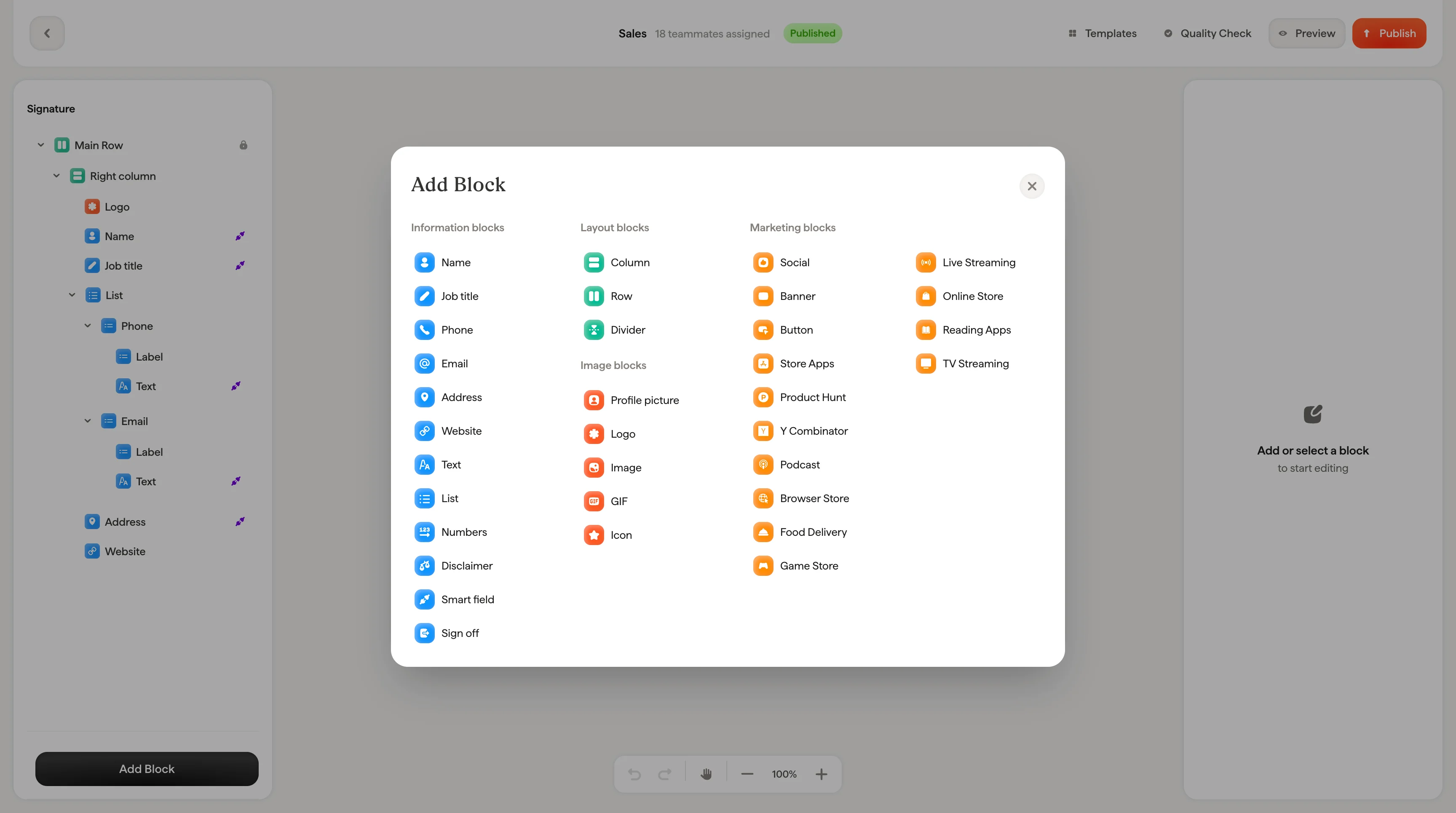
Signature editor with the styling panel open
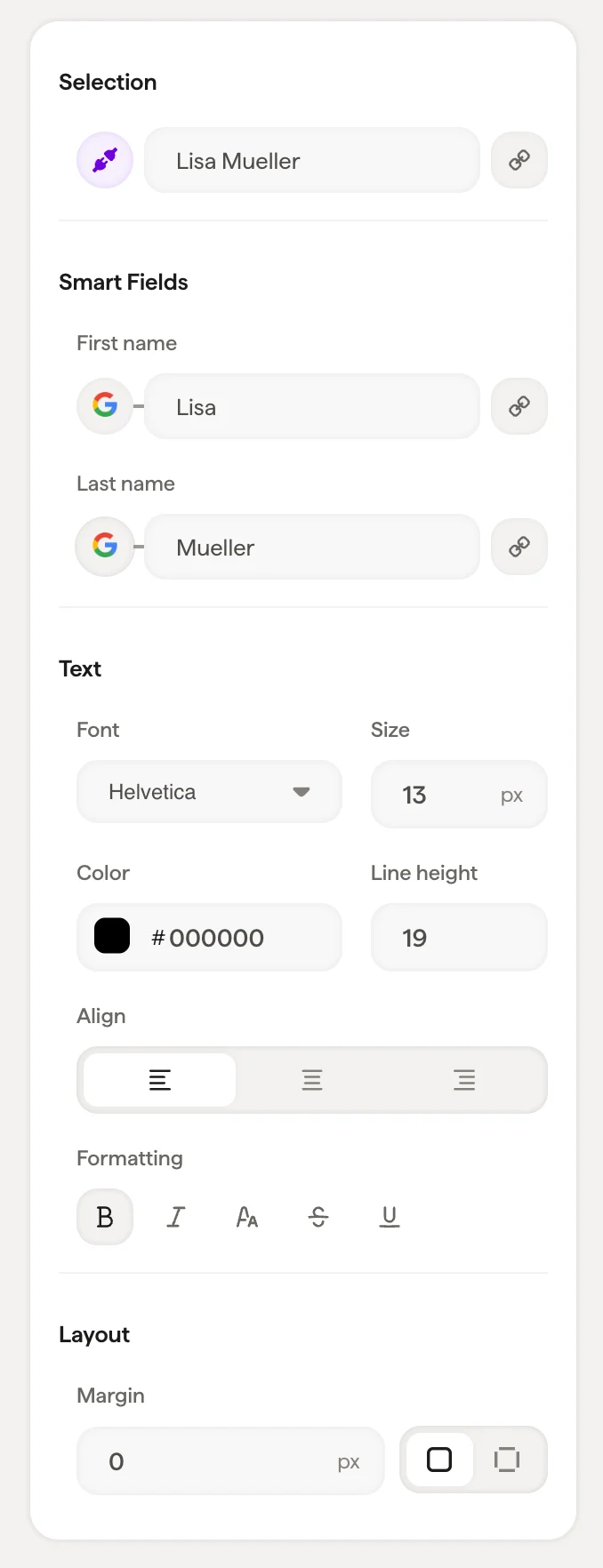
Text block settings panel with Smart Field connection and font options

Smart Fields

If the text block is connected to a Smart Field (like First Name or Last Name), you’ll see the Smart Field connection at the top of the panel. Smart Field values sync from your data source (Google Workspace, Microsoft 365, or Scribe’s internal fields) and populate automatically for each teammate.
Smart Field values synced from an external source like Google Workspace can’t be edited directly in the panel. They update from the source. To change which data populates a field, click the input icon to switch the data source.

Connecting a Smart Field

Click Connect Smartfield to link any text block to a data field. The panel shows two categories:
  • External Data Source: Fields from Google Workspace or Microsoft 365 (like First Name, Last Name, Meeting link)
  • Internal Data Source: Fields you manage directly in Scribe (like Phone number, Calendly link, Licenses)
To disconnect a Smart Field, click Unlink Smartfield.

Text styling

SettingWhat it does
FontChoose from web-safe fonts: Helvetica, Arial, Arial Narrow, Tahoma, Georgia, Times, Garamond, Verdana, Lucida, Trebuchet
SizeFont size in pixels
ColorText color: use the color picker or enter a hex code
OpacityText transparency (100% = fully visible)
Line HeightSpace between lines of text
FormattingBold, Italic, Underline, Strikethrough, Uppercase
When a text block has a link attached (like an email address or website URL), the link field appears with a URL input. This makes the text clickable in the final signature.

Layout

Gap and padding controls let you adjust spacing around the text block.