

Change who can access the add-in
1
Open the Google Workspace Marketplace apps
Open your Google Workspace admin console, then go to Apps, Google Workspace Marketplace apps, and Apps list.
2
Open the Scribe app
Select Scribe in the list of installed Marketplace apps.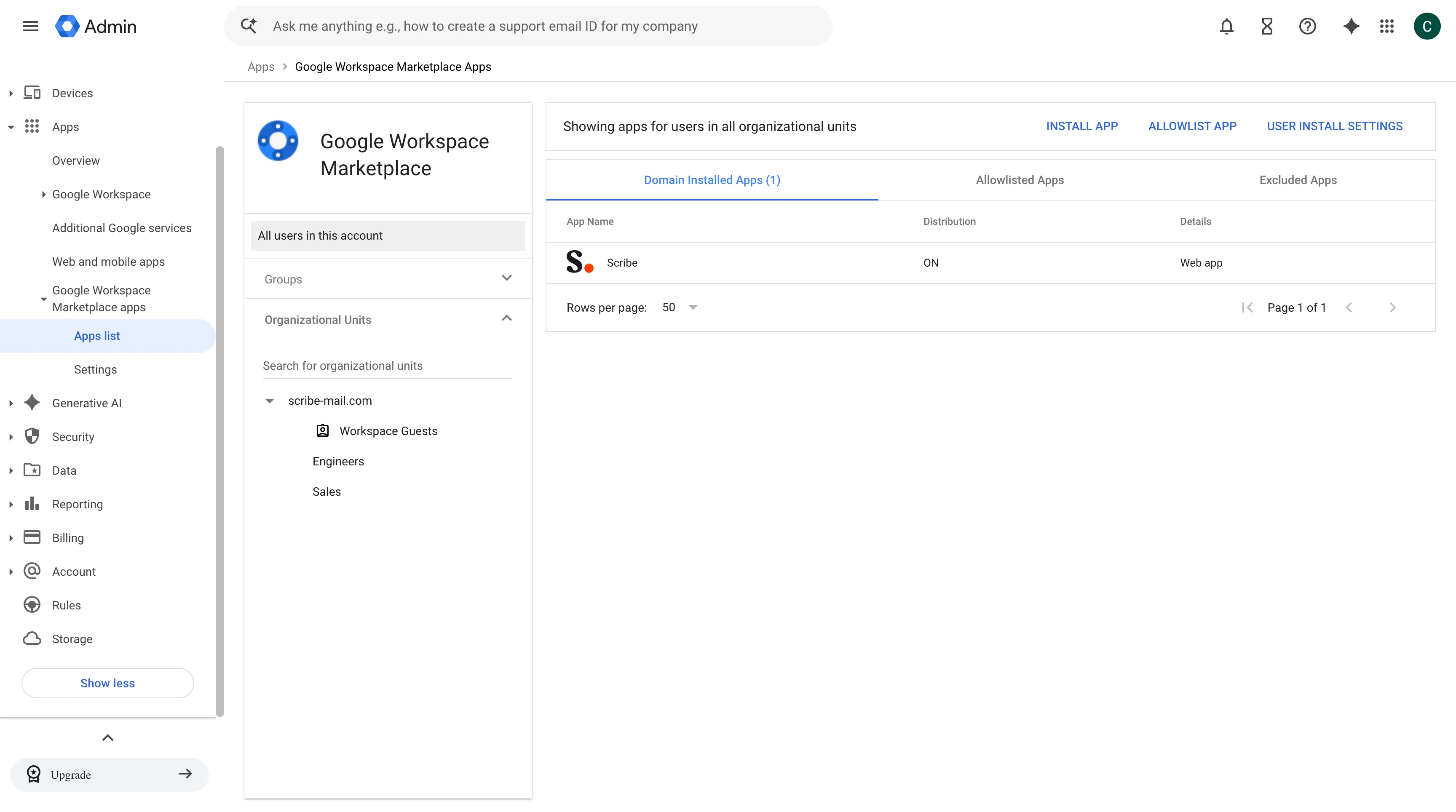
3
Open the User Access settings
In the User Access section, click “View organizational units and groups”. This section also shows how many organizational units the add-in is currently turned on for.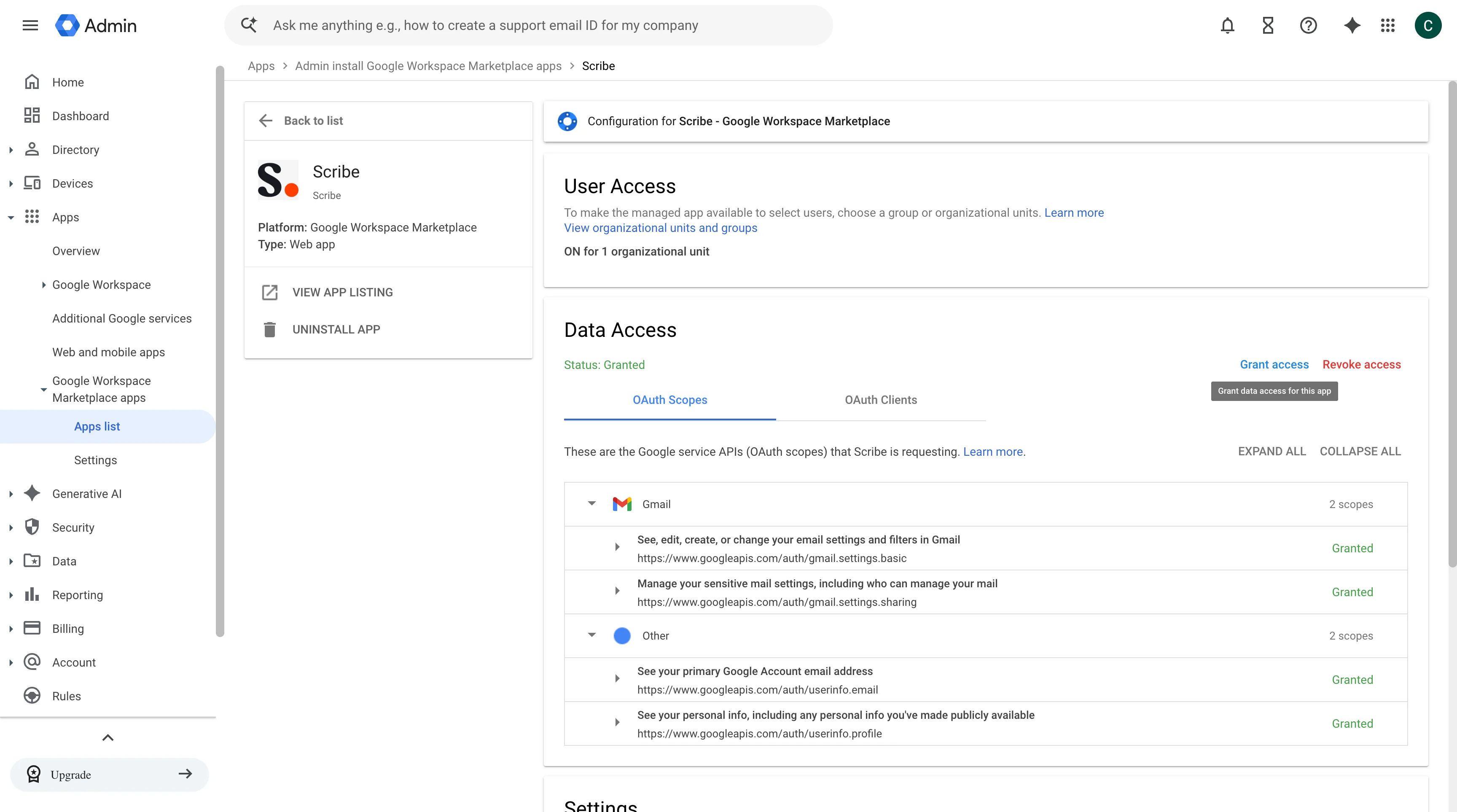
4
Turn the add-in on for the right users
Select the organizational unit or group that includes the teammate whose signature failed to install, then set App distribution to On. To make the add-in available to your whole domain instead, choose On for everyone. Click Save.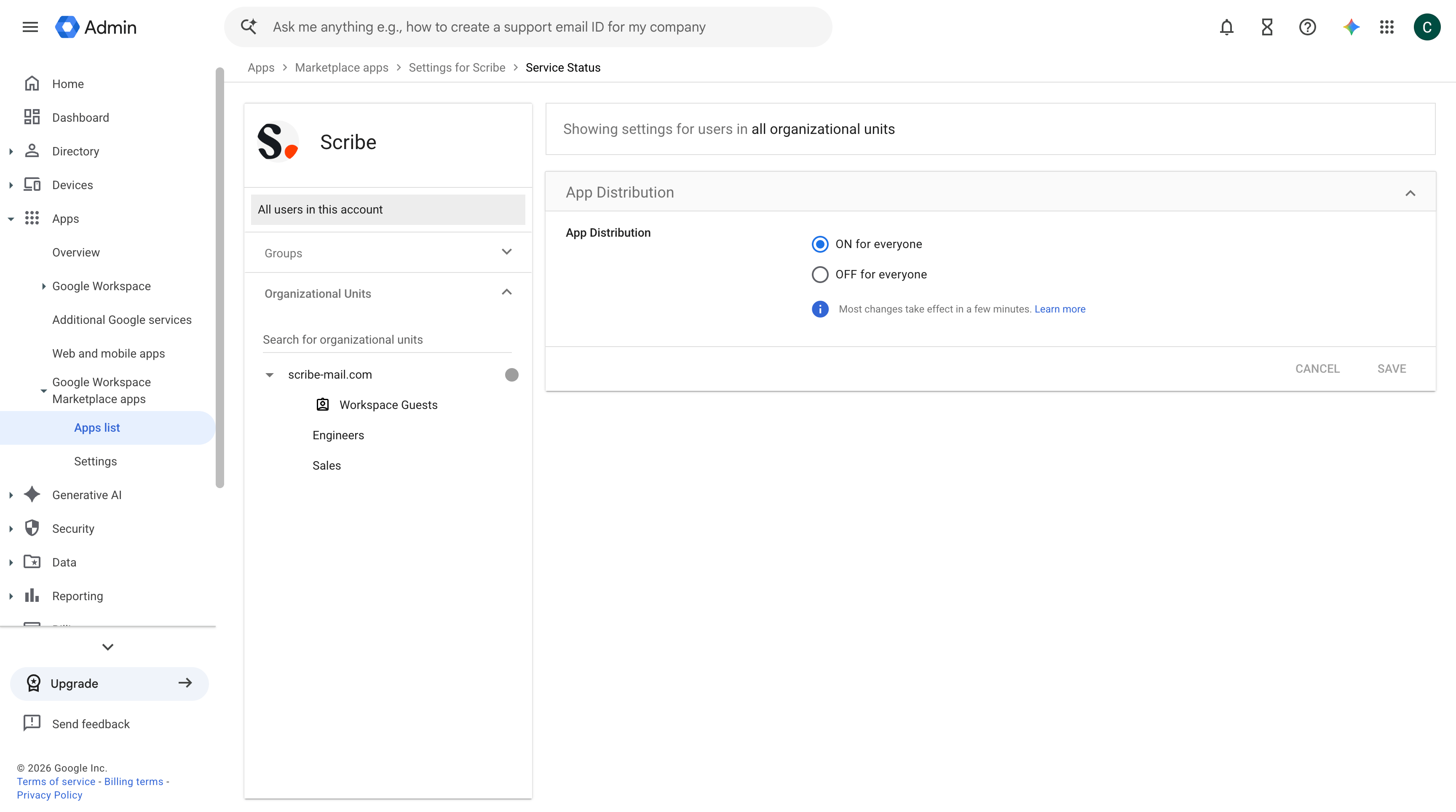
5
Reinstall the signature in Scribe
Back in Scribe, install the teammate’s signature again. Once the add-in has access, the status changes from Failed to Installed.
Changes in the Google Workspace admin console can take a few minutes to apply. If the signature still fails right after you save, wait a few minutes and reinstall.