

Centralized one-click installation. No teammate action needed. Users see signatures when composing emails. Cloud-based installation: emails don’t go through Scribe servers.
Supported platforms: Web, iOS
Official Google Workspace app. Scribe is listed on the Google Workspace Marketplace, where Google Workspace super admins can install it for the whole domain.
Installation guide
1
Install Scribe App
Get the Scribe App from the Google Workspace Marketplace.Click Install Scribe App in Scribe to open the Google Workspace Marketplace.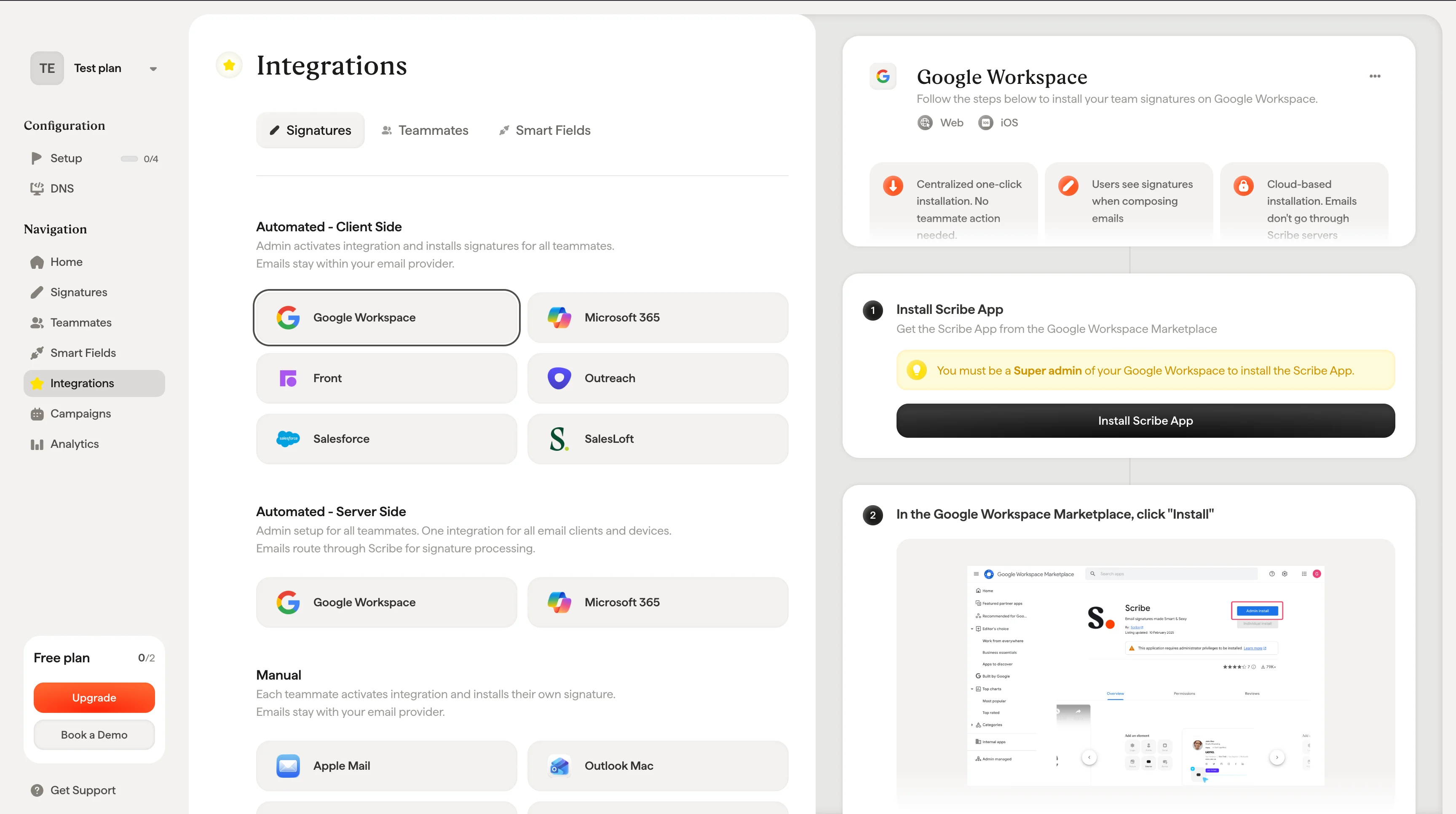
2
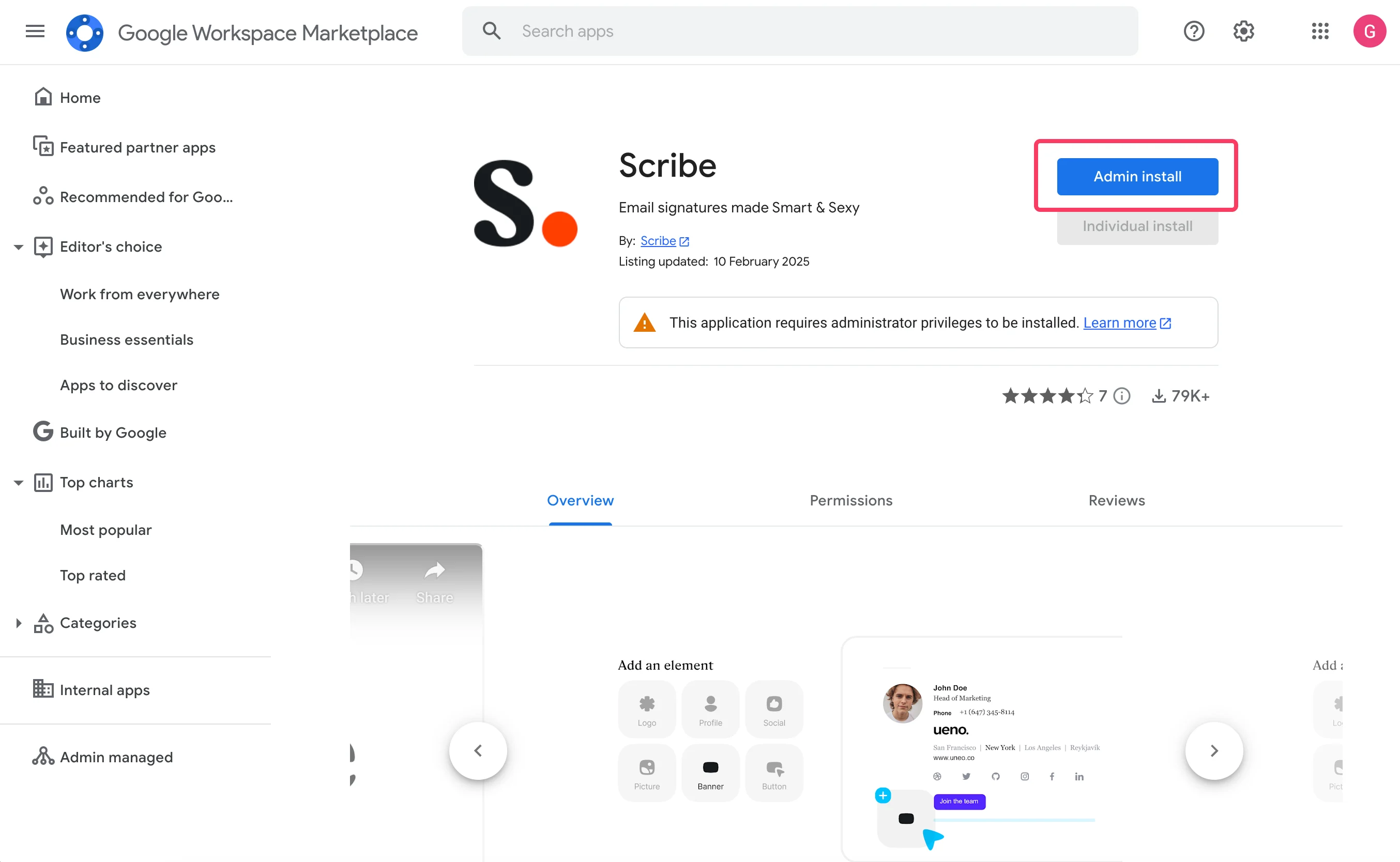
In the Google Workspace Marketplace, click "Install"
3
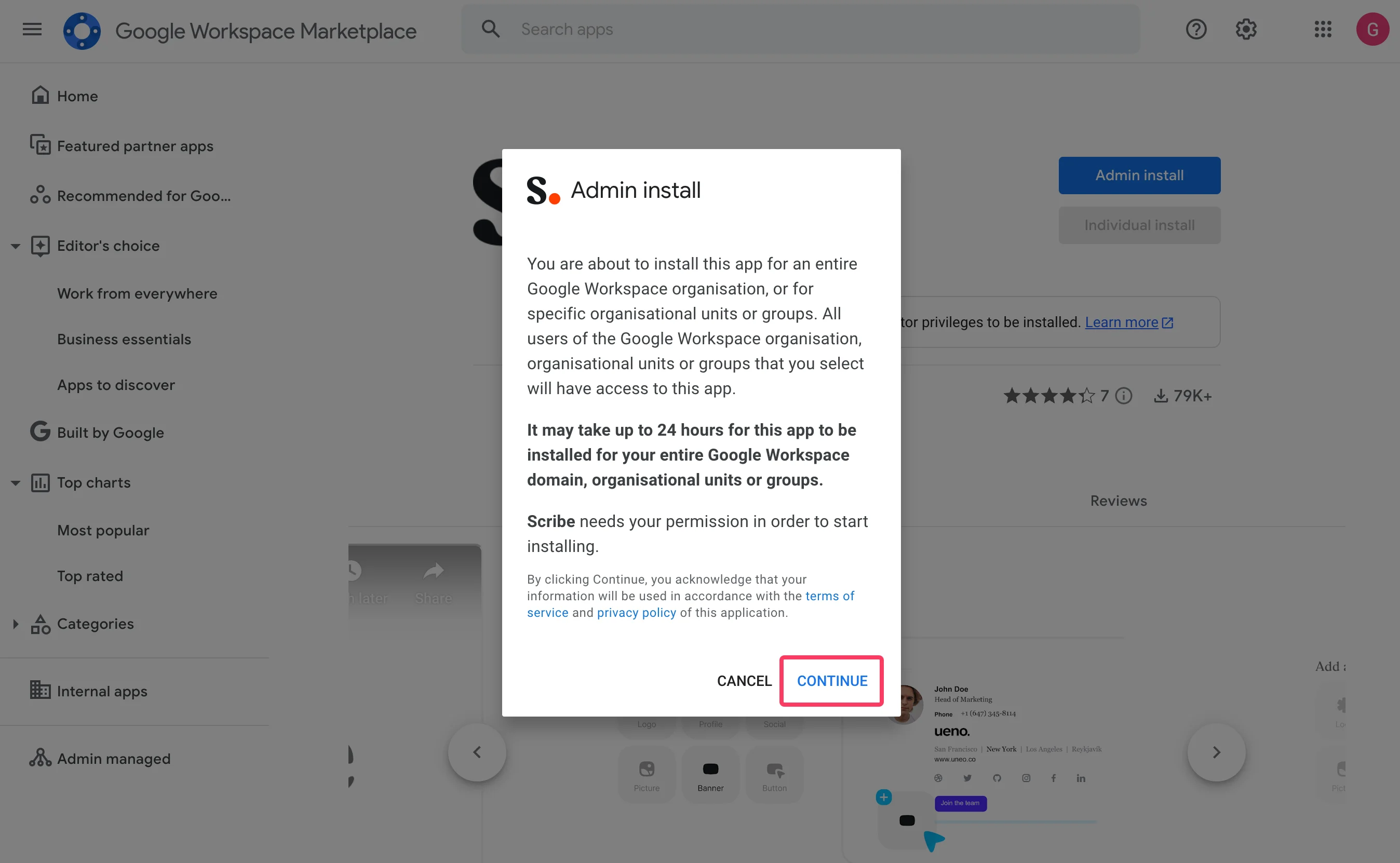
Click on "Continue" in the "Admin install" modal
4
Validate data access
Make sure to select “Everyone at your organization” and “I agree to the application terms of service.”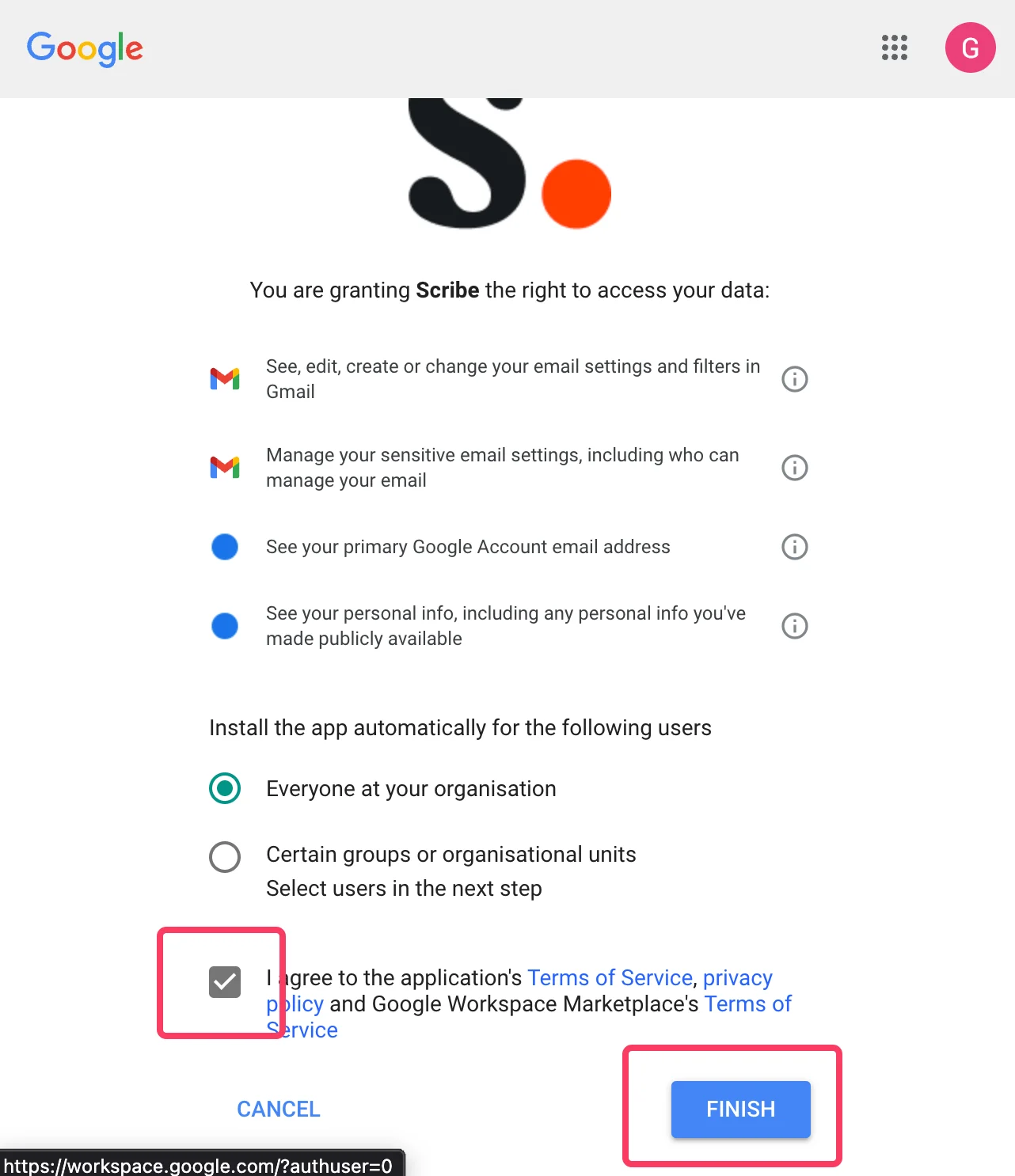
5
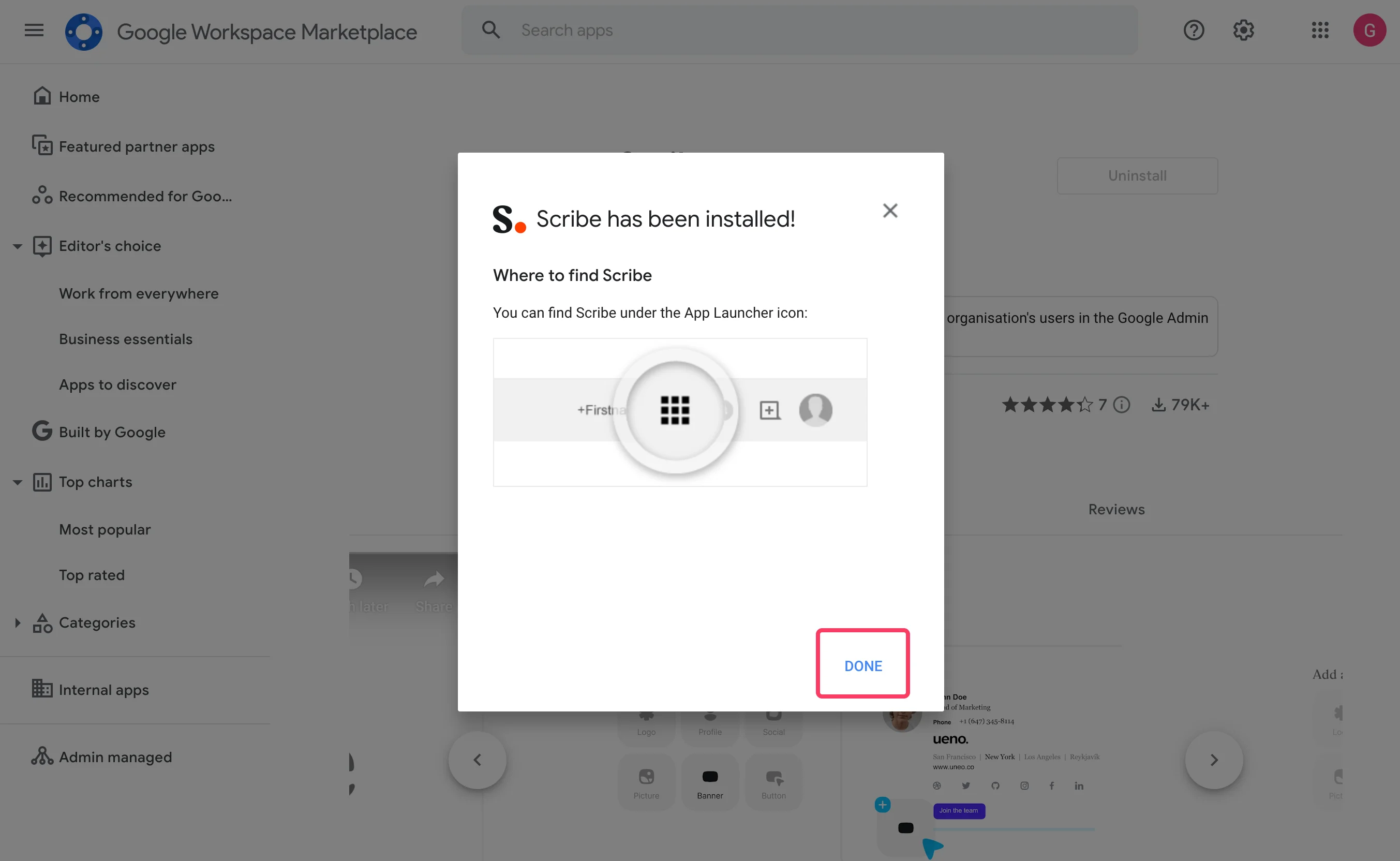
Click on "Done" and go back to Scribe
6
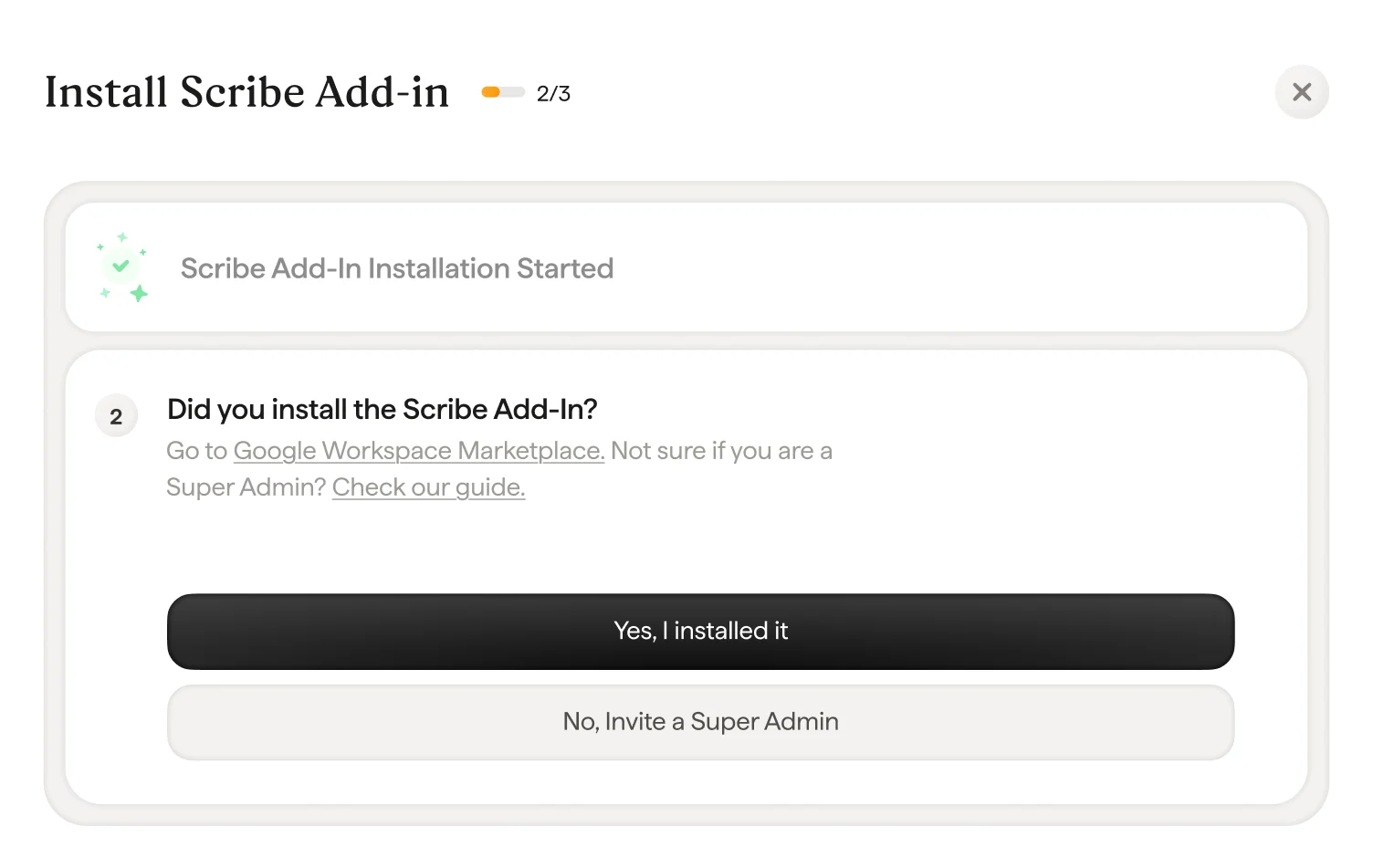
In Scribe, confirm the add-in validation by clicking "Yes I installed it"
7
Wait for Google validation
The validation usually takes a few seconds. If not, make sure to check the troubleshooting list in the modal.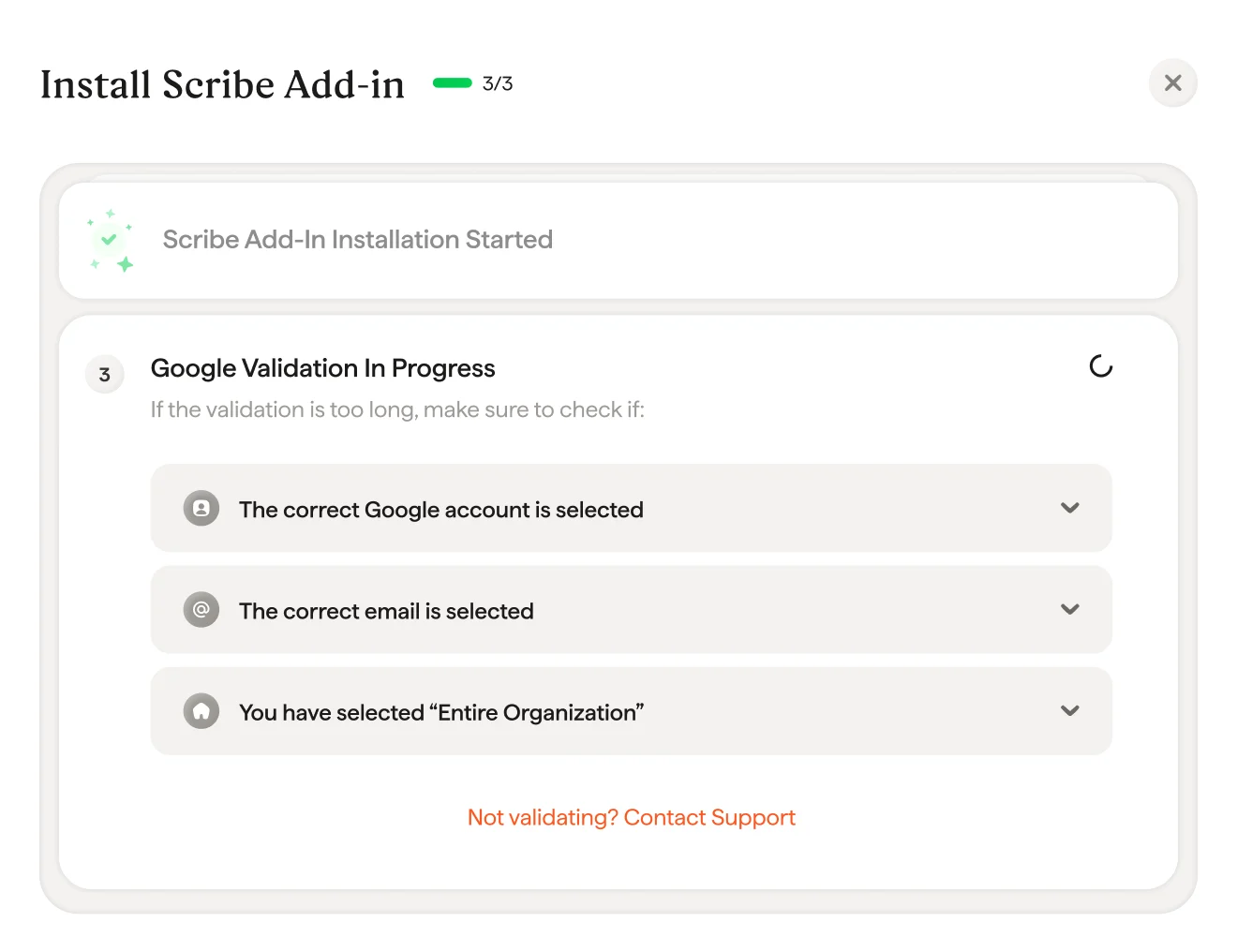
8
Scribe add-in installed
Once you get the validation modal, click “Install signature” to go to your Scribe signatures list.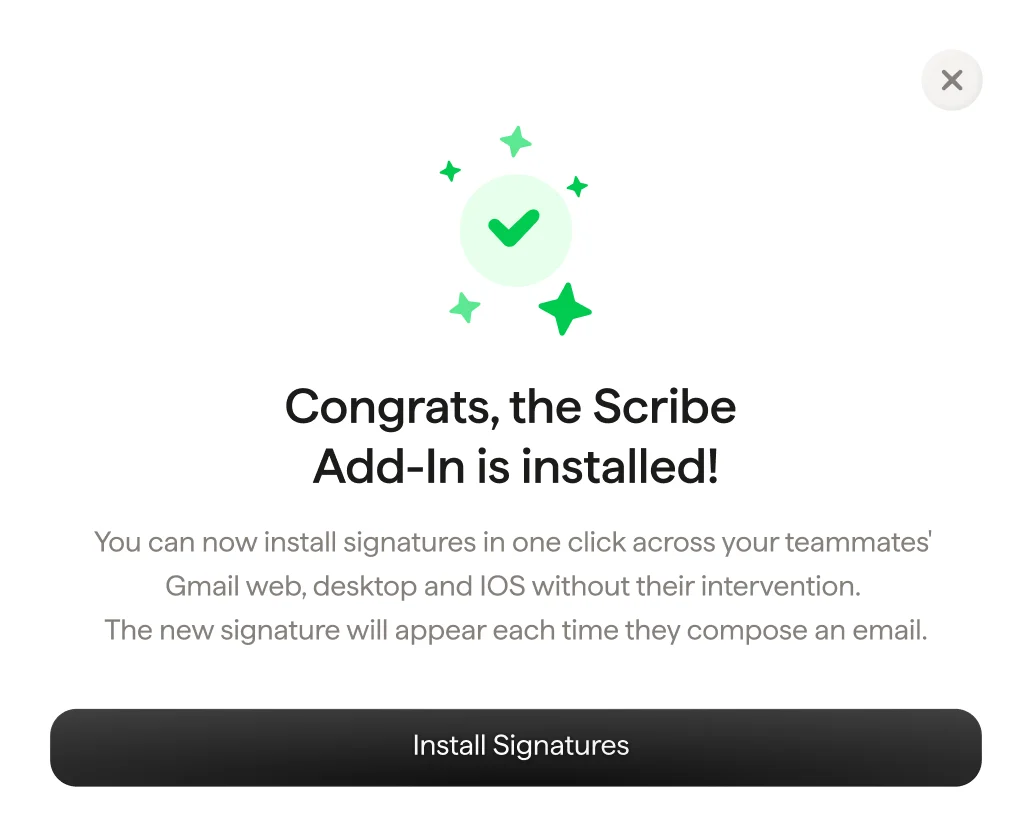
9
Install team signatures
From your signatures list, install all signatures at once for your teammates or install them one by one for a progressive rollout.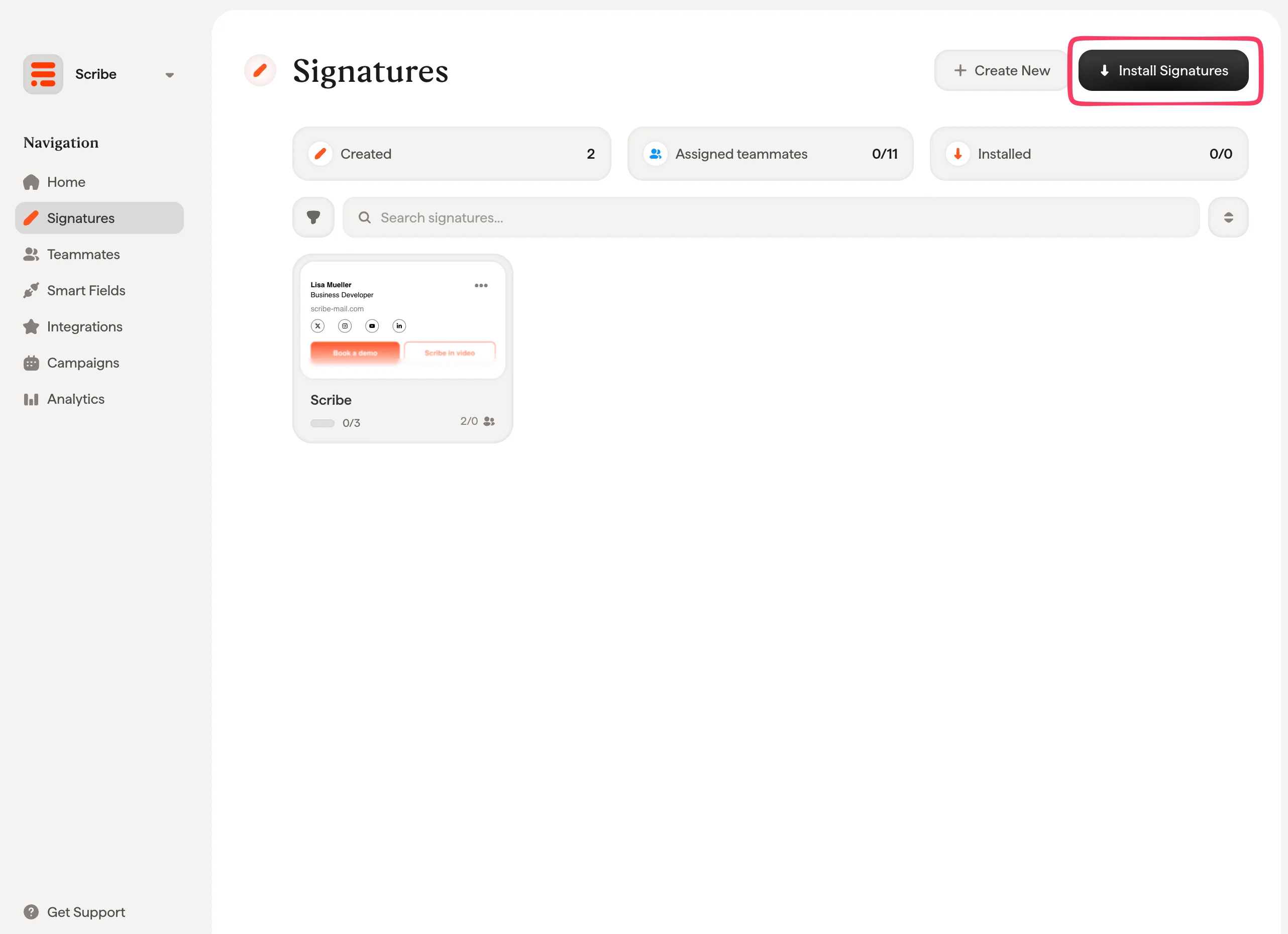
Related articles
- Integrations overview: all the ways to deploy Scribe signatures, cloud or server side.
- Microsoft 365: one-click cloud install for Microsoft 365 and Outlook.
- Installation statuses and errors: what each installation status means and how to fix errors.