

1
Go to Gmail settings
Ensure that your Gmail settings are not bypassing the Scribe signature. In both the “for new emails use” and “on reply/forward use” dropdowns, select “my signature.”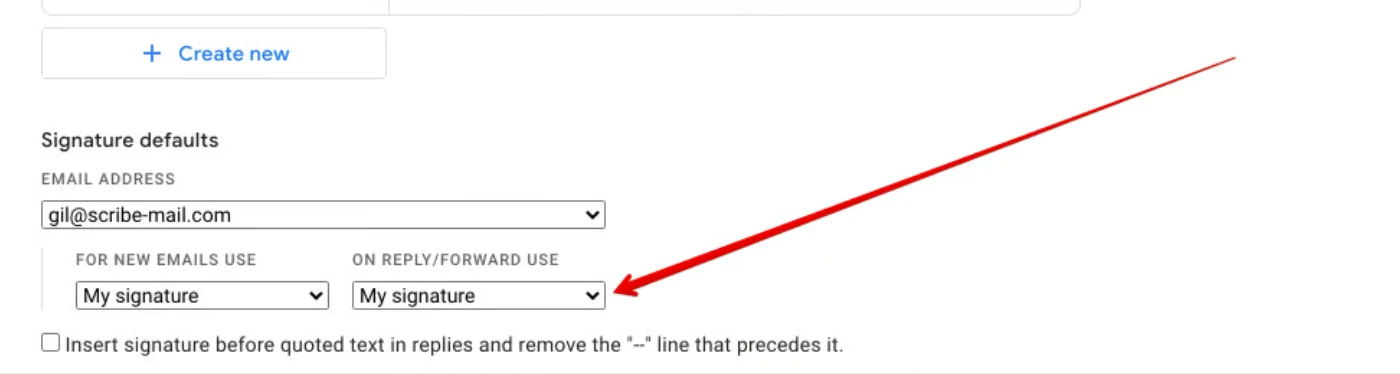
2
Ensure the Plain Text option is disabled
Plain Text mode strips all formatting from your emails, including your signature. Gmail remembers this setting, so if it was ever turned on, it stays on until you manually turn it off.Here is how to check and disable it: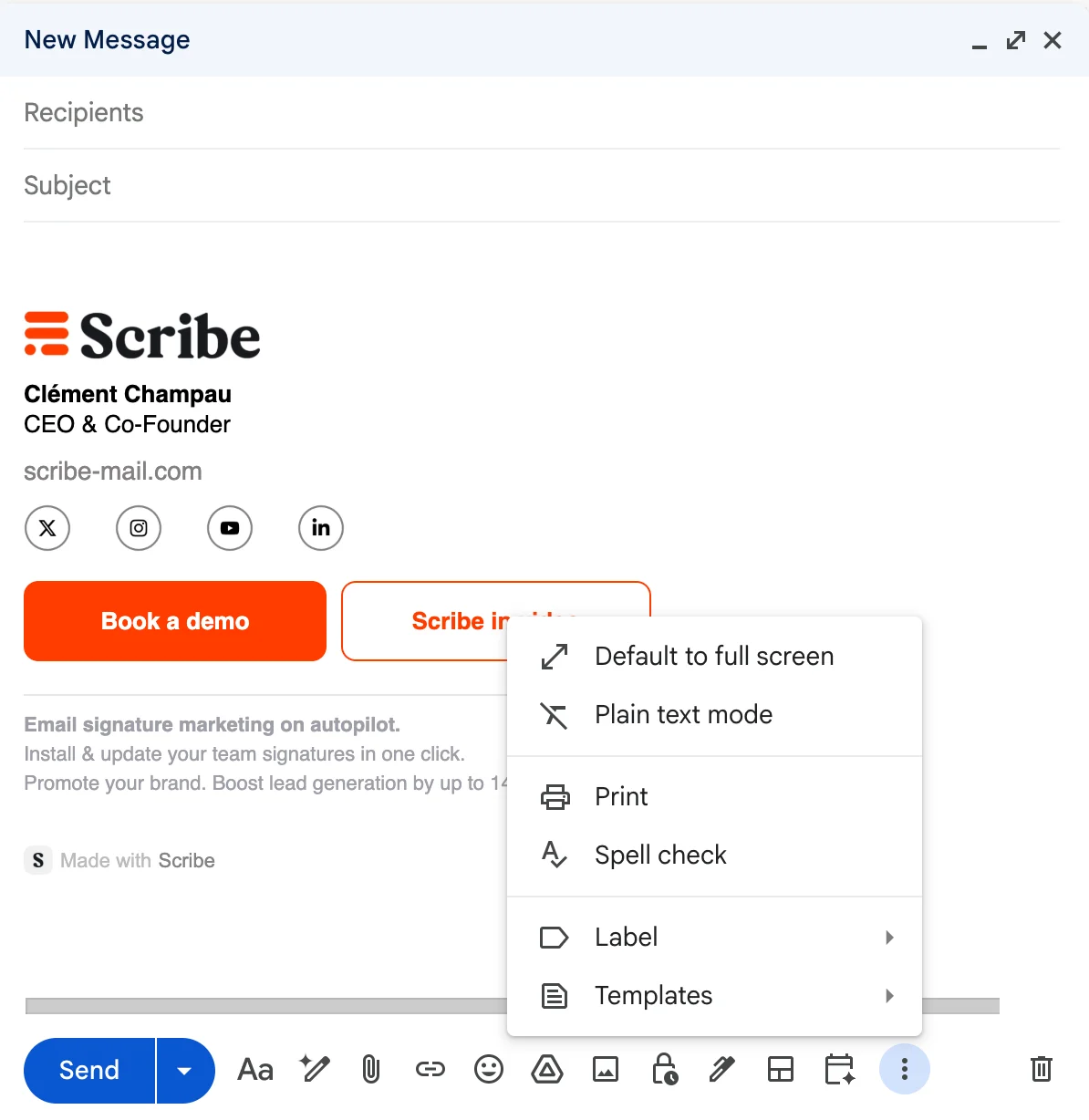
- Open Gmail and click Compose to start a new email.
- In the compose window, click the three dots (More options) in the bottom right corner of the compose window.
- Make sure Plain text mode is not checked. If it has a checkmark next to it, click it to turn it off.